Click here to Skip to main content

Visual Studio 2010 Concept IDE

By , , 10 Jun 2005
 

Overview

  1. Code (May 23, 2005)
  2. Debug (June 6, 2005)
  3. Test
  4. Refactor

I. Code

Click here to view the article with full size images.

Like a concept car strutting its stuff, the Visual Studio 2010 Concept IDE is packed with over-the-top features and weird ideas. Tame as it may look, this UI designed for one thing: jamming out code. Save the bizarre Windows Media-esque skins for the punks, we’ve got work to do.

Here it is:
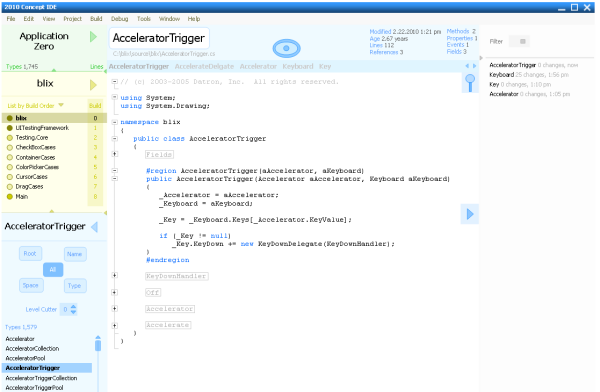
Concept One: The Solution Explorer (green box)

Solution Explorer

The green box at top left clearly identifies the name of the solution and provides two nice summary stats: total type count and total source line count.

Click the green arrow to slide out a panel providing full configuration options for the solution.

Concept Two: Assembler (yellow box)

Add, remove or build assemblies from the Assembler. Display assemblies in alphabetical or build order. Build individual assemblies by clicking the build number on the right. The shaded circles indicate the number of code files in the assembly - with darker colors indicating a greater number of files.

Assembler

Click the yellow arrow to slide out a panel replete with assembly configuration dream tools.

Concept Three: CodeFile Crawler (blue box)

CodeFile Crawler

You’ve got exactly one jillion code files in your assembly, right? Use the Crawler to find the one you need to work on next. Search by type, type name, namespace or use the root feature to select a root type - the Crawler will then find all referenced types down to level zero. If that’s too many types, use the Level Cutter to limit the results to a given level.

Concept Four: Head (color-coded area above the editor)

After you select a type in the Crawler, the type name and relevant stats are displayed in the Head. Of course, the stats update as you code.

Concept Five: Remoting Eye (large circular icon in the head)

Remoting Eye

Of course you’re pair programming – the eye tells you so. Whenever the eye is displayed, your programming partner’s computer is connected to the session. Click the eye and select “Pass The Baton” to send a current copy, the diffs, or checkout the same files from your partner's computer (whatever your version control system wants to do) and then switch your UI into remote mode.

Concept Six: Click Strip (directly above of the editor)

All types referenced by the currently selected type are displayed in the strip, just click them to view the code file for that type.

Concept Seven: Ashes (gray box)

Ashes

On the right, the code files which have been selected in the past, along with summary stats indicating the amount of work done on each are listed. Enter the first few letters of a code file into the Filter box at the top to jump to an entry.

Concept Eight: Floating Run Button

Vertically centered to the right of the method in which the caret is currently positioned is the floating run button. It builds and runs the application (just like F5).

Concept Nine: Floating Search and Replace

Floating Search And Replace

The giant magnifying glass at the top corner of the editor indicates that the poor man’s refactoring tool is within easy reach. Yes it does all the standard search and replace stuff.

Concept Ten: Greenboard

The Greenboard is a popup window displayed when the floating run button is clicked. Each assembly to be built is accompanied by a bar graph, proportionally sized based on the amount of source in the assembly. Error messages are collected at the bottom of the board. If an assembly fails to build, the Greenboard automatically closes and the Error Trap is displayed.

Concept Eleven: Error Trap

The ErrorTrap appears when compilation fails. It makes for clear, quick identification of errors.

II. Debug

Click here to view the article with full size images.

In this second part of the Visual Studio 2010 Concept IDE article, we address debugging. Before we get started, let’s first use the shuttering system in the Concept IDE to make code king. Here all shutters have been collapsed, maximizing the code editor:

All shutters collapsed

Concept Twelve: Visual Breakpoint Conditions

Breakpoint conditions can now be entered directly into the editor, just click the small red arrow labeled “Condition” to slide out a panel below the breakpoint and code away. Conditions are persistent, that is, as long as the line of source where the breakpoint is defined exists, the condition for that line is remembered thereafter.

Visual Breakpoint

Concept Thirteen: Stepper

Hovering over the all-important line of code currently executing is the Stepper. This little navigator makes it easy to Step Into, Step Over or Step Out. It also enumerates the various property getters poised for resolution as of the current line. You can easily skip over these on your way into the method of interest, or step into them by clicking in the Stepper. Getters which contain anything beyond a simple return of a field value are marked with a special icon.

Stepper

Concept Fourteen: Minis

These generated diagrams form a map of the running application. See which objects are instantiated, which methods have been called and easily inspect object values. Minis, and the standards by which they are generated are discussed in detail here.

Minis

Concept Fifteen: Visual Stack

Minis give us the opportunity to present the stack as a diagram, with certain methods, property getters/setters or interface implementations “lit up” to show that they are currently receiving attention from the CPU. Click anywhere in the Mini and the source for that member is displayed in the Code Editor. Create Watch values by dragging from the Mini to the Watch window.

Visual Stack

Concept Sixteen: Object Dash

Click the small orange square at the top left of a Mini to display the Object Dash. This small watch window defaults to the field values in the object, but can be customized with code-based watches. The default values can be quickly removed by clicking the checkboxes on the left. Once you customize an Object Dash, those customizations are remembered per type. Object Dashes can also be launched from anywhere in the Debug UI where an object reference is displayed (for example the Call Stack, the Watch window, or the Code Editor itself) by placing your mouse over the reference and clicking Ctrl-Shift-O.

Object Dash

Concept Seventeen: LiveObjects

When the debugger hits a breakpoint, use the LiveObjects panel to view the currently existing objects.

Live Objects

Concept Eighteen: The Barge

The Barge is a list of all objects which have been garbage collected, including the amount of memory reclaimed. Reduce the noise in this list by right-clicking and filtering out delegates, attributes, collections or the descendants of any type.

Barge

Concept Nineteen: Origins

It’s definitely great to know which objects currently exist (LiveObjects) or have existed (the Barge). When the object counts look wrong and you need to know the methods where these objects were created, check the Origins panel. Double-click the method to display the source in the code editor.

Origins

Concept Twenty: Trax

From the moment you hit the floating run button, to the moment you shut down the application, the lines of code executed and the amount of CPU time consumed by each is tracked. Use the Trax Summary to locate the most time intensive or noisy methods. Select a method in the Summary and the SubTracker will show all time-intensive calls in that method. Click one of these calls in the SubTracker or the “bullet” in the Code Editor to continue drilling down. Trax also highlights each line of source that executed during the last run, making it easy to differentiate which lines executed from those lines which did not.

Trax

Your Turn

And that’s it. What about the Visual Forms Designer, Refactoring, UML, Tests, and that AI Buddy who codes everything for me? Won’t these gizmos be in there by 2010? Well, that’s where you come in. Suggest ways of bringing this UI forward even further, and we will incorporate the best in revisions of this article!

The Concepts Behind The Concept IDE

Edward R. Tuft-esque ideas in this IDE are:

The “look” of this IDE was inspired by the works of Edward R. Tufte. The editing area is white, drawing your attention to the focus of your work: the code. Color coding on the left divides the major areas, and clearly identifies them in the Head when they are selected (i.e. when the giant arrow is clicked.) Any name created by you is displayed in black. Any name which is part of the IDE is deemphasized. “Hard” separator lines have been avoided.

Alan Cooper-esque ideas in this IDE are:

Solid-State

Everything is saved, including the undo stacks of all code files, the last type selected, the ashes list, etc. Whether you unplug your computer from the wall, or orchestrate a nice agreeable Start | Turn Off sequence, the IDE looks exactly the same the next time you launch it.

Sovereign App

Designed to be maximized and used for hours at a time, this UI has understated controls and provides no distracting 3-D effects, save hot controls, which draw in an XP style when the mouse is over them. Affordance is provided through cursor hinting and hot control effects; expert users can “discover” functions as they go.

Putting Will Over Might

The jillion things a developer might want to do in the IDE have been relegated to dialogs and the menu. The few things that a developer will definitely need to do every day (or every minute) have been placed front center.

Links

  • About Face: Alan Cooper
  • The Visual Display of Quantitative Information: Edward R. Tufte

    Minis

    The Mini Object Diagram (click here to return to the article)

    Before you say “Not another diagramming standard!” please note that the DebugDiagrammer in the Concept IDE is pluggable and can be replaced with UML or your own custom diagrammer. The intent here is to visualize objects, not classes. Mini is short for Miniature, and the diagram is just that, literally a thumbnail showing the working internals of an object.


    The heart of the Mini diagram is a rectangle representing the object.

    Mini Object Rectangle

    Properties are represented by an ellipse.

    Mini Property Ellipse

    If a property implements a value type, it contains a tiny rectangle.

    Mini Property Value

    If a property implements a reference type, it contains a circle.

    Mini Property Reference

    The getter for a property is indicated by a shape on the left side of the ellipse.

    Mini Property Getter

    The setter for a property is indicated by a shape on the right side of the ellipse.

    Mini Property Reference With Setter

    When a getter or setter contains any code beyond a simple return or assignment of the field value, a line is drawn from the enclosed shape to the edge of the ellipse. Here is an example of a read/write property with code in the getter.

    Mini Property Reference With Code

    Methods are indicated by rounded rectangles.

    Mini Methods

    Tiny squares are used to represent the parameters of the method.

    Mini Methods With Parameters

    Methods with more than three parameters use an ellipsis in place of the third square.

    Mini Methods With Parameter Ellipsis

    Interfaces are shown at the top left via a prong-like symbol.

    Mini Interface

    Events are displayed at the bottom via an outlet-like shape. The down arrow inside the shape represents the delegate used to implement the event.

    Mini Event

    Fields containing value types are represented by tiny rectangles – these look almost like a hyphen.

    Mini Value Field

    Fields containing objects (reference types) are displayed as circles.

    Mini Object Field

    Constructors appear at the top left. Like methods, these shapes contain tiny squares representing any parameters.

    Mini Constructor

    A Destructor, if declared, is displayed as a grey rectangle immediately below the last constructor.

    Mini Destructor

    The scope and visibility of the various object parts is indicated by the location in the Mini. Public properties appear on the left, with the left tip of the ellipse protruding.

    Mini Public Properties

    Public methods appear on the right, with the right edge of the rectangle protruding.

    Mini Public Methods

    Public events appear at the bottom, with the “outlet” protruding.

    Mini Public Events

    To display a watch window specific to the Mini, click the orange button.

    Mini Dash

    Static, private and protected members are displayed in special regions inside the Mini. Here we have a Mini with a static region, a private region and a protected region. The static region at the top contains fields. The private region in the middle contains fields and methods. The protected region near the bottom contains methods and properties.

    Mini Placement

    Where the implementation of an object is split between a class and its ancestor, a Mini is drawn above with an inheritance triangle at its base. Here you can see the stack arcing through the ancestor to the descendent implementation.

    Mini Ancestry

    Click here to return to the article.

  • License

    This article has no explicit license attached to it but may contain usage terms in the article text or the download files themselves. If in doubt please contact the author via the discussion board below.

    A list of licenses authors might use can be found here

    About the Authors

    Tom Ollar
    CEO Sagerion, LLC
    United States United States
    Member
    I read About Face by Alan Cooper in 1995 and immediately recognized it as a founding document for the future of software. I also recognized we had a long, long way to go - and yes, even with the advent of iOS, we are still not there yet.
     
    At my company, Sagerion (say-jair-ee-on), we can take a look at your planned or existing software and suggest ways of making it better - lots better. We can develop down-to-the-pixel blueprints showing exactly what our suggestions mean. We can help manage on-going development to make sure the top-notch user-experience we've suggested really does get built. Now, honestly, how often have you ever seen all those things happen?
     
    You may or may not already have great development going on - but what does that matter if you don't have great design driving it?
     
    Feel free to contact me at tom@sagerion.com, I would love to hear about your next ground-breaking project.

    Jim Bennett
    Founder Sagerion LLC
    United States United States
    Member
    www.filoshare.com
    -It is a fresh and free distributed source control system.

    Sign Up to vote   Poor Excellent
    Add a reason or comment to your vote: x
    Votes of 3 or less require a comment

    Comments and Discussions

     
    You must Sign In to use this message board.
    Search this forum  
        Spacing  Noise  Layout  Per page   
    GeneralRe: ENOUGH IS ENOUGH with the votes of 1!memberDmitriy Maksimov28 May '09 - 12:55 
    My vote not for your article, but for VS 2010.
    Question[Message Deleted]memberAmrykid16 Nov '08 - 12:47 

    AnswerRe: Where do i download the source for this?memberrimblock28 Nov '08 - 14:19 
    www.readthearticleagainbecauseithinkyoumissedthepoint.com/code.zip
     
    let me know if the link isn't working.
    GeneralI have Visual Studio 2010 on Virtual PC and i don't see all of this futures.memberUniartium14 Nov '08 - 17:41 
    And UI is classic.
    I understand, that now is new 2009, but i doubt that for one year may do all this work.
    I mistake?
     
    modified on Saturday, November 15, 2008 12:15 AM

    GeneralquestinsmemberRavenet30 Oct '08 - 20:26 
    Hey guys of the authors, i have 2 simple questions?
     
    is it official edition from the MS or is the private edition IDE for development?
    the second question where can get beta version?
     
    Cheers,Earn and Enjoy
    RRave
    MCTS,MCPD
    http://ravesoft.blogspot.com


    GeneralClunky Object Diagramsmemberlokeshsp30 Sep '08 - 2:12 
    object boxes looks bit clunky and also need some practice to get used to those objects diagrams. I think it takes some time for new user to settle down.
    GeneralExcellent work!!memberlokeshsp30 Sep '08 - 2:06 
    Its going to be a great IDE for Application development.
    Generalhelpmemberkhanniazi7 Mar '08 - 19:20 
    any one of my friend help me how to lock mouse in c sharp
    Smile | :)
    GeneralGreat work!memberXasthom15 Nov '07 - 1:24 
    This is really good, it's obvious you've put a lot of thought into the different features.
     
    The interface is pretty well thought out and I love the colour scheme. The purity of the design makes it easy to focus on what's important, although I'm a little disappointed at not being able to see your concept of a forms designer.
     
    You've clearly thought about how everything fits together, but I'm not sure you've fully tried to get the most out of the space you have. I think you should consider making some of the graphics a little smaller to maximise the working area and perhaps expanding the bounding rectangle for the #region elements. One last thing, which I know is just me being pedantic but I dislike the title bar. It seems to dominate the design with too dark a colour. It's not so bad on the green, but the blue is definitely too dark.
     
    Aside from the few points mentioned, great work!
    GeneralRe: Great work!memberTom Ollar10 Jan '08 - 17:05 
    We had a lot fun designing this.
     
    I totally agree with your feedback - we let a pointless gradient fill slide in on the title bar - not sure how that could have happened.
     
    Thanks for checking out the article!
     

    GeneralComplexity Metrics & PlatformsmemberFriarMonk5 Jul '07 - 7:13 
    This concept idea looks very cool. One thing that you have a little but I would like to see expanded is metrics. You have lines of code and number of types, but there are a number of factors that go into complexity that would be cool if this concept IDE included like percentage of comments and number of complex function (function that have more then X number argument and functions that are over X number of lines) are two that I can think of off the top of my head. Also, not sure if this is meant to be a Windows only platform but it would be cool if it worked on the *nix platforms with Mono, just a thought.
     
    FriarMonk

    GeneralRe: Complexity Metrics & PlatformsmemberAndreas Saurwein Franci Gonalves14 Jun '08 - 17:20 
    I could well imagine extending the source code windows scroll bar to display color coded line/function complexity. Simple to do, shows focus points in the current file.
     

    Leon[^] - Enterprise Anti-Spam Server

    Joke2010? how about 2007memberdavidwt9 Nov '06 - 16:33 
    I want this yesterday! where is it? Smile | :)
    well, ok, how about early next year? is that enough time?

     
    last.next.year
    GeneralCouple ThingsmemberDave Bacher3 Apr '06 - 6:10 
    First, this looks good.
     
    The first thing I would say is to take a good look at Eclipse and Visual Age for Java, C++ and Smalltalk -- these operated very similarly to your concept in terms of operating on classes and packages, not on files.
     
    Eclipse (also known as WebSphere) is the descendent of Visual Age for Java. VAJ still has files -- you need something to store the data -- but operates on packages, assemblies and objects. You can, for example, obtain an advisory lock on a particular method, field or property, do some work with it, and then commit it (not at a file level, but all the way down to an individual member of an object level).
     
    Also, you may want to look at #Develop, because I promise you that you will have an easier time getting features into #Develop than into Visual Studio proper. If you watch the Microsoft Feedback system, they ignore feedback like "we need the IDE to work with targets for downlevel .NET Applications" even when there are overwhelming numbers of users asking for the feature, and even when competing IDE's implement these features.
     
    #Develop is at www.icsharpcode.net
     
    From a criticism standpoint...
     
    Remove number of lines of source code and number of types. Neither of these variables provides any meaningful metric, and they consume vertical space you could use for meaningful information. Metrics based on either of these values are inherently invalid and irrelevant.
     
    Use the space you gain from this to add a text box above the package (assembly) list, to permit packages, assemblies or specific classes to be rapidly located and an appropriate reference added as required.
     
    Remove the "always on" object graph, replace it with a horizontal bar that provides the graph on a mouse-over event. The always-on object graph does not provide useful information 80% of the time, and consumes a lot of screen real estate.
     
    Additionally, since object graphing technology goes in a circle, with different people wanting different formats at different time and cycles of "we want to use this type of graph," rather than dictating formats and graphics for the graph, this belongs in a user-selectable plug in, versus in the IDE itself.
     
    The goal should be for every inch of space to be meaningful to the task at hand.
     
    The unit test cases (if any), callers (if known) and callees (if known) of the method should be available through some mechanism (a mouse over, most likely) as any time you are performing maintenence, these are important things to know.
     
    I would like to see a task-oriented UI. That means when you are writing code, you are in the "write code" UI and when you are debugging, you are in the "debug code" UI, and everything shown on the screen is directly relevent to that task.
     
    The single biggest issue with the current debugger is learning curve, especially for things like conditional breakpoints. Having a task oriented debugger that focused strictly on debugging code and nothing else would vastly improve the situation.
     
    Source control needs to support both mandatory advisory lock mechanisms and systems like CVS or Subversion. You will never get everyone to agree on doing away with advisory lock centric systems, and in reality (despite the popular propoganda), advisory locks are not all that bad and do serve a useful purpose now and again -- most of the 'problems' stated with them are because of people putting 50+ pages of code in one file...
     
    The big thing is not to waste any space -- I would rather see a single line on an exception and have a mouse over give me the full information, optionally with a pin option, than have a large readable display of each exception chewing up space (the reason being that exceptions are not errors, and its difficult to find an exception that you want when each one fills half the screen).
     

    GeneralRe: Couple ThingsmemberTom Ollar4 Apr '06 - 5:32 
    Wow.
     
    Excellent!
     
    You are right on.
     
    Many of your suggestions are in alignment with the two subsequent versions of this design which we have yet to publish.
     
    There are several BIG things currently not present in modern development environments and there is a fundamental reason why these won't be handled for a while.
     
    To their credit, the Core & Platform team at Microsoft was willing to receive me and listen and look (for the most part) at the design immediately subsequent to this one.
     
    There are forces at work however that make it very difficult for them to deliver the most profitable application ever written.
     
    Not sure who I'm going to help next on this, but there are players interested...
    JokeArray & GraphsmemberHolstHarp22 Feb '06 - 1:58 
    I use C# for mathematical programming. It would be great during debugging to
     
    i) be able to pull up tables populated from array objects (i.e. my matrix class!)
    ii) plot data - the number of times I print out an array to the debug window, copy it to excel, and chart it to examine the data ...!
    iii) EASILY program add-ons to the IDE. (EASY = do-able by me who has no programming training! I have an array, I know how to write a method that takes an array and sticks it in a table, but despite trying I cannot get the information into a new window during debugging. The closest I got was to write the array as a string, and my IDE add-in parsed the string to get the array back into an array! Nasty and very slow.)
    Smile | :)
     
    Charlie
    GeneralRe: Array & GraphsmemberTom Ollar22 Feb '06 - 5:55 
    This is exactly the sort of thing the new DataSurface would address - a concept that will be fully visualized in an upcoming article.
     
    Thanks for bringing this up!


    Tom
    GeneralRe: Array & GraphsmemberHolstHarp22 Feb '06 - 6:53 
    http://www.aisto.com/roeder/paper/InteractiveSourceCode.ppt[^] has some nice ideas as well.
    Questionfuture perfect?membershoonya19 Feb '06 - 1:27 
    wow....all of a sudden .. i am really afraid to open my VS.net :->
     
    things will change a lot for sure, but will most of us be able to adjust to the changes?? i have been a vc++ programmer for almost 2.5 years now, but dec'05 i started experimenting with c# v2 and .net . coding is easy in vs.net 2005 but i miss a lot of things from the past.
    AnswerRe: future perfect?memberTom Ollar22 Feb '06 - 6:07 
    Believe it or not, we took all the ideas we had and DROPPED THEM. Then we put together the most seethingly conservative baby-step forward we could envision. And that's how we wrote this article.
     
    In 2010 it's gonna be a lot difernt.
     
    In 2020 it's gonna be way more lot difernt.
     
    And that's my deeply technical, highly researched, carefully thought out and assembled gypsy-ball guess.
     
    Wink | ;)
     
    -- modified at 12:07 Wednesday 22nd February, 2006
    GeneralPrototypememberslumar25 Oct '05 - 9:03 
    Hi,
    I have d/loaded the prototype and the execution results in :
    ... has encountered a problem and needs to close ..'
     
    I am running VS 2005 BETA.
     
    Thanks.

     
    Marek
    GeneralRe: PrototypememberTom Ollar25 Oct '05 - 9:40 
    Not surprising - the Prototype was developed with VS 2003...
    GeneralOR/M attributes in 2010memberBig Pete19 Sep '05 - 3:16 
    A useful feature for OR/M systems could be the introduction of more OR/M specific attributes. Consider:
     
    public class Staff
    {
    private int _id;
    private int _organisation;
    private StaffMembers[] _staffMembers;
     
    public Staff() : this (0, 0) {}
    public Staff(int id) : this(id, 0) {}
    public Staff(int id, int organisation)
    {
    _id = id;
    _organisation = organisation;
    }
     
    [Accessor(AccessorType.GetSet, _id, true),
    ORKey(true, 0),
    ORBindingDefault(0)]
    public int Id {}
     
    [Accessor(AccessorType.GetSet, _organisation, true),
    ORBindingDefault(0),
    ORBoundSearch(SearchType.Unordered)]
    public int Organisation {}
     
    [Accessor(AccessorType.GetSet, _staffMembers, true)]
    public StaffMembers[] StaffMembers {}
    }
     
    public class StaffMembers
    {
    private int _id;
    private string _name;
     
    [Accessor(AccessorType.GetSet, _id, true),
    ORKey(true, 0),
    ORBindingDefault(0)]
    public int Id {}
     
    [Accessor(AccessorType.GetSet, _name, 32, true),
    ORBindingDefault(string.Empty),
    ORIndexBoundSearch(SearchType.Ascending)]
    public string Name {}
    }

     
    The Accessor attribute has three possible types:
    AccessorType.Get
    AccessorType.Set
    AccessorType.GetSet

     
    The Get accessor type, implements a readonly property. The Set accessor implements a write-only property and the GetSet type implements a read-write property.
     
    The next property of the Accessor attribute identifies which field will be updated/read from.
     
    When we have a maximum size, the attribute will have the size here and the resulting IL will ensure that a violation is thrown to indicate the size has been violated. The StaffMembers.Name property for instance, is set to a maximum size of 32 characters. The last property of the attribute shown here shows whether or not the property is required. This ties to the DB to create NULL, NOT NULL constraints for the property.
     
    If a value is not set and the attribute is required, the ORBindingDefault attribute shows what needs to be populated in the database.
     
    The ORKey attribute identifies a property as being part of a primary key. The true flag indicates that the property is part of the primary key, and the number after it shows the position of the property in the primary key.
     
    The ORIndexBoundSearch attribute creates an index on the attribute in the database and creates the "plumbing" for the searching. The SearchType identifies the direction of the search. (The Bound in the name is to show that the plumbing is created internally).
     
    There is also an ORBoundSearch attribute which just creates the search without an index on the column.
     
    The SearchTypes are:
     
    SearchType.Ascending
    SearchType.Descending
    SearchType.Unordered

     
    Anyway, I hope that there is enough food for thought here.
     
    -- modified at 11:04 Monday 19th September, 2005
    GeneralSuper conceptmemberRahul Walavalkar6 Sep '05 - 1:40 
    Great work.. You got my 5..
     
    Looking forward to the updates.
     
    cheers,
    [r a w]
     
    I do not understand what I do. For what I want to do I do not do, but what I hate I do. - Romans 7:15
    GeneralRe: Super conceptmemberTom Ollar6 Sep '05 - 4:45 
    Thanks Rahul.

    General General    News News    Suggestion Suggestion    Question Question    Bug Bug    Answer Answer    Joke Joke    Rant Rant    Admin Admin   

    Permalink | Advertise | Privacy | Mobile
    Web01 | 2.6.130516.1 | Last Updated 10 Jun 2005
    Article Copyright 2005 by Tom Ollar, Jim Bennett
    Everything else Copyright © CodeProject, 1999-2013
    Terms of Use
    Layout: fixed | fluid
