Introduction
This code drop is part of a smash and grab series. If you're in a rush, you can just grab this code and insert it into your application, no understanding is required. When you have some time (ya, right), you may want to review the source code.
Background
I was presented with a project to convert an Access single-user application into a web-based multi-user SQL Server application. The Access application has a number of multicolumn dropdown lists and I couldn't find what I needed anywhere on the internet. So I wrote my own.
For this article, I have used the Products, Suppliers and Categories table in the NorthWind database.
Using the code
- Download the project, unzip it to somewhere on your hard disk.
- Create a new ASP.NET project.
- Right click on the project and select Add existing item.
- Navigate to the folder that you unzipped to, and select the .JS and .GIF files.
- Create a bin folder for the project.
- Right click on bin and choose Add existing item.
- Select Tools > Choose toolbox items.
- Navigate to the unzip folder and select the DLL.
- This new server control now appears in the toolbox under General.
- Drag an instance of it onto Default.aspx.
- Drag an instance of
SqlDataSource onto Default.aspx.
- Configure the datasource to use the custom SQL statement:
SELECT Products.ProductID, Products.ProductName,
    left(Products.ProductName+SPACE(40),40)+Suppliers.CompanyName as Name,
    Categories.CategoryName
FROM Products
INNER JOIN Categories ON Products.CategoryID = Categories.CategoryID
INNER JOIN Suppliers ON Products.SupplierID = Suppliers.SupplierID
order by Categories.CategoryName, Products.ProductName
Set these properties on the DropDownComboControl:
DropDownCssStyle: font-family: monospace; background-color: yellow
DropDownCssClass:
DropDownMonospace: true
DropDownSize: 10
TextBoxCssStyle: background-color: blue
TextBoxCssClass:
TextBoxColumns: 20
TextBoxMaxLength: 30
PickOnly: false
onchange: SetTextBox(this, this.options[this.selectedIndex].extra);
DataExtraField: ProductName
DataOptGroup: CategoryName
DataSourceID: SqlDataSource1
DataTextField: Name
DataValueField: ProductID
ImageFolder: .
ImageWidth: 26
ScriptFolder: .
Other than DataSourceID, DataTextField and DataValueField, all the other properties listed are new. The control consists of a textbox (<input> element) and a dropdownlist (<select> element).
Properties of interest:
Border: (1px solid InactiveBorder) sets the border of the control.
DropDownCssClass: sets the class attribute of the <select> element.
DropDownCssStyle: sets the style attribute of the <select> element.
DropDownSize: sets the size attribute of the <select> element.
TextBoxCssClass: sets the class attribute of the <input> element.
TextBoxCssStyle: sets the style attribute of the <input> element.
TextBoxColumns: sets the size attribute of the <input> element.
TextBoxMaxLength: sets the maxlength attribute of the <input> element.
PickOnly (true/false): when set to true you can only pick from the list, you can't enter a custom value.
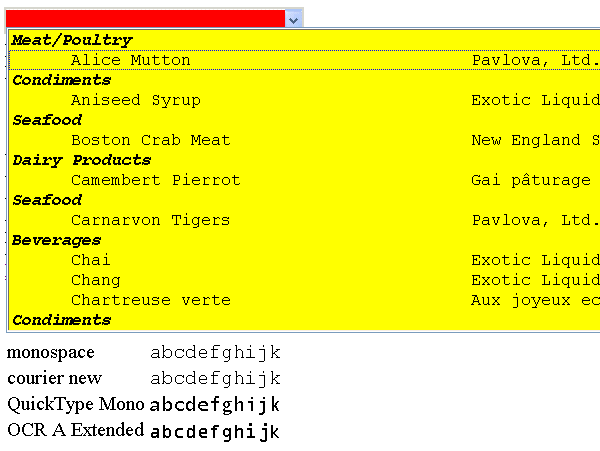
DataOptGroup: the combo box can implement the <optgroup> functionality (see the screenshot above). This property tells the combo box which datafield contains the optgroup value. A new <optgroup> is created each time the specified value changes, so in the above SELECT statement, you can see that the ORDER BY clause is set to CatagoryName first.
DataExtraField: the combo box can place extra information in the <option> tag. For example: <option value="3" extra="coffee">coffee by martha</option> You will see later how this is used.
ImageFolder: this is the folder in which the dropdown image resides (. for current folder).
ImageWidth: the width of the dropdown image. The image provided is 26px.
ScriptFolder: this is the folder in which the JavaScript code resides (. for current folder).
In the screen shot above, you can see that the dropdown is a lot wider than the textbox. This allows you to present more information to the user about the selection, but once selected, consumes much less real-estate.
In the screen shot, I wanted the dropdown to be multi-column with the second column data aligned correctly. To do this, I needed to choose a fixed-width font:
In the example, I didn't want the company name in the textbox, so I added an OnClick event handler:
ComboWithAdjustableDropDownWidth.SetTextBox(this,
                       this.options[this.selectedIndex].extra);
This takes the extra information (remember DataExtraField) that we stored in the <option> and puts it in the text box. You can set the OnClick handler to whatever you want.
Points of interest
The control also works with databinding for use in GridView, etc.
<cc1:combowithadjustabledropdownwidth
     id="ComboWithAdjustableDropDownWidth1" runat="server"
     ...
     SelectedValue='<%# Bind("SupplierID") %>
</cc1:combowithadjustabledropdownwidth>
You'll have to hand edit this into the source code, because VS2005 doesn't do it for you. In the source zip file, I have included a small project that shows databinding to a FormView element. The project also lists some other fixed pitch fonts.
Conclusions
There you go, a cheap (well free) ASP.NET 2.0 ComboBox that suits my needs and hopefully yours.
SmashGrab / Redux series
I have recently started two series of articles here at CodeProject. Smash and Grab is intended as a series of short articles on one specific code technique. Redux is intended as a series of longer articles which attempt to reduce a complicated topic (like GridView) into its basic constituent parts and show that once you have all the information, it wasn't really that hard after all. To find the Smash and Grab articles, search for the keyword SmashGrab. To find the Redux articles, search for the keyword Redux.
I welcome any contributions to either series, but please follow the guidelines when submitting articles to either.
This member has not yet provided a Biography. Assume it's interesting and varied, and probably something to do with programming.



 General
  News
News  Suggestion
  Question
  Bug
Bug  Answer
  Joke
Joke  Praise
  Rant
Rant  Admin
Admin 


 Submit an article or tip


