Click here to Skip to main content

Simplifying the WPF TreeView by Using the ViewModel Pattern

By , 22 May 2008
 

fengshui-bonsai.jpg

Introduction

This article explores how to use the ViewModel pattern to make it easier to work with the TreeView control in WPF. Along the way, we examine why people often have difficulty with the WPF TreeView, what a ViewModel is, and two demo applications that show how to combine a TreeView with a ViewModel. One of the demos shows how to create a searchable TreeView, the other demonstrates how to implement lazy-loading (a.k.a. load-on-demand).

Background of TreeView

The TreeView control in WPF has gained an undeserved bad reputation. Many people try to use it, and find it to be exceedingly difficult. The problem is that people often try to use it in the same way that one might code against the Windows Forms TreeView control. In order to leverage the extensive features of the WPF TreeView, you cannot use the same programming techniques as in Windows Forms. This is yet another example of how WPF requires you to shift mental gears to make use of the platform appropriately. We aren’t in Kansas anymore, Toto.

In Window Forms, it is very easy to use the TreeView control because it is dead simple. That simplicity arises from the fact that the Windows Forms TreeView is completely inflexible, offers no support for UI virtualization, offers zero possibility for visual customizations, and since it does not support data binding, it requires you to store data in its nodes. The WinForms TreeView is “good enough for government work”.

In contrast, the WPF TreeView is extremely flexible, inherently supports UI virtualization (i.e., TreeViewItems are created on-demand), allows for full visual customization, and has full support for data binding. Those excellent features come at a price. They make the control more complicated than the WinForms TreeView. Once you learn how to properly work with the WPF TreeView, those complexities disappear, and it is quite easy to leverage the full power of the control.

If you are curious to see some examples of how the WPF TreeView can be customized, check out this article and this article.

Background of ViewModel

Back in 2005, John Gossman blogged about the Model-View-ViewModel pattern that his team at Microsoft was using to create Expression Blend (then known as ‘Sparkle’). It is quite similar to Martin Fowler’s Presentation Model pattern, only it fills in the gap between the presentation model and the view with WPF’s rich data binding. After Dan Crevier wrote his fantastic DataModel-View-ViewModel series of blog posts, the (D)MVVM pattern started growing in popularity.

The (Data)Model-View-ViewModel pattern is similar to the classic Model-View-Presenter, except you have a model tailor-made for the View, called the ViewModel. The ViewModel contains all the UI-specific interfaces and properties necessary to make it easy to develop a user interface. The View binds to the ViewModel, and executes commands to request an action from it. The ViewModel, in turn, communicates with the Model, and tells it to update in response to user interaction.

This makes it easier to create a user interface (UI) for the application. The easier it is to slap a UI on an application, the easier it is for a technically challenged Visual Designer to create a beautiful UI in Blend. Also, the more loosely coupled the UI is to the application functionality, the more testable that functionality becomes. Who does not want a beautiful UI and a suite of clean, effective unit tests?

What Exactly Makes the TreeView so Difficult?

The TreeView is actually quite easy to work with, provided you use it the correct way. Using it the correct way, paradoxically, means not directly using it at all! Naturally, you will need to set properties and call the occasional method directly on a TreeView. That is inescapable, and there’s nothing wrong with doing it. However, if you find yourself getting deep into the guts of the control, then you are probably not taking the best approach. If your TreeView is data bound and you find yourself trying to walk up and down the items programmatically, then you are not doing things the right way. If you find yourself hooking the ItemContainerGenerator’s StatusChanged event so that you can access a TreeViewItem’s child items when they are eventually created, you are way off track! Trust me; it does not have to be so ugly and difficult. There is a better way!

The fundamental problem with treating the WPF TreeView like the WinForms TreeView is, as I mentioned previously, that they are very different controls. The WPF TreeView allows you to generate its items via data binding. This means that it will create the TreeViewItems for you. Since TreeViewItems are being generated by the control, instead of by you, it is not guaranteed that a data object’s corresponding TreeViewItem exists when you need it. You must ask the TreeView’s ItemContainerGenerator if it has generated the TreeViewItem for you yet. If it has not, you must hook its StatusChanged event to be notified when it has created its child elements.

The fun does not stop there! If you want to get a TreeViewItem that is nested deep down in the tree, you must ask the item’s parent/owning TreeViewItem, not the TreeView control, if its ItemContainerGenerator has created the item. But, how can you get a reference to that parent TreeViewItem if its parent has not yet created it? What if the parent’s parent has not yet been generated either? And so on, and so on, and so on. It can be quite torturous.

As you can see, the WPF TreeView is a complicated beast. If you try to use it the wrong way, it will not be easy. Fortunately, if you use it the right way, it is a piece of cake. So, let’s see how to use it the right way…

ViewModel Comes to the Rescue

WPF is great because it practically requires you to separate an application’s data from the UI. All of the problems listed in the previous section derive from trying to go against the grain and treat the UI as a backing store. Once you stop treating the TreeView as a place to put data, and start treating it as a place to show data, everything starts working smoothly. This is where the idea of a ViewModel comes into play.

Rather than writing code that walks up and down the items in a TreeView, it is better to create a ViewModel to which the TreeView binds, and then write code that manipulates your ViewModel. Not only does this allow you to ignore the TreeView’s complexities, it also allows you to write code that can be easily unit tested. It is next to impossible to write meaningful unit tests for classes that have intimate dependencies on the runtime behavior of a TreeView, but it is easy to write unit tests for classes that know nothing about such nonsense.

Now, it is time to see how to implement these concepts.

The Demo Solution

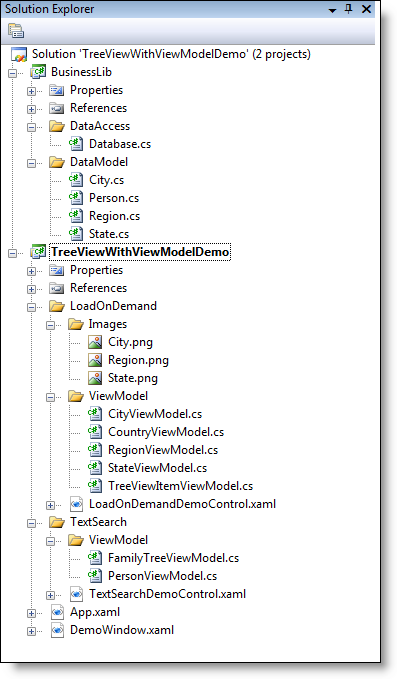
This article is accompanied by two demo applications, available for download at the top of this page. The solution has two projects. The BusinessLib class library project contains simple domain classes, used as mere data transfer objects. It also contains a Database class that instantiates and returns those data transfer objects. The other project, TreeViewWithViewModelDemo, contains the sample applications. Those apps consume the objects returned by the BusinessLib assembly, and wrap them in a ViewModel before displaying them in a TreeView.

Here is a screenshot of the solution’s Solution Explorer:
SolutionExplorer.png

Demo 1 – Family Tree with Text Search

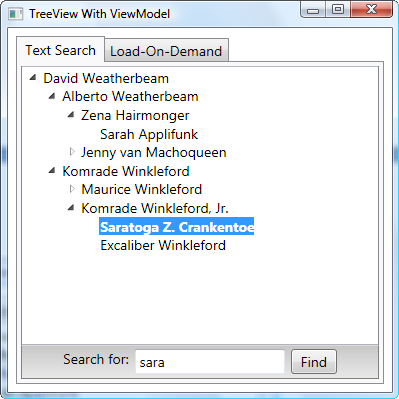
The first demo application we will examine populates a TreeView with a family tree. It provides a search capability, made available to the user at the bottom of the UI. This demo can be seen in the screenshot below:
FamilyTree_screenshot.png

When the user types in some search text and presses Enter, or clicks the 'Find' button, the first matching item will display. Continuing the search will cycle through each matching item. All of that logic is in the ViewModel. Before getting too far into how the ViewModel works, let’s first examine the surrounding code. Here is the TextSearchDemoControl’s code-behind:

public partial class TextSearchDemoControl : UserControl
{
    readonly FamilyTreeViewModel _familyTree;  

    public TextSearchDemoControl()
    {
        InitializeComponent();

        // Get raw family tree data from a database.
        Person rootPerson = Database.GetFamilyTree();

        // Create UI-friendly wrappers around the 
        // raw data objects (i.e. the view-model).
        _familyTree = new FamilyTreeViewModel(rootPerson);

        // Let the UI bind to the view-model.
        base.DataContext = _familyTree;
    }

    void searchTextBox_KeyDown(object sender, KeyEventArgs e)
    {
        if (e.Key == Key.Enter)
            _familyTree.SearchCommand.Execute(null);
    }
}

The constructor shows how we convert raw data objects into a ViewModel, and then set that as the DataContext of the UserControl. The Person class, which resides in the BusinessLib assembly, is quite simple:

/// <summary>
/// A simple data transfer object (DTO) that contains raw data about a person.
/// </summary>
public class Person
{
    readonly List<Person> _children = new List<Person>();
    public IList<Person> Children
    {
        get { return _children; }
    }

    public string Name { get; set; }
}

PersonViewModel

Since the Person class is what the app’s data access layer returns, it is definitely not suited for consumption by the UI. Each Person object will eventually be wrapped by an instance of the PersonViewModel class, enabling it to have extended semantics, such as being expanded and selected. The FamilyTreeViewModel class, seen above, initiates the process of wrapping Person objects inside of PersonViewModel objects, as seen in that class’ constructor:

public FamilyTreeViewModel(Person rootPerson)
{
    _rootPerson = new PersonViewModel(rootPerson);

    _firstGeneration = new ReadOnlyCollection<PersonViewModel>(
        new PersonViewModel[] 
        { 
            _rootPerson 
        });

    _searchCommand = new SearchFamilyTreeCommand(this);
}

The private PersonViewModel constructor recursively walks down the family tree, wrapping each Person object in a PersonViewModel. Those constructors are seen below:

public PersonViewModel(Person person)
    : this(person, null)
{
}

private PersonViewModel(Person person, PersonViewModel parent)
{
    _person = person;
    _parent = parent;

    _children = new ReadOnlyCollection<PersonViewModel>(
            (from child in _person.Children
             select new PersonViewModel(child, this))
             .ToList<PersonViewModel>());
}

PersonViewModel has two kinds of members: those related to presentation, and those related to the state of a Person. The presentation properties are what a TreeViewItem will bind to, and the state properties are bound to by the content of a TreeViewItem. One of the presentation properties, IsSelected, is shown below:

/// <summary>
/// Gets/sets whether the TreeViewItem 
/// associated with this object is selected.
/// </summary>
public bool IsSelected
{
    get { return _isSelected; }
    set
    {
        if (value != _isSelected)
        {
            _isSelected = value;
            this.OnPropertyChanged("IsSelected");
        }
    }
}

This property has nothing to do with a “person”, but is simply a state used to synchronize the View with the ViewModel. Note that the property’s setter calls into an OnPropertyChanged method, which ends up raising the object’s PropertyChanged event. That event is the sole member of the INotifyPropertyChanged interface. INotifyPropertyChanged is a UI-specific interface, which is why the PersonViewModel class implements it, not the Person class.

A more interesting example of a presentation member on PersonViewModel is the IsExpanded property. This property easily solves the problem of ensuring that a data object’s corresponding TreeViewItem is expanded when necessary. Keep in mind, these types of issues can be extremely thorny and difficult to deal with when programming directly against the TreeView itself.

/// <summary>
/// Gets/sets whether the TreeViewItem 
/// associated with this object is expanded.
/// </summary>
public bool IsExpanded
{
    get { return _isExpanded; }
    set
    {
        if (value != _isExpanded)
        {
            _isExpanded = value;
            this.OnPropertyChanged("IsExpanded");
        }

        // Expand all the way up to the root.
        if (_isExpanded && _parent != null)
            _parent.IsExpanded = true;
    }
}

As I mentioned before, PersonViewModel also has properties related to the state of its underlying Person object. Here is an example:

public string Name
{
    get { return _person.Name; }
}

The User Interface

The XAML for the TreeView that binds to the tree of PersonViewModels is quite straightforward. Note that the connection between the TreeViewItems and PersonViewModel objects lies in the control’s ItemContainerStyle:

<TreeView ItemsSource="{Binding FirstGeneration}">
  <TreeView.ItemContainerStyle>
    <!-- 
    This Style binds a TreeViewItem to a PersonViewModel. 
    -->
    <Style TargetType="{x:Type TreeViewItem}">
      <Setter Property="IsExpanded" Value="{Binding IsExpanded, Mode=TwoWay}" />
      <Setter Property="IsSelected" Value="{Binding IsSelected, Mode=TwoWay}" />
      <Setter Property="FontWeight" Value="Normal" />
      <Style.Triggers>
        <Trigger Property="IsSelected" Value="True">
          <Setter Property="FontWeight" Value="Bold" />
        </Trigger>
      </Style.Triggers>
    </Style>
  </TreeView.ItemContainerStyle>

  <TreeView.ItemTemplate>
    <HierarchicalDataTemplate ItemsSource="{Binding Children}">
      <TextBlock Text="{Binding Name}" />
    </HierarchicalDataTemplate>
  </TreeView.ItemTemplate>
</TreeView>

Another piece of this demo’s UI is the search area. That area provides the user with a TextBox into which a search string is entered, and a 'Find' button to perform a search against the family tree. Here is the XAML for the search area:

<StackPanel 
  HorizontalAlignment="Center" 
  Margin="4" 
  Orientation="Horizontal"
  >
  <TextBlock Text="Search for:" />
  <TextBox 
    x:Name="searchTextBox"
    KeyDown="searchTextBox_KeyDown" 
    Margin="6,0"
    Text="{Binding SearchText, UpdateSourceTrigger=PropertyChanged}"
    Width="150"
    />
  <Button 
    Command="{Binding SearchCommand}" 
    Content="_Find" 
    Padding="8,0" 
    />
</StackPanel>

Now, let’s see the code in FamilyTreeViewModel that supports this user interface.

FamilyTreeViewModel

The search functionality is encapsulated in the FamilyTreeViewModel class. The TextBox containing the search text is bound to the SearchText property, which is declared like this:

/// <summary>
/// Gets/sets a fragment of the name to search for.
/// </summary>
public string SearchText
{
    get { return _searchText; }
    set
    {
        if (value == _searchText)
            return;

        _searchText = value;

        _matchingPeopleEnumerator = null;
    }
}

When the user clicks the 'Find' button, the FamilyTreeViewModel’s SearchCommand executes. That command class is nested within FamilyTreeViewModel, but the property that exposes it to the View is public. That code is shown below:

/// <summary>
/// Returns the command used to execute a search in the family tree.
/// </summary>
public ICommand SearchCommand
{
    get { return _searchCommand; }
}

private class SearchFamilyTreeCommand : ICommand
{
    readonly FamilyTreeViewModel _familyTree;

    public SearchFamilyTreeCommand(FamilyTreeViewModel familyTree)
    {
        _familyTree = familyTree;
    }

    public bool CanExecute(object parameter)
    {
        return true;
    }

    event EventHandler ICommand.CanExecuteChanged
    {
        // I intentionally left these empty because
        // this command never raises the event, and
        // not using the WeakEvent pattern here can
        // cause memory leaks. WeakEvent pattern is
        // not simple to implement, so why bother.
        add { }
        remove { }
    }

    public void Execute(object parameter)
    {
        _familyTree.PerformSearch();
    }
}

If you are familiar with my WPF techniques and philosophies, you might be surprised to see that I am not using a routed command here. I normally prefer routed commands, for a multitude of reasons, but in this situation, it is cleaner and simpler to use a plain ICommand implementation instead. Note, be sure to read the comments in the CanExecuteChanged event declaration.

The search logic has absolutely no dependencies on TreeView or TreeViewItem. It is simply walking over the ViewModel objects and setting the ViewModel properties. Attempting to write this code directly against the TreeView API would be much more difficult and bug-prone. Here’s my search logic:

IEnumerator<PersonViewModel> _matchingPeopleEnumerator;
string _searchText = String.Empty;

void PerformSearch()
{
    if (_matchingPeopleEnumerator == null || !_matchingPeopleEnumerator.MoveNext())
        this.VerifyMatchingPeopleEnumerator();

    var person = _matchingPeopleEnumerator.Current;

    if (person == null)
        return;

    // Ensure that this person is in view.
    if (person.Parent != null)
        person.Parent.IsExpanded = true;

    person.IsSelected = true;
}

void VerifyMatchingPeopleEnumerator()
{
    var matches = this.FindMatches(_searchText, _rootPerson);
    _matchingPeopleEnumerator = matches.GetEnumerator();

    if (!_matchingPeopleEnumerator.MoveNext())
    {
        MessageBox.Show(
            "No matching names were found.",
            "Try Again",
            MessageBoxButton.OK,
            MessageBoxImage.Information
            );
    }
}

IEnumerable<PersonViewModel> FindMatches(string searchText, PersonViewModel person)
{
    if (person.NameContainsText(searchText))
        yield return person;

    foreach (PersonViewModel child in person.Children)
        foreach (PersonViewModel match in this.FindMatches(searchText, child))
            yield return match;
}

Demo 2 – Geographic Breakdown with Load-On-Demand

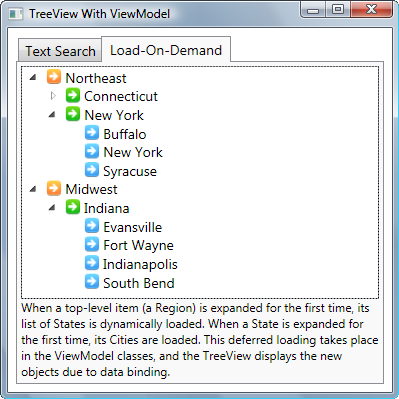
The next demo application populates a TreeView with information about various places within a country. It deals with three different types of objects: Region, State, and City. Each of those types has a corresponding presentation class, to which the TreeViewItems bind.

Each of the presentation classes derives from the TreeViewItemViewModel base class, which provides all of the presentation-specific functionality seen in the previous demo’s PersonViewModel class. In addition, the items in this demo are lazy-loaded, meaning that the program does not fetch an item’s children and add them to the object graph until the user tries to view them. You can see this demo in the screenshot below:
LoadOnDemand_screenshot.png

As I mentioned above, there are three separate data classes here, and each data class has an associated presentation class. All of those presentation classes derive from a TreeViewItemViewModel, described by this interface:

interface ITreeViewItemViewModel : INotifyPropertyChanged
{
    ObservableCollection<TreeViewItemViewModel> Children { get; }
    bool HasDummyChild { get; }
    bool IsExpanded { get; set; }
    bool IsSelected { get; set; }
    TreeViewItemViewModel Parent { get; }
}

The LoadOnDemandDemoControl’s code-behind looks like this:

public partial class LoadOnDemandDemoControl : UserControl
{
    public LoadOnDemandDemoControl()
    {
        InitializeComponent();

        Region[] regions = Database.GetRegions();
        CountryViewModel viewModel = new CountryViewModel(regions);
        base.DataContext = viewModel;
    }
}

That constructor is simply loading up some data objects from the BusinessLib assembly, creating some UI-friendly wrappers out of them, and then letting the View bind to those wrappers. The View’s DataContext is set to an instance of this class:

/// <summary>
/// The ViewModel for the LoadOnDemand demo. This simply
/// exposes a read-only collection of regions.
/// </summary>
public class CountryViewModel
{
    readonly ReadOnlyCollection<RegionViewModel> _regions;

    public CountryViewModel(Region[] regions)
    {
        _regions = new ReadOnlyCollection<RegionViewModel>(
            (from region in regions
             select new RegionViewModel(region))
            .ToList());
    }

    public ReadOnlyCollection<RegionViewModel> Regions
    {
        get { return _regions; }
    }
}

The interesting code is in TreeViewItemViewModel. It is mostly just a copy of the presentation logic seen in the previous demo’s PersonViewModel, but with one interesting twist. TreeViewItemViewModel has built-in support for load-on-demand of child items. That logic exists in the class’ constructor and the setter of the IsExpanded property. The load-on-demand logic of TreeViewItemViewModel is seen below:

protected TreeViewItemViewModel(TreeViewItemViewModel parent, bool lazyLoadChildren)
{
    _parent = parent;

    _children = new ObservableCollection<TreeViewItemViewModel>();

    if (lazyLoadChildren)
        _children.Add(DummyChild);
}

/// <summary>
/// Gets/sets whether the TreeViewItem 
/// associated with this object is expanded.
/// </summary>
public bool IsExpanded
{
    get { return _isExpanded; }
    set
    {
        if (value != _isExpanded)
        {
            _isExpanded = value;
            this.OnPropertyChanged("IsExpanded");
        }

        // Expand all the way up to the root.
        if (_isExpanded && _parent != null)
            _parent.IsExpanded = true;

        // Lazy load the child items, if necessary.
        if (this.HasDummyChild)
        {
            this.Children.Remove(DummyChild);
            this.LoadChildren();
        }
    }
}

/// <summary>
/// Returns true if this object's Children have not yet been populated.
/// </summary>
public bool HasDummyChild
{
    get { return this.Children.Count == 1 && this.Children[0] == DummyChild; }
}

/// <summary>
/// Invoked when the child items need to be loaded on demand.
/// Subclasses can override this to populate the Children collection.
/// </summary>
protected virtual void LoadChildren()
{
}

The actual work of loading an object’s child items is left for the subclasses to handle. They override the LoadChildren method to provide a type-specific implementation of loading child items. The RegionViewModel class, seen below, overrides this method to load State objects and create StateViewModel wrapper objects.

 public class RegionViewModel : TreeViewItemViewModel
{
    readonly Region _region;

    public RegionViewModel(Region region) 
        : base(null, true)
    {
        _region = region;
    }

    public string RegionName
    {
        get { return _region.RegionName; }
    }

    protected override void LoadChildren()
    {
        foreach (State state in Database.GetStates(_region))
            base.Children.Add(new StateViewModel(state, this));
    }
}

This demo's user interface only contains a TreeView, which is configured with the following XAML:

<TreeView ItemsSource="{Binding Regions}">
  <TreeView.ItemContainerStyle>
    <!-- 
    This Style binds a TreeViewItem to a TreeViewItemViewModel. 
    -->
    <Style TargetType="{x:Type TreeViewItem}">
      <Setter Property="IsExpanded" Value="{Binding IsExpanded, Mode=TwoWay}" />
      <Setter Property="IsSelected" Value="{Binding IsSelected, Mode=TwoWay}" />
      <Setter Property="FontWeight" Value="Normal" />
      <Style.Triggers>
        <Trigger Property="IsSelected" Value="True">
          <Setter Property="FontWeight" Value="Bold" />
        </Trigger>
      </Style.Triggers>
    </Style>
  </TreeView.ItemContainerStyle>

  <TreeView.Resources>
    <HierarchicalDataTemplate 
      DataType="{x:Type local:RegionViewModel}" 
      ItemsSource="{Binding Children}"
      >
      <StackPanel Orientation="Horizontal">
        <Image Width="16" Height="16" 
           Margin="3,0" Source="Images\Region.png" />
        <TextBlock Text="{Binding RegionName}" />
      </StackPanel>
    </HierarchicalDataTemplate>

    <HierarchicalDataTemplate 
      DataType="{x:Type local:StateViewModel}" 
      ItemsSource="{Binding Children}"
      >
      <StackPanel Orientation="Horizontal">
        <Image Width="16" Height="16" 
          Margin="3,0" Source="Images\State.png" />
        <TextBlock Text="{Binding StateName}" />
      </StackPanel>
    </HierarchicalDataTemplate>

    <DataTemplate DataType="{x:Type local:CityViewModel}">
      <StackPanel Orientation="Horizontal">
        <Image Width="16" Height="16" 
           Margin="3,0" Source="Images\City.png" />
        <TextBlock Text="{Binding CityName}" />
      </StackPanel>
    </DataTemplate>
  </TreeView.Resources>
</TreeView>

Conclusion

If you have ever battled with the WPF TreeView, perhaps this article has shed some light on an alternate way of using that control. Once you start going with the flow, and stop trying to swim upstream, WPF makes life very easy for you. The hard part is letting go of your hard-earned knowledge and skills, and to adopt radically different ways of approaching the same problems.

Special Thanks

I would like to thank Sacha Barber for encouraging me to write this article. He also gave me invaluable feedback and requests while I worked on the demo applications. If it wasn’t for him, I probably would have never written this article.

Revision History

  • May 22, 2008 – Created the article.

License

This article, along with any associated source code and files, is licensed under The Code Project Open License (CPOL)

About the Author

Josh Smith
Software Developer (Senior) Cynergy Systems
United States United States
Member
Josh creates software, for iOS and Windows.
 
He works at Cynergy Systems as a Senior Experience Developer.
 
Read his iOS Programming for .NET Developers[^] book to learn how to write iPhone and iPad apps by leveraging your existing .NET skills.
 
Use his Master WPF[^] app on your iPhone to sharpen your WPF skills on the go.
 
Check out his Advanced MVVM[^] book.
 
Visit his WPF blog[^] or stop by his iOS blog[^].

Sign Up to vote   Poor Excellent
Add a reason or comment to your vote: x
Votes of 3 or less require a comment

Comments and Discussions

 
You must Sign In to use this message board.
Search this forum  
    Spacing  Noise  Layout  Per page   
GeneralMy vote of 5memberqhuydtvtv14 May '13 - 12:04 
Nice article, very clear explanation
Questionview access BusinessLib directly?memberlyp8806 May '13 - 19:42 
view access businesslib directly,i think that it's a wrong way of layer. viewmodel should be access businesslib only.
QuestionWhere do you put the Selected event?memberMarkTJohnson30 Apr '13 - 5:07 
Which level should an event handler be placed? In the TreeViewItemViewModel or in the specific view model of the particular child node?
Mark T Johnson
Old dog learning New tricks

GeneralSometimes WPF makes trivial things complicated.memberPavel Voronin6 Feb '13 - 8:22 
What if we have a very large tree with many many nodes at the first level?
To improve performance we can enable UI virtualization (it is off by deafult).
And here come troubles.
If we want not just to expand the node but bring it into the view as well (good UX practice) it is not an easy task indeed.
Item is not visible, so no item container is generated yet and thus no bindings are applied.
That is a very sad story.
 
Enabled UI virtualization requires more effort.
We have to create either attached property or behavior which will be bound to the exposed collection (or single item) of expanded nodes and do the job when changes happen.
GeneralThank you!memberdzpage11 Dec '12 - 21:40 
Big Grin | :-D
QuestionSetting icons based on Region/city name?!memberradkrish9 Dec '12 - 19:42 
<HierarchicalDataTemplate DataType="{x:Type local:RegionViewModel}" ItemsSource="{Binding Children}">
          <StackPanel Orientation="Horizontal">
            <Image Width="16" Height="16" Margin="3,0" Source="Images\Region.png" />
            <TextBlock Text="{Binding RegionName}" />
          </StackPanel>
</HierarchicalDataTemplate>
 
Hi in the above data template whenever the type is a region, it says to use a particular icon.
But I want to chose icon based on the name of the region! Could you please let me know How I do this please?
Regards
RK
GeneralMy vote of 5memberurimacias26 Nov '12 - 6:38 
A little to hard for a newbie but, once you familiarize with the lenguage and techniques, this is awsome in simplicity and functionality. Just great.
GeneralThanks!memberBarbara Pavlič23 Nov '12 - 7:29 
This article is great!
 
Barby
GeneralMy vote of 5memberlighthouse729 Nov '12 - 11:09 
All that i needed to know is in here, just great.
GeneralMy vote of 5mvpJohn Simmons / outlaw programmer17 Sep '12 - 10:13 
Nice article, and it helped me a lot, but I think a better (and more real-world) example would have been to use a mix of different objects, and show a deeper hierarchy.
QuestionHow to get the treeView when the data is parsed using an existing XML filememberscorpio325 Aug '12 - 23:37 
What should I do to get a treeView in WPF in the following scenario (using treeView):
 

Image Representation available at url : http://tinypic.com/r/2118ca0/6
 
The XML is like:
 
<Person1>
 
<Marks>
<Database>A </Database>
<Category>B </Category>
</Marks>
 
<Salary>
<Database>A </Database>
<Category>C </Category>
</Salary>
 
</Person1>
GeneralMy vote of 5memberArnleif25 Aug '12 - 10:27 
New on WPF this is excellent for translation from WINFORMS to VPF and binding tecnology
QuestionHow to Fill the Person List from a Databasememberrevans72223 Jul '12 - 16:25 
I have learned a lot from the article, but I am stumped on how to fill the Person List from a database in order to return new Person from the GetFamilyTree() method. I thought of building a linkedlist, but Person is a List and not a LinkedList. Are there any examples of how this is done?
QuestionStill can't do incremental search on TreeViewmemberasseem13 Jul '12 - 9:48 
Thanks for a very nice and elaborate article.
 
I was wondering if it is possible to achieve the same search functionality as was available in Windows.Forms TreeView. Like the one described here:
 
http://stackoverflow.com/questions/3779965/wpf-treeview-how-to-implement-keyboard-navigation-like-in-explorer/11427207#11427207[^]

All are born right-handed. Only gifted few overcome it.
There's NO excuse for not commenting your code.

QuestionAdd Child in a background workermemberjrnapoli19265 Jul '12 - 23:54 
First of all I commend the excellent work.
I had a problem when I want to add a child to an expanded node in a background worker. I tried adding a node to the Children list called a delegate through dispacher, but without success. Could you help me?
Best Regards.
GeneralMy vote of 5memberCyborgx3729 Jun '12 - 9:33 
Perfectly tailored to developers transitioning from WinForms to WPF.
QuestionThat is amazing, thank you!memberSkyLee Style29 May '12 - 20:13 
That is amazing, thank you!
QuestionExcellent Articalmemberpriyank_thakkar18 Apr '12 - 11:55 
Hi Josh,
 
Thanks for the wonderful article. It really gave me deep insight of wpf tree view control, how to user view model with WPF treeview control and lazy loading. Thanks a ton.
 
Regards,
Priyank Thakkar
AnswerRe: Excellent ArticalmemberJosh Smith18 Apr '12 - 13:13 
Cool, I'm glad you liked it. Big Grin | :-D
:josh:
Master WPF - on your iPhone

GeneralMy vote of 5memberjoehoper24 Mar '12 - 14:17 
Excellent article! Was able to get a great looking treeview going in minutes with your guide and the advice below about selection styles.
 
WPF TreeView: How to style selected items with rounded corners like in Explorer
QuestionHighlighting searched text in the results.membercheeyam22 Mar '12 - 0:00 
First off, really a nice project -kudos!!
 
How could one highlight only the searched text in every node in the result set?
 
Thx!
QuestionFantastic example!memberName_Taken20 Mar '12 - 0:26 
I just encountered this article through the Caliburn Micro forums, an excellent explanation of the WPF treeview and it's associated oddities - it has helped my understanding immeasurably.
 
Top job Josh!
Suggestion5* but No Template for "DummyChild" [modified]memberJoanComasFdz29 Dec '11 - 6:04 
First of all I want to thank you for such an easy explanation of MVVM and a very clarifying article about how to use TreeView, its excellent.
 
Testing your project I realized that you are not delaying the load of items on the LoadOnDemand implementation, which cause to load instantly the data, thus not allowing to see the "DummyChild", which in my case would have its text property set to: "Loading...".
 
The problems is that if I use a timer to delay the data load, the TreeViewItemViewModel full name is showed.
 
To solve that, a Text property can be added to TreeViewItemViewModel and the DummyChild can be instantiatet as:
 
static readonly TreeViewItemViewModel LoadingNode = new TreeViewItemViewModel{Text = "Loading..."};
 
And a DataTemplate must be declared within TreeView resources to correctly present that text:
 
<TreeView.Resources>
	<DataTemplate DataType="{x:Type local:TreeViewItemViewModel}">
            <TextBlock Text="{Binding Text}"
                       FontStyle="Italic"/>
        </DataTemplate>
</TreeView.Resources>


modified 29 Dec '11 - 12:18.

QuestionHow to handle the uncertain child nodesmemberGordon Zhang12 Dec '11 - 5:23 
Hi Josh,
I loved the way you handle the treeview with ViewModel. I have a question if you can answer it would be great since I am new to WPF world.
I have a situation that before I load the node I don't know how many child node it contains (it may have no child node or have multiple child nodes), when it has multiple child nodes, each of them may belongs to the different class objects. I can load the tree with procedure code but it seemed wrong. So how can I populate these trees using ViewModel or HierarchicalDataTemplate? Do you have any other suggestions?
Thanks a lot. Gordon
AnswerRe: How to handle the uncertain child nodesmemberName_Taken20 Mar '12 - 0:23 
Probably too late, but I think you can solve your problem using List(Of T).Add, Remove, etc. (I believe collection initialisers behave by invoke the corresponding .Add methods).
 
Lists are mutable, so the readonly List is making sure that once Children is initialised, it continues to reference the same list; you can still add/remove/alter that list of children, but you cannot reassign it to look at another list.
 
If that wasn't your problem, apologies!
QuestionUsing a Custom Object Collection for the DataModelmembertpwright442317 Nov '11 - 8:59 
I wish to open a separate window containing the TreeView from my application's main window. In the main window I have constructed a collection of custom objects that will serve as the data model. I am confusing myself mightily as I try to replace the call to the static Database.GetRegions() method in this excellent example with a reference to a variable contained in my main window. Any suggestions on how I might go about this?
QuestionUse selected item in anoter usercontrol?memberkekovb5 Nov '11 - 21:42 
I am using this treeview on the right side. On the left side I have a usercontrol that should show data depending on the selected item of the treeview.
 
What is the best way to give the selected item to my usercontrol and how do I do that?
 
Thank you!
GeneralMy vote of 5memberMattias Carlsson28 Sep '11 - 19:51 
Absolutely wonderfully written! Thank you!
GeneralMy vote of 5memberdkoloechter7 Aug '11 - 22:59 
Cheers, mate! This helped me a lot getting a grip on MVVM...
QuestionImplementing general VM user rights management for whole applicationmemberTomas Hradec1 Aug '11 - 2:51 
First of all thank you for your MVVM articles at all, they are famous all over internet. I have one question - I make new application in WPF trying to follow MVVM pattern. I wish to implement generic user rights management based on values in database. My idea was to simply check elements during startup and enable/disable "features" which user can/can't click/read/write etc. Some of these behaviours can be done with commands but how to solve dynamic enabled/disable in datagrid/tree, where permission changes based on underlaying data? My idea was to introduce simple wrapper class
Enableable(of T) implementing INotifyPropertyChanged with just two properties:
Property Value
Property IsEnabled
 
and every Property in ViewModel should be Type of Enableable(of T)
like
 
Public Property TestProperty As Enableable(of String)
 

and idea to bind:
<DataGridTextColumn Header="ColumnHeader" Binding="{Binding PropertyName.Value}">
<DataGridTextColumn.CellStyle>
<Style>
<Style.Triggers>
<DataTrigger Binding="{Binding PropertyName.IsEnabled}" Value="false">
<Setter Property="DataGridCell.IsEnabled" Value="False" ></Setter>
<Setter Property="DataGridCell.Foreground" Value="LightGray"></Setter>
</Style.Triggers>
</DataTrigger>
</Style>
</DataGridTextColumn.CellStyle>
</DataGridTextColumn>
 
than I wish to make generic style for whole application and bind IsEnabled to
 
Value="{Binding DataContext.IsEnabled,RelativeSource={RelativeSource Mode=FindAncestor,AncestorType={x:Type Enableable`1}}}"
 
but I can't bind to generic type Enableable(of T). I don't see how to connect this together. If this is impossible to do my concept is for nothing - otherwise you have to make style for every PropertyFrown | :(
 
I think this can be very helpful when designing any application which has to test user specific permission - to read permission set based on database/XML/etc and set just property.IsEnabled.
 
Every Property in ViewModel need default value true/false and if you wish to change it just add row in database with element name.
 
The "second" part of this idea was to add to main window "rights on load" checker which will change isEnabled/isVisible value of properties defined in table - can be also property in VM binds to Visible/IsEnabled depending on element type
 
Do you have any hint how to do this? Thank you very much for your advice or just try to push me back to right waySmile | :)
QuestionTreeViewItem not expanding visuallymemberChristy_Piffat25 Jul '11 - 11:29 
Great article!! I needed to create a treeview that had two different ViewModels--one for the first generation and one for their children. This article was a huge help!!
 
One slight issue I am having, however, deals with the Search. When I type in a string and step through the code, the application is finding the correct item (whether first generation or child). However, when my search selects a first generation item, it does not appear to be selected visually, even though the IsSelected property is true. Also, when my search selects a child item, the first generation is collapsed visually, even though the first generation item's IsExpanded is set to true. When I manually expand the first generation item, the child is selected. Any idea why the code in the ViewModel and outcome in the View are not in sync?
 
I know that the IsExpanded and IsSelected properties are using the INotifyPropertyChanged event properly when I am just expanding, collapsing, and selecting items on the treeview without using the search.
 
Thanks!
QuestionNew item in DB does not show in treeviewmemberHector C18 Jul '11 - 10:26 
I used your sample to create a project with a treeview. The datacontext is an object that is updated by users. When a new item is entered into the datasource, it is not reflected on the tree if the tree is expanded to that level. The LoadChildren function is called correctly if that level has not been expanded on the treeview. I thought that the ObservableCollection would cause the LoadChildren function to run when new items are created. Any help is appreciated greatly!
Thanks,
-Hector Cervantes
GIS Dude

AnswerRe: New item in DB does not show in treeviewmemberBharat Mane22 Jul '11 - 1:56 
Dear Hector,
Even I am unable to do this..In case if you have any update please do let me know.
 
Regards
Bharat
GeneralRe: New item in DB does not show in treeviewmemberBharat Mane27 Jul '11 - 23:02 
Dear Hector,
Were you able to find the solution for the above scenario. If not here is what i have done.
 
If you see data item Children is ObservableCollection and declared as below.
ObservableCollection<TreeViewItemViewModel> Children
 
And in the example the loding of all children is done only once using LoadChildren() Method. So anytime your model is updated, then this Children collection needs to be updated based on the changes done in your model. The moment you update the Children collection, and since it's ObservableCollection it's make UI to update.
 
So what i have done is, i have modified the LoadChildren() Method in order to update the changes accordingly.
 
Please let me know if you need further information.
 
Hope this helps
Best Regards,
Bharat Mane
QuestionRe: New item in DB does not show in treeviewmemberkaran.engg28 Jul '12 - 3:05 
Hello Bharat, i have the same problem. it would be much appreciate if you could sharewhat changes you did in the loadchildren method to update the UI
GeneralMy vote of 5memberBulaSerg13 Jul '11 - 23:35 
This article contains all i needed!
QuestionAmazing!!!memberMember 807878512 Jul '11 - 10:32 
This article is so good!!! Thank you!!! Smile | :) Smile | :) Smile | :)
AnswerRe: Amazing!!!mvpJosh Smith12 Jul '11 - 10:42 
Thanks a lot! Smile | :)
 
I wrote more about the Model-View-ViewModel pattern on MSDN[^] and in a book called Advanced MVVM[^].
:josh:
Mole 2010 - debugging made easier

GeneralMy vote of 5memberMember 807878512 Jul '11 - 10:31 
Amazing!!!!!!!!!
QuestionUsing a User ControlmemberMember 145141110 Jul '11 - 23:39 
This was a great article to get me going with my TreeView and binding, so thank for that.
 
Now I want to extend this by using a User Control for each of the items so instead of
 
<TextBlock Text={Binding RegionName}/>
 
I want to use something like:
 
<uc:MyuserControl Text="{Binding RegionName}" />
 
but I can't get it to work. The User Control just contains a TextBlock at the moment, for ease of testing.
 
However, if I change the XAML to setting some static text, i.e.
<uc:MyUserControl Text="Some Region" /> then it is all OK.
 
I guess I've got some DataContext or binding wrong within the TextBlock that is in the User Control but I can't work out what I need to change it to.
 
Can anyone help?
QuestionCan it be used for Silverlight?membernenad.zdravkovic29 Jun '11 - 2:38 
Realy good article, can you tell me can this code be used with Silverlight?
 
Greets.
GeneralMy vote of 5memberMurray Foxcroft22 Jun '11 - 3:44 
I love this article !
GeneralIs it possible to use GroupDescriptions with this?memberwintah8 Jun '11 - 14:14 
Thank you for the article, this sounds quite useful. I bumped into a problem though:
 
I need groupings for my treeview, and groupdescriptions are a lifesafer in simplifying the code when stuff get added, removed or filtered away. Then again, I would love to use this idea of binding to IsSelected and IsExpanded properties. Having tried that, I now get binding errors as then I apparently get "CollectionViewGroupInternal"s in the mix and they don't have those properties.
 
Would you happen to have any ideas on how to use groupdescriptions with your implementation? Any hints would be appreciated. Smile | :)
Questionabout databasememberMustafaMahmoud5 Jun '11 - 5:09 
hi,
in the article you fill data in the treeview manually but you said that in the real app you need to query the database
please give an example of making query to database because i failed to fill the treeview from my database (the child list is read only)
Mustafa Mahmoud

AnswerRe: about databasememberDominic_777 Jun '11 - 8:31 
great article but i need one example too.(linq to entities would be great)
please help, i cannot find an example about treeview with checkboxes with a databinding from entity data model.
AnswerRe: about databasememberMember 766727417 Nov '11 - 2:28 
Mahmoud, it's a pity that there's no real database included in the project. Did you mange to get a similar code with database here or anywhere else? if so pls share! regards, Aki
GeneralGreat article, but what about editing the Treeview?membert0mcat7826 May '11 - 3:05 
Hi,
 
great Article. I have solve my problem nearly the same way. My problem now is, that the user should edit the items in the treeview. For example the user can delete an item or could drag&drop it to another position.
 
At this point I'm getting problems to maintain the childnodes, because if I edit the underlying data and want to reflect the changes in the Viewmodel, I rebuild the ViewModel-Childcollection every update. When I do this, I can't keep the expanded status. Now I'm doing this by events fired when the underlying chil-collection changes. In my Opinion this is not very elegant.
 
Do you have a hint, how I could do this more easily?
 
Greets
Generalgreat article - thanks a bunchmemberMember 785546418 May '11 - 10:44 
Excellent work. This has helped me immensely.
 
Thanks!
GeneralRe: great article - thanks a bunchmvpJosh Smith18 May '11 - 10:52 
Thanks! I appreciate it.
:josh:
Mole 2010 - debugging made easier

QuestionProgramatically expand a subnode in the load-on-demand casememberPhilippe Devaux12 May '11 - 3:50 
Hi there
 
this is a very usefull article, that helped me to tame some problems I had with the treeview. I have a hierarchical database, 3 or 4 levels deep, with a total of approx. 7000 records. I definitively can't load the whole data from the database, due to a slow network.
 
On startup, I load just the first level (approx. 20 records). Expansion by the user (mouse click) works very well, and I can even display a busy indicator if the loading lasts longer than 20ms.
 
Now for the question that bugs me:
 
I want to be able to expand and show a specific node on the 3rd or 4th level, by providing an ID of the specific node.
For example, I want to expand ID 100713 programatically. And item 100651 shouldn't be shown, unless the user clicks it. Sniff | :^)
 

11	Item on level 1			
	122	Item on level 2		
		100713	Item on level 3	
			100651	Item on level 4
			...
 

I am somehow stuck on this Sigh | :sigh:
How can I implement this?
 

Greetings
Phil

General General    News News    Suggestion Suggestion    Question Question    Bug Bug    Answer Answer    Joke Joke    Rant Rant    Admin Admin   

Permalink | Advertise | Privacy | Mobile
Web02 | 2.6.130516.1 | Last Updated 22 May 2008
Article Copyright 2008 by Josh Smith
Everything else Copyright © CodeProject, 1999-2013
Terms of Use
Layout: fixed | fluid
