Table of Contents
Introduction
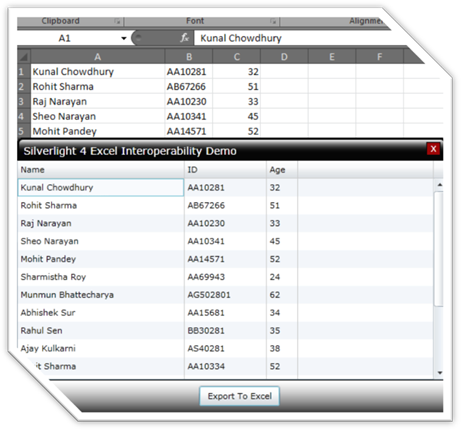
Silverlight 4 has the capability of accessing the COM object using the COM API. You can access any program installed in your PC using those APIs in Silverlight. You can open Notepad, Word, Excel or Outlook from a Silverlight application. Here I will demonstrate using the step-by-step tutorial on opening an Microsoft Excel book followed by data sharing between the Silverlight application and the Excel Sheet. Here, we will use a DataGrid which will load some customer information. Then we will pass the data to the Excel Sheet and then we will modify the data in the external application (i.e. inside the Excel sheet). You will see that the modified data will reflect automatically to the Silverlight Application.
See the below figure that we are going to demonstrate:
Prerequisite
To develop this simple application, you need the following tools installed in your development environment:
- Microsoft Visual Studio 2010
- Silverlight 4 Tools for Visual Studio 2010
Remember that the Silverlight 4 applications can be developed only in Visual Studio 2010. Hence, if you have Visual Studio 2008 installed in your PC, you can install Visual Studio 2010 side-by-side for exploring Silverlight 4.
Getting Started
If your development environment is ready, then we can proceed towards creating a new Silverlight Application project. At the end of this part, we will be able to run our first Silverlight application inside the browser.
- Open your Visual Studio 2010 IDE
- Select File > New Project or just press CTRL + SHIFT + N to open up the New Project dialog
- Expand the “Visual C#” node and then go to sub node “Silverlight”
- Select “Silverlight Application” in the right pane
- Select proper location to store your application (let’s say, “D:\Sample Apps\”)
- Now enter a proper name for your project (call it as: “Silverlight4.Interop.Excel.Demo”)
- Select the .NET Framework version from the combo box at the top (I am using .NET Framework 4.0)
- Click OK to continue
- In the next dialog, make sure that “Host the Silverlight application in a new Web site” option is selected
- Choose “Silverlight 4” as the Silverlight Version and hit OK
Wait for a while, Visual Studio will now create the Silverlight solution for you to use which will contain a Silverlight Project and one Web Application Project to host your Silverlight application. In your Silverlight project, you will find a “MainPage.xaml” & an “App.xaml” file which are already created for you by the IDE Template.
Once you are done with setting up the project, you need to add an Assembly Reference to the Silverlight project. We will use the “dynamic” keyword, and for this we need to add the “Microsoft.CSharp” assembly reference.
- Right click on the “Reference” folder inside the Silverlight project and click on the “Add Reference” menu item from the context menu.

- This will open up the “Add Reference” dialog on the screen. Scroll the window to find the assembly named “
Microsoft.CSharp” from the .NET tab. Select it and click “OK”. This will add the Microsoft.CSharp assembly reference into your Silverlight project. Once added, your project will support dynamic variable declaration.
Configuring Out-of-Browser Settings
Once you are done with setting up your Silverlight project, we are ready to implement custom Out-of-Browser Window for our application. You can read the complete article on Creating Silverlight 4 Custom Out-of-Browser window from CodeProject.
Once you design your out-of-browser Window, go to the properties of the Silverlight project. From the Silverlight pane, be sure that you are using “Silverlight 4” as target version. Now select the “Enable running application out of browser” which will make the “Out-of-Browser Settings…” button enabled. Click on it for more settings.
From the Settings dialog window, select “Show install menu” which will create a Menu Item inside the Silverlight context menu. Once you run your application and right click on the application, you will see an “Install” menu item on it. I will come to this section later.
Now, check the “Require elevated trust when running outside the browser” as mentioned below and choose “Window Style” as “No Border”. This will make the default Chrome Window visibility to collapsed and if you run OOB, you will not see any Window border by default. Once you are done with these settings, click ok to save the configurations. You can also change the “Window Title”, “Size” and other options available there.
Basic Design for Out-of-Browser Application
Now we will design our MainPage.xaml file with a DataGrid which will fetch Customer details from the DataProvider and generate the columns for it. We will make the DataGrid as Readonly, so that we can't directly edit the data inside it.
<sdk:DataGrid AutoGenerateColumns="True"
        Height="295"
        IsReadOnly="True"
        HorizontalAlignment="Left"
        VerticalScrollBarVisibility="Auto"
        Margin="0,30,0,0"
        x:Name="customerDataGrid"
        VerticalAlignment="Top"
        Width="576"
        ItemsSource="{Binding CustomerCollection,
		ElementName=userControl, Mode=TwoWay}" />
We will also set two different buttons in the Window. One for installing the application out of the browser window and the other to export the datagrid content to an Excel application. Here is the XAML code for the buttons:
<Button Height="28"
        HorizontalAlignment="Left" Click="exportToExcelButton_Click"
        Margin="244,333,0,0"
        x:Name="exportToExcelButton"
        Content="Export To Excel"
        VerticalAlignment="Top"
        Width="109" />

<Button Height="28"
        HorizontalAlignment="Left" Click="installButton_Click"
        Margin="244,333,0,0"
        x:Name="installButton"
        Content="Install"
        VerticalAlignment="Top"
        Width="109" />
Once your design is ready and you are done with data binding with your datagrid by fetching the customer information from the CustomerDataProvider, we can run the application inside the browser Window. Once loaded with fetched data, our application will look like the below figure:
Here, you will notice the “Install” button enabled at the bottom of the DataGrid. Click the button to install this application outside the browser as a standalone application, so that, you can launch it from desktop or startmenu. When you start the installation procedure, it will pop up the Security Warning dialog. Click “Install” to continue.
This will install the application in your local drive and automatically launch it out-of-browser. Here you will see a bit different view. You will notice that the “Install” button is no more available now and a new button named “Export to Excel” has been added to the view.
The following code block is responsible for changing the look of the application in different view:
if (App.Current.InstallState == InstallState.Installed)
{
if (App.Current.IsRunningOutOfBrowser)
{
}
else
{
}
}
else
{
}
“Export to Excel” Event Implementation
- Let us now go for the code implementation for exporting data from the
datagrid to the Excel application instance.
First of all, we will create the instance of an Excel application and will set the visibility to true, so that, others can view it.
excel = AutomationFactory.CreateObject("Excel.Application");
excel.Visible = true;
- Now create a workbook for the instance of the opened Excel application:
dynamic workbook = excel.workbooks;
workbook.Add();
- Get the ActiveSheet from the Excel Workbook and iterate through each row and column of the
datagrid collection and set the values to the Excel sheet.
dynamic sheet = excel.ActiveSheet;
dynamic cell = null;
int i = 1;
foreach (Customer item in customerDataGrid.ItemsSource)
{
cell = sheet.Cells[i, 1];
cell.Value = item.Name;
cell.ColumnWidth = 50;
cell = sheet.Cells[i, 2];
cell.Value = item.ID;
cell = sheet.Cells[i, 3];
cell.Value = item.Age;
i++;
}
- For the first instance of the application, we will now register the
SheetChange event notification to our application. This will fire the event when you modify the content of the sheet.
if (newInstance)
{
    App.Current.MainWindow.Closing += (MainWindow_Closing);
    excel.SheetChange += new SheetChangedDelegate(SheetChangedEventHandler);
    newInstance = false;
}
- Now go for the
SheetChange event implementation. Here we will get the excelSheet which we will first store as a local instance for further access to it. Then get the range of the items to update from the Excel app to our application and iterate through the items and update. Below is the code for the event implementation:
private void SheetChangedEventHandler(dynamic excelSheet, dynamic rangeArgs)
{
dynamic sheet = excelSheet;
dynamic col2range = sheet.Range("A1:A" + CustomerCollection.Count);
for (int i = 0; i < CustomerCollection.Count; i++)
{
CustomerCollection[i].Name = col2range.Item(i + 1).Value.ToString();
}
}
“Export to Excel” Demo
We are done writing the code. Now, it is time to demo it. We will now see our application to actually talk with the Microsoft Excel application. From our application, we will transfer the datagrid content to the Excel Sheet. Hence click on the “Export to Excel” button from your out-of-browser application. You will notice that one Excel sheet has been created and the data is populating in the sheet row by row.
Let us drag our application on top of the Excel book to see the live demo. You can now see the Silverlight application on top of Excel while editing the sheet.
Now start editing any Row of the Excel sheet. In our example, we will use the first column for editing purposes because our code checks only the first column.
dynamic col2range = sheet.Range("A1:A" + CustomerCollection.Count);
Once you are done modifying the cell of the Excel sheet, just press Enter, so that it will come out from the edit mode. Hey what happened? Did you notice anything in our application? Yes right, in our application, the corresponding cell got updated with the modified cell content.
What Next?
I think you now got the idea of Silverlight - Excel messaging through the COM API. This was a small demonstration of the new feature. You can now modify it for a bigger range of cell to update the Silverlight datagrid from Excel sheet. Be sure that it will only work for Silverlight trusted Out-of-Browser applications.
Please vote for this article and let me know if you have any feedback or suggestions, so that I can improve it for you.
History
- Initial post (28-May-2010)



 General
  News
News  Suggestion
  Question
  Bug
Bug  Answer
  Joke
Joke  Praise
  Rant
Rant  Admin
Admin 


 Submit an article or tip


![Rose | [Rose]](https://www.codeproject.com/script/Forums/Images/rose.gif)
