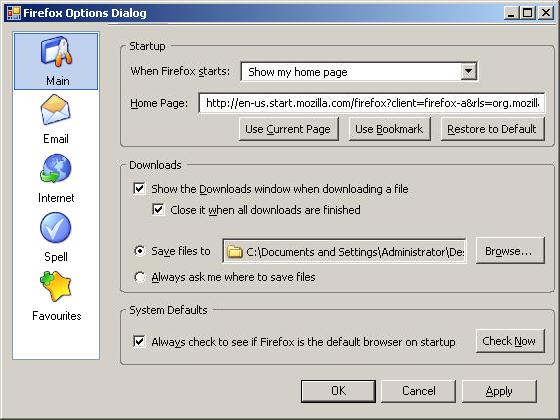
Introduction
Firefox Dialog is a user control that you could easily add in your application with minimum coding to have a Firefox like options dialog in your .NET app. Control.FirefoxDialog is just 24kb with 72kb MozBar implementation (96kb total).
Background
Patrik Bohman has provided a great control named MozBar. While another C# Win App PagedDialog (unfortunately I don't remember the URL and author name) provided a basic property page implementation, what I was looking for is a combination of the above two, i.e., a Firefox like Options dialog. I wish too that it requires almost no effort to add Firefox like options dialog in your application.
Using the Control
- Compile
Control.FirefoxDialog project to obtain DLL - Create a Windows Application project and add a form
Form1 - Right click on Toolbox and click Choose Items...
- Select/Browse for Control.FirefoxDialog.dll
- In Toolbox, look for
FirefoxDialog Control and drag drop on Form1 imageList imageList1 in Form1 and include one image for each tab - Add a user control
PageEmail derived from Control.FirefoxDialog.PropertyPage - Now type the following code in your
Form1_Load:
private void Form1_Load(object sender, EventArgs e)
{
    this.firefoxDialog1.ImageList = this.imageList1;

    this.firefoxDialog1.AddPage("Main", new PageMain());
    this.firefoxDialog1.AddPage("Email", new PageEmail());
    this.firefoxDialog1.AddPage("Internet", new PageInternet());
    this.firefoxDialog1.AddPage("Spell", new PageSpell());
    this.firefoxDialog1.AddPage("Favourites", new PageFav());

    this.firefoxDialog1.Init();
}
This is it! Press F5 to run the application. You could override the following in your user controls:
namespace Demo
{
    public partial class PageEmail : Control.FirefoxDialog.PropertyPage
    {
        public PageEmail()
        {
            InitializeComponent();
        }

        public override void OnInit()
        {
            MessageBox.Show("PageEmail.OnInit Called.
		Put your loading logic here.
		Note that this method is called only Once!", "Control.FirefoxDialog");
        }

        public override void OnSetActive()
        {
            MessagBox.Show("PageEmail.OnSetActive Called.
		Put code that you wish to call whenever Email tab become active.
		Note that this method will be every time Email is activated!",
		"Control.FirefoxDialog");
        }

        public override void OnApply()
        {
            MessageBox.Show("PageEmail.OnApply Called.
		Put your saving logic here.
		It will be called when you hit Apply button.",
		"Control.FirefoxDialog");
        }
    }
}
History
- 19th January, 2007: Initial post
Software engineer developing solutions using Microsoft technologies.



 General
  News
News  Suggestion
  Question
  Bug
Bug  Answer
  Joke
Joke  Praise
  Rant
Rant  Admin
Admin 


 Submit an article or tip


