Abstract
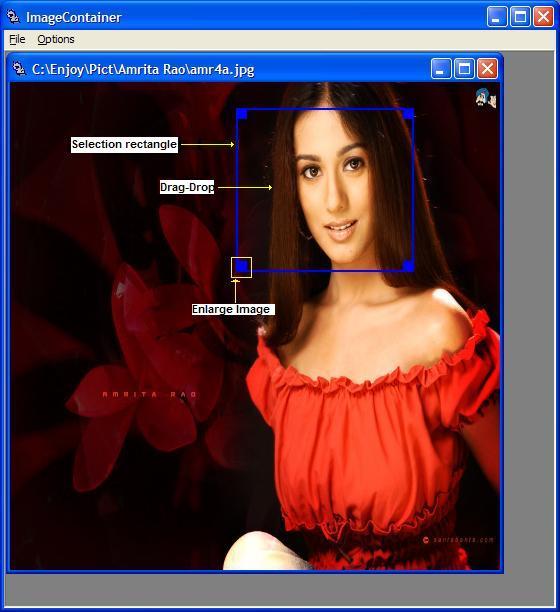
In imaging applications like Adobe's Photoshop, Google's Picasa or Coral's Paint Shop Pro, there is always a need to select a part of image. Maybe the user wants to enlarge a section of image, or maybe the user wants to process a selected region of an image (see Figure 1 below).
Whatever the situation, imaging applications by and large need to support the above-mentioned feature. When applications were written in MFC the way a programmer would, they were written using API DrawDragRect (…). DrawDragRect (…) is a member of the CDC class.
While almost all the MFC APIs have equivalent Win 32 APIs, surprisingly, Microsoft does not provide a Win32 equivalent of the DrawDragRect (…) MFC API. In the MFC-Win32 world there is no problem, but all hell breaks loose in the .NET world. There is no such API in .NET.
Imaging applications which are written/ported to .NET language like C# are at a great loss as there is no DrawDragRect (…) API in C# or other .NET Languages. The problem is compounded, as there is no Win32 API that can be used through pInvoke, (a commonly used technique to invoke win32 APIs from .NET languages). This paper gives an implementation of the DrawDragRect (…) API written in C# that can be incorporated very easily into your C# forms programs or any other .NET form based programs.

Figure 1
Implementation Details
The entire code is embedded inside the CDrawDragRect.cs file. The class CDrawDragRect is the one that implements the code. A consumer of such functionality just needs to inherit his/her form from the CDrawDragRect instead of the standard derivation from the Form class.
public partial class MainForm : CDrawDragRect
{
...
}
That's the only thing the consumer of such functionality needs to do.
Inside the CDrawDragRect class the function void DrawDragRect(MouseEventArgs e) is the one responsible for this feature. This is called in response to the OnMouseMove(MouseEventArgs e) event of the form. As one can see, Win32 APIs (through pInvoke) are generously used in the implementation of this feature.
The DrawDragRect(MouseEventArgs e) API first goes on to create 4 Windows regions:
rgnOld rgnNew rgnDiff rgnDiffOld
The region rgnDiff is actually a 2's-difference of the regions rgnOld and rgnNew, where rgnOld is a deflate of the rgnNew, and rgnNew is constructed out of the rectangle rcNew. Thus rgnDiff is equivalent to a rectangle with border 2-pixels. The rgnDiff is now stored into rgnDiffOld for future use which is just below.
The same process is repeated into rgnDiff but this time rgnNew is assigned the rcOld rectangle. Finally, rgnDiffOld and rgnDiff are xored and the resultant region is stored in rgnDiff.
This region is selected into the HDC created from the graphics object of the form's client area. A PatBlt (…) into such a region with a PATINVERT raster operation code (which combines the colors of the specified pattern with the colors of the destination rectangle by using the Boolean OR operator) results in the desired effect.
Please note that rcOld and rcNew are rectangles that give the old and new sizes of the rectangles that the user will be generating through a mouse-Down-Drag operation. rcOld plays an important role in erasing the older rectangle. This is again achieved though a second call to PatBlt (…) with a PATINVERT raster operation code.
The last few lines just clean up memory device context allocations. This keeps the system-wide GDI object count to a minimum and prevents any GDI specific memory leaks.
About the Sample Application
The application is a form-based application written in C#. It displays a file dialog to choose an image during form load. After the user chooses an image file, he/she can select a small region of the image, which gets rendered into a child form.
I have added the resize, drag-drop and save features as suggested by some readers.
There are two projects I am referring to:
- Image traveler.Zip
- ImageTraveller_Panel_NoResize.Zip
In the ImageTraveller project the CDrawDragRect class derives from a Form class and in the ImageTraveller_Panel_NoResize project the same CDrawDragRect class derives from a Panel class. Deriving the CDrawDragRect class from the panel control gives the flexibility to embed the CDrawDragRect class inside all kinds of containers. The other difference is that in the ImageTraveller_Panel_NoResize project the user needs to double-click after resizing or dragging and dropping the selection rectangle to see the selected portion.
The Resize Feature
By grabbing any one of the corner rectangles as shown below, the user can resize the selection rectangle. The resize is presented in two types as given in the options menu, namely the bouncing option and sliding selection option. The sliding option is the usual option for resizing rectangles and the bouncing option is for variety.
The Inner Workings of the Resize Feature
As before the action is inside the mouse move message. But at first a detection on which of the corners the user has performed a mouse down is to be done. This can be any one of the left-top, left-bottom, right-top or right-bottom corners. The variables
    int nResizeRT
    int nResizeBL
    int nResizeLT and
    int nResizeRB
are introduced for this purpose (let us call this group as resize variables). At any given time one of the above can be 1 and the others zero. This is set in the mouse down message handler. Having done that in the mouse-move handler the rcNew rectangle is computed as follows:
    rcNew.X = rcBone.X;
    rcNew.Y = rcBone.Y;
    rcNew.Width = pt.X - rcNew.Left;
    rcNew.Height = pt.Y - rcNew.Top;
Where pt is the current mouse position.
Without loss of generality let us assume the user has done a mouse down on the right-bottom and is resizing the selection rectangle. While the user drags, the mouse can be moved in any of the four directions right, left, top or bottom. Let us take the case where the user moves towards the right or left. All is well if the mouse moves towards the right. If it moves towards the left and the mouse crosses the left of the selection rectangle (the one to begin with) the above computation of the width of rcNew becomes negative. This is detected and the width is readjusted. Then the resize variables are also reset as shown below.
if (rcNew.X > pt.X)
{
    rcNew.X = pt.X;
    rcNew.Width =     rcBegin.X - pt.X;


    nResizeRB = 0;

    nResizeBL = 1;
    rcBegin = rcNew;
}
As a result of this, it will fall into the case as though the user has grabbed the left-bottom of the selection rectangle and is doing a resize option by dragging the mouse towards the left. Finally at the end of the Mouse-move function a call to
void DrawDragRect(MouseEventArgs e)
is made to draw the rectangles as before.
The rest of the cases are also handled similarly.
The Drag-Drop Feature
In this feature the user can drag and drop the selection rectangle. For that the user just needs to press the left mouse button inside the selection rectangle and drag with left mouse button pressed.
The Inner Workings of the Drag-Drop Feature
When the user presses the left mouse button inside the selection rectangle the message reaches the OnMousedown message handler and inside this I check to see if the mouse pointer is inside the selection rectangle the following code demonstrates this.
if (rcBone.Contains(pt))
{
nBone = 1;
rectangle
ptNew = ptOld = pt;
nResizeBL = nResizeLT = nResizeRB =
nResizeRT = 0;
}
And further in the OnMousemove handler this is detected and rcNew is computed follwed by a call to DrawDragRect (…) as follows
if (nBone == 1)
{
ptNew = pt;
int dx = ptNew.X - ptOld.X;
int dy = ptNew.Y - ptOld.Y;
rcBone.Offset(dx, dy);
rcNew = rcBone;
DrawDragRect(e);
ptOld = ptNew;
}
The Save Feature
The Save feature is provided in the child dialogs that display the selected portions.


