Introduction
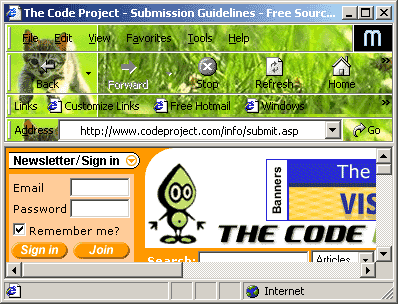
As you can see in the snapshot above, Internet Explorer (IE version 5 and above) lets you use a bitmap as a skin/wallpaper for the IE toolbar,
just to make it a bit more interesting. This tiny utility allows you set/remove IE skin with a
convenient dialog based application. In the process, we delve into Windows Registry programming using CRegKey
class.
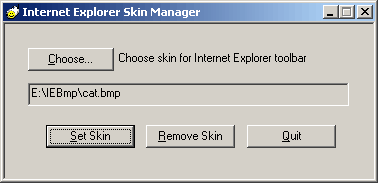
The utility is a simple dialog based application, with plain vanilla GUI as you can see above.
The code can be easily divided into the handlers of the buttons shown above. Rest of the article
will discuss the important steps with the relevant code snippets.
Choosing a bitmap
The OnChoose() handler for button "Choose..." opens a file open dialog with filter set as -
Bitmap Files, as .bmp files are the only files allowed for IE skins. Other image formats such as
JPEG and GIF are not supported for IE skin/wallpaper. This function gets the path of the file selected
by the user and sets m_szFilePath to this value. It also displays the file path in the read only
edit box. The code for OnChoose() is -
void CIESkinDlg :: OnChoose()
{
LPCTSTR lpszFilter = "Bitmap Files (*.bmp)|*.bmp||";
CFileDialog dlgFile(TRUE,NULL,NULL,OFN_FILEMUSTEXIST|OFN_EXPLORER,
lpszFilter,this);
if(IDOK == dlgFile.DoModal())
{
m_szFilePath = dlgFile.GetPathName();
SetDlgItemText(IDC_EDIT,m_szFilePath);
}
}
Set bitmap as a skin
To set selected bitmap file as a skin for Internet Explorer, you must specify path of the
selected file as a value data for the registry value BackBitmap under the registry
key -
 HKEY_CURRENT_USER
    \Software
        \Microsoft
            \Internet Explorer
                \Toolbar
The registry
modifications are done using the class CRegKey, which provides methods
for manipulating values in the system registry. Note that, you need to include
atlbase.h header file in your code to use CRegKey class.
The function SetIESkin() sets the bitmap as skin. This function in turn
is invoked by the OnSet() handler of the "Set Skin" button. The function opens the
required registry key, sets value of BackBitmap to m_szFilePath, which
is the file selected by the user, and in the end closes the key. The code -
BOOL CIESkinDlg :: SetIESkin()
{
LONG lResult = 0;
CRegKey reg;
LPCTSTR lpszKey = "Software\\Microsoft\\Internet Explorer\\Toolbar";
lResult = reg.Open(HKEY_CURRENT_USER,lpszKey);
if(ERROR_SUCCESS != lResult)
{
return FALSE;
}
lResult = reg.SetValue(m_szFilePath,"BackBitmap");
if(ERROR_SUCCESS != lResult)
{
return FALSE;
}
reg.Close();
return TRUE;
}
Let's look into some CRegKey functions now, the function CRegKey::Open
opens the specified key and sets m_hKey to the handle of this key. The prototype is -
LONG Open( HKEY hKeyParent, LPCTSTR lpszKeyName,
    REGSAM samDesired = KEY_ALL_ACCESS )
hKeyParent - It is a handle to a currently open key or one of the predefined reserved handle values
such as - HKEY_CURRENT_USER, HKEY_LOCAL_MACHINE etc.lpszKeyName - It specifies the name of a key to be opened. This name must be a
sub-key of hKeyParent.samDesired - The security access for the key. Depending on this, reading or writing of the
registry key is permitted. The default value is KEY_ALL_ACCESS. The other values include -
KEY_WRITE,
KEY_READ and KEY_QUERY_VALUE. If your application only requires to read the registry values, you would
probably want KEY_QUERY_VALUE or KEY_READ access.
Another function used here is LONG SetValue( DWORD dwValue, LPCTSTR lpszValueName ),
which stores data in the specified value field of an open registry key. If the value name does not exist
under that particular sub-key, it is created for storing the data. This version of SetValue
uses m_hKey as the open key.
The function LONG Close( ) closes the key, releasing the m_hKey
member handle and sets it to NULL. When the key is closed, its registry data is
written (flushed) to the hard disk. If your application must explicitly write registry data
to the hard disk, you can call the RegFlushKey Win32 function.
All these functions return ERROR_SUCCESS if successful, or they return an error value
otherwise. You can use the Win 32 FormatMessage function with the
FORMAT_MESSAGE_FROM_SYSTEM flag to get a generic description of the error.
Removing the skin
To remove the skin from IE you need to delete the registry value BackBitmap,
which was set earlier using the function SetIESkin(). This is done by the function
RemoveIESkin(), which in turn is invoked by the OnRemove() handler of
the "Remove Skin" button.
The RemoveIESkin() function opens the required key, deletes the
BackBitmap value of the key from the system registry, and in the end closes the key.
Successful deletion of this value will clear the IE toolbar.
If the value to be deleted is not found, the function returns FALSE, indicating error. The code -
BOOL CIESkinDlg :: RemoveIESkin()
{
LONG lResult = 0;
CRegKey reg;
LPCTSTR lpszKey = "Software\\Microsoft\\Internet Explorer\\Toolbar";
lResult = reg.Open(HKEY_CURRENT_USER,lpszKey);
if(ERROR_SUCCESS != lResult)
{
return FALSE;
}
lResult = reg.DeleteValue("BackBitmap");
if(ERROR_SUCCESS != lResult)
{
return FALSE;
}
reg.Close();
return TRUE;
}
The function CRegKey::DeleteValue actually deletes value field of the
key identified by m_hKey, which in turn is set by CRegKey::Open.
The prototype of CRegKey::DeleteValue is -
LONG DeleteValue( LPCTSTR lpszValue )
The function accepts parameter lpszValue, which specifies the value field to
be removed. If the value is deleted successfully, the function returns ERROR_SUCCESS,
or returns an error value otherwise. If the value denoted by parameter lpszValue is not found,
the function returns an error value. On receiving this error value, the RemoveIESkin()
function returns FALSE indicating that the deletion of registry value did not take place.
That's it!
Really! That ends all the important code of this utility. Rest of the bits and pieces can be found
in the source code. Once you start experimenting with various bmp files using this utility, you can
make your IE look really cool. Also, as a side effect, your outlook express will also start flaunting
this new skin.
You can use this code to develop a full-fledged IE customization utility,
which could have a custom title, custom revolving logo, brand logo etc. by
setting the appropriate registry values. The details about these registry
settings can be obtained form the MSDN site. Happy coding and debugging ;)


