Creating a Simple Windows 8 Game with JavaScript: Part 4 – Input & Sound


4.92/5 (8 votes)

This is the fourth in a series of posts that will show you to create a (very) simple Windows 8 game.
Develop a Windows 8 app in 30 days

Creating a Simple Windows 8 Game Series:
- Creating a Simple Windows 8 Game with JavaScript: Part 1 – Windows 8 App Basics
- Creating a Simple Windows 8 Game with JavaScript: Part 2 – Game Basics & CreateJS/EaselJS
- Creating a Simple Windows 8 Game with JavaScript: Part 3 – Game Logic
- Creating a Simple Windows 8 Game with JavaScript: Part 4 – Input & Sound
This is the fourth in a series of posts that will show you to create a (very) simple Windows 8 game. We’ll be using HTML5, JavaScript, WinJS, and some helpful libraries from CreateJS along the way.
- Part 1 – Windows 8 App Basics
- Part 2 – Game Basics & CreateJS/EaselJS
- Part 3 – Game Logic
- Part 4 – Input & Sound
The game is based on the XNA sample game "Catapult Wars Lab". We’ll reuse the assets from that game as we develop a new version for Windows 8 that’s based on web technologies.
In this post, we’ll bring respond to user input and make things a bit more lively by adding sound.
Handling User Input
Of course there are many ways we could have shot aiming work – random, time-based, precision-based (e.g. "click... NOW!"), but in this case we’ll let the user draw a line indicating both direction and speed.
First, let’s add new variables near the top of default.js:
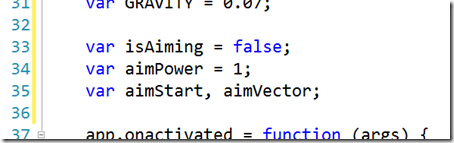
Windows 8 supports several ways to draw – mouse, touch, pen – and our game needs to be flexible enough to support whichever the user has. Fortunately, the MSPointer system combines support for all of these into one. We’ll use MSPointerDown/Up to begin and end aiming, plus MSPointerMove to provide feedback as the user adjusts the aim.
By the way, there’s also great support via MSGesture for detecting gestures such as tap, double-tap, etc. A good example for handling input and gestures is the "BallInEight" sample on MSDN.
These events are used by pointing to listener functions, called when they fire. Let’s take care of that now, adding near the top of the initialize() function:

And now for the functions themselves (add where you like, but I placed between update() and fireShot():

Note an exercise is left here. For simplicity, I omitted showing text with aim % and/or drawing an aiming arrow during the adjustAim() function. Go ahead and try adding that – from earlier parts, we’re already using the very same techniques you’ll need.
And a function to help us calculate the aim:

Again, simplicity rules the day and this is only for player 1, but here’s what’s happening:
- Lines 239-241 – Create a new Point from the distance from the start to end Points. Scale it down to a good velocity to apply per frame/update.
- Lines 242 & 244 – Make sure the x and y are limited so the shot doesn’t simply disappear off the screen, going too quickly
- Lines 243 & 245 – Make sure the shot is going toward the enemy…. more or less.
We earlier added some temporary code to update() to have player 1 always fire randomly. Now we can replace that to use the new aimVector:
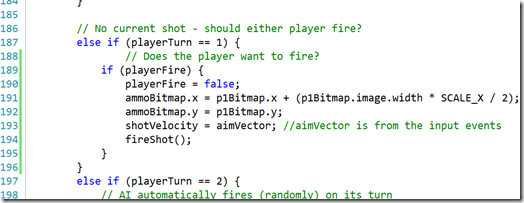
Go ahead and run the game ...

Now you can use the mouse, pen, or touch to control the shot!
"I must be hearing things!" – Adding Sound
Our job as a game dev isn’t done until we have some sound. We’ve already added the sound files back in Part 2 so let’s take the next step by loading them.
First, a few variables in default.js to keep things tidy:

Recall from Part 2 that we’ve already wired up PreloadJS to ensure our resources are ready when the game starts? We can use the same approach with sounds, so let’s add them to the manifest:

To use these files, we’ll create instances of HTML audio elements. Long story short, if you simply create one audio instance per sound file, you’ll probably run into clipping as one sound fails to play before the prior play of that instance completes. There are several approaches for dealing with this (for example, see "HTML5 Audio and JavaScript Control"), but we’ll do the simple & 'inefficient' thing of using one instance each time we play a sound.
Note, we will not be using SoundJS (another part of CreateJS) in this example, but of course you’re welcome to take it for a spin!
Add the playSound(file) helper function:
That’s it! Now we just call it, specifying the constant pointing to the right file. We’ll do this in several places.
First, add a call to fireShot():

Now, processHit():

As the comment mentions, you could use the "Hit" sound instead of "Explode" if you’d like to have it take multiple hits to destroy a catapult.
And finally, play end win or lose sound in endGame():

Go ahead and give it a run to try things out.
Game On ... And On ... And On ...
Congratulations! You’ve made a game!
We’ve covered a lot of ground in this posts, but like anything, there’s 'plenty' of other things to try. Why not take a stab at some of them?

- Screen adjustments – Portrait/landscape, snapped/filled. A great chance to learn about CSS Media Queries!
- Improving Touch/Gesture support
- Sprites/animations – Shot hit/miss, catapult pullback/fire, catapult destroyed
- Gameplay dynamics – Adding wind, new scenes, new catapult features/upgrades, choices in ammo, etc.
- Add a mountain and moving clouds to background (the assets are already there)
- Add some 'intelligence' to the currently very 'artificial' intelligence
- Consider using a live tile - Maybe show the player’s last/high score?
- Download the Catapult Wars Extensions Kit and tackle some of those ideas – health bar, 2 human players, angles, aiming, supplies, and scrolling!
Enjoy! Looking forward to hearing about the awesome new things you add!