Click here to Skip to main content

Using the ASP.NET 2.0 ReportViewer in Local Mode

By , 14 Sep 2006
 

Introduction

There are a good amount of materials on the net about “SQL Reporting Services in Server Mode” but it took me a while to research on using “Local Mode”, especially when parameters are involved.

The reason to use “Local Mode” instead of “Server Mode” is that in “Server Mode”, the client makes a report request to the server. The server generates the report and then sends it to the client. While it is more secure, a large report will degrade performance due to transit time from server to browser. In “Local Mode”, reports are generated at the client. No connection to the “SQL Server Reporting Services Server” is needed for local mode. Large reports will not increase wait time.

So here is an article on how to generate reports using the ASP.NET 2.0 ReportViewer web server control via Local Mode with a parameterized stored procedure. I am using ASP.NET 2.0, Visual Studio 2005, and SQL Server 2005 with Application Block. If you are not using Microsoft Application Block, just call the stored procedure via the SQL Command object without using the SQL Helper class in the example.

Using the Northwind database, our example will prompt the user for a category from a dropdown list and display all the products under the selected category.

Step 1: Create a parameterized stored procedure

ALTER PROCEDURE  ShowProductByCategory(@CategoryName nvarchar(15) )
AS
SELECT  Categories.CategoryName, Products.ProductName, 
        Products.UnitPrice, Products.UnitsInStock
FROM    Categories INNER JOIN Products ON 
        Categories.CategoryID = Products.CategoryID
WHERE   CategoryName=@CategoryName
RETURN

Step 2: Create a DataTable in a typed DataSet using the DataSet Designer

Under Solution Explorer, right-click on the App_Code folder. Select “Add New Item”. Select “DataSet”. Name your dataset, e.g., DataSetProducts.xsd, and click Add. The TableAdapter Configuration Wizard should appear automatically, if not, right click anywhere on the DataSet Designer screen and select “Add” from the context menu. Select the “TableAdapter” to bring up the wizard. Follow the wizard to create your data table. I chose “Use existing stored procedures” as the command type and specified “ShowProductByCategory” as the Select command. I also highlighted “CategoryName” as the Select procedure parameter.

The results from the stored procedure created in step 1 will eventually be placed into this data table created in step 2 (Fig. 1). Report data is provided through a data table.
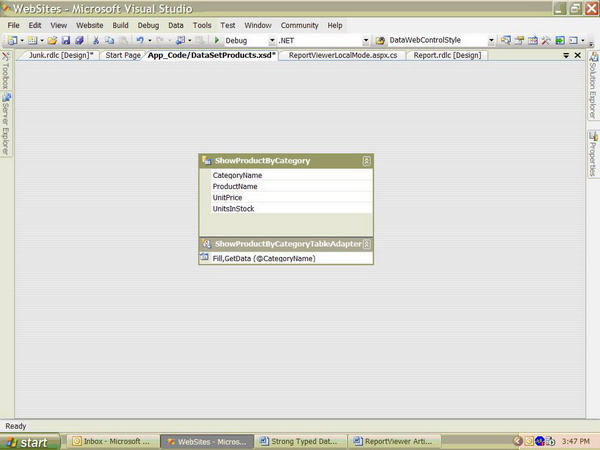
Fig. 1 DataSetProducts.xsd contains a DataTable to be used as a report data source.

Step 3: Create a report definition

Under Solution Explorer, right-click and select “Add New Item”. Select the “Report” template. I will use the default name Report.rdlc in this example. Click “Add” to add Report.rdlc to your project. “rdl” stands for Report Definition Language. The “c” stands for Client. Hence, the extension .rdl represents a server report. The extension .rdlc represents a local report.

Drag a “Table” from the Toolbox onto the report designer screen (Fig.2). The Toolbox display here is specific to the report template. It shows controls to be used in a report as opposed to controls to be used in a web form. The “Table” has three bands, the header, detail, and the footer bands.

A “Table” is a data region. A data region is used to display data-bound report items from underlying datasets. Although a report can have multiple data regions, each data region can display data from only one DataSet. Therefore, use a stored procedure to link multiple tables into a single DataSet to feed the report.

Fig. 2 Toolbox contains controls specific to the report template.

Open up the “Website Data Sources” window (Fig.3). Locate the “DataSetProductsDataSet (created in Step 2). Expand to see the columns in the DataTableShowProductByCategory”. The table is named “ShowProductByCategory” because we chose “Use existing stored procedure” in the TableAdapter Configuration Wizard. And our procedure name is “ShowProductByCategory”.

Drag the column “ProductName” from the “Website Data Sources” window, and drop it in the Detail row (middle row). Drag “UnitPrice” into the middle row-second column and “UnitsInStock” into the last column. The header is automatically displayed. You can right click on any field in the detail row (e.g., right click on “Unit Price”) and bring up the context menu. Select Properties from the context menu. Select Format tab to format the “Unit Price” and “Units In Stock” accordingly.

Fig 3. Website Data Sources window shows typed datasets in your app and its columns.

Step 4: Drag a ReportViewer web server control onto an .aspx form

Drag a DropDownList control onto a new web form (Fig. 4). Use the “Choose Data Source” option from the “DropDownList Task” to bind the CategoryName field from the Category table. Remember to enable autopostback. Users can then make their selection as an input to the stored procedure. While I am using a DropDownList in this example, you can use textboxes and other controls to prompt users for additional input.

Drag a ReportViewer web server control onto the web form. Set its Visible property to false. Also notice, the ReportViewer web server control in ASP.NET 2.0 provides exporting capability. You can select between Excel format or PDF format. However, I find that what you see on screen is not always what you get from the printer. You will have to experiment with the output format further.

Fig. 4 Set this web page as the StartUp page.

Next, bring up the smart tag of the ReportViewer control (Fig. 5). Select “Report.rdlc” in the “Choose Report” dropdown list. “Report.rdlc” was created in Step 3. Local Reports have the extension .rdlc. Server Reports are labeled with .rdc.

Fig. 5 Associate the report definition file (.rdlc) to the ReportViewer control

Step 5: Write source code for the “Run Report” button to generate the report based on user selections

Don’t forget to include the “Microsoft.Reporting.WebForms” namespace in your code-behind file.

using System;
using System.Data;
using System.Data.SqlClient;
using System.Configuration;
using System.Collections;
using System.Web;
using System.Web.Security;
using System.Web.UI;
using System.Web.UI.WebControls;
using System.Web.UI.WebControls.WebParts;
using System.Web.UI.HtmlControls;
using Microsoft.ApplicationBlocks.Data;
using Microsoft.Reporting.WebForms;

public partial class ReportViewerLocalMode : System.Web.UI.Page
{
    public string thisConnectionString = 
       ConfigurationManager.ConnectionStrings[
       "NorthwindConnectionString"].ConnectionString;

    /*I used the following statement to show if you have multiple 
      input parameters, declare the parameter with the number 
      of parameters in your application, ex. New SqlParameter[4]; */

    public SqlParameter[] SearchValue = new SqlParameter[1];

    protected void RunReportButton_Click(object sender, EventArgs e)
    {
        //ReportViewer1.Visible is set to false in design mode
        ReportViewer1.Visible = true;
        SqlConnection thisConnection = new SqlConnection(thisConnectionString);
        System.Data.DataSet thisDataSet = new System.Data.DataSet();       
        SearchValue[0] = new SqlParameter("@CategoryName", 
                         DropDownList1.SelectedValue);

        /* Put the stored procedure result into a dataset */
        thisDataSet = SqlHelper.ExecuteDataset(thisConnection, 
                      "ShowProductByCategory", SearchValue);

        /*or   thisDataSet = SqlHelper.ExecuteDataset(thisConnection, 
               "ShowProductByCategory", dropdownlist1.selectedvalue); 
               if you only have 1 input parameter  */

        /* Associate thisDataSet  (now loaded with the stored 
           procedure result) with the  ReportViewer datasource */
        ReportDataSource datasource = new 
          ReportDataSource("DataSetProducts_ShowProductByCategory", 
          thisDataSet.Tables[0]);

        ReportViewer1.LocalReport.DataSources.Clear();
        ReportViewer1.LocalReport.DataSources.Add(datasource);
        if (thisDataSet.Tables[0].Rows.Count == 0)
        {
            lblMessage.Text = "Sorry, no products under this category!";
        }

        ReportViewer1.LocalReport.Refresh();
    }
}

Step 6: Build and Run the Report

Press F5 to run the .aspx. Click on the “Run Report” button to see the list of products based on the selected category from the dropdown list (Fig. 6).

Fig. 6 Click on the “Run Report” button to generate a local report

Be sure to add reference of the ReportViewer to your web app, and note that your ReportViewer web server control has registered an HTTP handler in the web.config file. Your web.config file should have the following string:

<httpHandlers>
    <add path="Reserved.ReportViewerWebControl.axd" verb="*" 
         type="Microsoft.Reporting.WebForms.HttpHandler, 
               Microsoft.ReportViewer.WebForms, 
               Version=8.0.0.0, Culture=neutral, 
               PublicKeyToken=?????????????"
         validate="false" />
</httpHandlers>

When you use the Visual Studio 2005 ReportViewer web server control in your website, you will need to copy the "C:\Program Files\Microsoft Visual Studio 8\SDK\v2.0\BootStrapper\Packages\ReportViewer\ReportViewer.exe" to your server and run it before you post those web pages with the ReportViewer control.

Well, there you have it. This is a simple example of creating a report in local mode. I hope you find the example useful. Happy computing!

License

This article, along with any associated source code and files, is licensed under The Code Project Open License (CPOL)

About the Author

ShirleySW
Web Developer
United States United States
Member
No Biography provided

Sign Up to vote   Poor Excellent
Add a reason or comment to your vote: x
Votes of 3 or less require a comment

Comments and Discussions

 
You must Sign In to use this message board.
Search this forum  
    Spacing  Noise  Layout  Per page   
GeneralRe: Failed to convert parameter value from a SqlParameter to a String.memberastro76548 Oct '10 - 5:08 
Not sure if this will help, and maybe I've posted this before, but this is the full stack trace of the error:
 
[InvalidCastException: Object must implement IConvertible.]
System.Convert.ChangeType(Object value, Type conversionType, IFormatProvider provider) +9531909
System.Data.SqlClient.SqlParameter.CoerceValue(Object value, MetaType destinationType) +5034066
 
[InvalidCastException: Failed to convert parameter value from a SqlParameter to a String.]
System.Data.SqlClient.SqlParameter.CoerceValue(Object value, MetaType destinationType) +5033757
System.Data.SqlClient.SqlParameter.GetCoercedValue() +32
System.Data.SqlClient.SqlParameter.Validate(Int32 index, Boolean isCommandProc) +103
System.Data.SqlClient.SqlCommand.SetUpRPCParameters(_SqlRPC rpc, Int32 startCount, Boolean inSchema, SqlParameterCollection parameters) +126
System.Data.SqlClient.SqlCommand.BuildRPC(Boolean inSchema, SqlParameterCollection parameters, _SqlRPC& rpc) +73
System.Data.SqlClient.SqlCommand.RunExecuteReaderTds(CommandBehavior cmdBehavior, RunBehavior runBehavior, Boolean returnStream, Boolean async) +987
System.Data.SqlClient.SqlCommand.RunExecuteReader(CommandBehavior cmdBehavior, RunBehavior runBehavior, Boolean returnStream, String method, DbAsyncResult result) +162
System.Data.SqlClient.SqlCommand.RunExecuteReader(CommandBehavior cmdBehavior, RunBehavior runBehavior, Boolean returnStream, String method) +32
System.Data.SqlClient.SqlCommand.ExecuteReader(CommandBehavior behavior, String method) +141
System.Data.SqlClient.SqlCommand.ExecuteDbDataReader(CommandBehavior behavior) +12
System.Data.Common.DbCommand.System.Data.IDbCommand.ExecuteReader(CommandBehavior behavior) +10
System.Data.Common.DbDataAdapter.FillInternal(DataSet dataset, DataTable[] datatables, Int32 startRecord, Int32 maxRecords, String srcTable, IDbCommand command, CommandBehavior behavior) +144
System.Data.Common.DbDataAdapter.Fill(DataSet dataSet, Int32 startRecord, Int32 maxRecords, String srcTable, IDbCommand command, CommandBehavior behavior) +319
System.Data.Common.DbDataAdapter.Fill(DataSet dataSet) +94
Microsoft.ApplicationBlocks.Data.SqlHelper.ExecuteDataset(SqlConnection connection, CommandType commandType, String commandText, SqlParameter[] commandParameters) in C:\Program Files\Microsoft Application Blocks for .NET\Data Access\Code\CS\Microsoft.ApplicationBlocks.Data\SQLHelper.cs:508
Microsoft.ApplicationBlocks.Data.SqlHelper.ExecuteDataset(SqlConnection connection, String spName, Object[] parameterValues) in C:\Program Files\Microsoft Application Blocks for .NET\Data Access\Code\CS\Microsoft.ApplicationBlocks.Data\SQLHelper.cs:544
JCIMS_MVC2_EF.WebUI.Areas.Reports.School_Report_With_POCs.RunReportButton_Click(Object sender, EventArgs e) in C:\JCIMS_MVC\JCIMS_MVC2_EF.WebUI\Areas\Reports\School_Report_With_POCs.aspx.cs:41
System.Web.UI.WebControls.Button.OnClick(EventArgs e) +118
System.Web.UI.WebControls.Button.RaisePostBackEvent(String eventArgument) +112
System.Web.UI.WebControls.Button.System.Web.UI.IPostBackEventHandler.RaisePostBackEvent(String eventArgument) +10
System.Web.UI.Page.RaisePostBackEvent(IPostBackEventHandler sourceControl, String eventArgument) +13
System.Web.UI.Page.RaisePostBackEvent(NameValueCollection postData) +36
System.Web.UI.Page.ProcessRequestMain(Boolean includeStagesBeforeAsyncPoint, Boolean includeStagesAfterAsyncPoint) +5563
GeneralRe: Failed to convert parameter value from a SqlParameter to a String.memberShirleySW8 Oct '10 - 5:59 
Is the binding in the DropDownList1 and 2 correct? Check the value in
 
1) DisplayMember
 
2) ValueMember
 
3) DataSource
 
SelectedValue is an object. Did your code cast it to an integer (not sure if it has been changed since). So the error returns to conversion of the SqlParameters. I wonder if you can enter a sp with no parameters just to see if the dataset.Table[0] is populated. It has to be something small.
GeneralRe: Failed to convert parameter value from a SqlParameter to a String.memberShirleySW8 Oct '10 - 6:07 
You do have a similar statement defined outside the Click event?
 
public SqlParameter[] SearchValue = new SqlParameter[1];
GeneralRe: Failed to convert parameter value from a SqlParameter to a String.memberastro76548 Oct '10 - 10:59 
Shirley:
 
I've finally gotten to the bottom of my problem with the "failed to convert parameter value..." problem. Apparently I downloaded version 1 of Microsoft.ApplicationBlocks.Data. Which had that very problem. Version 2 fixes it. This is the forum where I found that issue:
 
http://forums.asp.net/t/1171444.aspx
 
However now I'm back to my 2nd issue of:
 
"A data source instance has not been supplied for the data source...". Since working on the first issue, my code is completely out of whack from your original code. On Monday I'll try to get my code back to being very similar to your code and see if I can figure out that issue.
 
Again thank you very much for your patience and perseverance.
 
-Mike
GeneralRe: Failed to convert parameter value from a SqlParameter to a String.memberastro765412 Oct '10 - 4:52 
Hi Shirley,
 
After downloading and installing version 2 of Microsoft ApplicationBlocks, I was able to get past my previous error that I was dealing with last week. The current error that I'm getting is:
 
A data source instance has not been supplied for the data source 'SchoolReportWithPOCsDataSet'.
 
Here is the pertinent portion of my *.aspx file:
 
<rsweb:ReportViewer ID="ReportViewer1" runat="server" Font-Names="Verdana"
Font-Size="8pt" InteractiveDeviceInfos="(Collection)"
WaitMessageFont-Names="Verdana" WaitMessageFont-Size="14pt" Width="950px">
<LocalReport ReportPath="Areas\Reports\School_Report_With_POCs.rdlc">
<DataSources>
<rsweb:ReportDataSource DataSourceId="SqlDataSource1"
Name="SchoolReportWithPOCsDataSet" />
</DataSources>
</LocalReport>
</rsweb:ReportViewer>
<asp:SqlDataSource ID="SqlDataSource1" runat="server"
ConnectionString="<%$ ConnectionStrings:JCIMS %>"
SelectCommand="pLookupListSchoolsAddressWPocs"
SelectCommandType="StoredProcedure">
<SelectParameters>
<asp:FormParameter DefaultValue="CO" FormField="State_Code" Name="State_Code"
Type="String" />
<asp:FormParameter DefaultValue="5" FormField="Brigade_Number"
Name="Brigade_number" Type="Byte" />
</SelectParameters>
</asp:SqlDataSource>
 

Here is the pertinent portion of the *.cs file:
 
protected void RunReportButton_Click(object sender, EventArgs e)
{
ReportViewer1.Visible = true;
SqlConnection thisConnection = new SqlConnection(thisConnectionString);
System.Data.DataSet thisDataSet = new System.Data.DataSet();
sqlParams[0] = new SqlParameter("@State_Code", DropDownList1.SelectedValue);
sqlParams[1] = new SqlParameter("@Brigade_number", Int32.Parse(DropDownList2.SelectedValue));
thisDataSet = SqlHelper.ExecuteDataset(thisConnection, "pLookupListSchoolsAddressWPocs", sqlParams);
ReportDataSource datasource = new
ReportDataSource("SchoolReportWithPOCsDataSet_pLookupListSchoolsAddressWPocs", thisDataSet.Tables[0]);
ReportViewer1.LocalReport.DataSources.Clear();
ReportViewer1.LocalReport.DataSources.Add(datasource);
if (thisDataSet.Tables[0].Rows.Count == 0)
{
Label1.Text = "Sorry, there is nothing to display!";
}
 
ReportViewer1.LocalReport.Refresh();
}
 

The dataset name is SchoolReportWithPOCsDataSet
The table name is pLookupListSchoolsAddressWPocs
 
Any further suggestions on what I can try?
 
Thanks,
Mike
GeneralRe: Failed to convert parameter value from a SqlParameter to a String.membermercede27 Aug '11 - 21:04 
He gave up on helping you any further ! you are hopeless
QuestionHI,Shirleymemberxiong.jiang24 Aug '10 - 8:58 
I'm a new Web Developer.The example is very useful for a tyro.Now I'm learning about RDLC,can you give me some more example about RDLC,for example,URL,Article,and so on.Thank you! Smile | :)
AnswerRe: HI,ShirleymemberShirleySW24 Aug '10 - 11:44 
Hello :
 
www.GotReportViewer.com has good tutorials
C-Sharpcorner.com is another good source for info
 
Good Luck...
 
Shirley
QuestionWorking with SQL ViewsmemberJAYASH SHARMA9 Jul '10 - 22:49 
Hi,
 
I am using a view with RDLC. How can i modify this code for my purpose?
 
Regards,
Cry | :((
AnswerRe: Working with SQL ViewsmemberShirleySW12 Jul '10 - 3:42 
Hi Jayash:
SQL Views are tables too, in Step 1 of the article, instead of "select * from table", you just "select * from SQL view", so there should be no change in code.
 
Shirley

General General    News News    Suggestion Suggestion    Question Question    Bug Bug    Answer Answer    Joke Joke    Rant Rant    Admin Admin   

Permalink | Advertise | Privacy | Mobile
Web03 | 2.6.130523.1 | Last Updated 14 Sep 2006
Article Copyright 2006 by ShirleySW
Everything else Copyright © CodeProject, 1999-2013
Terms of Use
Layout: fixed | fluid
