Click here to Skip to main content

An OwnerDraw ComboBox with CheckBoxes in the Drop-Down

By , 24 May 2007
 
Screenshot - DropDown.jpg

Introduction

I needed to add filtering to a list view. The list view already had a ToolStrip to which I could add the appropriate widget. I decided a drop-down ComboBox with CheckBoxes to turn items on and off was the most space-efficient, and intuitive way to implement it. However, this requires an owner-draw ComboBox. Fortunately, the .NET Framework as of 2.0 includes a helper class, CheckBoxRenderer, that will render the check box into the drop-down list for you, given the right parameters.

Using the Code

The first step was to subclass the System.Windows.Forms.ComboBox class:

public partial class CheckComboBox : ComboBox
{
    public CheckComboBox()
    {
        this.DrawMode = DrawMode.OwnerDrawFixed;
        ...
    }

    ...
}

Notice that I set the DrawMode property to tell the ComboBox that we intend to render the drop-down list items ourselves. The next step was to define a class to contain our drop-down list item data and maintain the state. This is a simple class:

public class CheckComboBoxItem
{
    public CheckComboBoxItem( string text, bool initialCheckState )
    {
        _checkState = initialCheckState;
        _text = text;
    }

    private bool _checkState = false;
    public bool CheckState
    {
        get { return _checkState; }
        set { _checkState = value; }
    }

    private string _text = "";
    public string Text
    {
        get { return _text; }
        set { _text = value; }
    }

    public override string ToString()
    {
        return "Select Options";
    }
}

Then we wire up a delegate to the ComboBox's DrawItem event:

this.DrawItem += new DrawItemEventHandler(CheckComboBox_DrawItem);

and implement it as follows:

void CheckComboBox_DrawItem( object sender, DrawItemEventArgs e )
{
    if (e.Index == -1)
    {
        return;
    }

    if( !( Items[ e.Index ] is CheckComboBoxItem ) )
    {
        e.Graphics.DrawString( 
            Items[ e.Index ].ToString(), 
            this.Font, 
            Brushes.Black, 
            new Point( e.Bounds.X, e.Bounds.Y ) );
        return;
    }

    CheckComboBoxItem box = (CheckComboBoxItem)Items[ e.Index ];

    CheckBoxRenderer.RenderMatchingApplicationState = true;
    CheckBoxRenderer.DrawCheckBox( 
        e.Graphics, 
        new Point( e.Bounds.X, e.Bounds.Y ), 
        e.Bounds, 
        box.Text, 
        this.Font, 
        ( e.State & DrawItemState.Focus ) == 0, 
        box.CheckState ? CheckBoxState.CheckedNormal : 
            CheckBoxState.UncheckedNormal );
}

In this delegate, the first thing we do is to verify that the item we are rendering was added as a CheckComboBoxItem. If it is not, we render it as a simple string. Otherwise, we get the appropriate CheckComboBoxItem from the Items collection (using the DrawItemEventArgs.Index property). Then we call the CheckBoxRenderer.DrawCheckBox() method, passing in the Graphics object, into which we want to render the CheckBox, and the location, size, text, font, focus and check states.

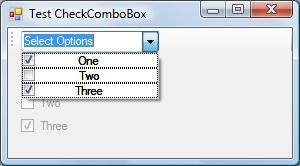
The result is that it will render our drop-down list items to look like check boxes:

Screenshot - DropDown.jpg

Next we want to toggle the check state when one of the items is selected. So we wire up another delegate, but this time to the SelectedIndexChanged event:

this.SelectedIndexChanged += 
    new EventHandler( CheckComboBox_SelectedIndexChanged );

and implement it as follows:

void CheckComboBox_SelectedIndexChanged( object sender, EventArgs e )
{
    CheckComboBoxItem item = (CheckComboBoxItem)SelectedItem;
    item.CheckState = !item.CheckState;
    ...
}

This allows us to toggle the check box in the drop-downs, but doesn't allow the user of this control to know that anything has happened. So we also add a public event to notify the control's users of a change to the check state of an item in the drop-down list:

public event EventHandler CheckStateChanged;

and we fire this event when we toggle the state above, so the full method looks like this:

void CheckComboBox_SelectedIndexChanged( object sender, EventArgs e )
{
    CheckComboBoxItem item = (CheckComboBoxItem)SelectedItem;
    item.CheckState = !item.CheckState;
    if (CheckStateChanged != null)
        CheckStateChanged(item, e);
}

Using the Control

To use the control, you simply add it to the container of your choice and add items to it like this:

checkComboBox1.Items.Add(new CheckComboBox.CheckComboBoxItem("One", true));
checkComboBox1.Items.Add(new CheckComboBox.CheckComboBoxItem("Two", true));
checkComboBox1.Items.Add(new CheckComboBox.CheckComboBoxItem("Three", true));

To get notifications that a check state has been changed by the user:

this.checkComboBox1.CheckStateChanged += 
    new EventHandler(this.checkComboBox1_CheckStateChanged);

That can be handled like this:

private void checkComboBox1_CheckStateChanged(object sender, EventArgs e)
{
    if (sender is CheckComboBox.CheckComboBoxItem)
    {
        CheckComboBox.CheckComboBoxItem item = 
            (CheckComboBox.CheckComboBoxItem)sender;
        ... 
    }
}
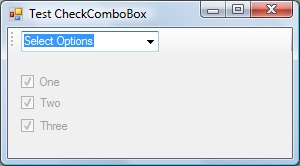
Screenshot - DropDownTest1.jpg
The finished sample application.

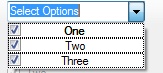
Screenshot - DropDownTest2.jpg
The drop-down.

Points of Interest

There was one annoyance that I'm sure there's a better solution to than the one I came up with. I'd like the TextBox portion of the control to contain fixed text and not be editable. So, as a stop-gap I initialize it to the string "Select Options" and override the CheckComboBoxItem class' ToString() method to always return that same string. This way, whichever item the user selects last, the string never changes. This does not make it non-editable.

There are many additions I'd like to make as time permits:

  • Correctly align the text so it left-justifies (need to find out how to calculate the width of the check box bitmap to do this correctly)
  • Add "Select All" and "Select None" items with a separator to the top of the drop-down
  • Allow other control types into the drop-down (e.g. - radio buttons)

History

  • 24th May, 2007: Original version posted

License

This article has no explicit license attached to it but may contain usage terms in the article text or the download files themselves. If in doubt please contact the author via the discussion board below.

A list of licenses authors might use can be found here

About the Author

Derek Viljoen
Software Developer (Senior)
United States United States
Member
Developer with over twenty years of coding for profit, and innumerable years before that of doing it at a loss.


Sign Up to vote   Poor Excellent
Add a reason or comment to your vote: x
Votes of 3 or less require a comment

Comments and Discussions

 
You must Sign In to use this message board.
Search this forum  
    Spacing  Noise  Layout  Per page   
AnswerRe: Keep dropdown openmemberDerek Viljoen10 Aug '07 - 2:07 
Sascha,
That's a behavior that would probably require writing your own custom drop-down control. However, if you follow the "other" discussion thread on this article (about left align text), you'll see that someone else had the same question. There are some suggestions there.
GeneralRe: Keep dropdown openmemberMassalla10 Aug '07 - 8:48 
Oh...I'm sorry, I guess I missed it (even though I read the thread an implemented the left align hack)...
 
But I still have the problem, that I can't set the SelectedText. Is the approach wrong? I tried catching the event when the drop down closes an loop through the checkboxes to gather a comma separated string of all checked items. I would then set the SelectedText property to the string value. But that didn't work for some reason.
 
Any clue? [I'll post some code with further details tomorrow, if necessary].
 
Thanks...
Sascha
Questionleft align textmemberTasneemJ26 Jun '07 - 0:41 
Hi
 
About your to-do note: "Correctly align the text so it left-justifies (need to find out how to calculate the width of the check box bitmap to do this correctly)"
 
I'd really like to implement this. Any ideas on how to go about it? Confused | :confused:
AnswerRe: left align textmemberDerek Viljoen26 Jun '07 - 2:28 
Here's a hack to the CheckComboBox_DrawItem method:

CheckBoxRenderer.DrawCheckBox(
e.Graphics,
new Point( e.Bounds.X, e.Bounds.Y ),
e.Bounds,
" " + box.Text,
this.Font,
TextFormatFlags.Left,
( e.State & DrawItemState.Focus ) == 0,
box.CheckState ? CheckBoxState.CheckedNormal : CheckBoxState.UncheckedNormal );

 
To highlight the changes, I added leading spaces to the box.Text parameter (to move it over to the right) and added the TextFormatFlags.Left parameter.
 
This is not a perfect solution, because the number of spaces to add depends on the font you're using, and if you have anything other than the default styles, etc. You can use the Graphics.MeasureString method to calculate it out on the fly, but, again, you need to know the exact size of the checkbox bitmap. That also may change, depending on the visual style.
 
--Derek Viljoen
GeneralRe: left align textmemberTasneemJ26 Jun '07 - 2:51 
I tried to determine the width of the checkbox, but couldn't find any info. So I hacked it similar to yours:
 
CheckBoxRenderer.DrawCheckBox(
e.Graphics,
new Point(e.Bounds.X, e.Bounds.Y),
new Rectangle(new Point(e.Bounds.X + 13, e.Bounds.Y), new Size(e.Bounds.Width, e.Bounds.Height)),
box.Text,
this.Font,
TextFormatFlags.Left,
(e.State & DrawItemState.Focus) == 0,
box.CheckState ? CheckBoxState.CheckedNormal : CheckBoxState.UncheckedNormal);
 
Sigh | :sigh:
 
Another question, since this is a multi-select, do you know how to keep the dropdown list open until the user clicks outside the control or collapses it by clicking the dropdown button again??? Similar to the old C++ control written here: http://www.codeproject.com/combobox/checkcombo.asp
 
Thanks for your input.
GeneralRe: left align textmemberDerek Viljoen26 Jun '07 - 3:15 
No, not off the top of my head.
 
But, I did something similar to that for a grid control. We wanted to be able to right-click on the column headers and pop-up a list of available columns so you could hide/show them by checking the check boxes in the list. We just did a floating window with FormBorderStyle set to FixedToolWindow, and populated it with a list of checkboxes. This worked well enough, and there's a Close "X" button in the top right so the user can dismiss it when they're done. We did it as a modal dialog (if I remember right) so the feed back was immediate (they'd check a box and the column would immediately appear, uncheck it and it would disappear). (The modal part is important to keep the main UI thread going while you're processing the dialog feedback)


--Derek Viljoen
GeneralRe: left align textmemberpavvel31 Jul '07 - 3:55 
where i could find source of this solution?
 
Best regards,
Pawel
GeneralRe: left align textmemberDerek Viljoen31 Jul '07 - 4:03 
I'm afraid I did that for a former employer, and don't have access to that code. (Quite frankly, even if I did I wouldn't be able to share it, since it's technically their IP).
 
I'm a bit short of time right now to hack one up for you. It's really not difficult though. I would create a form to hold the list, set the display properties of the form to use a tool box border style. Display it with ShowDialog(), instead of just Show(), and you're in business.
GeneralRe: left align textmemberJozef Benikovsky23 Aug '07 - 21:58 
Hi!
 
There is a way how to determine size of the bitmap. Try this out:
 
CheckBoxState state = box.CheckState ? CheckBoxState.CheckedNormal : CheckBoxState.UncheckedNormal;
Size bitmapSize = CheckBoxRenderer.GetGlyphSize(e.Graphics, state);
CheckBoxRenderer.DrawCheckBox(
e.Graphics,
new Point(e.Bounds.X, e.Bounds.Y),
new Rectangle(new Point(e.Bounds.X + bitmapSize.Width, e.Bounds.Y), new Size(e.Bounds.Width, e.Bounds.Height)),
box.Text,
this.Font,
TextFormatFlags.Left,
(e.State & DrawItemState.Focus) == 0,
state);
Generala couple suggestionsmemberSebrell2 Jun '07 - 14:01 

First, I commend your excellent idea. I wanted to make a couple suggestions as well.
 
You might consider overriding the OnDrawItem(DrawItemEventArgs e) method instead of writing a separate event-handling method for the DrawItem event. It generally results in faster performance. Just make sure you include a call to base.OnDrawItem(e); to ensure the event is raised.
 
Also, the ComboBox control includes a DropDownStyle property, of type ComboBoxStyle, which contains three values, of which ComboBoxStyle.DropDownList prevents users from being able to edit list items.
 
Hope this helps.Smile | :)

General General    News News    Suggestion Suggestion    Question Question    Bug Bug    Answer Answer    Joke Joke    Rant Rant    Admin Admin   

Permalink | Advertise | Privacy | Mobile
Web02 | 2.6.130523.1 | Last Updated 24 May 2007
Article Copyright 2007 by Derek Viljoen
Everything else Copyright © CodeProject, 1999-2013
Terms of Use
Layout: fixed | fluid