Introduction
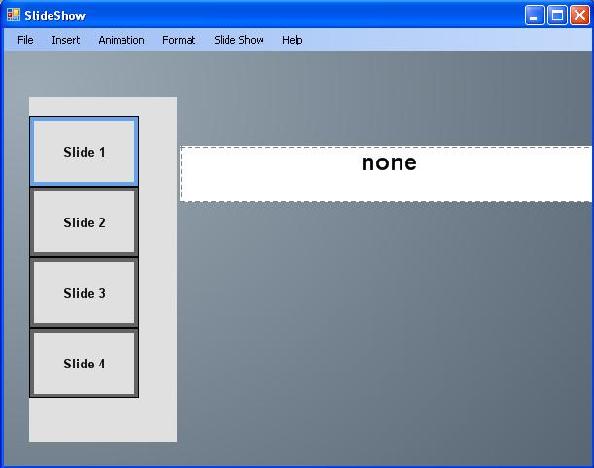
This is a simple presentation program in which you can add slides, text, images and also assign simple animations to them.
Features of Classes
The code contains two user controls:
- textcontrol.cs
- pictureControl.cs
There is also a class for dotted line by which you can add dotted lines. You can also determine its thickness, distance between the points and so on.
Using the Code
There are a number of classes in it.
One of the main classes is MainObject.cs.
public MainObject()
       {

       }
There is also a class for dotted line...
public void drawLine(Graphics g)
        {
            Pen pen = new Pen(Color.Gray, thickness);

            int  dis   = (int)Math.Sqrt((double)((x2 - x1) * (x2 - x1)) +
                (double)((y2 - y1) * (y2 - y1)));

            int end = dis / (1 * length);

            double rad = angle / 180 * Math.PI;
            for (int i = 0; i < end - 1; i += distance)
                g.DrawLine(pen, (float)(x1 + ((i * length) * (float)Math.Cos(rad))),
                               (float)(y1 + ((i * length) * (float)Math.Sin(rad))),
                               (float)(x1 + ((i + 1) * length * (float)Math.Cos(rad))),
                               (float)(y1 + ((i + 1) * length * (float)Math.Sin(rad))));
        }
... and for animation:
if (distance(tmpTextControl.X1,
tmpTextControl.Y1,
tmpTextControl.X2,
tmpTextControl.Y2) > 5)
{
if (tmpTextControl.AnimationStarted)
{
tmpTextControl.Show = true;
tmpTextControl.X1 += (int)(
9.0 * Math.Cos(tmpTextControl.Direction));
tmpTextControl.Y1 += (int)(
9.0 * Math.Sin(tmpTextControl.Direction));
}
}
else
{
if (i < customControl[currentSlide].Length - 1)
customControl[currentSlide][i+1].AnimationStarted = true;
}
Using the Application
You can add a control (i.e. picture box or text box) from the insert menu and then click on the screen to place it there. For animation, you have to select the control and then go to the animation menu and select the desired animation. A control can be edited by double clicking on it.
History
- 12th October, 2007: Initial post
This member has not yet provided a Biography. Assume it's interesting and varied, and probably something to do with programming.



 General
  News
News  Suggestion
  Question
  Bug
Bug  Answer
  Joke
Joke  Praise
  Rant
Rant  Admin
Admin 


 Submit an article or tip


