Introduction
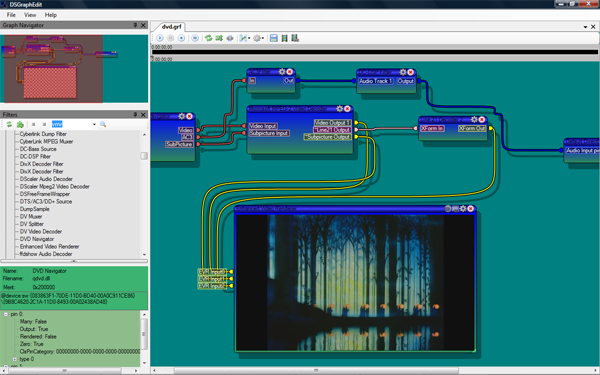
DSGraphEdit is a library to easily add functionality similar to Microsoft's venerable GraphEdit to your .NET applications. Most of the functionality has been recreated with a few new bells and whistles to aid in the debugging of DirectShow software.
Background
GraphEdit is a utility that comes with the DirectShow SDK (later moved to the Windows SDK) that is a visual tool for creating and testing filter graphs for media playback. One of the more powerful functions of GraphEdit is its ability to hook into a filter graph running in an external application via the ROT (Running Object Table). However, doing so tends to be frustrating as it frequently crashes and only provides limited functionality while connected to a remote graph. Another drawback of GraphEdit is that it is closed source and can't be freely redistributed with your own software. DSGraphEdit uses DirectShowLib, Media Foundation .NET (for the Enhanced Video Renderer) and DaggerLib. DaggerLib is a library that aids in the visual construction and execution of DAGs (Direct Acyclic Graphs) for flow-based programming. It will be covered in more detail in future articles.
Using the Code
To use DSGraphEdit in your own application, add a reference to the DaggerLib.DSGraphEdit.dll file found in the lib directory and add the namespace to the form:
using DaggerLib.DSGraphEdit;
DaggerLib.DSGraphedit provides three controls:
DSGraphEditPanel: The workspace for viewing and manipulating a Filter Graph.edDSFiltersPanel: A panel that maintains a tree of DirectShow filters registered on your systemDSGraphEditForm: An all-in-one dialog of DSGraphEditPanel and DSFiltersPanel to make testing easier
DSGraphEditPanel
Constructing a DSGraphEditPanel
DSGraphEditPanel can be created in four different ways:
-
DSGraphEditPanel dsGraphEditPanel = new DSGraphEditPanel();
-
IFilterGraph myFilterGraph = (IFilterGraph)new FilterGraph();
...
...
DSGraphEditPanel dsGraphEditPanel = new DSGraphEditPanel(myFilterGraph);
-
DSGraphEditPanel dsGraphEditPanel = null;
try
{
dsGraphEditPanel = new DSGraphEditPanel("c:\\somegraphfile.grf");
}
catch (Exception ex)
{
MessageBox.Show(ex.Message, "Error loading graph file");
}
-
DSGraphEditPanel dsGraphEditPanel = null;
try
{
dsGraphEditPanel = DSGraphEditPanel.ConnectToRemoteGraph();
}
catch (Exception ex)
{
MessageBox.Show(ex.Message, "Error connecting to remote graph");
}
...
...
dsGraphEditPanel.Dispose();
dsGraphEditPanel = null;
The DSGraphEditPanel.ConnectToRemoteGraph() static method will prompt the user with a dialog box containing a list of IFilterGraphs that are currently registered on ROT:

To disconnect from a Remote Graph, simply dispose of the DSGraphEditPanel with the Dispose() method. Also, similar to constructing from a *.grf file, the ConnectToRemoteGraph static method should always be enclosed in a try/catch block.
Working with DSGraphEditPanel
DSGraphEditPanel is comprised of three areas:
The Toolbar Buttons
- Runs the Filter Graph. The corresponding method is
DSGraphEditPanel.Play(). - Pauses the Filter Graph. The corresponding method is
DSGraphEditPanel.Pause(). - Stops the Filter Graph. The corresponding method is
DSGraphEditPanel.Run(). - Skips forward one frame. The corresponding method is
DSGraphEditPanel.StepOneFrame(). - Synchronizes the contents of the displayed graph with the Filter Graph. Use this if you think the contents of the canvas do not accurately reflect the current state of the Filter Graph. The corresponding method is
DSGraphEditPanel.SyncGraphs(). - Auto-arranges the filters in the displayed graph. The corresponding method is
DSGraphEditPanel.ArrangeNodes(). - Disconnects all pins in the Filter Graph.
- Saves the Filter Graph to a *.grf file. These are compatible with Microsoft's
GraphEdit. The corresponding method is DSGraphEditPanel.SaveFilterGraph(string filename). - Renders a media file into the Filter Graph. The corresponding method is
DSGraphEditPanel.RenderMediaFile(string filename). - Renders a URL (Uniform Resource Locator) into the Filter Graph. The corresponding method is
DSGraphEditPanel.RenderURL(string URL). - Provides several styles for displaying connections between filters. The corresponding property is
DSGraphEditPanel.NoodleStyle (yes, they're called Noodles):
Bezier: A simple bezier curveLines: A five-segment lineCircuitBoardCoarse: All right angles (uses AStar path finding)CircuitBoardFine: Same as CircuitBoardCoarse, but allows non-right anglesRamen: Same as CircuitBoardFine, but uses splines instead of line segments
- Provides several operational and visual styles for the Filter Graph:
- Drop Shadow: Filters and Noodles cast a drop shadow on the canvas. The corresponding property is
DSGraphEditPanel.DropShadow. - Pin Placement: Sets the pins on the Filters to be inside, outside or indented. The corresponding property is
DSGraphEditPanel.PinPlacement. - Show Pin Names: Draws the names for the pins onto the canvas. The corresponding property is
DSGraphEditPanel.ShowPinNames. - Show/Hide Time Slider: Sets the Time Slider (in)visible. The corresponding property is
DSGraphEditPanel.ShowTimeSlider. - Modal Properties: Sets if Filters show their properties in a modal dialog or directly on the canvas. The corresponding property is
DSGraphEditPanel.ModalProperties. - Connect Intelligent: Sets if the Filter Graph adds intermediate filters when it connects two pins. The corresponding property is
DSGraphEditPanel.ConnectIntelligent. - Use Clock: Enables or disables the reference clock of the Filter Graph. The corresponding property is
DSGraphEditPanel.UseReferenceClock.
The Time Slider
If filterGraph has IMediaSeeking available, you can set the current playback of the graph with the Time Slider. Unlike Microsoft's GraphEdit, the Time Slider displays the current time (in hrs:mins:secs:frame format) and allows you to set the start and end positions of the media.
The Canvas
The Canvas is where the Filters are displayed as Nodes with interconnecting Noodles. Connecting pins is as easy as drag and drop, or point and click. In addition, depending on the type of Filter that is represented, the Node can have several different attributes.
If DSGraphEditPanel is set to ModalProprties = false, clicking the button will show/hide the properties for the filter inside the node. This way, you can have multiple filter properties open at once on the canvas. Otherwise, the filter properties will be shown in a modal dialog box. When viewing filter properties, clicking the Scan Interfaces button will scan the filter for all known DirectShow and Media Foundation interfaces, in addition to any interfaces in the Registry, and display them in a dialog box for your snooping pleasure.
If DSGraphEditPanel was created with the DSGraphEditPanel() or DSGraphEditPanel(string graphFileName) constructors and the filter is a Video Renderer, the video will be displayed inside the node. To detach the video into its own window, click the Detach Video Window button . Closing the detached video window will return to the video inside the Node. Also, if a Video Renderer is attached to any DVD Navigator Filter, the video window will post mouse events to the Navigator allowing interaction with DVD menus.
Unlike Microsoft's GraphEdit, DSGraphEditPanels allows you view and modify properties of DMOs (DirectX Media Objects):
DSFiltersPanel
DSFiltersPanel provides a searchable TreeView of all the DirectShow filters registered on the system. After DSFiltersPanel is constructed, set its AssociatedGraphPanel property to the current DSGraphEditPanel. Once a DSFilterPanel is created and associated with a DSGraphEditPanel, you can drag/drop filters onto a DSGraphEditPanel, double click them to add to the associated DSGraphEditPanel or click the Insert Filter button . DSFilterPanel also provides a property panel with all the FilterData information found in the registry:
Graph Navigator
The Graph Navigator provides a small overview of the current DSGraphEditPanel with a puck that shows the part of the canvas that is visible in the viewport. You can drag the puck to quickly scroll the graph to new locations.
DSGraphEditForm
DSGraphEditForm allows you to take a quick peek at a Filter Graph without having to hassle with setting up a DSGraphEditPanel/DSFiltersPanel pair or using connect to a remote graph:
IFilterGraph myFilterGraph = (IFilterGraph)new FilterGraph();
...
...
DSGraphEditForm dsGraphEditForm = new DSGraphEditForm(myFilterGraph);
dsGraphEditForm.ShowDialog();
dsGraphEditForm.Dispose();
dsGraphEditForm = null;
No muss, no fuss.
Known Issues
In order for DSGraphEditPanel.ConnectToRemoteGraph() to work on Windows Vista, you actually need to have the version of GraphEdit from the Windows SDK for Windows Vista and register the proppage.dll that comes with it. If you have the older version of GraphEdit from the previous version of the Windows SDK, it still won't work. It has to be the one from the Windows SDK for Vista. The reason for this is that Microsoft (in their infinite wisdom) removed almost all the proxy/stub pairs from Quartz.dll in Vista and moved them all into the proppage.dll file. Without the proxy/stub pairs registered, Windows can't marshal proxies from one thread apartment to another. (Shame on you, Microsoft.)
History
- 10/30/07: Initial release of
DSGraphEdit - 12/14/07: Version 1.1
- The
DSGraphEdit demo now uses the Weifenluo DockPanel Suite for MDI-style multiple graph editing. - Major optimizations to
DaggerLib.UI.Windows rendering speed. - Full source to
DaggerLib.Core and DaggerLib.UI.Windows now included in Solution. - Added
GraphNavigator control for easier editing/browsing of large graphs. - Pin names are drawn inside nodes when not viewing non-modal properties.
- Arrange Nodes now accounts for pin names that are drawn on the Canvas.
InitVideoWindow in VideoInternalWindow would fail when loading a Graph that had an unconnected video renderer.VideoInternalWindow now supports loading graphs that contain an EVR filter.SyncGraph now removes/re-routes connections.VideoInternalWindow posts mouse location and mouse clicks to attached DVD Navigators for interaction with DVD menus.- Filter Nodes hosting a
VideoInternalWindow connected to DVD Navigators now have a DVD Chapters button. VideoInternalWindow now supports windowed full screen.- Added
CanvasImage property to DSGraphEditPanel for retrieving a snapshot of the Canvas. - Now scans ALL interfaces Pins and Filters support (not just the
DirectShow interfaces). - Fixed some property pages not being visible in non-modal mode.
- 1/20/18: Version 1.2
- Fixed issue with
DaggerUIGraph.KeyboardProc on 64-bit systems - Added 64/32 bit runtime indication on main form
- Added project for "run as 32"
- License changed to MIT
- Updated
MediaFoundationNet and DirectShowLib versions
AKA Rich Insley.
I have over 25 years experience in programming, and I'm completely self taught. (Except for one year at California State University Fresno where I had to learn the God awful language Miranda (http://miranda.org.uk/). I've spent 10 years as a Paratrooper in the US Army during the Clinton Administration.



 General
  News
News  Suggestion
  Question
  Bug
Bug  Answer
  Joke
Joke  Praise
  Rant
Rant  Admin
Admin 


 Submit an article or tip


