Click here to Skip to main content

WPF Drag-and-Drop Smorgasbord

By , 10 Jun 2009
 
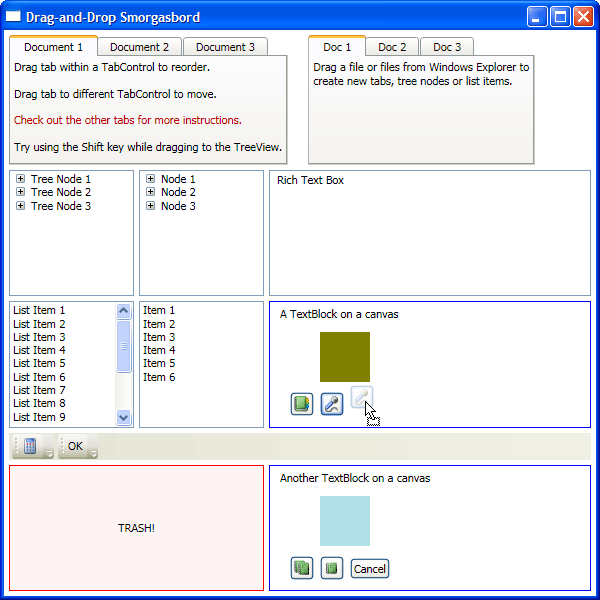
Drag-and-Drop Smorgasbord Screenshot

Introduction

While investigating drag-and-drop using Windows Presentation Foundation, I found that most of the examples dealt with a single control and data type. In this article, I present an intra-application drag-and-drop framework in C# that supports multiple controls and data formats. Custom cursors and adorners are also supported.

The following functionality is covered in this article and supported by the framework.

  • Rearrange TabItems in a TabControl
  • Drag TabItems from one TabControl to another
  • Drag TreeViewItems to different locations within a TreeView
  • Drag TreeViewItem leaves to a ListBox
  • Drag ListBoxItems to new locations within a ListBox or to another ListBox
  • Drag ListBoxItems to a TreeView
  • Drag Buttons between ToolBars
  • Drag Buttons from a Canvas to a ToolBar or from a ToolBar to a Canvas
  • Move TextBlock, Rectangle and Button elements within a Canvas or to another Canvas
  • Create a TextBlock by dragging highlighted text in a RichTextBox to a Canvas
  • Insert text in a RichTextBox by dragging an element from a Canvas to a RichTextBox
  • Create TabItems, TreeViewItems and ListBoxItems by dragging a file or files from Windows Explorer
  • Drag any of the above items to a "trash" area to delete them (except Explorer files)
  • Custom cursors
  • Default adorner

Background

A drag-and-drop operation can be viewed as a data transfer from a data provider (the drag source) to a data consumer (the drop target). The data itself is passed between the data provider and data consumer using a mechanism similar to that of the Windows clipboard.

I'm not going to cover drag-and-drop fundamentals as I feel this topic has been sufficiently covered elsewhere. Here are a few links you may wish to investigate.

Framework Overview

The goal of the framework is to encapsulate the common intricacies of drag-and-drop so you just need to focus on the data you are dragging and dropping. The framework comprises base implementations of a data provider and data consumer, a drag manager, a drop manager, a default adorner and a few utility methods. You'll find the framework files in the DragDropFramework subdirectory of the project.

Data Providers and Consumers

Data providers are most often defined as a source container and a source object, and data consumers are most often defined as a destination container and a drop target. Consider the following list of data providers.

  • TabControl container/TabItem object
  • ListBox container/ListBoxItem object
  • TreeView container/TreeViewItem object
  • Canvas container/Button object
  • Canvas container/TextBlock object

Now consider the following list of data consumers.

  • TabControl container/TabItem object
  • ListBox container/ListBoxItem object
  • TreeView container/TreeViewItem object
  • Canvas container/Button object
  • Canvas container/TextBlock object

Most of the time, controls such as the TabControl, TreeView and ListBox will only provide and consume TabItems, TreeViewItems and ListBoxItems, respectively. However, in this article, the Canvas control provides and accepts several different object types.

The data provider and consumer files are kept in the DragDropFrameworkData subdirectory of the project.

Drag Manager

It is the framework user's responsibility to create an instance of the drag manager by specifying the container to be monitored (e.g. TabControl, Canvas, etc.) and the data to be dragged. The data to be dragged is defined by a class that extends the DataProviderBase class.

A drag operation begins when the user clicks on and drags an object defined by a data provider class. The drag manager automatically deals with housekeeping chores such as hooking events, displaying the correct cursor and showing the adorner.

Drop Manager

It is the framework user's responsibility to create an instance of the drop manager by specifying the container to be monitored (e.g. TabControl, Canvas, etc.) and the data to accept. The data to accept is defined by a class that extends the DataConsumerBase class.

When a user drags an object over a drop container, there are four events that can be triggered, as defined by the WPF drag-and-drop implementation. Here is a list of these events:

  • Drag Enter
  • Drag Over
  • Drag Leave
  • Drop

Each of these events provides the framework user with the opportunity to give feedback to the user by returning the appropriate DragDropEffects value. This value is used in the drag manager to display the appropriate cursor.

In the case of the Drop event, the returned DragDropEffects value indicates the operation that was finally performed (e.g. Move, Link or Copy).

We'll examine the data consumer in more depth later on in the article.

ListBox Data Provider

We'll start by looking at the ListBoxItem data provider. The following code shows the completed ListBoxDataProvider class.

/// <summary>
/// This Data Provider represents ListBoxItems.
/// </summary>
/// <typeparam name="TContainer">Drag source container type</typeparam>
/// <typeparam name="TObject">Drag source object type</typeparam>
public class ListBoxDataProvider<TContainer, TObject> : 
	DataProviderBase<TContainer, TObject>, IDataProvider
    where TContainer : ItemsControl
    where TObject : FrameworkElement
{

    public ListBoxDataProvider(string dataFormatString) :
        base(dataFormatString)
    {
    }

    public override DragDropEffects AllowedEffects {
        get {
            return
                //DragDropEffects.Copy |
                //DragDropEffects.Scroll |
                DragDropEffects.Move |	// Move ListBoxItem
                DragDropEffects.Link |  	// Needed for moving ListBoxItem 
					//as a TreeView sibling
                DragDropEffects.None;
        }
    }

    public override DataProviderActions DataProviderActions {
        get {
            return
                DataProviderActions.QueryContinueDrag | // Need Shift key info 
						//(for TreeView)
                DataProviderActions.GiveFeedback |
                //DragDropDataProviderActions.DoDragDrop_Done |

                DataProviderActions.None;
        }
    }

    public override void DragSource_GiveFeedback
		(object sender, GiveFeedbackEventArgs e) {
        if(e.Effects == DragDropEffects.Move) {
            e.UseDefaultCursors = true;
            e.Handled = true;
        }
        else if(e.Effects == DragDropEffects.Link) {    // ... when Shift key is pressed
            e.UseDefaultCursors = true;
            e.Handled = true;
        }
    }

    public override void Unparent() {
        TObject item = this.SourceObject as TObject;
        TContainer container = this.SourceContainer as TContainer;

        Debug.Assert(item != null, "Unparent expects a non-null item");
        Debug.Assert(container != null, "Unparent expects a non-null container");

        if((container != null) && (item != null))
            container.Items.Remove(item);
    }
}

A data provider in most cases extends the DataProviderBase class and must always implement the interface IDataProvider. A minimum data provider class must implement three methods. First, the constructor must pass the name given to the data to the base constructor. Second, AllowedEffects must return which of the four effects will be used. In most cases, WPF/Windows ANDs the effects returned by drop manager's events with the value of AllowedEffects. Third, DataProviderActions returns which methods to call in the data provider implementation.

AllowedEffects

The DragDropEffects Move, Copy and Link help determine which cursor should be displayed during a drag-and-drop operation. The standard cursors for these operations are displayed when dragging files within Windows Explorer, and the Shift, Ctrl and Alt keys are used to modify the drag operation.

DataProviderActions

The QueryContinueDrag event is specified by the WPF Drag-and-Drop implementation. However, it is encapsulated by the drag-and-drop framework implementation. By defining the QueryContinueDrag DataProviderAction, DataProviderBase makes available the state of the Shift, Ctrl, Alt and Esc keys during a drag operation through the KeyStates and EscapedPressed properties, respectively.

The GiveFeedback event is also specified by the WPF Drag-and-Drop implementation. However, it too is encapsulated by the drag-and-drop framework implementation. By defining the GiveFeedback DataProviderAction and writing the DragSource_GiveFeedback method, you can control the cursor that is displayed while a drag is in progress.

Unparent Method

In order for a ListBoxItem to be inserted into another Items collection, it must first be removed from its current Items collection. After the user does a drop, Unparent is called from a method in the data consumer to remove the dropped item from its old collection so it can be added to a new parent.

Creating the Drag Manager and ListBox Data Provider

The following code segment shows how the ListBoxDataProvider is created and passed to the drag manager along with the ListBox to monitor.

Note how ListBox and ListBoxItem are used as type parameters TContainer and TObject, respectively, when creating the data provider instance.

// Data Provider
ListBoxDataProvider<ListBox, ListBoxItem> listBoxDataProvider =
    new ListBoxDataProvider<ListBox, ListBoxItem>("ListBoxItemObject");

// Drag Manager
DragManager dragHelperListBox0 = new DragManager(this.listBox, listBoxDataProvider);

In order for a drag operation to begin, the user must click on an item of type ListBoxItem contained in a ListBox, as defined by the ListBoxDataProvider constructor. When the user drags such an object, its data is named "ListBoxItemObject," as passed to the constructor, and listBoxDataProvider is the data.

Note that the drag data is retrieved by the data consumer using its name, in this case "ListBoxItemObject." It's important to realize that the data object name used when creating the data provider class instance must match the data object name used when creating the data consumer.

Also note that the class instance can only be used by the program that created that data as the pointers would be invalid for any other program.

ListBox Data Consumer

We'll continue by looking at the ListBoxItem data consumer. The following code shows the completed ListBoxDataConsumer class.

/// <summary>
/// This data consumer looks for ListBoxItems.
/// The ListBoxItem is inserted before the
/// target ListBoxItem or at the end of the
/// list if dropped on empty space.
/// </summary>
/// <typeparam name="TContainer">Drag source and drop destination container type
/// </typeparam>
/// <typeparam name="TObject">Drag source and drop destination object type</typeparam>
public class ListBoxDataConsumer<TContainer, TObject> : DataConsumerBase, IDataConsumer
    where TContainer : ItemsControl
    where TObject : ListBoxItem
{
    public ListBoxDataConsumer(string[] dataFormats)
        : base(dataFormats)
    {
    }

    public override DataConsumerActions DataConsumerActions {
        get {
            return
                DataConsumerActions.DragEnter |
                DataConsumerActions.DragOver |
                DataConsumerActions.Drop |
                //DragDropDataConsumerActions.DragLeave |

                DataConsumerActions.None;
        }
    }

    public override void DropTarget_DragEnter(object sender, DragEventArgs e) {
        this.DragOverOrDrop(false, sender, e);
    }

    public override void DropTarget_DragOver(object sender, DragEventArgs e) {
        this.DragOverOrDrop(false, sender, e);
    }

    public override void DropTarget_Drop(object sender, DragEventArgs e) {
        this.DragOverOrDrop(true, sender, e);
    }

    /// <summary>
    /// First determine whether the drag data is supported.
    /// Finally handle the actual drop when <code>bDrop</code> is true.
    /// Insert the item before the drop target.  When there is no drop
    /// target (dropped on empty space), add to the end of the items.
    /// </summary>
    /// <param name="bDrop">True to perform an actual drop, 
    /// otherwise just return e.Effects</param>
    /// <param name="sender">DragDrop event <code>sender</code></param>
    /// <param name="e">DragDrop event arguments</param>
    private void DragOverOrDrop(bool bDrop, object sender, DragEventArgs e) {
        ListBoxDataProvider<TContainer, TObject> dataProvider = 
		this.GetData(e) as ListBoxDataProvider<TContainer, TObject>;
        if(dataProvider != null) {
            TContainer dragSourceContainer = dataProvider.SourceContainer as TContainer;
            TObject dragSourceObject = dataProvider.SourceObject as TObject;
            Debug.Assert(dragSourceObject != null);
            Debug.Assert(dragSourceContainer != null);

            TContainer dropContainer = Utilities.FindParentControlIncludingMe
					<TContainer>(e.Source as DependencyObject);
            TObject dropTarget = e.Source as TObject;

            if(dropContainer != null) {
                if(bDrop) {
                    dataProvider.Unparent();
                    if(dropTarget == null)
                        dropContainer.Items.Add(dragSourceObject);
                    else
                        dropContainer.Items.Insert
			(dropContainer.Items.IndexOf(dropTarget), dragSourceObject);

                    dragSourceObject.IsSelected = true;
                    dragSourceObject.BringIntoView();
                }
                e.Effects = DragDropEffects.Move;
                e.Handled = true;
            }
            else {
                e.Effects = DragDropEffects.None;
                e.Handled = true;
            }
        }
    }
}

A data consumer in most cases extends the DataConsumerBase class and must always implement the interface IDataConsumer. A minimum data consumer class must implement three methods. First, the constructor must pass the names given to the data to the base constructor. Second, DataConsumerActions returns which methods to call in the data consumer implementation. Third, in order to complete a drop, the method DropTarget_Drop must be implemented to perform the actions associated with the drop.

The work is done in the DragOverOrDrop method, which is called from DropTarget_DragEnter, DropTarget_DragOver and DropTarget_Drop. Normally all data consumer classes are written this way.

DragOverOrDrop

The first step is to retrieve the data being dragged. If dataProvider is not null, it is an instance of ListBoxDataProvider. The source container and source object are available using properties defined by the interface IDataProvider. Next get the drop container and drop object. If the source object is being dragged over an empty area of the list box, dropTarget will be null.

bDrop is true when the object is dropped; in other words the user has released the left mouse button. After a drop has happened, the source object is Unparented and either added to the drop container's collection (when dropTarget is null) or inserted before the drop target.

DropTarget_DragEnter and DropTarget_DragLeave

DropTarget_DragEnter is called when an object is dragged into a drop container and DropTarget_DragLeave is called when the object is dragged out of the drop container. You may wish to highlight the border of a ListBox when an object is dragged into the ListBox and return the border to a normal color when the object is dragged out of the ListBox. The DragEnter and DragLeave methods would be a good choice for implementing this kind of behavior.

In order for the correct cursor to be displayed by DragSource_GiveFeedback, e.Effects must be set to the proper value and e.Handled must be set to true. These are requirements of the WPF Drag-and-Drop implementation.

Note that the e.Effects value returned by DropTarget_dragEnter is masked by the value returned by the data provider's AllowedEffects. Furthermore, the e.Effects value returned by DropTarget_DragLeave is the value passed to DropTarget_DragEnter in both e.Effects and e.AllowedEffects and is not masked by the data provider's AllowedEffects. This behavior is defined by the WPF Drag-and-Drop implementation.

DropTarget_DragOver

DropTarget_DragOver is called many times as an object is dragged over a drop container. In order for the correct cursor to be displayed by DragSource_GiveFeedback, e.Effects must be set to the proper value and e.Handled must be set to true. These are requirements of the WPF Drag-and-Drop implementation.

DropTarget_Drop

When the user drops an object, DropTarget_Drop is called. Like the three DropTarget_* methods before, e.Effects must be set to the proper value and e.Handled must be set to true.

The e.Effects value returned by DropTarget_Drop is passed to the data provider's DoDragDrop_Done method, if it is provided. When moving a file, for example, the file would be copied to its destination by DropTarget_Drop and the original file would be deleted by DoDragDrop_Done after a successful copy.

Creating the Drop Manager

The following code segment shows how the ListBoxDataConsumer is created and passed to the drop manager along with the ListBox instance to monitor.

// Data Consumer
ListBoxDataConsumer<ListBox, ListBoxItem> listBoxDataConsumer =
    new ListBoxDataConsumer<ListBox, ListBoxItem>(new string[] { "ListBoxItemObject" });

// Drop Manager
DropManager dropHelperListBox = new DropManager(this.listBox,
    new IDataConsumer[] {
        listBoxDataConsumer,
    });

Remember how ListBox and ListBoxItem were used as type parameters when creating the data provider instance? The same two types must be used to create the data consumer instance. Note that the data format name passed to the ListBoxDataConsumer constructor is the same as the one passed to the ListBoxDataProvider. These are requirements for the ListBoxDataConsumer to consume data provided by the ListBoxDataProvider.

Quick Recap

To establish the overall flow, let's quickly recap what we've covered so far.

Data Provider

A data provider class is written which handles the source container type (ListBox) and the source object type (ListBoxItem). An instance of the data provider class is created which defines the data object's name ("ListBoxItemObject").

Drag Manager

A drag manager instance is created, passing the source container to monitor (ListBox instance) and an instance of the data provider class.

Data Consumer

A data consumer class is written which handles the drop container type (ListBox) and drop target type (ListBoxItem) to monitor. An instance of the data consumer class is created which defines the data object's name ("ListBoxItemObject").

Drop Manager

A drop manager instance is created, passing the drop container to monitor (ListBox instance) and an instance of the data consumer class.

The Flow

The drag manager detects when an object starts to be dragged and checks its list of data providers. If a match is found, it uses the class of the matching data provider as the drag data and initiates a drag operation by calling the WPF method DoDragDrop.

When an object is dragged into a container monitored by a drop manager, the appropriate method is called (DropTarget_Enter, then DropTarget_DragOver multiple times) which ends up calling DragOverOrDrop. DragOverOrDrop looks for a data provider it recognizes, then returns the appropriate value in e.Effects so the correct cursor is displayed by the data provider's DragSource_GiveFeedback method.

When the object is dropped, DragOverOrDrop is called a final time with bDrop set to true so the source object is Unparented and either inserted or added to the drop container's Items list.

Different Data Formats

Similar to working with clipboard data, the more data formats provided during a drag operation, the better. By default the drag manager sets one data format, which is the DataProvider class. The CanvasDataProvider overrides the default SetData method, shown below, so it can add a string data format.

/// <summary>
/// Not only add the DataProvider class, also add a string
/// </summary>
public override void SetData(ref DataObject data) {
    // Set default data
    System.Diagnostics.Debug.Assert
	(data.GetDataPresent(this.SourceDataFormat) == false, 
	"Shouldn't set data more than once");
    data.SetData(this.SourceDataFormat, this);

    // Look for a System.String
    string textString = null;

    if(this.SourceObject is Rectangle) {
        Rectangle rect = (Rectangle)this.SourceObject;
        if(rect.Fill != null)
            textString = rect.Fill.ToString();
    }
    else if(this.SourceObject is TextBlock) {
        TextBlock textBlock = (TextBlock)this.SourceObject;
        textString = textBlock.Text;
    }
    else if(this.SourceObject is Button) {
        Button button = (Button)this.SourceObject;
        if(button.ToolTip != null)
            textString = button.ToolTip.ToString();
    }

    if(textString != null)
        data.SetData(textString);
}

By adding the string format, Rectangle, TextBlock and Button objects can be dragged from the canvas to the rich text box to insert text. Note how the first call to SetData, which adds the default data, is called with the SourceDataFormat string and a reference to the DataProvider class.

The second call to SetData is made to set the string data as long as textString isn't null.

Trash Data Consumer

The trash data consumer is the simplest data consumer implementation. To delete an object, as shown below, it simply Unparents all data that implements the IDataProvider interface.

/// <summary>
/// This data consumer looks for all data formats specified in the constructor.
/// When dropped, erase (Unparent) the source object.
/// </summary>
public class TrashConsumer : DataConsumerBase, IDataConsumer
{
    public TrashConsumer(string[] dataFormats)
        : base(dataFormats)
    {
    }

    public override DataConsumerActions DataConsumerActions {
        get {
            return
                //DragDropDataConsumerActions.DragEnter |
                DataConsumerActions.DragOver |
                DataConsumerActions.Drop |
                //DragDropDataConsumerActions.DragLeave |

                DataConsumerActions.None;
        }
    }

    public override void DropTarget_DragOver(object sender, DragEventArgs e) {
        this.DragOverOrDrop(false, sender, e);
    }

    public override void DropTarget_Drop(object sender, DragEventArgs e) {
        this.DragOverOrDrop(true, sender, e);
    }

    /// <summary>
    /// First determine whether the drag data is supported.
    /// Finally erase (Unparent) the source object when <code>bDrop</code> is true.
    /// </summary>
    /// <param name="bDrop">True to perform an actual drop, 
    /// otherwise just return e.Effects</param>
    /// <param name="sender">DragDrop event <code>sender</code></param>
    /// <param name="e">DragDrop event arguments</param>
    private void DragOverOrDrop(bool bDrop, object sender, DragEventArgs e) {
        IDataProvider dataProvider = this.GetData(e) as IDataProvider;
        if(dataProvider != null) {
            if(bDrop) {
                dataProvider.Unparent();
            }
            e.Effects = DragDropEffects.Move;
            e.Handled = true;
        }
    }
}

Other Data Providers and Data Consumers

There is a total of twelve DataProvider/DataConsumer files in the project's DragDropFrameworkData directory. I'll take a little time and point out features that are unique to each implementation.

CanvasButtonConsumer.cs

This data consumer implementation is attached to tool bars and consumes buttons from the canvas. It's interesting that the button cannot simply be Unparented from the canvas and moved to the tool bar; a new copy of the button must be made. Try using the same button and you'll see that a selection box is drawn around the button once it's moved to the tool bar.

When a button is dragged on top of another button in the tool bar, a link cursor is displayed. The link cursor indicates that the button will be inserted before the target button. When a button is dragged over a tool bar's empty space, a regular non-link cursor is displayed; when dropped it will be the last button of the tool bar.

CanvasData.cs

We already looked at how the canvas data provider adds a string data format so that when an object is dragged from the canvas to the rich text box, text is inserted.

In the CanvasDataProvider implementation, the AddAdorner method is overridden and returns true so that objects dragged from the canvas have the default adorner.

Another unique feature of the canvas data provider and consumer is that dragged objects are placed at specific coordinates on the canvas when dropped. When an object is dragged, the point where the left mouse was clicked, relative to the object to be dragged, is saved in the StartPosition property. Later when the object is dropped, the StartPosition is subtracted from the point on the canvas where the left mouse button was released so the relationship of the mouse pointer to the object is maintained.

Note that data provider and data consumer instances are created for each object type (TextBlock, Rectangle and Button).

FileDropConsumer.cs

When a single file is dragged from Windows Explorer, its type is FileNameW and when multiple files are dragged, the type used is FileDrop. The actual data format in both cases is a string array. See in the following example how an instance of the FileDropConsumer is created:

// Used by TabControl, TreeView and ListBox.
// This data consumer allows items to be created
// from a file or files dragged from Windows Explorer.
FileDropConsumer fileDropDataConsumer =
    new FileDropConsumer(new string[] {
        "FileDrop",
        "FileNameW",
    });

The above code shows a FileDropConsumer instance that consumes data formats FileDrop and FileNameW (as passed to the constructor). When an object is dragged over a target container, the search for supported formats is done in the order the formats are specified in the constructor. In this case FileDrop is searched for before FileNameW.

FileDropConsumer was written to be used with a TabControl, ListBox and TreeView. The following code shows the implementation of the DragOverOrDrop method.

/// <summary>
/// First determine whether the drag data is supported.
/// Second determine what type the container is.
/// Third determine what operation to do (only copy is supported).
/// And finally handle the actual drop when <code>bDrop</code> is true.
/// </summary>
/// <param name="bDrop">True to perform an actual drop,
/// otherwise just return e.Effects</param>
/// <param name="sender">DragDrop event <code>sender</code></param>
/// <param name="e">DragDrop event arguments</param>
private void DragOverOrDrop(bool bDrop, object sender, DragEventArgs e) {
    string[] files = this.GetData(e) as string[];
    if(files != null) {
        e.Effects = DragDropEffects.None;
        ItemsControl dstItemsControl = sender as ItemsControl;  // 'sender' is used 
						// when dropped in an empty area
        if(dstItemsControl != null) {
            foreach(string file in files) {
                if(sender is TabControl) {
                    if(bDrop) {
                        TabItem item = new TabItem();
                        item.Header = System.IO.Path.GetFileName(file);
                        item.ToolTip = file;
                        dstItemsControl.Items.Insert(0, item);
                        item.IsSelected = true;
                    }
                    e.Effects = DragDropEffects.Copy;
                }
                else if(sender is ListBox) {
                    if(bDrop) {
                        ListBoxItem dstItem = 
			Utilities.FindParentControlIncludingMe<ListBoxItem>
			(e.Source as DependencyObject);
                        ListBoxItem item = new ListBoxItem();
                        item.Content = System.IO.Path.GetFileName(file);
                        item.ToolTip = file;
                        if(dstItem == null)
                            dstItemsControl.Items.Add(item);    // ... if dropped on 
							// an empty area
                        else
                            dstItemsControl.Items.Insert
			(dstItemsControl.Items.IndexOf(dstItem), item);

                        item.IsSelected = true;
                        item.BringIntoView();
                    }
                    e.Effects = DragDropEffects.Copy;
                }
                else if(sender is TreeView) {
                    if(bDrop) {
                        if(e.Source is ItemsControl)
                            dstItemsControl = e.Source as ItemsControl; // Dropped on 
							     // a TreeViewItem
                        TreeViewItem item = new TreeViewItem();
                        item.Header = System.IO.Path.GetFileName(file);
                        item.ToolTip = file;
                        dstItemsControl.Items.Add(item);
                        item.IsSelected = true;
                        item.BringIntoView();
                    }
                    e.Effects = DragDropEffects.Copy;
                }
                else {
                    throw new NotSupportedException("The item type is not implemented");
                }
                // No need to loop through multiple
                // files if we're not dropping them
                if(!bDrop)
                    break;
            }
        }
        e.Handled = true;
    }
}

Notice how the type of the sender is checked for one of the supported controls. When a drop is performed, an item corresponding to the sender's type is created and either inserted or added to the target control.

ListBoxData.cs

The ListBox data provider and consumer are generic in nature and were used as examples earlier in the article.

ListBoxToTreeView.cs

An object is dropped on a TreeView in one of three ways. The drop can occur over an empty area of the TreeView; in other words the object isn't dropped on a TreeView item. In this case, an item is added to the end of the TreeView. When an object is dropped on a TreeView item, the shift key can be used to modify the drop behavior. When the shift key is pressed, the object is added as a sibling of the drop target; otherwise it is added to the drop target as a child.

Note that a new TreeViewItem is created and the ListBoxItem's content is copied to it.

StringToCanvasTextBlock.cs

A text selection dragged from the rich text box has System.String as one of the available data formats. A StringToCanvasTextBlock instance is created that looks for that data type and adds a TextBlock to the canvas at the point where the left mouse button is released.

TabControlData.cs

The TabControl data provider and consumer allow tabs to be rearranged within the same control and tabs to be moved from one TabControl to another. When tabs within the same control are being rearranged and the widths of the source and target tabs are different, there is a tendency for the two tabs to oscillate back and forth during the move. The TabControlDataConsumer examines these widths and moves the tabs after there is no chance of oscillation.

When there is insufficient width to display tabs side-by-side, the TabControl will stack the tabs. This data consumer implementation does not address the oscillation that can occur when tabs are stacked.

The TabControl data provider demonstrates the use of custom cursors. When a tab is being moved from one control to another, a 'page' cursor is displayed. When the destination is forbidden, a 'page-not' cursor is displayed. The normal arrow cursor is used when tabs are being rearranged within the same control.

ToolbarButtonToCanvasButton.cs

Similar to the CanvasButtonConsumer discussed earlier, a copy of the tool bar button is made before being placed on the canvas. The reason a copy is made is because if the tool bar button were reused, there wouldn't be a border around the button once placed on the canvas. Plus a reused button would display a tool bar style selection box around the 'button' when the mouse hovers over it.

ToolBarData.cs

As described in the CanvasButtonConsumer, the cursor changes depending on whether a button object is over another button or the tool bar's empty space. When the drag cursor displays a link, the button will be inserted before the drop target, otherwise the button is added as the last button of the tool bar.

TrashConsumer.cs

The TrashConsumer was discussed earlier in the article.

TreeViewData.cs

As discussed above in ListBoxToTreeView, an object is added to a TreeView in one of three ways. An object dropped on empty space is added to the end of the TreeView. When dropped on a TreeViewItem, the object is added as a child of the TreeViewItem. However, when the shift key is being pressed, the object is added as a sibling of the drop target.

TreeViewToListBox.cs

Similar to the discussion above, when a TreeViewItem is dropped in a ListBox, the relevant information is copied from the TreeViewItem to a new ListBoxItem and then either inserted or added to the control.

Points of Interest

Boundary Conditions

As programmers, we know the importance of testing boundary conditions. As an example, let's look at both the ListBox and the TreeView.

Click on a ListBoxItem in the middle of a list a couple of pixels from either the top or bottom border. Now drag toward that border and into the neighboring ListBoxItem. Notice that the neighboring ListBoxItem becomes selected.

Repeat the same exercise, however this time selecting a TreeViewItem instead.

You should note that unlike the neighboring ListBoxItem that was selected, the neighboring TreeViewItem is not selected. There is a special case in the drag manager that saves the ListBox source object in the PreviewMouseMove event, as the source object can change between the PreviewMouseLeftButtonDown event and the PreviewMouseMove event when dealing with a ListBox.

Another boundary condition to test is clicking on a source object a couple of pixels from the container's edge and dragging outside of the container's boundary.

COMException crossed a native/managed boundary

Be prepared to experience an exception while running a debug version if you drag outside of the test application or Visual Studio. The exception can be silenced by unchecking 'Break when exceptions cross AppDomain or managed/native boundaries' found in Tools | Options... | Debugging | General.

Quick Adorners for All

You can quickly enable adorners for everything by changing AddAdorner to return true in DataProviderBase.cs.

PRINT2BUFFER and PRINT2OUTPUT Conditional Compile Debug Constants

There are two conditional compile constants used to provide debug information. When PRINT2BUFFER is defined, a character is appended to buf0 on entry to an event, and a character is appended to buf1 upon exit from the event. After the drag-and-drop operation is complete, the two buffers are compared and the results are written to Visual Studio's Output window. If the two buffers differ, that indicates a reentrancy issue. You must keep your code short and efficient to avoid such issues.

When PRINT2OUTPUT is defined, events provide more verbose debug information in Visual Studio's Output window.

Conclusion

Upon completing this framework, I asked myself whether there was a net gain using the drag-and-drop framework interface as opposed to directly using Microsoft's drag-and-drop interface. After multiple projects I decided that there indeed was an advantage to using this framework over WPF's native drag-and-drop. There is ramp up involved no matter which choice you make. However, by encapsulating the WPF nuances once and for all within the drag-and-drop framework, I feel I'm able to more easily concentrate on what needs to be dragged and dropped.

History

  • June 2009
    • Initial release

License

This article, along with any associated source code and files, is licensed under The Code Project Open License (CPOL)

About the Author

Ron Dunant
Software Developer (Senior)
United States United States
Member
No Biography provided

Sign Up to vote   Poor Excellent
Add a reason or comment to your vote: x
Votes of 3 or less require a comment

Comments and Discussions

 
You must Sign In to use this message board.
Search this forum  
    Spacing  Noise  Layout  Per page   
QuestionProblem with DataProviderBase.IsSupportedContainerAndObject()memberMember 834320819 Oct '12 - 7:37 
I've been working with this framework today to move POCO data bound to a listbox to another listbox via drag-and-drop.
 
I don't comprehend the WPF UI model as well as I should, but what I am seeing is that this line is consistently returning false:
 
return 
                (dragSourceObject is TSourceObject) &&
                (dragSourceContainer is TSourceContainer);
When I short-circuit it to return 'true' no matter what, I end up receiving the error message, 'you can't do this while ItemsSource is in use' during the actual attempt to add the listBoxItem to the target listBox.
 
I'm not sure if the developer or anyone else still follows this, but help would of course be awesomely appreciated.
GeneralTruly ImpressivememberMember 834320819 Oct '12 - 5:26 
Few people take the time to provide so much detail, not to mention such a complete implementation. Thanks for sharing that with us.
QuestionPerfect job!!memberMember 866764913 Jun '12 - 22:05 
Well done!!!Really great job!!
Question非常感谢!好样的!memberyangshaokai4 May '12 - 17:29 
非常感谢!好样的!Thumbs Up | :thumbsup:
QuestionWowmembermyellow27 Feb '12 - 11:14 
Thanks so much for this fantastic example!
QuestionVery nicememberCIDev6 Jan '12 - 6:23 
A well written article with lots of good info; 5 from me. Smile | :)
Just because the code works, it doesn't mean that it is good code.

QuestionHelp with copying from a treeview to anothermembermekoloko25 Oct '11 - 22:38 
Hello!
I have a little issue with a little change I want to do. I want to be able to drag'N'drop from a treeview to another but instead of moving the treeviewItem, I want to copy it.
 
By the way and going a little bit deeper, is it possible to make the copy only at the same child level of the original treeview? Example: I have this structure on the original treeview:
 
--parent
-- child 1
-- child 2
-- child 3
-- child 1 of child 3
 
The idea is that if I copy the child 2 to the other treeview that it could only be copied nested to the parent. Another example with the same data could be when the child 1 of child 3 is copied that it could be only copied as child of the elements child 1, child 2, child 3
 
Thank you.
 
By the way, really a good work. Smile | :)
AnswerRe: Help with copying from a treeview to anothermembermyellow29 Feb '12 - 10:02 
Did you ever figure this out? I too am interested in doing this vary thing.
QuestionGood! But I Occurred a problem!memberdaview16 Sep '11 - 0:42 
when i bind the treeview to a datasource(set itemssource), the dragdrop failure.
 
when i trace the code, next function always return false:
 
        private void DragSource_PreviewMouseLeftButtonDown(object sender, MouseButtonEventArgs e) {
            foreach(IDragDropDataProvider dragDropObject in this._dragDropObjects) {
                if(dragDropObject.IsSupportedContainerAndObject(true, sender, e.Source, e.OriginalSource)) {
                    Debug.Assert(sender.Equals(this._dragSource));
 
                    this._dragDropObject = dragDropObject;
 
                    this._startPosition = e.GetPosition(sender as IInputElement);
 
                    this._dragDropObject.StartPosition = e.GetPosition(e.Source as IInputElement);
 
                    if(this._dragDropObject.NeedsCaptureMouse)
                        this._dragSource.CaptureMouse();
 
                    break;
                }
            }
        }
 
        public virtual bool IsSupportedContainerAndObject(bool initFlag, object dragSourceContainer, object dragSourceObject, object dragOriginalSourceObject) {
            // Init DataProvider variables
            if(initFlag) {
                this.Init();
                this.SourceContainer = dragSourceContainer;
                this.SourceObject = dragSourceObject;
                this.OriginalSourceObject = dragOriginalSourceObject;
            }
            Debug.WriteLine("IsSupportedContainerAndObject");
            Debug.Write((dragSourceObject));
            Debug.WriteLine((dragSourceObject is TSourceObject));
            Debug.Write((dragSourceContainer));
            Debug.WriteLine((dragSourceContainer is TSourceContainer));
 
            return
                (dragSourceObject is TSourceObject) &&
                (dragSourceContainer is TSourceContainer);
        }
 
the argument dragSourceObject always is the type TreeView not the type TreeViewItem.
 
would help me?
 
thanks!
QuestionDrop MenuItem from Menu into ToolBox?memberLasoty14 Sep '11 - 22:56 
Hi, great job but i don't know how drag and drop from MenuItem element to Toolbox.
Please tell mi how do it.
 
Sorry for my english, i'm from Poland.
QuestionIf I have a complex TabItem Header?memberEreona7 Sep '11 - 1:53 
Thank you for this article!
I have one question. If I put into TabItem's Header not simply text, but anything else (TextBox or Path), Drag&Drop do not work in area of this TextBox or Path, i.e. I cannot Drag the TabItem. What can I do to make it work?
QuestionDragging between multiple applicationsmemberDušan Janošík31 Jul '11 - 11:34 
Hi,
 
is there a way how to drag items between multiple apps?
 
Thank you!
Dusan Janosik

QuestionMethods shown do not appear to work when ListBox controls are binded through ItemsSource. [modified]memberHaymakerAJW3 Mar '11 - 7:41 
I haven't investigated it much yet, but this approach does not work while binding data through the ItemsSource collection with ListBoxes. This isn't much use if I can't incorporate it with data within the MVVM pattern. Is anyone else using this with bindings? Maybe I'm missing something but I don't think so. I can remove my binding from the ListBoxes and just hardcode ListBoxItems into the XAML as the source code project does and drag and drop works. However, if I try to bind to a List collection it does not. What I'm seeing is when the PreviewMouseLeftButtonDown event, the source and the sender are both coming across as ListBox types instead of one as ListBox and the other as a ListBoxItem. When the ListBoxItems are hardcoded in XAML, they come across as ListBoxItem as the sender and ListBox as the source. Below is my source. Any ideas?
 
XAML
         <ListBox x:Name="unmappedEventsList" Height="480" Width="305" Margin="5" ItemsSource="{Binding Path=UnmappedEventsList, Mode=TwoWay}">
         </ListBox>
 
         <ListBox x:Name="mappedEventsList" Height="480" Width="305" Margin="5" ItemsSource="{Binding Path=MappedEventsList, Mode=TwoWay}">
         </ListBox>
 
Code Behind
      public InterlinkEngineEventGroup()
      {
         InitializeComponent();
 
         //Data Provider
         ListBoxDataProvider<ListBox, ListBoxItem> listBoxDataProvider = new ListBoxDataProvider<ListBox, ListBoxItem>("ListBoxItemObject");
 
         //Data Consumer
         ListBoxDataConsumer<ListBox, ListBoxItem> listBoxDataConsumer = new ListBoxDataConsumer<ListBox, ListBoxItem>(new string[] { "ListBoxItemObject" });
 
         DragManager dragHelperUnmappedEvents = new DragManager(this.unmappedEventsList, listBoxDataProvider);
         DragManager dragHelperMappedEvents = new DragManager(this.mappedEventsList, listBoxDataProvider);
 
         DropManager dropHelperUnmappedEvents = new DropManager(this.unmappedEventsList, new IDataConsumer[] { listBoxDataConsumer });
         DropManager dropHelperMappedEvents = new DropManager(this.mappedEventsList, new IDataConsumer[] { listBoxDataConsumer });
      }
 
ViewModel
      public List<string> UnmappedEventsList
      {
         get
         {
            return unmappedEventsList ?? new List<string>();
         }
         set
         {
            unmappedEventsList = value;
            OnPropertyChanged(() => UnmappedEventsList);
         }
      }
 
      public List<string> MappedEventsList
      {
         get
         {
            return mappedEventsList ?? new List<string>();
         }
         set
         {
            mappedEventsList = value;
            OnPropertyChanged(() => MappedEventsList);
         }
      }
modified on Thursday, March 3, 2011 2:35 PM

AnswerRe: Methods shown do not appear to work when ListBox controls are binded through ItemsSource. [modified]memberquetzalcoatl_pl19 Oct '11 - 3:16 
The cause is "simple" but the solution may vary..
 
The ListBox control, when having all the contents specified as ListBoxItems inside the XAML seems to emit MouseOver events with e.Source = ListBoxItem. This is why you need to instantiate ListBoxDataProvider like in the example in the article. The DragManager then checks the e.Source is of the ListBoxItem, prepares the 'overlay ghost'/adorner for it, and then begins to animate it accordingly.
 
However, when the ListBox control is bound and uses itemtemplate/datatemplate - the MouseOver events reported have e.Source = ... the ListBox. Let me say that again: in my application, I always get sender==e.Source==theListBox, pure referenceequals. This causes the typechecks against ListBoxItem in the DragManager to fail and the whole mechanism gets disabled. To force it running, your have to instantiate ie. ListBoxDataProvider or ListBoxDataProvider - and it would run! - but it will cause THE WHOLE ListBox to be dragged, not the item selected.
 
The only way to solve it, is to adjust the DragManager implementation to NOT use the e.Source directly, but, in case of working with controls like ListBox - to intelligently "translate" the e.OriginalSource into a proper-visual-parent-object-of-your-choice, and then use that in all places that the original DragManager used the e.Source..
 
My solution to that problem was wuite straightforward:
 
* add following to the DragManager class
public static readonly Func<RoutedEventArgs, object> DefaultSourceObjectExtractor = args => args.Source;
public Func<RoutedEventArgs, object> SourceObjectExtractor { get { return _soe; } set { _soe = value; } } private Func<RoutedEventArgs, object> _soe = DefaultSourceObjectExtractor;
 
* replace EVERY reference to the e.Source in the DragManager to SourceObjectExtractor(e) for example:
private void DragSource_PreviewMouseLeftButtonDown(object sender, MouseButtonEventArgs e) {
    foreach(IDataProvider dragDropObject in this._dragDropObjects) {
        if(dragDropObject.IsSupportedContainerAndObject(true, sender, SourceObjectExtractor(e), e.OriginalSource)) {
 
* whenever using ListBox with bound items, use the drag manager with similar 'extension':
var listBoxDataProvider = new DDFD.ListBoxDataProvider<ListBox, ListBoxItem>("ListBoxItemObject");
var dragHelperListBox0 = new DDF.DragManager(this.DataItemListBox, listBoxDataProvider)
{
    SourceObjectExtractor = re =>
        ((Visual)re.OriginalSource).GetVisualAncestors()
            .TakeWhile(par => par != re.Source)
            .LastOrDefault(par => par is ListBoxItem),
};
 
The point is, that the ListBox *still* uses the ListBoxItem internally to host your databound datatemplate instances, but for reasons unknown, sets the e.Source improperly. Knowing the basic internal structure of the listbox - you can scan from OriginalSource upwards to the NOTfirst ancestor-ListBox and then immediatelly downwards to the first ancestor-ListBoxItem. You cannot scan to the first listbox and you must scan upto the 'e.Source' or the 'sender' because it would malfunction if your datatemplate contained another listbox on the path between the actual LB and the OrigSource Smile | :) but that are gory details. The workaround worked for me, have fun usingit.
GeneralMy vote of 5memberkelly_liu2 Mar '11 - 2:53 
Amazing, thank you so much!
QuestionSmorgasbord with Tab Contrrol & List Boxmembershanasmks5 Feb '11 - 16:38 
thank you for your great job.
 
When i use template to bind my tabs with one label and an image, i cannot drag the tab by clicking on the image and label. Any ideas??
 
Same thing happens with ListBox.
If i add items directly to the listbox hardcoded it works fine.
But if i bind it through a template then it does'nt work.
Any Help would be really appreciated.
 
Thank you.
 
shanas
GeneralMy vote of 5memberSlacker00716 Nov '10 - 3:01 
Excellent! Thank you.
Questiondrag and drop into stackmemberZachCoder3 May '10 - 9:18 
Hi Ron
 
Thanks for sharing your article.
I have a question.
 
In your opinion, how would you implement in WPF, in an app, if
I like to drag a item from a vertical list of items (on the left of the app)
and drop it into a slot of a stack and record its position (on the right of screen).
The stack is a picture of a stack for the user to visualize to insert an item.
 
Any opinion in how to approach this is appreciated.
 
Sincerely
Zach
AnswerRe: drag and drop into stackmemberRon Dunant12 Aug '10 - 6:36 
Zach,
 
I don't totally follow what you're trying to do on the right side. However, on the right side instead of using one list box with multiple items, how about using multiple list boxes with one or no items? The borders of the multiple list boxes would suggest to the user the multiple positions on the stack.
 
Regards,
Ron.
 
P.S.: I apologize for the untimely response.
Generalgood job sirmembertranvantinhpt6 Apr '10 - 21:22 
Thanks you so much for your topic. I have already researched the subject as well as WPF technology. I am studying How to "Drag and Drop" a object in a my project, now. I hope that you will send program structure /Class structure or general diagram about the program. It’s will help me having right way and easy to approach it.
Best Regard.
 
Newbie: TVTinh
GeneralRe: good job sirmemberRon Dunant14 Apr '10 - 10:19 
TVTinh,
 
Unfortunately I don't have anything beyond what is presented in this article.
 
Best of luck.
 
Ron.
GeneralRe: good job sirmembertranvantinhpt14 Apr '10 - 15:09 
No, it's okie. Your article is so useful for me, now. Thanks u so much.
GeneralRe: good job sirmemberRon Dunant14 Apr '10 - 16:27 
You're welcome. I'm glad the article was useful for you.
 
Ron.
GeneralRe: good job sirmembertranvantinhpt15 Apr '10 - 19:00 
Thanks so much for your help on this Article again.
Now, i have to solve a problem on Copy and Paste object that supports multiple data formats.
I hope receiving some ideals from you.
 
I'm looking forward hearing from you.
 
Best regards!
 
TVTinh
GeneralRe: good job sirmemberRon Dunant18 Apr '10 - 14:15 
TVTinh,
 
In the article, refer to the section titled "Different Data Formats." Also check the threads started by Lubomir Kovac and wcomeaux. There should be enough information to get you started on the right track.
 
Regards,
Ron.
QuestionHow to drop ListViewItem/ListBoxItem into the canvas?memberLoen857 Jan '10 - 3:26 
First of all thanks for the excellent article. It was awesome.
 
I have one problem though,
I am trying to drag from a listview (a ListViewItem) into the canvas. I wrote a converter, much like the stringToCanvasTextBlock Class.
 
The problem is, it does NOT allow me to drop into the canvas from the listview, it shows that "(\)" icon where it indicates that its not drop-able.
However, when I debug into the
 
private void DragOverOrDrop(bool bDrop, object sender, DragEventArgs e) {
 
method, if I set bDrop to true, it does exactly what I want, so I know the code works if I drop the listviewitem into the canvas.
 
Any idea on how or why its not letting me drop from the listbox?
 
Kev
AnswerRe: How to drop ListViewItem/ListBoxItem into the canvas?memberRon Dunant7 Jan '10 - 9:05 
Loen85,
 
I'm glad you liked the article.
 
First you need to figure out why the correct drag/drop icon is not being displayed. Make sure that whatever e.Effects is set to (in DragOverOrDrop) is handled in the data provider's DragSource_GiveFeedback method.
 
If your code works by only changing bDrop to true, that means that dropObject and sender are valid.
 
Try defining PRINT2OUTPUT, it may help you locate the problem.
 
Regards,
Ron.
GeneralRe: How to drop ListViewItem/ListBoxItem into the canvas?memberLoen857 Jan '10 - 9:45 
Thanks for the reply Ron, I guess the main problem for me is I wasn't able to figure out why drag/drop icon is not being displayed properly (accepting it).
 
I was playing around with your smorgasbord example, also unable to get the canvas to accept (show drag/drop icon properly) the listview item.
 
I defined the PRINT2OUTPUT, when I drag the listview item into the canvas, the "E" enter event was never fired, since the program didn't think it had a "drag enter", after all it was a can't drop icon shown.
 
Would you happen to have an idea to why it wouldn't accept it? I have been trying for days now, your help is very much appreciated.
 
Thanks,
Loen85
GeneralRe: How to drop ListViewItem/ListBoxItem into the canvas?memberRon Dunant7 Jan '10 - 13:53 
Loen85,
 
A prerequisite to DropTarget_DragEnter (the E event) being called is DataConsumerActions must have the DataConsumerActions.DragEnter flag ORed in (see its get method). However, note that DropTarget_DragEnter does not have to be called. An example of when you'd want to call both DropTarget_DragEnter and DropTarget_DragLeave is when you'd want to highlight a border when an object is dragged over the canvas control, and return the border to normal when the object leaves the canvas.
 
You need to implement DropTarget_DragOver so the icon changes when dragging over the control, and DropTarget_Drop so a new object can be created for the canvas when the user drops an object there. So make sure that both DataConsumerActions.DragOver and DataConsumerActions.Drop flags are returned by DataConsumerActions.
 
If all you have to do is force bDrop to true (I assume when DragOverOrDrop is called from DropTarget_DragOver), I would think that the correct object is being dragged.
 
Regards,
Ron.
GeneralRe: How to drop ListViewItem/ListBoxItem into the canvas?memberLoen858 Jan '10 - 5:32 
Hey Ron,
 
I finally figured out the problem, the main problems lies in the provider and consumer.
During the setup of drag and drop, I used the provider of the ListBoxData.cs, which is a generic of where TContainer : ItemsControl and where TObject : ListBoxItem. This allowed my ListBoxData to be type of ListBoxDataProvider.
 
That being side, the consumer of the canvas has the where TContainer : Canvas, where TObject : UIElement. and during drag over on the canvas, we use GetData(e) and try to cast it to a CanvasDataProvider<Canvas, UIElement>, which will always return null and not go any further in the drag/drop code.
 
The I fixed this by creating my own CanvasConsumer that has TContainer : Canvas and TObject : ListBoxItem.
 
Thanks for all you help Ron, really appreciate the quick reply. ^_^
GeneralRe: How to drop ListViewItem/ListBoxItem into the canvas?memberRon Dunant8 Jan '10 - 9:04 
Loen85,
 
I'm glad you figured out the issue.
 
You're welcome for the help.
 
Regards,
Ron.
GeneralRe: How to drop ListViewItem/ListBoxItem into the canvas?memberNachitous9 Sep '10 - 9:33 
Hi, I facing a very similar scenario, can you post that custom CanvasConsumer? In this case, I'm trying to drop some custom UserControls, but if they came from a list they will be treated as ListBoxItem, won't they?
 
Thanks!
GeneralRe: How to drop ListViewItem/ListBoxItem into the canvas?memberLoen859 Sep '10 - 10:36 
Hi Nachitous,
 
This was pretty long ago, but after re-reading the problem, i finally remember what i did, I don't have that piece of code of the custom canvas consumer anymore, but I can tell you all I did was copy and paste like the CanvasButtonConsumer.cs and changed the TObject from button to listbox, and change the properties and methods accordingly to how I wanted.
 
Sorry I wasn't much help, my senior rewrote a whole bunch of my code regarding this project.
 
Regards,
GeneralRe: How to drop ListViewItem/ListBoxItem into the canvas?memberNachitous10 Sep '10 - 7:41 
Actually, that was my first thought, but in the case there was more things to change, I rather ask first.
Thanks!
GeneralGreat job :-)memberLubomir Kovac1 Jan '10 - 5:18 
Thanks for codes. This is a great project Thumbs Up | :thumbsup:
 
I have a question about data-based d&d. Have you any information about anybody working on that?
 
I would prefer data-based d&d, but as it seems I would have to change this one (as wcomeaux mentioned earlier). I just wonder, have you heard about that kind of d&d variation of your project?
 
Anyway ... great job and thanks a lot Big Grin | :-D
GeneralRe: Great job :-)memberRon Dunant7 Jan '10 - 9:34 
Lubomir,
 
I'm glad you liked the article.
 
I'm not aware of any data-based drag/drop modifications to this article other than what has been discussed here in the messages.
 
I'd approach it as described in the response to wcomeaux. You could call data.SetData one or more times and include a custom data type when an object is dragged. It's then up to the drop target to correctly interpret the data.
 
The Drag-and-Drop Smorgasbord actually does support different data types. Trace the code used when dragging from the canvas to the rich text box. Instead of calling data.SetData with a string, try defining your own data type and calling one of the following:
 
SetData(string format, object data)
 
or
 
SetData(Type format, object data)
 
Hope this helps.
 
Regards,
Ron.
GeneralExecllent Workmemberppshoo18 Dec '09 - 8:24 
Thanks for posting this article and give us a chance to peek into the code behind. It helps me a lot to add the whole drag drop into its separate framework that can be resused by many projects.
GeneralRe: Execllent WorkmemberRon Dunant18 Dec '09 - 8:30 
ppshoo,
 
It's my pleasure.
 
Articles on CodeProject have been a great help to me, so it's my way of saying "thank you."
 
Regards,
Ron.
GeneralDropping on a gidviewmemberChip Dice18 Sep '09 - 5:19 
Nice work, I appreciate it very much.
 
Have you done any work with dropping on the col headers of a gridView? Would probably need some feedback as well
GeneralRe: Dropping on a gidviewmemberRon Dunant18 Sep '09 - 9:27 
Chip,
 
I haven't worked with dragging and dropping column headers using the Smorgasbord.
 
Try creating a data provider and data consumer for a column header, use an adorner for feedback, and go from there.
 
Let us know what you come up with.
 
Regards,
Ron.
GeneralAdornment of Selected listBox itemsmemberChip Dice18 Sep '09 - 5:17 
I've noticed that the adornment of listbox items shows all of the items and not just the selected items. Any solutions to this?
GeneralRe: Adornment of Selected listBox itemsmemberRon Dunant18 Sep '09 - 9:12 
Chip,
 
I was not able to duplicate what you saw. After changing the return value of AddAdorner to true (in DataProviderBase.cs), only the list item I was dragging appeared.
 
How did you enable the adorner? What OS are you running on?
 
Regards,
Ron.
GeneralRe: Adornment of Selected listBox itemsmemberChip Dice18 Sep '09 - 9:41 
Ron,
I'm running on XP.
 
I made one change to your code which caused this. What I found was that if I used an ItemSource to populate my ListBox, the items would not drag, but if I just populated the listBox by adding to the items, it worked. I just found that my fix caused this problem. Can you try populating your ListBox via an itemSource and seeing if you can drag from it?
 
What I found was in the DataProviderBase IsSupportedContainerAndObject method. When I used an ItemSource, the gragSourceObject was a TSourceContainer, not a TSourceObject. I managed to identify that, but I found that the dragSourceObject is used to render in the adorner. The defult adorner it renders the items, not the selectedItems. Can I subclass your adorner just for this situation? How do I use a specific adorner for just this circumstance ? (assuming this is how I should fix it)
 
Thanks,
Chip
GeneralRe: Adornment of Selected listBox itemsmemberRon Dunant21 Sep '09 - 11:33 
Chip,
 
I'm running XP too.
 
Check for the messages below titled "Wonderfull work ..." and "Listbox ItemsSource Binding" as they should steer you in the right direction.
 
Be sure to post your findings.
 
Regards,
Ron.
QuestionDragging Data Instead of UI Elementsmemberwcomeaux27 Aug '09 - 6:41 
Thanks for the awesome code!. I'm wondering how to make this a bit more generic. It would make sense to drag and drop data around a UI as opposed to concrete elements. Is this something that has been considered before taking the approach defined here? I'm interested in a data-based solution and am trying to figure out just what needs to change to accomodate this.
 
Thanks for any input.
AnswerRe: Dragging Data Instead of UI ElementsmemberRon Dunant27 Aug '09 - 18:01 
wcomeaux,
 
You're welcome for the code. I hope it will save you some time.
 
I developed some drag-drop code for a project I am working on. In the project I am mostly dragging tabs among multiple tab controls, and tree view items to rearrange them within a tree view. I decided to see how generic I could make the drag-drop code, and the Smorgasbord was born.
 
As you can see, my application is more control-centric as opposed to data-centric as you discuss.
 
You may wish to look at the files in the DragDropFrameworkData directory that pertain to the canvas. Controls that are dragged off the canvas are represented by text strings in addition to the control itself. When a text string is dropped onto the canvas a text block is created. When a canvas control is dropped onto the rich text box text is inserted. You'll note in CanvasData.cs that data.SetData is called twice making two types of data available to a drop target.
 
The Smorgasbord could be modified to represent the dragged object (or objects in the case of a tree view item hierarchy) in XML (for example). When dropped it would be up to the drop target to interpret the XML.
 
Dragged data can be represented by multiple formats so the drop target can choose the most appropriate format to use. The concept is similar to copying a selection from a browser or copying a image (e.g. using Ctrl-C); there are multiple data formats available on the clipboard and when pasted it is up to the application where the paste is performed to choose the most appropriate format.
 
Please let us know what you come up with.
 
Regards,
Ron.
GeneralListbox ItemsSource BindingmemberMember 42411954 Aug '09 - 18:25 
Hi,
 
Firstly, this is absolutely fantastic, and thank you so much for sharing! I'm trying to bind a ListBox's ItemsSource to an ObservableCollection, but am finding that unless the items in a ListBox are in fact ListBoxItems, DataProverBase.cs:IsSupportedContainerAndObject is returning false when called from DragManager.cs:DragSource_PreviewMouseLeftButtonDown because for some reason, e.Source is the ListBox itself and not the item in question... but only for the ItemSource binding. It works perfectly if I simply add the collection items as the content of a ListBoxItem, but it would be great to be able to just bind to any old collection.
 
Warm regards,
Matt
GeneralRe: Listbox ItemsSource BindingmemberRon Dunant9 Aug '09 - 11:57 
Matt,
 
The IsSupportedContainerAndObject method must often times change in order to work correctly in different scenarios.
 
Have a look at the following code from a project I'm working on. Note that TContainer is TreeView and TObject is TreeViewItem.
 
public override bool IsSupportedContainerAndObject(bool initFlag, object dragSourceContainer, object dragSourceObject, object dragOriginalSourceObject) {
    // Init DataProvider variables
    if(initFlag) {
        this.Init();
        this.SourceContainer = dragSourceContainer as TContainer;
        this.SourceObject = dragSourceObject as TObject;
        this.OriginalSourceObject = dragOriginalSourceObject;
 
        if(this.SourceObject == null) {
            this.SourceObject = DragDropFramework.Utilities.FindParentControlIncludingMe<TreeViewItem>(this.OriginalSourceObject as DependencyObject);
            dragSourceObject = this.SourceObject;
        }
    }
    else {
        if(!(dragSourceObject is TObject))
            dragSourceObject = DragDropFramework.Utilities.FindParentControlIncludingMe<TreeViewItem>(this.OriginalSourceObject as DependencyObject);
    }
 
    return
        (dragSourceObject is TObject) &&
        (dragSourceContainer is TContainer) &&
        !(dragOriginalSourceObject is TextBox) &&
        !(dragOriginalSourceObject.GetType().ToString().EndsWith("TextBoxView"));
}
 
When this.SourceObject (e.Source) is null the TreeViewItem can be an ancestor of the OriginalSourceObject.
 
I hope this helps. Let us know what you find.
 
Regards,
Ron.
Generalnice workmemberMember 35831643 Aug '09 - 6:09 
u've got my 5
GeneralRe: nice workmemberRon Dunant3 Aug '09 - 7:39 
Thanks,
Ron.

General General    News News    Suggestion Suggestion    Question Question    Bug Bug    Answer Answer    Joke Joke    Rant Rant    Admin Admin   

Permalink | Advertise | Privacy | Mobile
Web03 | 2.6.130516.1 | Last Updated 10 Jun 2009
Article Copyright 2009 by Ron Dunant
Everything else Copyright © CodeProject, 1999-2013
Terms of Use
Layout: fixed | fluid
