This article is Part 1 in a 3 part series on AJAX for beginners. In this part, you will learn about ASP.NET AJAX server controls.
There are three articles in this mini series:
Introduction
This article talks about different methods by which developers can implement AJAX functionality in their websites. Further, this article discusses the details of ASP.NET AJAX server controls and how to use them.
Background
Desktop applications and web applications have one major difference and that is the stateless nature of web applications. A website runs on a client and communicates with a server in a stateless manner. So every action taken by the user on his browser has to be propagated back to the web server to determine the outcome of that action. Due to this required postback to the server, web applications find it very difficult to achieve a high degree of responsiveness in terms of user interface and functionality (something that desktop applications manage quite easily).
AJAX, i.e., Asynchronous JavaScript and XML, is the technique that can be used to have communication between the client and server without needing a postback. The benefit of avoiding postback is faster response to the user, the page in the browser is not changed/refreshed/posted so the user can continue to use it while data is sent to the server and user actions like keypresses can also be communicated to the server to provide more meaningful results (example: autosuggest), i.e., enhanced overall usability of the web application.
AJAX is a set of W3C complaint technologies that facilitate this asynchronous communication between the client and server. As an ASP.NET developer, we can include AJAX in our web application using:
- XMLHTTPRequest object in JavaScript - The W3C standard way of having AJAX functionality.
- Using jQuery AJAX - jQuery AJAX provides a wrapper using
XMLHTTPRequest making the life of developers a little easy. - Using Microsoft AJAX library - This is a JavaScript framework that makes working with AJAX easy for ASP.NET developers
- AJAX Control Toolkit - A set of controls that can be used with ASP.NET to incorporate AJAX functionality.
- ASP.NET AJAX Server controls - These controls provide the basic building blocks to have AJAX functionality on an ASP.NET page.
So as an ASP.NET developer, why should one learn to use AJAX? For the simplest of reasons that AJAX will increate the overall usability of the website. Major benefits of incorporating AJAX functionality in a website include:
- Partial page updates - Only the portion of the page that needs updating is posted back and not the whole page.
- Faster user response - Since only a subset of data moves between the client and server, the results are shown quickly.
- Enhanced user interface - With AJAX, desktop like user interface with progress indicators and timers can be implemented.
- Enhanced features - With AJAX, features like autocomplete can be implemented.
This article mainly focuses on ASP.NET AJAX Server controls. Other techniques for implementing AJAX deserve a separate article each (which I will post in due time) but for now, our focus will be ASP.NET AJAX server controls.
Using the Code
ASP.NET AJAX server controls mainly provide functionality for having partial page updates, update progress indication, and frequent updates based on a timer. Also, it takes care of generating all the JavaScript that is required to perform these functionalities. So with these controls, the developer doesn't have to write any JavaScript to implement AJAX.
The controls provided by ASP.NET for having AJAX functionality are:
ScriptManagerScriptManagerProxyUpdatePanelUpdateProgressTimer
Let us try to understand these controls one by one and try to work out an example to see how each of them can be used to implement AJAX features.
ScriptManager
The ScriptManager control is a non visual component on the page. This control is required on each page that needs to have AJAX features implemented on it. The main functionality of a ScriptManager control is to push Microsoft AJAX framework code to the client side when the page is being rendered. This control can be thought of as the agent which will write the JavaScript required on the client side to facilitate AJAX functionality.
There should be only one ScriptManager control on the page that needs AJAX functionality. Let us create a webpage and add a ScriptManager control to it:
<asp:ScriptManager ID="ScriptManager1" runat="server" />
ScriptManagerProxy
We have seen that the ScriptManager control is required on the page that needs AJAX functionality. We also know that there should be only one ScriptManager control on the page. Now consider a situation where there is a master page and content page and both need AJAX functionalities. There is one more scenario, let's say we have a UserControl that needs AJAX and it has to be added on a page where AJAX is already implemented. Since there could be only one ScriptManager on the page, adding a ScriptManager control in these scenarios will result in two ScriptManager controls on the page. So to handle such conditions, the ScriptManagerProxy control can be used.
ScriptManagerProxy should be used on content pages that have master pages containing a ScriptManager control. It can also be used inside UserControls when the page containing the UserControl already has the ScriptManager control.
UpdatePanel
This is a container control that contains other ASP.NET controls. This control defines a region that is capable of making partial page updates. We can add various server controls inside an UpdatePanel and these controls inside the UpdatePanel will communicate to the server irrespective of the page's postback.
Let us add an UpdatePanel on the page and some server controls inside it. We will try to do some arithmetic operations inside this UpdatePanel and try to get the results without a postback. Once the controls are added, the design view of the page will look like:
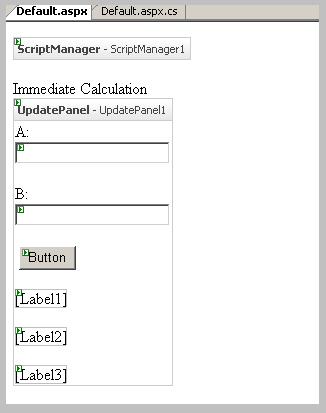
Now let us handle the button click event and perform the arithmetic operations on that:
protected void btnCalculate_Click(object sender, EventArgs e)
{
try
{
int a = Convert.ToInt32(txtA.Text);
int b = Convert.ToInt32(txtB.Text);
int sum = a + b;
int difference = a - b;
int multiplication = a * b;
Label1.Text = string.Format("Sum = {0}", sum);
Label2.Text = string.Format("Difference = {0}", difference);
Label3.Text = string.Format("Multiplication = {0}", multiplication);
}
catch (Exception ex)
{
}
}
Now since all the controls are inside the UpdatePanel control, clicking the button will not result in a postback but it will asynchronously call the server-side function and give us the results. When we run the page in the browser:
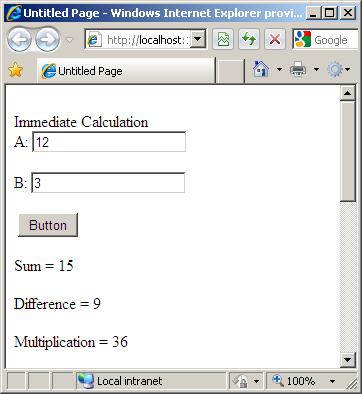
Notice that clicking on the button does not cause the postback but gives us the result asynchronously. We can control partial page updates using the UpdateMode property of the UpdatePanel and setting Trigger.
UpdateProgress
The scenario we just handled gave us the results instantly, but imagine a scenario where the server side processing for the asynchronous event takes some time. If the operation is time consuming, then we can provide the user feedback by using the UpdateProgress control inside the UpdatePanel.
Let us have one more UpdatePanel on the page doing the same task, but this time we will make the server side functionality take more time than required (by using sleep). We will add a simple UpdateProgress control to make the user aware of the fact that some processing is being done by the page right now. Let us look at the Design view of this UpdatePanel and UpdateProgress control now.
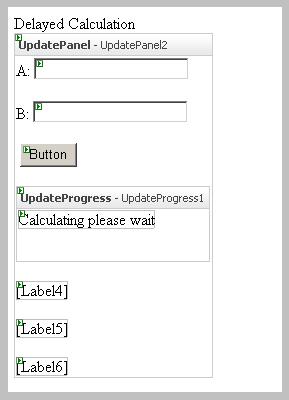
Let us handle the server side event for button click but this time, let's add a sleep for some time here.
protected void btnCalculate2_Click(object sender, EventArgs e)
{
try
{
System.Threading.Thread.Sleep(3000);
int a = Convert.ToInt32(txtA2.Text);
int b = Convert.ToInt32(txtB2.Text);
int sum = a + b;
int difference = a - b;
int multiplication = a * b;
Label4.Text = string.Format("Sum = {0}", sum);
Label5.Text = string.Format("Difference = {0}", difference);
Label6.Text = string.Format("Multiplication = {0}", multiplication);
}
catch (Exception ex)
{
}
}
Now when we run the page and click the button, the updateProgress message will be shown.
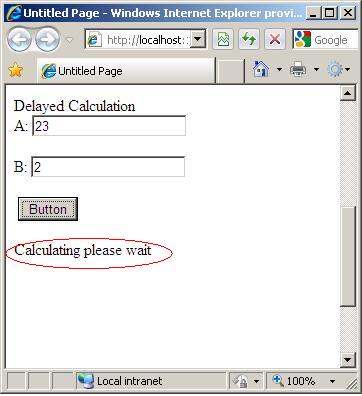
We can also have images and animated GIFs inside the updateProgress control to provide more user friendly feedback.
Timer
There might be some scenarios where we want to update a particular portion of the page after some time duration irrespective of user action. To achieve this, we can use the Timer control. Let us add a timer control to our page and display the server time after every 5 seconds. The design view of the page will look like:
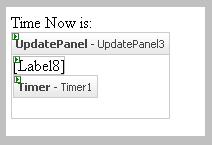
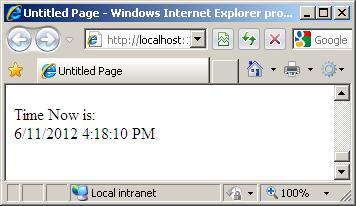
Let us now handle the timer_tick event. Since the control is inside the UpdatePanel, the time will be updated after every 5 seconds without causing any postback. Let us look at the server side code for the timer event and then run the page and see the time changing every 5 seconds.
protected void Timer1_Tick(object sender, EventArgs e)
{
    Label8.Text = DateTime.Now.ToString();
}
Points of interest
What we have tried to do in this article is understand what is AJAX and why it might be useful. There are various ways of implementing AJAX in an ASP.NET application. We have only touched the very basics of the ASP.NET AJAX server controls in this article. There are a lot of configuration options and properties associated with each of these server controls which we have not discussed. Understanding these controls gives us one way of having AJAX features in our website. I will perhaps discuss the other ways of implementing AJAX in separate articles so that an ASP.NET developer can learn all he needs to know about AJAX and how to implement it in a better way.
History
- 11th June, 2012: First version



 General
  News
News  Suggestion
  Question
  Bug
Bug  Answer
  Joke
Joke  Praise
  Rant
Rant  Admin
Admin 


 Submit an article or tip

