Introduction
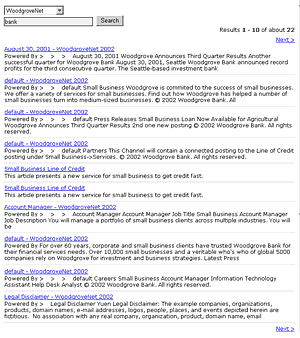
This set of user controls gives Microsoft Content Management Server (MCMS) web sites search capability using SharePoint Portal Server (SPS) as the search engine. It uses SPS' Search web service to provide a simple keyword search. A search option is provided to select specific Content Index. The search results are displayed in a customizable DataGrid.
A C# version of this set of user controls is available here.
SharePoint Setup
Please reference Emmanuel Desigaud's article on how to set up SPS for search. Basically, you need to set up a Content Index and add a Content Source. Also, make sure users performing searches in your CMS site have access to the SPS Search web service.
Installation
- Copy SPSSearch.xml to your XML directory if you have one, or any location in your web site. If you like to include additional columns in your search results, add the additional fields to the select statement. You can also change the maximum number of search results returned in
<Count>500</Count>, if so desired.
- Copy user control
SearchInput to your user controls directory. The default search button is a text button. If you like an image button instead, change the Visible attribute of SearchButton and SearchImageButton accordingly and update the ImageUrl of the SearchImageButton. Do not delete either button even if you are not using both.
- Copy user control
SearchResults to your user controls directory. If you have added additional fields in SPSSearch.xml, customize SearchResult.ascx to include those fields.
- You may need to qualify some namespaces in SearchInput.ascx, SearchInput.ascx.vb, SearchResults.ascx and SearchResults.ascx.vb with your project name.
- Copy QueryService.vb and SearchUtilities.vb to your class directory.
- Copy Search.css to your CSS directory.
- In your web.config, add the following keys to the
appSettings:
<appSettings>
    <add key="QuestechSystems.SPSSearchUrl"
      value="http://<SPSServer>/_vti_bin/search.asmx" />
    <add key="QuestechSystems.SPSSearchXml" value="[Url to SPSSearch.xml]" />
    <add key="QuestechSystems.SPSSearchIndexesText"
        value="[A comma delimited list of Content Indexes Display Name]" />
    <add key="QuestechSystems.SPSSearchIndexesValue"
        value="[A comma delimited list of Content Indexes]" />
</appSettings>
For example:
<appSettings>
    <add key="QuestechSystems.SPSSearchUrl"
      value="http://<SPSServer>/_vti_bin/search.asmx" />
    <add key="QuestechSystems.SPSSearchXml"
        value="/<CMS Site Application Name>/Xml/SPSSearch.xml" />
    <add key="QuestechSystems.SPSSearchIndexesText"
        value="All,Sub Site 1,Sub Site 2" />
    <add key="QuestechSystems.SPSSearchIndexesValue"
        value="All,Sub_Site_1_Content_Index,Sub_Site_2_Content_Index" />
</appSettings>
A drop down list for the Content Indexes specified will be added in the SearchInput user control. The "All" in SPSSearchIndexesValue is a special value that defines search to be performed on all Content Indexes defined in SPSSearchIndexesValue. If you only have one Content Index to search, add the following instead:
<appSettings>
    <add key="QuestechSystems.SPSSearchUrl"
      value="http://<SPSServer>/_vti_bin/search.asmx" />
    <add key="QuestechSystems.SPSSearchXml"
        value="/<CMS Site Application Name>/Xml/SPSSearch.xml" />
    <add key="QuestechSystems.SPSSearchIndexesValue"
                       value="Site_Content_Index" />
</appSettings>
No drop down list will be added for this case.
- Add user control
SearchInput to your CMS site to where you want the search input box to show. The results page URL is specified via the SearchResultsUrl property. The search results page can be a CMS template page or a regular ASP.NET page. For example:
<%@ Register TagPrefix="uc1"
  TagName="SearchInput" Src="~/UserControls/SearchInput.ascx" %>
. . . . . .
<uc1:SearchInput id="SearchInput"
    SearchResultsUrl="" DefaultSearchIndex="" runat="server">
</uc1:SearchInput>
If SearchResultsUrl is not specified, the current page will be used for the results page. If you have specified multiple Content Indexes, you can select the default Content Index to search, using the DefaultSearchIndex property. Customize SearchInput.ascx to change the layout of the search input elements.
- Add user control
SearchResult to your search results page. The control has two properties you can set:
DefaultPageSize: The number of search results per page. Default is 10.
FilterRights: [True|False]. By default, the search results will filter out any CMS page that you don't have access to see. If your search results do not contain any authorized content and/or if you would like to improve performance, set it to False. Use it with caution though.
- Include Search.css to all pages that reference the search controls.
- Include all new files to your CMS project. Rebuild your site in VS.NET.
Notes
- If SearchResults encounters any errors, it will mask the errors and return "No pages were found". To see the actual errors, add querystring "debug=true" to the search results page and reload the page.
- The search controls run in CMS Unpublished mode. The links returned in the search results are all published links, however.
History
- V1.0 - 2004.07.26 - Base.
- V1.1 - 2004.08.20 - Enabled search for meta Keywords and Description.
- V1.2 - 2005.02.05 - Added option to search multiple Content Indexes.
- V1.3 - 2005.02.13 - Added configurable SPS Search Web Service URL in web.config to facilitate deployment. (Please note: all Web.Config App Settings key names are now qualified with namespace.)
- V1.4 - 2005.06.25 - Allows exact phrase search.
A Microsoft Certified Professional Developer and Technology Specialist.
Experience and expertise in SharePoint 2016 / 2013 / 2010 / 2007.
Role ranges from a developer in a multi-person team to a solution consultant with expert-level skills, leading a project to completion status.
Proven experience working effectively in a team environment and a self-managed environment.



 General
  News
News  Suggestion
  Question
  Bug
Bug  Answer
  Joke
Joke  Praise
  Rant
Rant  Admin
Admin 


 Submit an article or tip


