Introduction
Recently, I came across a situation where I needed to populate a combobox with multiple properties that had been exposed from the entity model class. Here I am giving a simple demo of doing the same.
A Few Key Concepts
Before proceeding with the code explanation or how to achieve the solution for such kind of problems, I thought of covering some key concepts by which we can not only solve these kinds of issues, but also some other kinds of problems of the same pattern.
Style
This is used to give a common look and feel to controls. The basic syntax for creating a style is as under:
<Style x:Key=Akeyname TargetType={x:Type Control Type}>
    <Setter Property=APropertyName Value=PropertyValue></Setter>
</Style>
Consume the style from any control in the following manner:
<Label Name =lbl Style={StaticResource Akeyname}>
Data Template
A template can be compared to a container that can be used to hold a volume of data. That means, we can use other controls inside a datatemplate for holding the data.
The basic syntax for doing this is as follows:
<DataTemplate x:Key=CompanyLocationTemplate>
 <Label Name=lbl Content={Binding Path=PropertyName}></Label>
</DataTemplate>
Triggers
It can be considered as a substitute for an if else statement. Let’s look at a simple example. Suppose I have a button. I want to change the color of the same upon mouseover and mouse out. If I would have to achieve the same using programming, I would have written some pseudo code like this:
If  Button.IsFocus
	Button. Foreground = Red
Else
	Button. Background = Green;
Using a trigger, the same can be achieved like this:
<datatemplate.triggers>
<datatrigger property=""" value=""True">
<setter targetname="button" property="Foreground " value="Red" />
<setter targetname="button" property="Background" value="Green" />
</datatrigger>
</datatemplate.triggers>
Straight to the Program
Objective
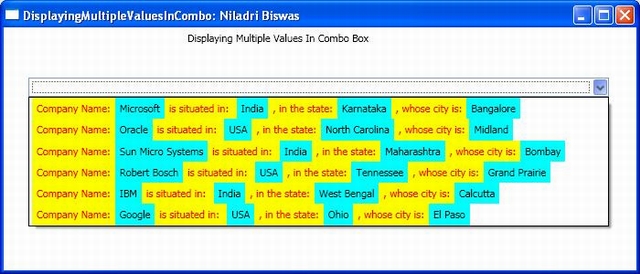
My objective is to combine the various properties exposed from my Location Entity viz. CompanyName, County, State, City along with some customized decoration and display the same into the combo box. I am following the Model-View-View Model design pattern. I have a location entity whose class diagram is as under:

The Model
The Model describes the datasource which in my case is the following:
private void LocationData()
       {
           _location.Add(new Location { LocationId = 1,CompanyName = "Microsoft",
		Country = "India", State = "Karnataka", City = "Bangalore" });
           _location.Add(new Location { LocationId = 2, CompanyName = "Oracle",
		Country = "USA", State = "North Carolina", City = "Midland" });
           _location.Add(new Location { LocationId = 3,
		CompanyName = "Sun Micro Systems", Country = "India",
		State = "Maharashtra", City = "Bombay" });
           _location.Add(new Location { LocationId = 4,
		CompanyName = "Robert Bosch", Country = "USA",
		State = "Tennessee", City = "Grand Prairie" });
           _location.Add(new Location { LocationId = 5,
		CompanyName = "IBM", Country = "India",
		State = "West Bengal", City = "Calcutta" });
           _location.Add(new Location { LocationId = 6,
		CompanyName = "Google", Country = "USA",
		State = "Ohio", City = "El Paso" });
       }
Model-View
My CompanyViewModel class has exposed an ObservableCollection of type Location called CompanyLocations which holds all the data from the Location entity via a method called LocationList():
CompanyLocations = new ObservableCollection<location />(_objDataSource.LocationList());
View
The entire source or the datacontext of my view is the CompanyViewModel:
private void SourceContext()
{
this.DataContext = _objViewModel;
}
And the Location data is loaded in the Window Load event:
private void Window_Loaded(object sender, RoutedEventArgs e)
        {
            _objViewModel = new CompanyViewModel();
            SourceContext();
            _objViewModel.LoadData();
        }
Coming to the XAML Part
I have a ComboBox defined inside a StackPanel whose ItemSource is the CompanyLocations (remember the property that I exposed in the ViewModel for getting all the Location Entity data) and an ItemTemplate by the name CompanyLocationTemplate:
<ComboBox Height="21" Margin="27,27,30,0" Name="cmbDiplayInformation"
	VerticalAlignment="top" ItemsSource="{Binding CompanyLocations}"
	ItemTemplate="{StaticResource CompanyLocationTemplate}"/>
The CompanyLocationTemplate is defined as under:
<DataTemplate x:Key="CompanyLocationTemplate">>
            <StackPanel Orientation="Horizontal">
                <Label Name ="lblCompanyNameHeader"
		Style="{StaticResource LabelValues}"
		Content="Company Name:"></Label>
                <Label Name="lblCompanyName" Style="{StaticResource DataValues}"
		Content="{Binding Path=CompanyName}"></Label>
                <Label Name ="lblSeparator1" Style="{StaticResource LabelValues}"
		Content="is situated in: "></Label>
                <Label Name="lblCountry" Style="{StaticResource DataValues}"
		Content="{Binding Path=Country}"></Label>
                <Label Name ="lblSeparator2"  Style="{StaticResource LabelValues}"
		Content=", in the state:"></Label>
                <Label Name="lblState"  Style="{StaticResource DataValues}"
		Content="{Binding Path=State}"></Label>
                <Label Name ="lblSeparator3" Style="{StaticResource LabelValues}"
		Content=", whose city is:"></Label>
                <Label Name ="lblCity" Style="{StaticResource DataValues}"
		Content="{Binding Path=City}"></Label>
            </StackPanel>
            <DataTemplate.Triggers>
                <DataTrigger Binding="{Binding Path=LocationId}" Value="0"
                    <Setter TargetName="lblCompanyNameHeader"
			Property="Content"  Value=""></Setter>
                    <Setter TargetName="lblCompanyName"
			Property="Content"  Value=""></Setter>
                    <Setter TargetName="lblCountry"
			Property="Content"  Value=""></Setter>
                    <Setter TargetName="lblSeparator1"
			Property="Content"  Value=""></Setter>
                    <Setter TargetName="lblState"
			Property="Content"  Value=""></Setter>
                    <Setter TargetName="lblSeparator2"
			Property="Content"  Value=""></Setter>
                    <Setter TargetName="lblCity" Property="Content"  Value=""></Setter>
                </DataTrigger>
            </DataTemplate.Triggers>
        </DataTemplate>
And lastly, the styles are as follows:
<Style x:Key="LabelValues" TargetType="{x:Type Label}">
	<Setter Property="Foreground" Value="Red"></Setter>
	<Setter Property="Background" Value="Yellow"></Setter>
</Style>
<Style x:Key="DataValues" TargetType="{x:Type Label}">
	<Setter Property="Foreground" Value="Black"></Setter>
	<Setter Property="Background" Value="Cyan"></Setter>
</Style>
Output
Company Name: COMPANYNAME is situated in: COUNTRY, in the state: STATE, whose city is: CITY.
The bold, capitalized words are the properties of the Location Entities.
Conclusion
This is only a small example of how to combine the datatemplate, style and triggers of WPF so that we can get an elegant solution with minimal code.
History
- 27th May, 2009: Initial post



 General
  News
News  Suggestion
  Question
  Bug
Bug  Answer
  Joke
Joke  Praise
  Rant
Rant  Admin
Admin 


 Submit an article or tip


