Click here to Skip to main content

TFS2010 Team Build with ClickOnce Applications

By , 28 Oct 2010
 

Introduction

With TFS2010, Microsoft has created a very flexible build system, but the problem is that there is no out-of-the-box support for ClickOnce application. In this article, I intend to show how you can use the Team Build in TFS2010 to build and release a ClickOnce application.

If you want to release the application, you will also require TFS Deployer (Get it here).

Prepare ClickOnce Application

Before we can build a ClickOnce application with Team Build, we need to prepare the application and create all the ClickOnce manifests. If the application has been deployed with ClickOnce before, you can skip this stage. To do this, open the application and go to the project properties:
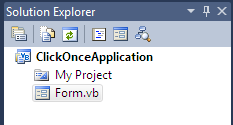
image1.png

Go to the Publish tab and enter the location of where you want to deploy the application (I have used \\Dave\ClickOnce). When you have configured this, click the “Publish Now” button to set up all the manifests and deploy the application.

image2.png

The application should now have a signing key and all the manifest files will be present. Add this solution to your TFS 2010 source control and we are ready to go.

Setting up Team Build

Now we need to set up Team Build to ask MSBuild to create the ClickOnce files when it runs a build. The simplest solution is to pass /t:publish in the MSBuild arguments field of the Team Build setup.

image3.png

The problem with this solution is using the “DefaultTemplate.xaml” template adding this parameter will ask MSBuild to create the ClickOnce manifest files alongside the existing files, which will appear in the binaries folder. The proper ClickOnce file structure will appear under the project debug folder (e.g. ClickOnceApplication\bin\Debug\app.publish folder). This folder is not copied to the Binaries folder during the build.

The solution to this is to modify the DefaultTemplate.xaml; in order to do this, we need to know the project name of the deployable ClickOnce application. We therefore add a parameter to the build script so that we can easily configure this for multiple builds.

Create Variable

Open the DefaultTemplate.xaml in VS2010. You will see a link at the bottom of the window to the Arguments screen.

image4.png

Open the Arguments screen and add a new Argument called “PublishProject”, the direction is “In” and the type is “String”.

image5.png

To make the request for the variable more user friendly, select the MetaData argument and click on the more button (“…”)

image6.png

You will open the MetaData window (shown below), in here add a new item with the details shown:

image7.png

Alter the Workflow

As we want this script to be used by ClickOnce and normal applications, all changes we make should be OK to run a normal application through. We use the parameter that we created to check if this is a normal or ClickOnce application. The first change we make is to automatically add the /t:publish parameter to the MSBuild call when the variable is populated. There are multiple paths through the workflow so the MSBuild appears in 2 places, make sure the change is done in both places.

You need to look for the MSBuild activity called “Run MSBuild for Project”, the first one is under:

“Process > Sequence > Run On Agent > Try Compile, Test, and Associate Changesets and Work Items > Sequence > Compile, Test, and Associate Changesets and Work Items > Try Compile and Test > Compile and Test > For Each Configuration in BuildSettings.PlatformConfigurations > Compile and Test for Configuration > If BuildSettings.HasProjectsToBuild > For Each Project in BuildSettings.ProjectsToBuild > Try to Compile the Project > Compile the Project” (that is one long path to follow).

One of the properties of the Build Task is “CommandLineArguments” which is populated with:

“String.Format("/p:SkipInvalidConfigurations=true {0}", If(MSBuildArguments, ""))”

We need to add the extra parameter but only if a Publish Project is passed in. Alter the parameter to contain:

“String.Format("/p:SkipInvalidConfigurations=true {0} {1}", _
If((PublishProject IsNot Nothing AndAlso PublishProject <> ""), _
"/t:publish", ""), If(MSBuildArguments, ""))”

image8.png

The next change is in the copy of the output files to the drop location. Under normal application builds, we want to copy all files from the Binaries folder. For ClickOnce applications, we need to copy the output which was put in “application\bin\debug\app.publish” folder. As the application folder is named as the same name as the application, this is where the variable comes into play. Let's find the location of where the copy takes place, it is at:

“Process > Sequence > Run On Agent > Try Compile, Test, and Associate Changesets and Work Items (in the finally block) > Revert Workspace and Copy Files to Drop Location > If DropBuild And DropLocation is Set (in the Then section).

At the moment the Then block will only contain the CopyDirectory task, to save this for later, copy it to the Else section. Insert another If statement in the Then section with the criteria being:

“PublishProject IsNot Nothing AndAlso PublishProject <> ""

This just checks for a valid PublishProject. In the else section of the new if statement, copy the CopyDirectory back from the other Else section we moved it to earlier. In the Then section, take a clone of the CopyDirectory task in the Else section.

image9.png

Now you will need to check the file into TFS. I have included the edited file in the solution, for those who got lost doing the above.

Building the Solution

Once the file has been updated, you can create a build definition using the new DefaultTemplate.xaml file. On the process tab, you should now see an extra section called “ClickOnce” which has a new parameter called “Project To Publish”, you need to put the name of the project that you want to publish via ClickOnce.

image10.png - Click to enlarge image

Once you have saved the build definition, you can queue a new build. Once complete, it should look like this (I have added a message in to show the file copy):

image11.png - Click to enlarge image

Deploying the Solution

TFS Deployer can be downloaded from http://tfsdeployer.codeplex.com/. I will not cover how to set up TFS Deployer as it is covered in detail elsewhere. In the attached file are PowerShell scripts used to release the project from the Drop folder.

History

  • 28th October, 2010: Initial post

License

This article, along with any associated source code and files, is licensed under The Code Project Open License (CPOL)

About the Author

djidave
Software Developer
United Kingdom United Kingdom
Member
No Biography provided

Sign Up to vote   Poor Excellent
Add a reason or comment to your vote: x
Votes of 3 or less require a comment

Comments and Discussions

 
You must Sign In to use this message board.
Search this forum  
    Spacing  Noise  Layout  Per page   
GeneralMy vote of 5membermorphyna20 May '11 - 3:27 
great job
GeneralGood article - Question on unit testsmemberkaidon7 Mar '11 - 14:17 
Thank you for the article!
 
I am successfully building and deploying my ClickOnce project on TFS 2010; however when using the MSBuild command arguments (publish), my unit test projects no longer build, and subsequently do not get run as part of the build.
 
I have posted more detail on StackOverflow:
http://stackoverflow.com/questions/5226765/building-clickonce-project-in-team-build-2010-and-unit-test-projects
 
Essentially, I can't seem to configure my template to build and deploy my ClickOnce application, in addition to my unit test projects. Do you have any insight into how to satisfy both ClickOnce and building other projects in the solution that are not part of the ClickOnce project?
GeneralRe: Good article - Question on unit testsmemberdjidave8 Mar '11 - 8:03 
Hi Kaidon,
 
I am glad to here you have this working. The way it works is by copying the ClickOnce build folder instead of the MSBuild Binaries folder. This may be why the unit tests are not being found, so you could modify the workflow to copy the ClickOnce folder to ./Publish (as it is now) and also copy the Binaries over as well. This would then allow you to run the tests.
 
You would then have to use TFSDeployer to just pick up the Publish folder
 
Hope this helps
 
Regards
 
Dave
GeneralRe: Good article - Question on unit testsmemberkaidon8 Mar '11 - 12:09 
Thank you for your response.
 
I will give that a try and attempt to get it running. Will post when I come up with a working solution.
GeneralRe: Good article - Question on unit testsmemberHambuerger9 Feb '12 - 0:17 
Did you create a template that publishes the clickonce-application in addition to successfull process the unit-tests? I was not able to do so, so it would be nice if you could give support. Smile | :)
GeneralRe: Good article - Question on unit testsmemberdjidave9 Feb '12 - 8:29 
Hi, I didn't attempt to do the unit testing but I can see me needing it sometime soon. Sorry I couldn't help more, but I would be intersted to hear if you find a solution.
 
Regards
 
Dave
GeneralVery nice! One problem though.membermiansi23 Feb '11 - 12:43 
Hello,
 
Thank you very much for very detailed explanation. It works like a charm until you add database project, which you want to deploy as part of TFS build too.
I was following Walkthrough: Define a Custom Workflow to Deploy a Database from Team Foundation Build
article.
 
I always getting errors about missing manifest for database project. I noticed that database files are not in the Build folder on TFS Build server, so, obviously nothing to deply from.
 
I was wondering what options has to be changed to be able to deploy WPF and database projects.
 

Thank you,
 
Andrei
GeneralRe: Very nice! One problem though.memberdjidave8 Mar '11 - 7:59 
Hi Andrei,
 
I have not managed to get the time to extend this further into DB deployment.
 
The solution above only works on a single type of build (for ClickOnce projects it only builds the click once).
 
If you have a build with a DB and ClickOnce projects in, then you would need it to mod the workflow to handle 2 types of builds. You could look at copying the Binaries folder over to output folder as well as the ClickOnce Publish folder.
 
Then you can use TFSDeployer to take the database and deploy it.
 
Hope this is of some help, I would be interested in hearing the solution if you find it.
 
Regards
 
Dave
QuestionMissing Info on copying ClickOnce binariesmemberEmreNews2 Feb '11 - 5:27 
Hi,
 
I did exactly what the article says and I still do not get ClickOnce package copied to the drop folder.
After doing everything in the article I see that ClickOnce package is created by TeamBuild and can be found under the "sources" folder but it does not get copied to the drop location.
 
The article puts the "Copy Files to Drop Location" activity under both "then" and "else" parts of the flow but makes no changes on them. They are the same.
 

Am I missing something?
AnswerRe: Missing Info on copying ClickOnce binariesmemberdjidave2 Feb '11 - 10:10 
Hi,
 
You are correct, the article misses a key point (I can't find how to edit it so will post it here)
 
The CopyDirectory in the if block should have the source field altered to
 
Path.Combine(SourcesDirectory, PublishProject, "bin\Debug\app.publish")
 
and the destination altered to
 
System.IO.Path.Combine(BuildDetail.DropLocation, "publish")
 
Sorry for the omission, hope this helps.
 
Please feel free to ask any other questions to get it working
 
Regards
 
DJIDave
GeneralRe: Missing Info on copying ClickOnce binariesmemberEmreNews2 Feb '11 - 22:34 
Great, work well now. Thanks...
GeneralRe: Missing Info on copying ClickOnce binariesmemberMangalraj2 Mar '11 - 23:10 
Thanks, its working.
GeneralRe: Missing Info on copying ClickOnce binariesmemberGeorge Duke11 Jan '12 - 12:15 
What Arguments can be used to avoid hard coding the path?
ie Path.Combine(SourcesDirectory, PublishProject, "bin\" + + "\app.publish")
 
Thanks
GeneralTFS Build including unit test report and code quality reportmemberElGuroProgramador28 Oct '10 - 3:35 
Click once setup in TFS is nice to use.
 
Independing from the project type and redist solutions using a TFS build, some questions:
 
With nAnt script (and nTools) I can set up a complete build with a unit test report result as an html mail report, some other reports like ndepend.
How can i implement the code analyze function in the TSF build, the build should sent an html report (positive /negative test result as red green displayed, test time, % pos test) at the end as an email.
And how can I make the same with the analyze function in visual studio, I want to have a report about the code quality at the end of this build.
 
Environment:
Visual Studio 2010 Ultimate
TFS 2008 / 2010

General General    News News    Suggestion Suggestion    Question Question    Bug Bug    Answer Answer    Joke Joke    Rant Rant    Admin Admin   

Permalink | Advertise | Privacy | Mobile
Web01 | 2.6.130516.1 | Last Updated 28 Oct 2010
Article Copyright 2010 by djidave
Everything else Copyright © CodeProject, 1999-2013
Terms of Use
Layout: fixed | fluid
