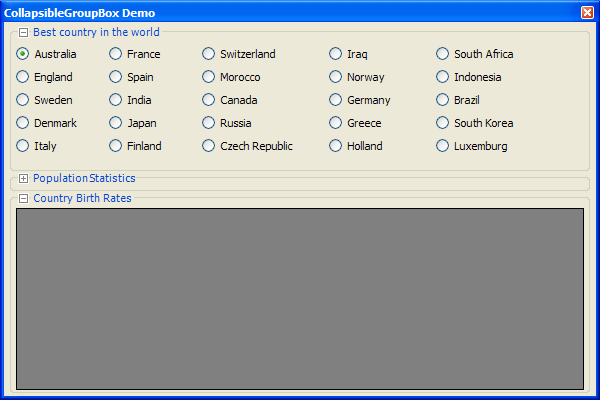
 |
|
 |
I fixed it this way
SystemPens.FromSystemColor(Parent.BackColor)
|
|
|
|
 |
|
 |
Hey, nice control.
I've got an improvement for it. By adding a class and some attributes, you can enable design-time collapsing of the group box by a mouse click on the box. It will save the size of the non-collapsed group box and all.
It will probably work only for VS 2005 .Net 2.0, haven't checked.
I can make a short article with the implemented details and post it on code project. Or, if you have the time, update the control with these improvements, if you think they actually improve it.
Quite simple. Add a reference to System.Design.dll in your project.
Then add the CollapsibleGroupBoxDesigner class:
Then, add the DesignerAttribute atttribute in front of the class itself. Also, you'll need to make the property toggleRect public.
That's probably all, if I'm not missing anything.
Now recompile the project, drop the collapsable group box control on a form in the designer, and click on the toggle box. It should toggle collapse and save it's original size in it's FullSize property.
Works for me quite nicely. Get back to me if you will update the control, please.
Good luck,
Dmitry Sadakov
|
|
|
|
 |
|
 |
I used this in the control - Nice - it lets me know what the thing will look like . I use it in conjunction with the resize parent from another poster.
I am not sure if his resize parent is an issue or if this one is the issue - as I get (-) values on the vertical positioning of some of my other components, during design time.
|
|
|
|
 |
|
 |
I have noticed something in Design time - my control changes namespaces , the system can not find it any more and requests I put Global.Indigo.CollapsibleGroupBox for the namespace - it then works until I click the designer to collapse the control, at that point it disappears.
Any hints, tips or ideas on how to fix this one ?
|
|
|
|
 |
|
 |
Anyone have an idea why localization (ie: use resource manager and reex files) changes the control to width of 503 in the Designer
|
|
|
|
 |
|
 |
Hi,
I would like to contribute my 2cents about this control by adding code to polish up the collapsed look. As of today, the control kept the groupbox even when the control is collapsed.
Replace DrawGroupBox method and theo bolded text are my contribution. =)
void DrawGroupBox(Graphics g)
{
// Get windows to draw the GroupBox
Rectangle bounds = new Rectangle(ClientRectangle.X, ClientRectangle.Y + 6, ClientRectangle.Width, ClientRectangle.Height - 6);
// display appropriate groupbox look
if (m_collapsed)
{
g.DrawLine(SystemPens.ControlDark, bounds.X, bounds.Y, bounds.X + bounds.Width, bounds.Y);
}
else
{
GroupBoxRenderer.DrawGroupBox(g, bounds, Enabled ? GroupBoxState.Normal : GroupBoxState.Disabled);
}
// Text Formating positioning & Size
StringFormat sf = new StringFormat();
int i_textPos = (bounds.X + 8) + m_toggleRect.Width + 2;
int i_textSize = (int)g.MeasureString(Text, this.Font).Width;
i_textSize = i_textSize < 1 ? 1 : i_textSize;
int i_endPos = i_textPos + i_textSize + 1;
// Draw a line to cover the GroupBox border where the text will sit
g.DrawLine(SystemPens.Control, i_textPos, bounds.Y, i_endPos, bounds.Y);
// Draw the GroupBox text
using (SolidBrush drawBrush = new SolidBrush(Color.FromArgb(0, 70, 213)))
g.DrawString(Text, this.Font, drawBrush, i_textPos, 0);
}
|
|
|
|
 |
|
 |
Text boxes I put inside the group box drop one pixel every time I display the form containing the group box in the VS.NET designer.
Anyone knows why?
|
|
|
|
 |
|
 |
Greetings:
I was using this control for a new project where the user can change the color scheme of the aplication and i found some problems, the way it was done assumed that the background color of the groupbox was the default control color, so when it draws de rectangle to in wich it will write the text is filled with the default control color, so i made a small modification so it`s filled with the backcolor.
from this:
g.DrawLine(SystemPens.Control, i_textPos, bounds.Y, i_endPos, bounds.Y);
to this:
g.FillRectangle(new SolidBrush(this.BackColor), 8, 2, i_endPos-8, 12);
I also changed it so it draws the text with the selected ForeColor:
From this:
using (SolidBrush drawBrush = new SolidBrush(Color.FromArgb(0, 70, 213)))
g.DrawString(Text, this.Font, drawBrush, i_textPos, 0);
To this:
using (SolidBrush drawBrush = new SolidBrush(this.ForeColor))
g.DrawString(Text, this.Font, drawBrush, i_textPos, 0);
Also i changed the way of drawing the minus/plus sign from an image to custom drawn and added another 2 color propertys so the user can define the color for the signs(masmenos) and its backcolor(bmasmenos), here is the code i used instead of drawing the images
void DrawToggleButton(Graphics g)
{
g.FillRectangle(new SolidBrush(bmasmenos),m_toggleRect);
g.DrawRectangle(new Pen(masmenos),m_toggleRect.Left+1,m_toggleRect.Top+1,8,8);
g.DrawLine(new Pen(masmenos),m_toggleRect.Left+3,m_toggleRect.Bottom-6,m_toggleRect.Right-4,m_toggleRect.Bottom-6);
if(IsCollapsed)
g.DrawLine(new Pen(masmenos),m_toggleRect.Left+5,m_toggleRect.Top+3,m_toggleRect.Left+5,m_toggleRect.Bottom-4);
}
I also added another method so i could change the default border color
public Color BorderColor
{
get{return m_borderColor;}
set{m_borderColor=value;this.Invalidate();}
}
That`s it, maybe you find this useful for changing the the default apperance of this great control
"Failure is the best reason to start all over again with more knowledge"
-Henry Ford
|
|
|
|
 |
|
 |
I love this component - working great and looks great!
|
|
|
|
 |
|
 |
I second that, just waht i was looking for to keep my interface really organized.
"Failure is the best reason to start all over again with more knowledge"
-Henry Ford
|
|
|
|
 |
|
 |
Hello..
I make the "RightToLeft" Property with value "Yes", but the caption of the Group Box still in the left side...
is the "RightToLeft" Property supported in this component??
Thanks a Lot..
-- modified at 5:44 Sunday 2nd April, 2006
|
|
|
|
 |
|
 |
Thanks a lot friend for valued addition.
|
|
|
|
 |
|
 |
If I use the below code, the box appears collapsed but when you click to expand, it disappears entirely. Same thing happens if I manually add it to the "Windows Form Designer generated code" area. However, if I use code to achive the same effect later than 'on load' (eg: using a button to toggle this property), then everything works.
I need a way to start the program with this box collapsed. How can this be achieved?
private void Form1_Load(object sender, EventArgs e)
{
collapsibleGroupBox1.IsCollapsed = true;
}
|
|
|
|
 |
|
 |
Hi, see Mike's post regarding this topic, you need to modify the IsCollapsed property to be as follows:
public bool IsCollapsed
{
get { return m_collapsed; }
set
{
if (value != m_collapsed)
{
m_collapsed = value;
if (!value)
// Expand
this.Size = m_FullSize;
else
{
if (m_FullSize == Size.Empty)
m_FullSize = this.Size;
// Collapse
m_bResizingFromCollapse = true;
this.Height = m_collapsedHeight;
m_bResizingFromCollapse = false;
}
foreach (Control c in Controls)
c.Visible = !value;
Invalidate();
}
}
}
When I get time I will update the solution.
J.
|
|
|
|
 |
|
 |
Great control and thanks for this fix I too need to start with the group box collapsed !
Nic
|
|
|
|
 |
|
 |
Thanks for the control, it's great.
BUT its been almost 3 years since you said you'd update the solution and post it for everyone, when do you think you'll get the time?
Thanks.
|
|
|
|
 |
|
 |
1st of all, great control! 1 question though:
The groupbox has the typical outline: with 1px wide being dark and 1px being light to give the pseudo-3d effect. When I use this control, the text seems to keep the dark line behind it from being visible but not the light line. So there's a destracting line behind the text. How can I make that go away?
Again, great job!
|
|
|
|
 |
|
 |
Hi, what OS are you using the control on? Do you have XP styling? GroupBoxes with XP styling do not employ the drop shadow effect, however the Windows Classic UI in Windows does.
J.
|
|
|
|
 |
|
 |
I am using XP with the Classic UI. When I switch to XP theme, the problem goes away. This is fine for me but some of the people in my company also use XP w/ Classic UI and some use pre XP versions of Windows. Is there a fix for the drop-shadow problem for these cases?
|
|
|
|
 |
|
 |
The problem is this line here:
g.DrawLine(SystemPens.Control, i_textPos, bounds.Y, i_endPos, bounds.Y); in the render group box code.
You could replace it with this:
Rectangle textArea = new Rectangle(i_textPos, 0, i_endPos, Font.Height);
if(Application.RenderWithVisualStyles)
GroupBoxRenderer.DrawParentBackground(g, textArea, this);
else
g.FillRectangle(SystemBrushes.Control, textArea); This will draw the background from the parent control onto this area on the application rendered with XP styles and on a non XP styles machine will just draw a grey block which is what you need. I think.
-- modified at 10:01 Tuesday 14th February, 2006
|
|
|
|
 |
|
 |
To be honest, I completed forgot to test for Classic Windows styling. I am going to have to do this soon as some of my users will have this setting. Once I have updated the code I will post a new copy of the solution.
J.
|
|
|
|
 |
|
 |
Good to see a nice looking control that works as it's supposed to.
You might want to add a few properties to it though, such as
'headerFont' and 'headerColor' instead of just the blue text.
Keep up the great work.
|
|
|
|
 |
|
 |
Hi jordanhammond,
If you start your groupbox with collapsibleGroupBox.IsCollapsed = true; that will lead to a wrong size when the user clicks to expand due to private Size m_FullSize = Size.Empty; on startup.
You can correct that problem by adding the following lines marked in red:
public bool IsCollapsed
{
get { return m_collapsed; }
set
{
if (value != m_collapsed)
{
m_collapsed = value;
if (!value)
this.Size = m_FullSize;
else
{
<code> if (m_FullSize == Size.Empty)
m_FullSize = this.Size;
</code>
m_bResizingFromCollapse = true;
this.Height = m_collapsedHeight;
m_bResizingFromCollapse = false;
}
foreach (Control c in Controls)
c.Visible = !value;
Invalidate();
}
}
}
brgds
mikeeblau
|
|
|
|
 |
|
 |
Cheers Mike, will update the solution soon.
J.
|
|
|
|
 |
|
 |
It still has some bug while using this control start with collapsed, it can't remember it's size , and it's alaways expanded with size(200,100),how to solve this probelom?
|
|
|
|
 |
