Introduction
In a previous article here on the CodeProject I demonstrated one way of redefining how a WPF TreeView can be displayed. In that article we examined how to make a TreeView look like an Org Chart by using some XAML magic. In this article we will explore a more complex and interactive customization, which makes the TreeView present its items as a set of "nested buckets."
Show me the money
Let's take look at what the customized TreeView looks like. Later we will see how this custom layout was implemented. The screenshot seen below is of a demo application, which is available for download via a link at the top of this page.
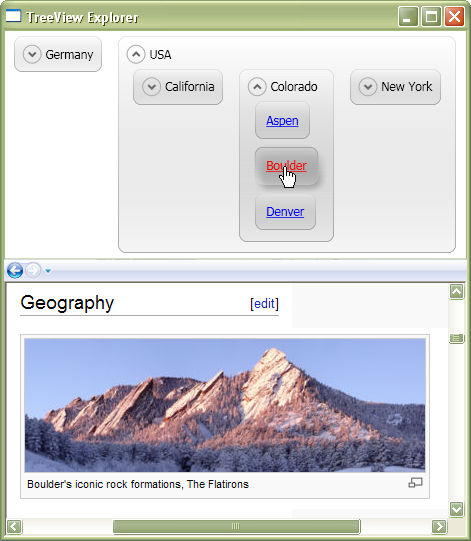
The top portion of the user interface is the customized TreeView. The innermost items provide links to Wikipedia pages containing information about the cities named in those items. The bottom portion of the UI is a Frame element, which loads and displays the Wikipedia pages chosen in the TreeView.
If we did not apply a layout customization to the TreeView seen above, it would look like this:

What is a layout customization?
Take another quick glance again at the non-customized TreeView screenshot above. Notice that the leaf items are rendered as hyperlinks, even though a layout customization is not in effect. The way a TreeViewItem's content renders is affected by data templates. What I refer to as a "layout customization" does not deal with rendering an item's content, rather, it explains how to render that which contains an item's content and how those containers are positioned relative to one another. The item content is irrelevant for our purposes.
TreeView and TreeViewItem both derive from ItemsControl. An ItemsControl contains item containers, which can be thought of as 'boxes' that hold arbitrary content. The content of those boxes is the data which the user consumes (i.e. the stuff that the user cares about and pays the most attention to). In a TreeView those boxes are represented by TreeViewItem objects. A layout customization organizes the TreeViewItems – explaining how they should be positioned, how they should be rendered, if they should be shown or hidden, etc.
How it works
Data Format
Before delving into the code which implements our custom layout, let's take a moment to review the data being displayed. In the demo application a TreeView is bound to XML data, which is in this simple format:
="1.0"="utf-8"
<Countries>
<Country CountryName="USA">
<Region RegionName="California">
<City
CityName="Los Angeles"
Uri="http://en.wikipedia.org/wiki/Los_Angeles" />
</Region>
</Country>
</Countries>
The TreeView displays the Country, Region, and City elements as TreeViewItems. It renders Country and Region items as collapsible groups, whose caption is the CountryName or RegionName attribute value, and the inner list of items is taken from the element's set of nested child elements (a country contains regions, and a region contains cities).
TreeViewItem Style
Below is an abridged version of the Style which contains most of the custom layout implementation:
<Style TargetType="TreeViewItem">
<Style.Resources>
</Style.Resources>
<Setter Property="Template">
<Setter.Value>
<ControlTemplate TargetType="TreeViewItem">
<Grid Margin="8,4">
<Grid.ColumnDefinitions>
<ColumnDefinition Width="Auto" />
</Grid.ColumnDefinitions>
<Grid.RowDefinitions>
<RowDefinition Height="Auto"/>
</Grid.RowDefinitions>
<Border Name="Bd"
Background="{StaticResource ItemAreaBrush}"
BorderBrush="{StaticResource ItemBorderBrush}"
BorderThickness="0.6"
CornerRadius="8"
Padding="6"
SnapsToDevicePixels="True"
>
<Grid>
<Expander Name="Exp"
IsExpanded="{TemplateBinding TreeViewItem.IsExpanded}">
<Expander.Header>
<ContentPresenter ContentSource="Header" />
</Expander.Header>
<ItemsPresenter />
</Expander>
<ContentPresenter Name="CntPres"
ContentSource="Header"
HorizontalAlignment="Center"
VerticalAlignment="Center"
Visibility="Collapsed"
/>
</Grid>
</Border>
</Grid>
<ControlTemplate.Triggers>
<Trigger Property="TreeViewItem.HasItems" Value="false">
  <Setter
    TargetName="Exp"
    Property="Visibility"
    Value="Collapsed" />
  <Setter
    TargetName="CntPres"
    Property="Visibility"
    Value="Visible" />
</Trigger>
<Trigger Property="IsSelected" Value="true">
</Trigger>
</ControlTemplate.Triggers>
</ControlTemplate>
</Setter.Value>
</Setter>
<Setter Property="ItemsPanel">
  <Setter.Value>
    <ItemsPanelTemplate>
      <ItemsPanelTemplate.Resources>
        <local:ItemsPanelOrientationConverter x:Key="conv" />
      </ItemsPanelTemplate.Resources>
      <StackPanel
        IsItemsHost="True"
        Orientation="{Binding
            RelativeSource={x:Static RelativeSource.TemplatedParent},
            Converter={StaticResource conv}}"
          />
    </ItemsPanelTemplate>
  </Setter.Value>
</Setter>
</Style>
Choosing the right visuals
There are a couple aspects of the XAML seen above worth pointing out. The Style sets the Template property of TreeViewItem to a ControlTemplate. That template has the job of explaining how a TreeViewItem instance should be rendered. Items that represent a Country or Region XML element must render as collapsible groups, but City elements should not. Let's take a closer look at how that is achieved. I stripped away some unimportant settings, so that we can focus on the essential information:
<Border>
<Grid>
<Expander Name="Exp">
<Expander.Header>
<ContentPresenter ContentSource="Header" />
</Expander.Header>
<ItemsPresenter />
</Expander>
<ContentPresenter Name="CntPres"
ContentSource="Header"
Visibility="Collapsed" />
</Grid>
</Border>
The XAML above creates a Border element which contains a Grid panel. That Grid has one row and one column (i.e. one "cell"). That cell contains an Expander and a ContentPresenter, but only one of those two elements will ever be visible at any given moment. The Expander is there in case the TreeViewItem has child items. The ContentPresenter will be shown if the item does not have any children, in this case, if it represents a City element in the XML data.
The control template has a Trigger to determine which element should be used to render the TreeViewItem. That Trigger is seen below:
<Trigger Property="TreeViewItem.HasItems" Value="false">
<Setter
TargetName="Exp"
Property="Visibility"
Value="Collapsed" />
<Setter
TargetName="CntPres"
Property="Visibility"
Value="Visible" />
</Trigger>
Item layout direction
Another tricky aspect to the layout seen in the screenshot at the top of this article has to do with the direction in which TreeViewItems are arranged. The items representing Country and Region elements are arranged in a horizontal row, but the City items are in a vertical list.
Arranging the root items (the Country items) in a horizontal row requires the TreeView's ItemsPanel property to be set to a StackPanel with a horizontal orientation. Here is some XAML from the demo app's main Window which configures the TreeView:
<TreeView Name="tree"
DataContext="{StaticResource countriesXml}"
ItemsSource="{Binding}"
>
<TreeView.Resources>
<ResourceDictionary
Source="GroupedTreeViewItemStyle.xaml" />
</TreeView.Resources>
<TreeView.ItemsPanel>
<ItemsPanelTemplate>
<StackPanel
IsItemsHost="True"
Orientation="Horizontal" />
</ItemsPanelTemplate>
</TreeView.ItemsPanel>
</TreeView>
The next piece of the puzzle requires a little more trickery than just setting a property. Since the TreeViewItems that represent Region elements must be arranged horizontally but City items must be listed vertically, we need to use a value converter to determine at runtime what orientation a TreeViewItem's ItemsPanel should use. Here's the XAML from the Style seen previously which sets the ItemsPanel for a TreeViewItem:
<Setter Property="ItemsPanel">
<Setter.Value>
<ItemsPanelTemplate>
<ItemsPanelTemplate.Resources>
<local:ItemsPanelOrientationConverter x:Key="conv" />
</ItemsPanelTemplate.Resources>
<StackPanel
IsItemsHost="True"
Orientation="{Binding
RelativeSource={x:Static RelativeSource.TemplatedParent},
Converter={StaticResource conv}}"
/>
</ItemsPanelTemplate>
</Setter.Value>
</Setter>
The StackPanel used as the ItemsPanel template has its Orientation property bound. The binding uses a value converter to determine whether the StackPanel should have a horizontal or vertical orientation. Here's the code for the value converter:
[ValueConversion( typeof( ItemsPresenter ), typeof( Orientation ) )]
public class ItemsPanelOrientationConverter : IValueConverter
{
public object Convert(
object value, Type targetType, object parameter, CultureInfo culture )
{
ItemsPresenter itemsPresenter = value as ItemsPresenter;
if( itemsPresenter == null )
return Binding.DoNothing;
TreeViewItem item = itemsPresenter.TemplatedParent as TreeViewItem;
if( item == null )
return Binding.DoNothing;
bool isRoot =
ItemsControl.ItemsControlFromItemContainer( item ) is TreeView;
return
isRoot ?
Orientation.Horizontal :
Orientation.Vertical;
}
public object ConvertBack(
object value, Type targetType, object parameter, CultureInfo culture )
{
throw new NotSupportedException( "Cannot convert back." );
}
}



 General
  News
News  Suggestion
  Question
  Bug
Bug  Answer
  Joke
Joke  Praise
  Rant
Rant  Admin
Admin 


 Submit an article or tip


 .
.