Introduction
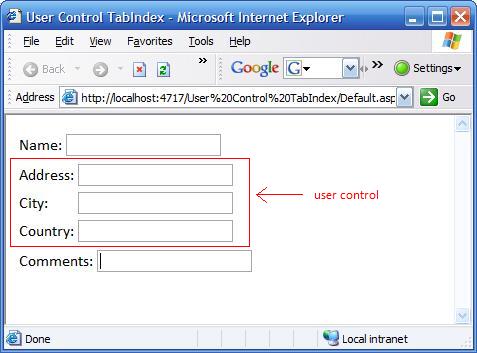
It's not uncommon to have a user control which acts as a simple container for a number of "sub controls". A typical example might be an Address control containing an Address, City, and Country textbox. This "Address" user control does not have a TabIndex property by definition. However, the user might wish to tab smoothly through their page (including through the controls contained within the user control).
What we can do though is create a TabIndex property for the user control and ensure that when it receives focus, the controls within it will tab through successfully.
Using the code
The first bit is to create a TabIndex property for the user control. In fact, what we do is set the TabIndex of the first control (the Address control), then the City control, and finally the Country control.
private short _tabIndex;
public short TabIndex
{
    get
    {
        return _tabIndex;
    }
    set
    {
        _tabIndex = value;
        txtAddress.TabIndex = (short)(value++);
        txtCity.TabIndex = (short)(value++);
        txtCountry.TabIndex = (short)(value);
    }
}
Implementation
When writing your HTML, simply set the TabIndex of each of control on your page. However, you need to allow for each of the controls within your user control. So in this example, the user control will use TabIndexes 2, 3, and 4. Thus, you need to restart the TabIndex at 5 for the next control on the page.
However, it may be worth allowing for additional controls (in case you choose to add, for example, a Postal Code textbox further down the line). So in this case, you could restart the TabIndex at 12 (rather than 5), allowing for up to 10 controls in total.
<asp:TextBox ID="txtName" runat="server" TabIndex="1"></asp:TextBox>

<uc1:Address ID="ctlAddress" runat="server" TabIndex="2"/>

<asp:TextBox ID="txtComments" runat="server" TabIndex="5"></asp:TextBox>
Points of interest
Note that the property TabIndex is a short, so when we set the TabIndex of the controls within the user control we must cast the value as a short.
History
- 07 March 2007 - Version 1.0.
This member has not yet provided a Biography. Assume it's interesting and varied, and probably something to do with programming.



 General
  News
News  Suggestion
  Question
  Bug
Bug  Answer
  Joke
Joke  Praise
  Rant
Rant  Admin
Admin 


 Submit an article or tip

