Introduction
This article explains how to connect to Microsoft Excel 2007 using ADO.NET Connection string and populate a DataGridView on a form.
Using the Code
First create a C# Windows application using Visual Studio. Add the following controls to the main form from the tool box.
DataViewGrid control (name as dgvExcelList) BindingSource control (name as dataBindingSrc) Button control (name as btnPopulate)
Now open Microsoft Excel 2007 and enter a few records. Save the file and close Excel.
I have already created a sample Excel 2007 file which is available in the project folder of the demo project. If you want, you can use it by copying to C:\. The name of the Excel file is Members.xlsx.
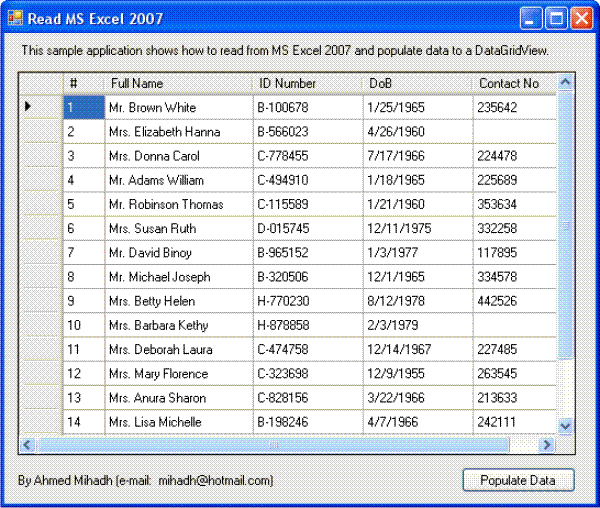
Copy the following codes into the btnPopulate_Click event and run the application. you will find the dgvExcelList is filled with all the entries in Sheet1 of the Excel file.
Note: If you want to use your own Excel file or save the Members.xlsx file in a different location other than C:\, change the file and path name from the connection string.
Code
string connectionString = @"Provider=Microsoft.ACE.OLEDB.12.0;
FONT-SIZE: 10pt; COLOR: #a31515; FONT-FAMILY: 'Courier New'">
Data Source=C:\Members.xlsx;Extended
FONT-SIZE: 10pt; COLOR: #a31515; FONT-FAMILY: 'Courier New'">
Properties=""Excel 12.0;HDR=YES;""";
string strSQL = "SELECT * FROM [Sheet1$]";
OleDbConnection excelConnection = new OleDbConnection(connectionString);
excelConnection.Open();
OleDbCommand dbCommand = new OleDbCommand(strSQL,excelConnection);
OleDbDataAdapter dataAdapter = new OleDbDataAdapter(dbCommand);
DataTable dTable = new DataTable();
dataAdapter.Fill(dTable);
dataBingingSrc.DataSource = dTable;
dgvExcelList.DataSource = dataBingingSrc;
dTable.Dispose()
dataAdapter.Dispose();
dbCommand.Dispose();
excelConnection.Close();
excelConnection.Dispose();
Your suggestions and comments are most welcome.
History
- 28th November, 2007: Initial post
This member has not yet provided a Biography. Assume it's interesting and varied, and probably something to do with programming.



 General
  News
News  Suggestion
  Question
  Bug
Bug  Answer
  Joke
Joke  Praise
  Rant
Rant  Admin
Admin 


 Submit an article or tip


