Introduction
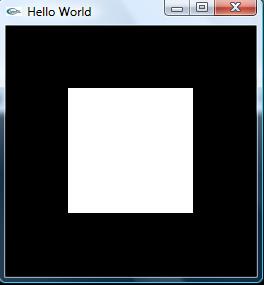
This is a very simple C++ console application that creates a simple OpenGL window. The source code is from the book "OpenGL Programming Guide (Third Edition)." This article will explain how to download and include the GLUT library. Once you include the GLUT library, it's very simple to build and execute the code. It explains also the OpenGL code that is used in this program.
Background
You should be able to use Visual Studio 2005 and C++. You should also have some idea about OpenGL.
Using the Code
Steps:
- GLUT installation (download the GLUT library)
- Copy and paste the GLUT library files to the specific locations
- Create a C++ console application
- Type the code, build and execute
Step 1
Before you even start a new project, you have to download the GLUT library. You can get the latest version from this link: GLUT 3.7.6 for Windows. Click this (glut-3.7.6-bin.zip (117 KB) ) link and download the ZIP file into your computer.
Step 2
Unzip the folder, copy the glut32.dll file and paste it to C:\WINDOWS\system. Copy the glut32.lib file and paste it to this directory: C:\Program Files\Microsoft Visual Studio 8\VC\PlatformSDK\Lib. The last step is to copy the glut.h file and paste it to this directory: C:\Program Files\Microsoft Visual Studio 8\VC\PlatformSDK\Include\gl. The installation of the GLUT library files is done. However, if you using a different Windows or different Visual Studio version, the directories might be different. I'm assuming that you are using Windows Vista and Visual Studio 2005.
Step 3
Create a C++ console application. You don't need a Windows application. From Visual Studio 2005, select File -> New -> Projects. Select project types Visual C++ -> Win32 and create a Win32 console application.
Step 4
Type the code, build and execute. Make sure to include the <GL/glut.h >.
#include "stdafx.h"
#include <GL/glut.h >
The Functions
Function display(void) displays a polygon:
void display(void)
{
glClear(GL_COLOR_BUFFER_BIT);
glColor3f(1.0,1.0,1.0);
glBegin(GL_POLYGON);
glVertex3f(0.25, 0.25, 0.0);
glVertex3f(0.75, 0.25, 0.0);
glVertex3f(0.75, 0.75, 0.0);
glVertex3f(0.25, 0.75, 0.0);
glEnd();
glFlush();
}
Function init() initialises GLUT (sets the state):
void init(void)
{
glClearColor(0.0, 0.0, 0.0, 0.0);
glMatrixMode(GL_PROJECTION);
glLoadIdentity();
glOrtho(0.0, 1.0, 0.0, 1.0, -1.0, 1.0);
}
Main function: make sure to change the command-line parameter _TCHAR* to char**.
int _tmain(int argc, char** argv)
{
glutInit(&argc, argv);
glutInitDisplayMode(GLUT_SINGLE | GLUT_RGB);
glutInitWindowSize(250,250);
glutInitWindowPosition(100,100);
glutCreateWindow("A Simple OpenGL Windows Application with GLUT");
init();
glutDisplayFunc(display);
glutMainLoop();
return 0;
}
Variable or class names should be wrapped in <code> tags like this.
Points of Interest
Actually, this program is a very simple OpenGL program. However, if you are new and if you don't know how to initialise the GLUT library, it might take little bit more time to compile the code.
History
Uploaded on 01/29/2008



 General
  News
News  Suggestion
  Question
  Bug
Bug  Answer
  Joke
Joke  Praise
  Rant
Rant  Admin
Admin 


 Submit an article or tip

