Introduction
Deployment is a great feature in Visual Studio .NET which allows you to deploy your applications by creating a Setup Program. You can make a setup project for both your Windows and Web applications.
Using this feature for deploying has many advantages for example:
- Installed applications can be uninstalled completely.
- If an error occurred through installation process, the system goes back to the state of before the installation.
- Adding user interface to setup project easily.
- Making setup project on different kinds of distribution media such as CD or floppy disks.
- Easy reinstallation when installed files get corrupted.
In this article, I will create a simple ASP.NET Web project and then create a setup project for deploying that.
First of all create an ASP.NET Web project using Visual Studio .NET and name it for example "TestWeb". In the WebForm designer (WebForm1.aspx). Drag and drop a Label and a button server control. Double click on button and then add the following code and compile the project.
private void Button1_Click(object sender, System.EventArgs e)
{
    Label1.Text = "My first deployment web project";
}
Creating the Web Setup project
After creating the web project or opening an existing web project, You can use VS.NET installer to create a Web Setup project. So do the following steps.
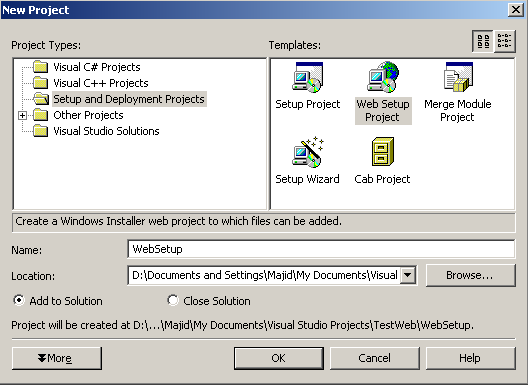
Add a Web Setup project to the solution through File/New/Project menu. Choose the Setup and Deployment Projects in Project Types tree control and after that select the Web Setup Project from Templates list box and name it WebSetup. Be aware of select the Add to Solution radio button.
Now the project is added to the Solution Explorer, and you can see the File System Editor. With File System Editor, you can add files and dependencies to the setup project and configure the location of installation.

Now you must add project files and dependencies to the setup project. For this reason right click on the Web Application Folder in File System Editor and choose Add/Project Output from the menu (You can do this through Action menu as well). Then select the Primary Output and Content Files from the Add Project Output Group dialog.
By pressing the OK button the primary output and content files of the TestWeb project will be added to the Application Folder automatically. Also the dependencies are automatically detected in the Solution Explorer. As you can see the dotnetfxredist_x86_enu.msm merge module is added to the WebSetup project. This merge module includes all assemblies of .NET framework. The exclude property of dotnetfxredist_x86_enu.msm is TRUE by default. In our case we suppose that .NET runtime is already installed on the target machine, otherwise you can define .NET Framework Lauch Condition in your setup project.
In the properties window, set the DefaultDocument property to "Webform1.aspx" page.
It's now time to build your web setup. So right click on WebSetup on Solution Explorer and choose Build. With a successful build, you can find the following files in the Debug or Release directory (depending on your build settings).
By executing Setup.exe the TestWeb project will be installed on the target system. Since we excluded .NET framework from our setup project, we must install the TestWeb application on the system with .NET framework installed. After installation process you can see TestWeb in IIS directory.



 General
  News
News  Suggestion
  Question
  Bug
Bug  Answer
  Joke
Joke  Praise
  Rant
Rant  Admin
Admin 


 Submit an article or tip


