Introduction
There can be a lot of trial and error, tweaking the code, and running the code many times, to create the correct color blend. I thought it would be nice to have a control like those seen in drawing programs that would create the blend visually to get a proper placement of the colors. I will also try to explain the basics of making a color blended brush to paint with. This is an update to my original ColorBlender. It is still the same core idea, but I was never really satisfied with the layout and how to use it.
Build-A-Blend
Building a two color color blend is fairly simple. Using a LinearGradientBrush from the System.Drawing.Drawing2D namespace, you can paint an area with a blend from one color to another color.
Dim rect As New Rectangle(0, 0, 100, 100)
Using br As New LinearGradientBrush( _
rect, _
Color.White, _
Color.Black, _
LinearGradientMode.Horizontal)
g.FillRectangle(br, rect)
End Using
If you want more than two colors, a ColorBlend is needed. First, create an array of colors for each position in the blend. Then, create an array of values representing the position of each color in the color array. The first color has a position of 0, and the last color has a position of 1. All the other colors in between have a decimal position value between 0 and 1. After creating the arrays, assign them to the ColorBlend's Colors and Positions properties. Then, create the same LinearGradientBrush as before, setting the two colors to any color just as a placeholder. Set the Brush's InterpolationColors property to the ColorBlend just created to set the new multicolor blend. The LinearGradientBrush can be replaced with the PathGradientBrush for more complex shapes.
Dim blend As ColorBlend = New ColorBlend()
Dim bColors As Color() = New Color() { _
Color.Red, _
Color.Yellow, _
Color.Lime, _
Color.Cyan, _
Color.Blue, _
Color.Violet}
blend.Colors = bColors
Dim bPts As Single() = New Single() { _
0, _
0.327, _
0.439, _
0.61, _
0.777, _
1}
blend.Positions = bPts
Dim rect As New Rectangle(0, 0, 100, 100)
Using br As New LinearGradientBrush( _
rect, _
Color.White, _
Color.Black, _
LinearGradientMode.Horizontal)
br.InterpolationColors = blend
g.FillRectangle(br, rect)
End Using
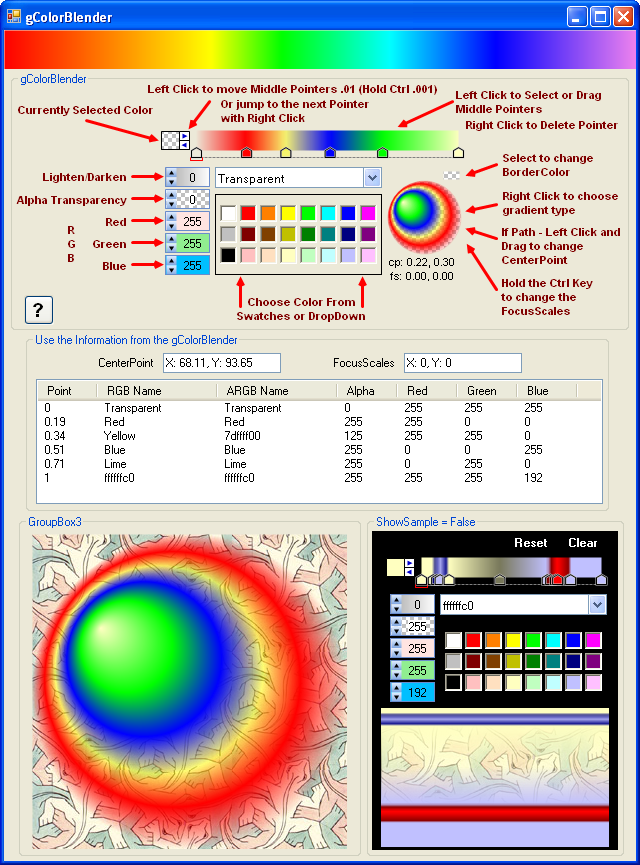
gColorBlender Control
The gColorBlender User Control consists of a horizontal bar of color with a starting and ending color gradient. Clicking along the bar adds a new color pointer. The pointer can be dragged back and forth to any position along the bar with the left button, and removed with the right button. Preset color swatches, an owner-drawn ComboBox with all the known colors, a Dimmer Slider, and ARGB Sliders can be changed to alter the color and transparency of the selected pointer. There is a sample preview on the control to display the current blend. The LinearGradientBrush paints the ColorBlend on a line from point A to point B. The PathGradientBrush paints the blend around a path. Right-Click the Sample to change these. The sample can be hidden by setting the ShowSample property to False
Events
Control Properties
Here is a list of the primary properties:
cbColorArray of colors used in cBlenderItems class ColorBlend.
cbPositionArray of color positions used in ColorBlend.
BorderColorFor use as an accent color like a border.
FocalPointsThe CenterPoint and FocusScales for the Drawing.Drawing2D.ColorBlend.
BlendGradientTypeType of brush used to paint the ColorBlend - Linear or Path.
BlendGradientModeType of linear gradient color blend.
BlendPathShapeShape of path for the ColorBlend - Rectangle, Ellipse, Triangle, Polygon.
BlendPathCenterPointPosition of the center of the path ColorBlend.
BarHeightHeight of color blender bar.
ShowSampleShow or hide the sample.
Methods
Methods to use outside the control.
GetColorBlendForBrush - Returns a Drawing.Drawing2D.ColorBlend.BlendConvertCenterPoint - Returns a CenterPoint for the given Rectangle relative to the sample CenterPoint.
Mouse Events
Track if the cursor is over a pointer to select or add a pointer, or any of the other rectangles like the
sample, border selector, or arrow buttons. Rectangles are easily checked by seeing if the mouse's X, Y is contained within the boundaries of the rectangle, i.e., rectSample.Contains(X, Y). Checking a
path has the extra step of being converted to a Region first.
Using PointerRegion As New Region(BuildPointer(GetpX(1)))
Return PointerRegion.IsVisible(X, Y)
End Using
Drawing
Contains the routines to draw the pointers, build the brushes, and build the ColorBlend.
Painting
Paint the control to a Bitmap to create a buffer, eliminating flicker.
Protected Overrides Sub OnPaint(ByVal e As PaintEventArgs)
MyBase.OnPaint(e)
BuildABlend()
Dim bitmapBuffer As Bitmap = New Bitmap(ClientSize.Width, ClientSize.Height)
Dim g As Graphics = Graphics.FromImage(bitmapBuffer)
g.Clear(BackColor)
g.SmoothingMode = SmoothingMode.AntiAlias
g.TextRenderingHint = Drawing.Text.TextRenderingHint.AntiAliasGridFit
Dim br As Brush = LinearBrush(rectBar, LinearGradientMode.Horizontal)
g.FillRectangle(br, rectBar)
br = New HatchBrush(HatchStyle.LargeCheckerBoard, Color.White, Color.Silver)
g.FillRectangle(br, rectCurrColor)
g.FillRectangle(New SolidBrush(Color.FromArgb(gszAlpha.Value, _
gszRed.Value, _
gszGreen.Value, _
gszBlue.Value)), rectCurrColor)
g.DrawRectangle(Pens.Black, rectCurrColor)
If CurrPointer > -3 Then
TextRenderer.DrawText(g,
CurrPos,
New Font("Arial", 8, FontStyle.Bold),
New Rectangle(rectCurrColor.Left - 3,
rectCurrColor.Bottom + 1, 50, 30),
Color.Black, BackColor, TextFormatFlags.Left)
g.FillRectangles(Brushes.White, New Rectangle() {rectLeft, rectRight})
g.FillPolygon(Brushes.MediumBlue, ptsLeft)
g.FillPolygon(Brushes.MediumBlue, ptsRight)
g.DrawRectangles(Pens.Black, New Rectangle() {rectLeft, rectRight})
End If
Using pn As New Pen(Color.Gray, 1) With {.DashStyle = DashStyle.Dash}
g.DrawLine(pn, rectBar.Left, BarHeight + 7, rectBar.Right, BarHeight + 7)
pn.Color = Color.Black
pn.DashStyle = DashStyle.Solid
DrawPointer(g, StartPointer.ARGB, 0, StartPointer.pIsCurr)
DrawPointer(g, EndPointer.ARGB, 1, EndPointer.pIsCurr)
If MiddlePointers IsNot Nothing Then
For I As Integer = 1 To MiddlePointers.Count
DrawPointer(g, MiddlePointers(I).ARGB, _
MiddlePointers(I).pPos, I = CurrPointer)
Next
End If
End Using
If _showSample Then
Dim rectHatch As Rectangle = rectBorderSelect
rectHatch.Inflate(-1, -1)
g.FillRectangle(br, rectHatch)
g.FillRectangle(New SolidBrush(
gColorBlend.BorderColor),
rectBorderSelect)
If CurrPointer = -3 Then
Using pn As New Pen(Brushes.Red, 1)
g.DrawLines(pn, New Point() {
New Point(rectBorderSelect.Left - 2, rectBorderSelect.Top + 4),
New Point(rectBorderSelect.Left - 2, rectBorderSelect.Top - 2),
New Point(rectBorderSelect.Right + 2, rectBorderSelect.Top - 2),
New Point(rectBorderSelect.Right + 2, rectBorderSelect.Top + 4)
})
End Using
End If
Using gp As New GraphicsPath, gph As New GraphicsPath
rectHatch = rectSample
rectHatch.Inflate(-1, -1)
If _gColorBlend.BlendGradientType = eBlendGradientType.Linear Then
gph.AddRectangle(rectHatch)
g.FillPath(br, gph)
gp.AddRectangle(rectSample)
br = LinearBrush(rectSample, _gColorBlend.BlendGradientMode)
Else
gph.AddPath(GetShapePath(rectHatch), False)
g.FillPath(br, gph)
gp.AddPath(GetShapePath(rectSample), False)
br = PathBrush(rectSample)
TextRenderer.DrawText(g, String.Format(
"cp: {1:0.00}, {2:0.00}{0}fs: {3:0.00}, {4:0.00}",
vbNewLine,
gColorBlend.FocalPoints.CenterPtX,
gColorBlend.FocalPoints.CenterPtY,
gColorBlend.FocalPoints.FocusPtX,
gColorBlend.FocalPoints.FocusPtY),
New Font("Arial", 8, FontStyle.Regular),
New Rectangle(rectSample.Left - 2,
rectSample.Bottom + 2,
rectSample.Width + 2, 30),
Color.Black, BackColor, TextFormatFlags.HorizontalCenter)
End If
g.FillPath(br, gp)
Using pn As New Pen(gColorBlend.BorderColor, 2)
g.DrawPath(pn, gp)
End Using
End Using
End If
e.Graphics.DrawImage(bitmapBuffer.Clone, 0, 0)
bitmapBuffer.Dispose()
br.Dispose()
g.Dispose()
End Sub
SortCollection
Method that uses the CallByName function to sort the Collection of pointers by the pPos property value.
ColorBox
Is an owner-drawn ComboBox with the DrawItem event overridden to list the known colors.
I finally have a way to add Named Colors
to a list ordered by color. The KnownColor enumeration is alphabetic so the only way to do it before was to use a hard coded list of color name strings
in the order you wanted rather than the built in enumeration.
Dim cList As New List(Of Color)
For Each s As String In [Enum].GetNames(GetType(KnownColor))
    If Not Color.FromName(s).IsSystemColor Then
        cList.Add(Color.FromName(s))
    End If
Next
cList.Sort(AddressOf SortColors)
Friend Function SortColors(ByVal x As Color, ByVal y As Color) As Integer
Dim huecompare As Integer = x.GetHue.CompareTo(y.GetHue)
Dim satcompare As Integer = x.GetSaturation.CompareTo(y.GetSaturation)
Dim brightcompare As Integer = x.GetBrightness.CompareTo(y.GetBrightness)
If huecompare <> 0 Then
Return huecompare
ElseIf satcompare <> 0 Then
Return satcompare
ElseIf brightcompare <> 0 Then
Return brightcompare
Else
Return 0
End If
End Function
Now add the sorted list to the ComboBox:
With ColorBox
    .Items.Clear()
    For Each c As Color In cList
        .Items.Add(c.Name)
    Next
End With
ColorExtensions Module
While working with Color objects named colors sometimes get changed to their ARGB equivalents. So Color.Yellow becomes
Color.FromArgb(255, 255, 255, 0). Visually the colors are the same and the actual
A, R, G, and B
property values are equal,
but (Color.Yellow = Color.FromArgb(255, 255, 255, 0)) is False. Set a color to Color.Yellow and the
Name property returns
"Yellow". Set a color using the ARGB values like Color.FromArgb(255, 255, 255, 0) and the
Name property returns "ffffff00".
This can be a real pain, especially when dealing with the ColorBox that only has named colors in it. To keep the colors
consistent I use the
GetColorNearestName,
GetColorNearestKnown, GetColorBestName, and GetColorBest functions. These functions keep things in order, give
the ability to restrict the colors to only KnownColors, or just get the best name possible.
GetColorNearestName: Returns the Name of the KnownColor that most closely matches the given colorGetColorNearestKnown: Returns the KnownColor that most closely matches the given colorGetColorBestName: If the given color matches a KnownColor that
name is returned, otherwise the current name is returnedGetColorBest: If the given color matches a KnownColor the KnownColor is returned, otherwise the ARGB Color is returned
Additional functions in this Module are:
DimTheColor: Takes the given color and
lightens or darkens it by the given valueGrayTheColor: Takes the given color and returns its gray equivalent
I made these functions into Extensions. by adding the <Extension()> attribute from the System.Runtime.CompilerServices namespace. Now any object with data type Color will have these functions directly associated to them. In other words typing a period after the color object will show these functions in the IntelliSense.

Usage
The control can be used as a stand alone control directly on the form like in the main
source project.
As shown in the demo project, it can also be used in a ToolStripDropDown:
or as a TypeEditor in the PropertyGrid.
UITypeEditor
Use of the Type Converters and editors are fully explained my UITypeEditor article: UITypeEditorsDemo[^].
Pointer
The cPointer class contains four properties.
pPos - Position of the color.pColor - Color at the position value.pAlpha - Value from 0 to 255 that is the Transparency level of the color.pIsCurr - The pointer currently selected.
History
- Version 1.0 - July 2008.
- Version 2.0.3 July 2012.
I first got hooked on programing with the TI994A. After it finally lost all support I reluctantly moved to the Apple IIe. Thank You BeagleBros for getting me through. I wrote programs for my Scuba buisness during this time. Currently I am a Database manager and software developer. I started with VBA and VB6 and now having fun with VB.NET/WPF/C#...



 General
  News
News  Suggestion
  Question
  Bug
Bug  Answer
  Joke
Joke  Praise
  Rant
Rant  Admin
Admin 


 Submit an article or tip


