Click here to Skip to main content

Circular Progress Indicator

By , 1 Jul 2010
 

Introduction

I've always liked the little circular progress indicator on Firefox top right corner when loading a page but I couldn't find any like it to use with my projects, so I've made one myself.

Using the Code

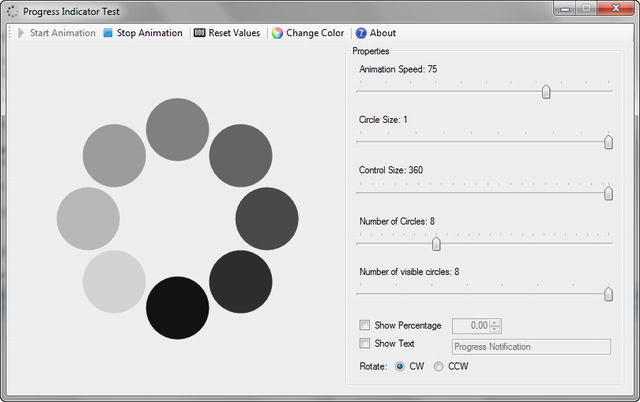
Using the control is very simple, there are only four properties and two methods that you need to be aware of:

  • CircleColor - Changes the base color of the circles
  • CircleSize - Changes the diameter of the circles, this value is relative and proportional to the control size and ranges between 0.1 and 1.0
  • AutoStart - Sets if the animation should start automatically
  • AnimationSpeed - Sets the animation speed 
  • NumberOfCircles - Sets the maximum number of circles that can be drawn in the control, this value must be greater than 0
  • NumberOfVisibleCircles - Sets the number of circles that are visible in the control, must always be less or equal than the NumberOfCircles
  • Percentage - Sets a percentage value that can be shown in the center of the control, this value must be between 0 and 100
  • ShowPercentage - Sets a value that allows to show or hide the percentage value
  • ShowText - Sets a value that allows to show the control text
  • TextDisplay - This property is just a helper property, it allows to enable or disable both text and percentage with one property
  • Rotation - Sets the direction in which the control will rotate

To start the animation, just call Start():

progressIndicator.Start(); 

And to stop it, just call Stop():

progresIndicator.Stop();

The Control Code

Drawing the Circles

The circles are drawn around a circumference with the diameter of the control. Since the number of circles is variable, we need to calculate the rotation angle for each circle. The minimum number of circles must be 1 with no upper limit control. Drawing the circles is done using a call to RotateTransform that rotates the drawing position to the angle passed as a parameter. Drawing the circles in sequence, decreasing the amount of alpha in the circle color gives the fading effect of the control. To animate, the control is redrawn at time intervals always changing the position of the darker circle by one place forward, giving the illusion of motion. The control can be rotated clockwise or counter-clockwise and direction of rotation is achieved by multiplying the angle by 1 or -1. Checking the code, this line is found:

e.Graphics.RotateTransform(angle * _value * (int)_rotation);

This piece of code sets the start position of each rotation phase multiplying the section angle by a value that is incremented by an internal timer. The maximum number of circles shown at a given time is defined by the NumberOfVisibleCircles property. This property determines the effective number of circles that are drawn in the control, this is different from the NumberOfCircles property. This last property sets the number of circles that can be drawn, is like reserving spaces for the circles even if we don't use them all. This gives the effect of tightening the circles together when the number of visible circles decreases and the opposite effect when it increases.

float angle = 360.0F / _numberOfCircles;

GraphicsState oldState = e.Graphics.Save();

e.Graphics.TranslateTransform(Width / 2.0F, Height / 2.0F);
e.Graphics.RotateTransform(angle * _value * (int)_rotation);
e.Graphics.InterpolationMode = InterpolationMode.HighQualityBicubic;
e.Graphics.SmoothingMode = SmoothingMode.AntiAlias;

for (int i = 1; i <= _numberOfCircles; i++)
{
    int alphaValue = (255.0F * (i / (float)_numberOfVisibleCircles)) > 255.0 ? 0 : 
	(int)(255.0F * (i / (float)_numberOfVisibleCircles));
    int alpha = _stopped ? (int)(255.0F * (1.0F / 8.0F)) : alphaValue;

    Color drawColor = Color.FromArgb(alpha, _circleColor);

    using (SolidBrush brush = new SolidBrush(drawColor))
    {
        float sizeRate = 4.5F / _circleSize;
        float size = Width / sizeRate;

        float diff = (Width / 4.5F) - size;

        float x = (Width / 9.0F) + diff;
        float y = (Height / 9.0F) + diff;
        e.Graphics.FillEllipse(brush, x, y, size, size);
        e.Graphics.RotateTransform(angle * (int)_rotation);
    }
}

e.Graphics.Restore(oldState);

Drawing the Percentage and the Text

The percentage is an optional feature, since the primary purpose isn't to show a progress value but that something is going on. The percentage text isn't shown by default and wasn't even part of the original idea. Anyway I have been reading some comments from people requesting new features and giving some nice ideas that I've decided to update the control and implement some new features. One of them was this one. The percentage is set through the Percentage property and can be enabled and disabled from the ShowPercentage property. The Text property follows the same reasoning. It wasn't part of the original plan, but as SohjSolwin suggested, it can be useful in some cases, we never know when or where this control will be used. So, from this version on, the control has the ability of drawing both of them like shown below:

string percent = GetDrawText();

if (!string.IsNullOrEmpty(percent))
{
    SizeF textSize = e.Graphics.MeasureString(percent, Font);
    float textX = (Width / 2.0F) - (textSize.Width / 2.0F);
    float textY = (Height / 2.0F) - (textSize.Height / 2.0F);
    StringFormat format = new StringFormat
    {
        Alignment = StringAlignment.Center,
        LineAlignment = StringAlignment.Center
    };

    RectangleF rectangle = new RectangleF(textX, textY, textSize.Width, textSize.Height);
        

    using (SolidBrush textBrush = new SolidBrush(ForeColor))
    {
        e.Graphics.DrawString(percent, Font, textBrush, rectangle, format);
    } 
}

Why both Percentage and the Text?

When the control is being used to show progress, it is possible to show a message about what is going on and at the same time the progress percentage. Both of them are independent and have different purposes. Even if they are drawn at the same time internally, if I just need to change the value of the percentage, it's easier to do this:

progressIndicator.Percentage = 50.25F;

And let the control add the "%" sign and do the rest of the formatting. It's much more intuitive and simple than this:

progressIndicator.Text = string.Format("{0:0:##} %}, 50.25F);

On the other hand, the percentage property doesn't allow text, so it's needs another field to set the text to draw. The final string that is displayed is built using the Text and the Percentage property in the method displayed below, the method checks the values of the _showText and _showPercentage fields and constructs a string based on their values, returning an empty string if both fields are set to false.

private string GetDrawText()
{
    string percent = string.Format(CultureInfo.CurrentCulture, "{0:0.##} %", _percentage);

    if (_showText && _showPercentage)
        return string.Format("{0}{1}{2}", percent, Environment.NewLine, Text);

    if (_showText)
        return Text;

    if (_showPercentage)
        return percent;

    return string.Empty;
}

The rest of the control code is short and simple to understand, so I've decided to remove it from the article leaving only the pieces that matter. If you have any questions, please leave a comment.

Points of Interest

There's nothing more to it. It is particularly useful in situations where the progress bar hasn't made any progress for a long time and we want to pass the message that something is being done. Mainly, it has been fun to program. :)

Credits

I would like to thank SohjSolwin for his contribution with the rotation and number of visible circles part of the code that I've included in this release with minor modifications, and also for the text drawing suggestion instead of only showing the percentage.

History

  • 2nd November, 2008: Initial post
  • 26th June, 2010: Update to version 1.1, new features are:
    • Variable number of circles (version 1 has a fixed number of 8)
    • It is possible to draw a percentage value
  • 1st July, 2010: Update to version 1.2, new features are:
    • Rotation can be clockwise or counter-clockwise
    • It is possible to draw a text string in addition to the percentage value
    • Variable number of visible circles (version 1.1 has a fixed number of 8)

License

This article, along with any associated source code and files, is licensed under The Code Project Open License (CPOL)

About the Author

Nitoc3
Software Developer
Portugal Portugal
Member
No Biography provided

Sign Up to vote   Poor Excellent
Add a reason or comment to your vote: x
Votes of 3 or less require a comment

Comments and Discussions

 
You must Sign In to use this message board.
Search this forum  
    Spacing  Noise  Layout  Per page   
GeneralMy vote of 4memberPrasyee5 Mar '13 - 17:33 
nice
GeneralMy vote of 5memberIFFI11 Dec '12 - 4:55 
Works like a charm. Thanks dear.
QuestionThank you!memberIgnacioooooo21 Nov '12 - 7:39 
This is great!
 
I can use it without any problems!
QuestionProblem while launching external appmemberalex__b6 Aug '12 - 19:15 
Hi
I try to use this progress indicator while waiting for an external app.
this.progressIndicator1.Start();
Activator.CreateInstance(...);//launch external app
this.progressIndicator1.Stop();
and the indicator does not start (in fact it waits for the CreateInstance() call to return and then starts.)
Any solutions?
Thanks
alex
alex
 
'Architecture is music frozen in space.'

QuestionExcellent.memberPHS24123 Apr '12 - 22:57 
Excellent. Thanks. I can definitely use this.
GeneralMy vote of 5memberVano Maisuradze26 Mar '12 - 0:49 
Nice one Smile | :)
QuestionPermissionmemberxivSolutions19 Feb '12 - 13:00 
Hello! I have created a small project which depends upon your Circular Progress Indicator, and I would like to upload the source to my remote repo (on Bit Bucket and/or GitHub) so that the project will be buildable from the source. I would like to upload your source as a separate project repo (with full accreditation and links back to your article). I will include reference to the CPOL license as well.
 
Please let me know if this is ok with you?
AnswerRe: PermissionmemberNitoc320 Feb '12 - 6:39 
Hello xivSolutions,
 
You have my permission to use my Circular Progress Indicator in your and upload it to your source repository.
GeneralNice!memberxivSolutions31 Jan '12 - 16:40 
Very nicely done control!
QuestionIts awesome. Thanks.memberpkkalra197826 Sep '11 - 21:16 
Its awesome. Thanks.
GeneralLike !!!!!!!!!!!!!!!!!!!!!!!!!!!!!!!!!!!!!!!!!!!!!!!!!!!!!!!!!memberraananv31 Aug '11 - 12:48 
Thanx Smile | :)
GeneralMy vote of 5memberTheF®eeSurfer6 Apr '11 - 0:34 
Simple and useful
GeneralAnother new votememberapiegoku22 Sep '10 - 11:08 
Great project
GeneralMy vote of 5memberVUnreal21 Sep '10 - 11:00 
Flickers a little, but looks good in general.
GeneralVery usefull progress indicatormemberredhatee200611 Aug '10 - 5:44 
Smile | :) Thanks for this progress indicator, excelent work Big Grin | :-D Question: cannot make backcolor transparent, options transparent is on, but color returns color of backcolor main form. D'Oh! | :doh:
GeneralRe: Very usefull progress indicatormemberNitoc317 Aug '10 - 7:11 
Hi redhatee2006, that is the behaviour that is supposed to have. From the MSDN documentation:
 
"Windows Forms controls do not support true transparency. The background of a transparent Windows Forms control is painted by its parent."
 
How to: Give Your Control a Transparent Background[^]
GeneralMy vote of 5memberkobymeir17 Jul '10 - 4:40 
Simple usefull,And strait into my project.
Smile | :)
GeneralMy vote of 5memberHuseyin OZCAKIR9 Jul '10 - 23:14 
.
GeneralMy vote of 5membergarycoggins8 Jul '10 - 4:12 
Clean project that does everything it should without issues. Just what I needed.
Generaluse of controlmemberMember 347198330 Jun '10 - 8:48 
SohjSolwin,
 
You have made a very nice control. Is there a way to use it with a backgroundworker because when i use it while filling a datagridview is stops working until the grid is filled.
GeneralRe: use of controlmemberSohjSolwin1 Jul '10 - 11:12 
Actually, Nitoc3 created the control, I only made a small change to allow for either direction rotation.
 
A question about what you're doing though, wouldn't it be better to do the gridview loading in the BackgroundWorker? Since this progress indicator is no different from a button or even the gridview on your form, it's not going to update if the UI is blocked by the gridview loading code.
GeneralA few updates and request for permissionmemberSohjSolwin29 Jun '10 - 11:17 
I've made a few enhancements to your control (which I'm submitting back to the community here) and would like to ask your permission to look at adding the control to a project I'm working with, fyireporting[^]. The rotation is now able to go either clockwise or counter-clockwise, the number of visible circles is adjustable, in addition to the already adjustable number of circles, and any text can be placed over the control instead of just the percentage complete (this way the current action can be drawn over the control too).
 
        /// <summary>
        /// An enum used to indicate the rotational direction of the control.
        /// </summary>
        public enum RotationType
        {
            /// <summary>
            /// Indicates that the rotation should move clockwise.
            /// </summary>
            Clockwise = 1,
            /// <summary>
            /// Indicates that the rotation should move counter-clockwise.
            /// </summary>
            Counter_Clockwise = -1,
        }
 
Added with the Private Fields (The percentage fields were removed and replaced with the text fields).
        private RotationType _rotation = RotationType.Clockwise;
        private int _numberOfVisibleCircles = 8;
        private string _text;
        private bool _showText;
 
Added to Public Properties
        /// <summary>
        /// Gets or sets the number of visible circles used in the animation.
        /// </summary>
        /// <exception cref="ArgumentOutOfRangeException"><c>NumberOfVisibleCircles</c> is out of range.</exception>
        [DefaultValue(8)]
        [Description("Gets or sets the number of visible circles used in the animation.")]
        [Category("Behavior")]
        public int NumberOfVisibleCircles
        {
            get { return _numberOfVisibleCircles; }
            set
            {
                if (value <= 0 || value > _numberOfCircles)
                    throw new ArgumentOutOfRangeException("value", "Number of visible circles must be a positive integer and less than or equal to the number of circles.");
 
                _numberOfVisibleCircles = value;
                Invalidate();
            }
        }
 
        /// <summary>
        /// Gets or sets the text to show on the control.
        /// </summary>
        [DefaultValue("")]
        [Description("Gets or sets the text to show on the control.")]
        [Category("Appearance")]
        public override string Text
        {
            get { return _text; }
            set
            {
                _text = value;
            }
        }
 
        /// <summary>
        /// Gets or sets a value indicating if the percentage value should be shown.
        /// </summary>
        [DefaultValue(false)]
        [Description("Gets or sets a value indicating if the text value should be shown.")]
        [Category("Behavior")]
        public bool ShowText
        {
            get { return _showText; }
            set
            {
                _showText = value;
                Invalidate();
            }
        }
 
        /// <summary>
        /// Gets or sets a value indicating if the rotation should be clockwise or counter-clockwise.
        /// </summary>
        [DefaultValue(RotationType.Clockwise)]
        [Description("Gets or sets a value indicating if the rotation should be clockwise or counter-clockwise.")]
        [Category("Behavior")]
        public RotationType Rotation 
        {
            get { return _rotation; }
            set { _rotation = value; }
        }
 
The code within the e.Graphics.Save/Restore calls in the OnPaint method
            e.Graphics.TranslateTransform(Width / 2.0F, Height / 2.0F);
            e.Graphics.RotateTransform(angle * _value * (int)_rotation);
            e.Graphics.InterpolationMode = InterpolationMode.HighQualityBicubic;
            e.Graphics.SmoothingMode = SmoothingMode.AntiAlias;
 
            for (int i = 1; i <= _numberOfCircles; i++)
            {
                int alphaValue = (255.0F * (i / (float)_numberOfVisibleCircles)) > 255.0 ? 0 : (int)(255.0F * (i / (float)_numberOfVisibleCircles));
                int alpha = _stopped ? (int)(255.0F * (1.0F / (float)_numberOfVisibleCircles)) : alphaValue;
 
                Color drawColor = Color.FromArgb(alpha, _circleColor);
 
                using (SolidBrush brush = new SolidBrush(drawColor))
                {
                    float sizeRate = 4.5F / _circleSize;
                    float size = Width / sizeRate;
 
                    float diff = (Width / 4.5F) - size;
 
                    float x = (Width / 9.0F) + diff;
                    float y = (Height / 9.0F) + diff;
                    e.Graphics.FillEllipse(brush, x, y, size, size);
                    e.Graphics.RotateTransform(angle * (int)_rotation);
                }
            }

GeneralRe: A few updates and request for permissionmemberNitoc330 Jun '10 - 1:13 
Hi SohjSolwin, thanks for your contribution to this article, the counterclockwise rotation is a nice idea and I´ll be soon updating the article to include it if you are ok with it. Meanwhile I’m here by granting you permission to use this control in your project has long has you follow the terms of the license under which the control has been released (CPOL). It’s always nice to know that your word is being used by someone. Smile | :)
GeneralRe: A few updates and request for permissionmemberSohjSolwin30 Jun '10 - 7:52 
No problem, feel free. And thanks. I'll be sure to abide by the CPOL, I just feel more comfortable checking with the author before I use it too. I'm going to play with the control a little more and see if I can get it to rotate in both directions at once as well (mainly because I want to see what it would look like) and If I get it to work I'll post the changes for that as well.
GeneralRe: A few updates and request for permissionmemberNitoc330 Jun '10 - 8:28 
I think the rotation can be done in both directions if you draw it in one direction first and then in the other since you have to rotate transform the Graphics object. It seems to me the easyest way. Draw it clockwise, restore the graphics and then draw it counterclockwise. It could work that way. Try it.

General General    News News    Suggestion Suggestion    Question Question    Bug Bug    Answer Answer    Joke Joke    Rant Rant    Admin Admin   

Permalink | Advertise | Privacy | Mobile
Web02 | 2.6.130523.1 | Last Updated 1 Jul 2010
Article Copyright 2008 by Nitoc3
Everything else Copyright © CodeProject, 1999-2013
Terms of Use
Layout: fixed | fluid
