Click here to Skip to main content

How-to: Benefit from Kinect.Toolbox and Coding4Fun on Kinect Programming

By , 19 Nov 2012
 

Introduction

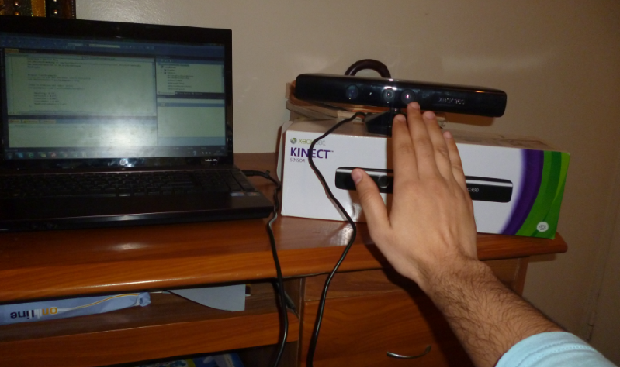
Since July 2011, the publishing date of the beta version of the Kinect SDK, the number of programmer, students and fans who are interested to this new technology is increasing, also the development of tools and API that could make the Kinect programming very easy has increased, the most used API on Kinect programming are Kinect.Toolbox and coding4Fun. The use of those two APIs is what we will see and study in this article.
 

Background

C#, Visual Studio 2010, Kinect device, Download and install the Kinect SDK: Download Kinect SDK Beta.

Step 0 : Download and install the APIs

First of all, we should download the APIs with its codes (Kinect.Toolbox and Coding4Fun), to do this we go to those sites and download the API : Coding4Fun API and Kinect.Toolbox

P.S: make sure that you have downloaded the codes and the API for Winform.

Step 1 : Getting started with Microsoft Kinect SDK

After downloading and installing the APIs, the DLL files that should be used as a reference in our project will be available on the downloaded zip files.

Note : the DLL of Kinect SDK is available on : C:\Program Files (x86)\Microsoft Research KinectSDK

  1. Now, go to Visual Studio and open a new WinForms project.
  2. Add a references of the APIs that we well use on our project:
  3. To do this, go to the Solution Explorer on Visual Studio and right click on References after that click add new reference, and for each DLL browse into its location and choose it. 

  4. Open a Form1.cs on Visual Studio and add those references:
  5. using Microsoft.Research.Kinect.Nui;
    using Kinect.Toolbox;
    using Coding4Fun.Kinect.WinForm;

Step 2 : Detect a hand moving event

The hand is the most used part of the body on Kinect programming, cause it the most interactive part of our body, so in this part we will detect the right hand move and using API we will know the direction of this movement : right to left , lift to right ...etc

Firstly, we initiate some fields on Form1 class that will be used after:

private void Form1_Load(object sender, EventArgs e)
{
   try
   {
        nui.Initialize(RuntimeOptions.UseSkeletalTracking);
   }
   catch (InvalidOperationException)
   {
        MessageBox.Show("Runtime initialization failed. " + 
           "Please make sure Kinect device is plugged in.");
        return;
   }

    #region add events
    
    nui.SkeletonFrameReady += 
      new EventHandler<SkeletonFrameReadyEventArgs>(nui_SkeletonFrameReady);
    SwG.OnGestureDetected += On_GestureDetected;

    #endregion
}

Step 3 : Initialization of the Kinect and link events with methods

Now, we go to the load event of Form1 and we initiate the Kinect and link the event with methods (the principle of delegate on C#).

Add this code to the load event of Form1:

private void Form1_Load(object sender, EventArgs e)
{
    try
    {
        nui.Initialize(RuntimeOptions.UseSkeletalTracking);
    }
    catch (InvalidOperationException)
    {
        MessageBox.Show("Runtime initialization failed. " + 
          "Please make sure Kinect device is plugged in.");
        return;
    }

    #region add events

    nui.SkeletonFrameReady += 
      new EventHandler<SkeletonFrameReadyEventArgs>(nui_SkeletonFrameReady);
    SwG.OnGestureDetected += On_GestureDetected;

    #endregion

In the try catch block of this code we run the Kinect device, if the device is not Ok : power off or the USB cable is not plugged on the Computer, the exception will be launched.

In the second block, we detect the body so if a body is detected by the Kinect the nui_SkeletonFrameReady method will respond to this event, this event has an argument which is the detected body, called in Kinect SDK the SkeletonFrame.

Finally, we link the move event with the method that will responds to this move.

Step 4 : Responds to the events

To respond to the two events that we have seen in the last step, we should use the methods linked with those events, to do this add those two methods to the Form1 class:

Method 1: Detect the right hand of the body (detect one Joint of the first Skelton). void nui_SkeletonFrameReady(object sender, SkeletonFrameReadyEventArgs e)

void nui_SkeletonFrameReady(object sender, SkeletonFrameReadyEventArgs e)
{
    SkeletonFrame allSkeletons = e.SkeletonFrame;

    //get the first tracked skeleton
    SkeletonData skeleton = (from s in allSkeletons.Skeletons
                             where s.TrackingState == SkeletonTrackingState.Tracked
                             select s).FirstOrDefault();
    //Test if skelton exist and tracked
    if (skeleton != null && skeleton.TrackingState == SkeletonTrackingState.Tracked)
    {
        SwG.Add(skeleton.Joints[JointID.HandRight].Position, nui.SkeletonEngine);

        // scale those Joints to the primary screen width and height
        Joint scaledRight = skeleton.Joints[JointID.HandRight].ScaleTo(
          (int)SystemInformation.PrimaryMonitorSize.Width, 
          (int)SystemInformation.PrimaryMonitorSize.Height, SkeletonMaxX, SkeletonMaxY);

In this code we get the first body detected by the Kinect device (It can detect two bodies), after that we link the right hand with the move event, to detect the move of the right hand : SwG.Add( )...etc.

Method 2: Detect the right hand gesture.

To do this add this method to the Form1 class that responds to the OnGestureDetected event:

public void On_GestureDetected(string gest)
{
    //if gest is swip to right go to the next picture
    if (gest == "SwipeToRight")
        suivant();
    //if gest is swip to left go to the previouse picture
    if (gest == "SwipeToLeft")
        precedente(); // e.g :is a method that 
    
}

When the Kinect device detect that the tracked Joint (Right hand) swipe to left or to right this Gesture event is launched in this method responds to this event, "SwipeToRight" and "SwipeToLeft" are a two string declared on the Kinect.Toolbox API, so in our method we test if the right hand is going from left to right or from right to left and we do something responding to this hand move.

Tricks

Trick 1 

If we test this code we will find that the response to the hand move is too quick, and we don't have a good interactivity between the application and the hand move, so to correct this problem we modify the jitter of our SkeltonEngine like this :

#region TransformSmooth
//Must set to true and set after call to Initialize
nui.SkeletonEngine.TransformSmooth = true;
//Use to transform and reduce jitter
var parameters = new TransformSmoothParameters
{
    Smoothing = 0.75f,
    Correction = 0.07f,
    Prediction = 0.08f,
    JitterRadius = 0.08f,
    MaxDeviationRadius = 0.07f
};
nui.SkeletonEngine.SmoothParameters = parameters;
#endregion

Trick 2 

In the Kinect.toolbox we have seen that we have only two types of gesture SwipeToRight3 and SwipeToLeft, the other types of gesture could be implemented on this API by modifying the source code, in this trip we will see how to add a BackToFront and use it on our code, for example to choose something in the screen.

First of all we go to the Kinect.Toolbox source code, in the SwipeGestureDetector.cs class we modify the LookForGesture() method by adding those lines of code:

void LookForGesture()
{
    / / From left to right
    if (ScanPositions ((P1, P2) => Math.Abs ??(p2.Y - p1.Y) <0.20f, 
       (P1, P2) => p2.X - p1.X> - 0.01f, (P1, P2 ) => 
       Math.Abs ??(p2.X - p1.X)> 0.2f, 250, 2500))
    {
        RaiseGestureDetected ("LeftToRight");
        return;
    }

    / / from right to left
    if (ScanPositions ((P1, P2) => Math.Abs ??(p2.Y - p1.Y) <0.20f, 
       (P1, P2) => p2.X - p1.X <0.01f, (P1, P2) => 
       Math.Abs ??(p2.X - p1.X)> 0.2f, 250, 2500))
    {
        RaiseGestureDetected ("RightToLeft");
        return;
    }

    / / From back to front
    if (ScanPositions ((P1, P2) => Math.Abs ??(p2.Y - p1.Y) <0.15f, 
       (P1, P2) => p2.Z - p1.Z <0.01f, (P1, P2) => 
        Math.Abs ??(p2.Z - p1.Z)> 0.2f, 250, 2500))
    {
        RaiseGestureDetected ("BackToFront");
        return;
    }

    / / from front to back
    if (ScanPositions ((P1, P2) => Math.Abs ??(p2.Y - p1.Y) <0.15f, 
       (P1, P2) => p2.Z - p1.Z>-0.04f, (P1, P2 ) 
         => Math.Abs ??(p2.Z - p1.Z)> 0.4f, 250, 2500))
    {
        RaiseGestureDetected ("FrontToBack");
        return;
    }
}

After modifying this method, we compile the solution to have the new modified DLL, this modified DLL could be used instead of the first and now we can detect the back to front gesture in our application.

So the new On_GestureDetected() method will be like this :

public void On_GestureDetected(string gest)
{
          //if gest is swip to right go to the next picture
    if (gest == "SwipeToRight")
        suivant(); // e.g : Go to the next item
         //if gest is swip to left go to the previouse picture
    if (gest == "SwipeToLeft")
        precedente(); // e.g : Go to the previous item
         //if gest is swip to front 
    if (gest == "BackToFront")
        ClickItem(); //e.g : Click to the displayed item
}


I hope that the most of you have now the first ideas about how to develop a Kinect Application using those two powerful API, and can right an interactive applications that could help and develop the life of disabled persons, illiterates ...etc. I'm waiting for your feedback and comments.


License

This article, along with any associated source code and files, is licensed under The Code Project Open License (CPOL)

About the Author

saadmos
Software Developer IWS
Morocco Morocco
Member
currently a software engineer work as a freelancer
specialized in Web and software: ASP.NET, C #, JAVA, C... (SQL Server, JavaScript, jQuery, AJAX, ...)
I am also interested to mobile: Kinect, J2ME, Windows Phone and Android

Sign Up to vote   Poor Excellent
Add a reason or comment to your vote: x
Votes of 3 or less require a comment

Comments and Discussions

 
You must Sign In to use this message board.
Search this forum  
    Spacing  Noise  Layout  Per page   
QuestionKinect Camera Movementmemberravithejag19 Nov '12 - 17:14 
Hi Saadmos,
Do you have worked on the camera adjustment - when the user is on the view area the camera has to tilt dynamically depend on the human body position and when sensor doesn't detects any user the sensor' tilt angle will come to the normal position
AnswerRe: Kinect Camera Movementmembersaadmos20 Nov '12 - 0:21 
Ooooh good idea, we could work on it together !
GeneralRe: Kinect Camera Movementmemberravithejag21 Nov '12 - 17:01 
Ya sure
GeneralMy vote of 3memberravithejag19 Nov '12 - 17:09 
Hey this is the old version of kinect SDK V 1.0
Try it on new SDK V 1.5
GeneralRe: My vote of 3membersaadmos20 Nov '12 - 0:20 
Yes, it's an old version, Now I haven't time to try using the new one, I think that it should be easy for you Wink | ;)
QuestionMicrosoft.KinectmemberMember 950526714 Nov '12 - 2:29 
When I opened the solution file of the Kinect.Toolbox a reference was missing (Microsoft.Kinect). Where can I find one? And I wonder if I could just ask for the Kinect.Toolbox.dll with the front to back and back to front gestures. I only needed that part. Thank you.
AnswerRe: Microsoft.Kinectmembersaadmos14 Nov '12 - 7:48 
You're welcome, I think that is already with the project, so no need to install it !!
 
but if it prompt that this library is missed, you could download it from this site :
 
http://kinecttoolbox.codeplex.com/[^]
GeneralRe: Microsoft.KinectmemberMember 950526714 Nov '12 - 15:03 
I couldn't seem to find the download link for the Microsoft.Kinect library in their website.
GeneralRe: Microsoft.Kinectmembersaadmos14 Nov '12 - 23:08 
my article use an old version of the Kinect SDK, the beta version, in this link you will find a new version of this SDK, I don't test the project with it :
 
http://www.microsoft.com/en-us/kinectforwindows/develop/developer-downloads.aspx[^]
GeneralAwesomemembermesutdarvishian1 Nov '12 - 6:48 
It's Great. Thx Smile | :)
QuestionSDK v1?memberbillhood26 Apr '12 - 12:45 
hi...is there complete code using the MS SDK v.1 for your examples? I'm not much of a coder but I'm trying create gestures for a browser control cursor.
Thanks.
Bill
AnswerRe: SDK v1?membersaadmos6 Apr '12 - 23:22 
Hi billhood2;
 
I think that my code is easy to implement regarding your need, so take a look to this code ,which I have developped for an picture slider using gesture, if its help vote the article and make solve to your request Smile | :) Smile | :) :
 
using System;
using System.Collections.Generic;
using System.ComponentModel;
using System.Drawing;
using System.Linq;
using System.Text;
using System.Windows.Forms;
using System.Windows;
using Microsoft.Research.Kinect.Nui;
using Kinect.Toolbox;
using Coding4Fun.Kinect.WinForm;
using System.Runtime.InteropServices;
 
namespace testfullScreen
{
    public partial class Form1 : Form
    {
        #region Fields
        // Fields
        string[] filenames;
        int i = 0;
        int numberOfFiles = 0;
        Runtime nui = new Runtime();
        SwipeGestureDetector SwG = new SwipeGestureDetector();
        private const float ClickThreshold = 0.33f;
        private const float SkeletonMaxX = 0.60f;
        private const float SkeletonMaxY = 0.40f;
        int lastX = 0;
        int lastY = 0;
        DateTime lastClick;
        #endregion
 
        public Form1()
        {
            InitializeComponent();
        }
 
        #region Events
 
        private void Form1_Load(object sender, EventArgs e)
        {
            try
            {
                nui.Initialize(RuntimeOptions.UseSkeletalTracking);
            }
            catch (InvalidOperationException)
            {
                MessageBox.Show("Runtime initialization failed. Please make sure Kinect device is plugged in.");
                return;
            }
            #region add events
            //add events

            lastClick = DateTime.Now;
            nui.SkeletonFrameReady += new EventHandler<SkeletonFrameReadyEventArgs>(nui_SkeletonFrameReady);
            SwG.OnGestureDetected += On_GestureDetected;
            #endregion
 

            #region TransformSmooth
            //Must set to true and set after call to Initialize
            nui.SkeletonEngine.TransformSmooth = true;
 
            //Use to transform and reduce jitter
            var parameters = new TransformSmoothParameters
            {
                Smoothing = 0.75f,
                Correction = 0.07f,
                Prediction = 0.08f,
                JitterRadius = 0.08f,
                MaxDeviationRadius = 0.07f
            };
 
            nui.SkeletonEngine.SmoothParameters = parameters;
 
            #endregion
 

        }
 
        void nui_SkeletonFrameReady(object sender, SkeletonFrameReadyEventArgs e)
        {
            SkeletonFrame allSkeletons = e.SkeletonFrame;
 
            //get the first tracked skeleton
            SkeletonData skeleton = (from s in allSkeletons.Skeletons
                                     where s.TrackingState == SkeletonTrackingState.Tracked
                                     select s).FirstOrDefault();
            //Test if skelton exist and tracked
            if (skeleton != null && skeleton.TrackingState == SkeletonTrackingState.Tracked)
            {
                SwG.Add(skeleton.Joints[JointID.HandRight].Position, nui.SkeletonEngine);
 
                // scale those Joints to the primary screen width and height
                Joint scaledRight = skeleton.Joints[JointID.HandRight].ScaleTo((int)SystemInformation.PrimaryMonitorSize.Width, (int)SystemInformation.PrimaryMonitorSize.Height, SkeletonMaxX, SkeletonMaxY);
 
                int cursorX = (int)scaledRight.Position.X;
                int cursorY = (int)scaledRight.Position.Y;
 
                if (lastY == 0)
                {
                    lastX = cursorX;
                    lastY = cursorY;
                }
 
                if (Math.Abs(lastX - cursorX) < 20 && Math.Abs(lastY - cursorY) < 20)
                {
                    if (Math.Abs(lastClick.Subtract(DateTime.Now).TotalSeconds) > 1)
                    {
                        NativeMethods.SendMouseInput(cursorX, cursorY, (int)SystemInformation.PrimaryMonitorSize.Width, (int)SystemInformation.PrimaryMonitorSize.Height, true);
 
                    }
                }


                NativeMethods.SendMouseInput(cursorX, cursorY, (int)SystemInformation.PrimaryMonitorSize.Width, (int)SystemInformation.PrimaryMonitorSize.Height, false);
 

            }
        }


        private void buttonExit_Click(object sender, System.EventArgs e)
        {
            Application.Exit();
        }
 
        private void buttonSuivante_Click(object sender, System.EventArgs e)
        {
            suivant();
        }
 
        private void buttonPrecedente_Click(object sender, System.EventArgs e)
        {
            precedente();
        }
 

        private void buttonParcourir_Click(object sender, EventArgs e)
        {
            //Browse files and filter pictures
            OpenFileDialog dlg = new OpenFileDialog();
            dlg.Filter = "Image files (*.jpg, *.tif, *.bmp)|*.BMP;*.TIF;*.JPG|All files|*.*";
            dlg.RestoreDirectory = true;
            dlg.Multiselect = true;
 
            //if files are choosed stock the list of files and show the firstone
            if (dlg.ShowDialog() == DialogResult.OK)
            {
                //the list of choosed files
                filenames = dlg.FileNames;
 
                //the number of files
                numberOfFiles = dlg.FileNames.Count() - 1;
                showPic(filenames.FirstOrDefault());
            }
        }
 

        private void Form1_KeyDown(object sender, KeyEventArgs e)
        {
            if (e.KeyCode == Keys.Escape)
                Application.Exit();
 
        }
 
        private void Form1_FormClosed(object sender, FormClosedEventArgs e)
        {
            nui.Uninitialize();
        }
 
        #endregion
 
        #region Methodes
 
        public void On_GestureDetected(string gest)
        {
            //if gest is swip to right go to the next picture
            if (gest == "SwipeToRight")
                suivant();
            //if gest is swip to left go to the previouse picture
            if (gest == "SwipeToLeft")
                precedente();
            //if gest is swip to front 
            //if (gest == "SwipeToFront")


        }
 
        private void showPic(string fname)
        {
 
            // The size of the image
            int xsize;
            int ysize;
 
            // The resized image
            int xout;
            int yout;
 
            // Read the file to memory 
            Bitmap pic = new Bitmap(fname);
 
            // Get the size of the image
            xsize = pic.Width;
            ysize = pic.Height;
 
            // Okey up to here we are the same as Tutor 03 now get the screen size
            int x = SystemInformation.PrimaryMonitorSize.Width;
            int y = SystemInformation.PrimaryMonitorSize.Height;
 
            // Now we know the screen resolution and we set the client to the size of the screen
            ClientSize = new System.Drawing.Size(x, y);
 
            // Get rid of the window
            FormBorderStyle = System.Windows.Forms.FormBorderStyle.None;
 
            // Set the background to black which improves the pic display
            BackColor = System.Drawing.Color.Black;
 
            // Put the picture box at the top left of the screen
            Location = new System.Drawing.Point(0, 0);
 
            // Make the picture the height of the display and calculate the width to retain aspect
            yout = SystemInformation.PrimaryMonitorSize.Height;
            xout = (int)SystemInformation.PrimaryMonitorSize.Height * xsize / ysize;
 
            // But what if the width is larger than the display you must recalculate to make the width the size of the display
            // and recalculate the height to retain the aspect
            if (xout > SystemInformation.PrimaryMonitorSize.Width)
            {
                yout = (int)SystemInformation.PrimaryMonitorSize.Width * ysize / xsize;
                xout = SystemInformation.PrimaryMonitorSize.Width;
            }
 
            // Resize the picture to the display
            pictureBox1.SizeMode = System.Windows.Forms.PictureBoxSizeMode.StretchImage;
 
            // Center the picture box on the client
            pictureBox1.Location = new System.Drawing.Point((SystemInformation.PrimaryMonitorSize.Width - xout) / 2, (SystemInformation.PrimaryMonitorSize.Height - yout) / 2);
 
            // Adjust the picture box size to that of the resized picture
            pictureBox1.Size = new System.Drawing.Size(xout, yout);
 
            // Display the bitmap pic
            pictureBox1.Image = pic;
        }
 
        private void suivant()
        {
            //if there is one file in the list, exit methode
            if (numberOfFiles == 0)
                return;
 
            //if we are in the lastone go to the first
            if (i == numberOfFiles)
            {
                i = 0;
                showPic(filenames.FirstOrDefault());
            }
            else
                showPic(filenames[i + 1]);
            i++;
        }
 
        private void precedente()
        {
            //case of one file in the list, exit methode
            if (numberOfFiles == 0)
                return;
 
            //if we are in the lastone go to the first
            if (i == 0)
            {
                i = numberOfFiles;
                showPic(filenames.LastOrDefault());
            }
            else
                showPic(filenames[i - 1]);
            i--;
        }
 
        #endregion
 
    }
}
<pre lang="c#">

QuestionRe: SDK v1?memberbillhood29 Apr '12 - 10:57 
hello saddmos...thank you for your reply. As your code appears written for SDK Beta, I have tried to update it as described on this page, http://www.imaginativeuniversal.com/blog/post/2012/03/16/Quick-Guide-to-moving-from-the-Kinect-SDK-beta-2-to-v1.aspx[^]
But I don't seem to be able to make it work. Any guidance would be welcome if your time allows.
Regards,
Bill
AnswerRe: SDK v1?membersaadmos9 Apr '12 - 11:12 
Hi,
you're welcome, What is the errors that the Visual Studio displays ?
have you debug the code ?
GeneralRe: SDK v1?memberbillhood210 Apr '12 - 4:56 
I’m sure that all the problems are a result of my lack of coding experience. Here are some of the errors...
 
Error 1 The name'sensor_SkeletonFrameReady' does not exist in the current context
C:\Users\Owner\AppData\Local\Temporary
Projects\WindowsFormsApplication1\Program.cs 58 88
WindowsFormsApplication1
Error 2
'Microsoft.Kinect.DepthImageFrameReadyEventArgs' does not contain a
definition for 'SkeletonFrame' and no extension method 'SkeletonFrame'
accepting a first argument of type
'Microsoft.Kinect.DepthImageFrameReadyEventArgs' could be found (are
you missing a using directive or an assembly reference?)
C:\Users\Owner\AppData\Local\Temporary
Projects\WindowsFormsApplication1\Program.cs 103 44
WindowsFormsApplication1
Error 3 The type or namespace name
'SkeletonData' could not be found (are you missing a using directive or
an assembly reference?) C:\Users\Owner\AppData\Local\Temporary
Projects\WindowsFormsApplication1\Program.cs 106 13
WindowsFormsApplication1
Error 4
'Microsoft.Kinect.SkeletonFrame' does not contain a definition for
'Skeletons' and no extension method 'Skeletons' accepting a first
argument of type 'Microsoft.Kinect.SkeletonFrame' could be found (are
you missing a using directive or an assembly reference?)
C:\Users\Owner\AppData\Local\Temporary
Projects\WindowsFormsApplication1\Program.cs 106 61
WindowsFormsApplication1
Error 5 The name 'JointID' does not
exist in the current context C:\Users\Owner\AppData\Local\Temporary
Projects\WindowsFormsApplication1\Program.cs 112 41
WindowsFormsApplication1
Error 6 The name 'nui' does not exist
in the current context C:\Users\Owner\AppData\Local\Temporary
Projects\WindowsFormsApplication1\Program.cs 112 70
WindowsFormsApplication1
Error 7 The name 'JointID' does not
exist in the current context C:\Users\Owner\AppData\Local\Temporary
Projects\WindowsFormsApplication1\Program.cs 115 53
WindowsFormsApplication1
Error 8
'Microsoft.Kinect.NativeMethods' is inaccessible due to its protection
level C:\Users\Owner\AppData\Local\Temporary
Projects\WindowsFormsApplication1\Program.cs 130 25
WindowsFormsApplication1
Error 9
'Microsoft.Kinect.NativeMethods' is inaccessible due to its protection
level C:\Users\Owner\AppData\Local\Temporary
Projects\WindowsFormsApplication1\Program.cs 137 17
WindowsFormsApplication1
Error 10 The name 'nui' does not
exist in the current context C:\Users\Owner\AppData\Local\Temporary
Projects\WindowsFormsApplication1\Program.cs 191 13
WindowsFormsApplication1
 
I’m trying to understand how to have a simple NUI mouse cursor in a browser window. Would this be better done with Javascript and HTML5?
Thanks for your help.
Bill
GeneralRe: SDK v1?membersaadmos10 Apr '12 - 5:08 
hi Bill,
 
Really, I can't help cause I should had access to your project, debug it, and correct the errors manually.
 
To use the mouse through Kinect, there is many code in this site that respond to this need this is explained with video and code : Kinect – Calculator – Adjust Skeleton Movements To Mouse[^]
GeneralRe: SDK v1?memberbillhood210 Apr '12 - 5:48 
Thanks very much for your reply. The calculator is good, but over my head. One problem is that so many of the examples are written for the beta SDK. I think instead of an exe, I'm looking at the Zigfu zig.js http://www.zigfu.com/[^]javascript solution.
Regards,
Bill
GeneralRe: SDK v1?membersaadmos10 Apr '12 - 6:24 
you're welcome Smile | :)
QuestionImagesmvpOriginalGriff21 Mar '12 - 4:45 
Images should not be stored off site - if the remote site goes down, it breaks the article - please upload them here and change the links accordingly.
Ideological Purity is no substitute for being able to stick your thumb down a pipe to stop the water

AnswerRe: Imagesmembersaadmos21 Mar '12 - 7:01 
I have tried to load it on CodeProject server but it's too law,Ok I'll try again Wink | ;)
QuestionDetect wrist of the handmemberVHGN18 Mar '12 - 22:30 
Thanks saadmos for the nice article.
In your code, there is a part
// scale those Joints to the primary screen width and height
                Joint scaledRight = skeleton.Joints[JointID.HandRight].ScaleTo((int)SystemInformation.PrimaryMonitorSize.Width, (int)SystemInformation.PrimaryMonitorSize.Height, SkeletonMaxX, SkeletonMaxY);
 
Could you provide more description about this functionality. What interested me much - is, if I am able to detect the wrist of the hand, using these libraries. In openni there is no functionality to detect the wrist.
 
Thanks
Vahagn

General General    News News    Suggestion Suggestion    Question Question    Bug Bug    Answer Answer    Joke Joke    Rant Rant    Admin Admin   

Permalink | Advertise | Privacy | Mobile
Web01 | 2.6.130516.1 | Last Updated 19 Nov 2012
Article Copyright 2012 by saadmos
Everything else Copyright © CodeProject, 1999-2013
Terms of Use
Layout: fixed | fluid