Introduction
Why should you be interested in yet another search program?
- File Find is faster if you have more than one physical disk drive to search. Drives are searched in parallel and the search takes only as long as the slowest drive.
- File Find allows you to search for files, folders, or both.
- You may search using multiple masks in a single search.
- You may search for subsets of drives and / or folders using a combination of exclude and include filtering rules.
- Drives are selectable by drive letter or volume label; very handy for removable drives.
- You may run multiple copies of File Find at the same time.
- File Find does not need a constantly running background task to index files.
- Time range searches are to within one minute, and you may check by created, modified, or last accessed date.
- Two views of your data are offered: a listview of file and folder names, and a grid view with more detailed information. The grid view may be customized to show only the fields you are interested in. The listview may be saved to a text file while the grid view may be saved to a tab value separated file.
- Files and folders may be launched or deleted directly from the viewing form.
- File Find is user friendly in a multiple monitor system.
- You may customize drive searches by selecting which drive and paths are to be included or excluded during searches. These filter lists may be saved for easy reuse.
- File Find has an external interface so other programs may use File Find's rapid parallel search capabilities to locate files and/or folders of interest. File Find returns the names of the files and folders via named pipes.
Gridview
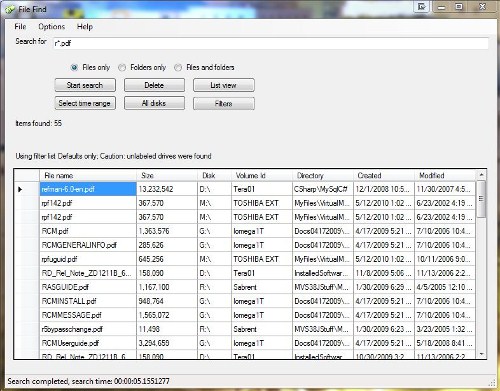
Listview

Installation and Usage
Download the FileFindBinaries.zip file, open it, and select either the .NET3.5 or 4.0 version directory. Copy the executables to a folder of your choosing. If you have .NET 4.0 installed, the 4.0 version is much faster. The FileFindBatchInterface program is optional, and is explained below in the External Interface topic.
You may want to create a desktop shortcut to launch FileFind.exe. For now, simply double click on the program to execute it.
By default, File Find will search all folders on all disk drives. Many of the system folders contain files that have no user files, so the first thing you might want to do is create a filter list to exclude those folders. Create a filter list by pressing the 'Filters' button, the 'New' button, and the 'Copy defaults' button. You should be looking at a form similar to the following:
Enter a name for your filter list and press the 'Save' button followed by the 'OK' button. Now, select the row containing the name of the filter list you just created and then press the 'OK' button. You will be back on the initial form and should see a 'Using filter list' message with the name of your filter list.
More detailed instructions for creating and editing filter lists may be found by selecting Help while on the 'Edit Filter List' form.
Key in a search mask. A mask consists of any characters that are valid in a file or folder name plus the wild card characters (* or ?). An asterisk will match zero or more characters and the question mark will match any single character. All matching is case insensitive. Multiple masks are separated by the semi-colon character (;). For example, *.jpg;xyz?.pdf will search for files with a file extension of .jpg and all PDF files with a four character name starting with xyz.
Begin the search by pressing the 'Enter' key while the focus is in the 'Search for' text area, or press the 'Start search' button. Feel free to explore the interface. You will not change any files on your system unless you press the 'Delete' button or key after selecting one or more rows on the grid view.
There is a simple way to see how much faster File Find is on your system. First, run a scan to get system caches loaded. Rerun the scan and note the elapsed time on the bottom of the form. Go to the Options->Sequential search selection on the menu and check it. Rerun the scan and compare the elapsed time to the prior search time. If you are searching multiple physical drives, File Find's search time in parallel mode is the elapsed time it takes to search the drive with the most files or the slowest response time.
You may run multiple copies of File Find at the same time, but you should not be running multiple copies and updating filter lists at the same time.
Filter lists may be shared among multiple copies, but each user has his own set of filter lists. Filter lists and various options are saved in isolated storage. Isolated storage is unique to the user and the assembly. If you decide to delete or move the program, you should remove the isolated storage by executing the program and selecting 'Options' → 'Remove saved options' from the main menu and then exiting the program.
If you are moving the executable program to another folder, you may want to export the filter lists before the move and import them after the File Find program has been moved. Export and import commands are available under the 'File' menu item on the 'Filter List Selection and Maintenance' form, which is shown when you press the 'Filters' button. Export and import are an easy way to transfer one or more filter lists between users.
If you have a prior version of FileFind and want to save the exclude list from it, you need to copy the new FileFind.exe into the same directory as the old FileFind.exe. The new FileFind.exe will automatically create a new filter list by copying the contents of the old exclude list. The name of the filter list will be 'Prior Excludes'.
Detailed usage instructions may be found under the Help menu. The help instructions are tailored to the various forms.
The Code
If you only want to use the find application, you may quit reading. The remainder of this article covers the application's architecture, some of the coding techniques used, and interesting problems encountered as well as their solutions.
The project was developed using Visual C# 2008 Express Edition, with a target framework of .NET 2.0. Version 3.0 of File Find forced me to move to .NET 3.5 for IsolatedStorageFileStream support. I have tested the code on XP, Vista, and Windows 7. If you have .NET 4.0 installed, I strongly recommend you recompile the program to use the 4.0 framework. It is noticeably faster.
Architecture
Logical / Physical Drive Resolution
Directory searches are IO intensive, which makes them perfect candidates for a multithreading architecture even on machines with a single core. The design of File Find takes advantage of this fact by starting a search thread per physical disk.
A physical disk may have more than one partition on it, so I had to match logical partitions to physical disks. This logic has been consolidated into the ResolveLogicalPhysicalDisks class. You pass in an ArrayList of drive letters, one letter per entry, in the form of:
and an ArrayList of resolved drives is returned:
The C and F partitions were found to be on the same physical drive. The two partitions will be assigned to the same search thread to avoid disk head contention. There may be other partitions on the drive as well, but the user did not select those partitions for searching.
The ResolveLogicalPhysicalDisks class offers synchronous and asynchronous method calls. The resolution process uses Windows Management Instrumentation (WMI) calls to perform the work. WMI is not particularly fast, but one advantage of the technique is any energy efficient drives in sleep mode will wake up and be ready for searching. Drive resolution is driven when the program starts or the disk selection is changed by direct selection or a new filter list. This could cause problems during program initialization as a resolution could be running when you select a new filter list. I use a ManualResetEvent in Form1.cs to prevent re-entry into the ResolveLogicalPhysicalDisks class. I also use the resolution process when drives or paths are being selected for building filter rules. Building filter rules does not have a re-entry problem.
If you use need to use the ResolveLogicalPhysicalDisks class in other programs, you may need to add a reference to System.Management manually.
Data Persistence and Data Communication Between Forms
All persistent data is accessible via the ConfigInfo class. ConfigInfo will load data from the prior File Find execution during program initialization and save all persistent data during termination. The debug constant as set in the project's properties is used to determine if the data is saved in isolated storage or an XML file. Debugging was simplified by being able to view and edit an actual XML file rather than data saved in isolated storage. Storing the data in XML format simplifies the addition of new features.
The ConfigInfo class also holds data needed in multiple forms. An example is form font information. A menu option allows the user to change the font being used. The font's characteristics are saved in the ConfigInfo class and are accessed by each form during the form's load process. Grid view information, the filter list collection, and menu options are also kept in the ConfigInfo class.
User Interface
The main thread, Form1.cs, displays the initial form and performs all user interface functions related to the search process. The list view and the grid view share the same area on the display form. You select which view you want by pressing the 'Grid view' or 'List view' button (text changes depending on which view is currently selected).
The most commonly used features are displayed on the start up form controlled by Form1.cs. This form contains the listBox1 and gridView controls which show, respectfully, the list and grid views. These two views show different information but occupy the same space on the form. The Form1 design form shows a grid view control that is smaller than the listBox1 control. The gridView control is on top of the listBox1 control. The bounds of the gridView control are set equal to the bounds of the listBox1 control when Form1 loads. The user may decide which control should be displayed at any time.
The buttons on the form are enabled and disabled as necessary. The text on the buttons will also change as necessary. For example, the 'Start search' button is disabled until a mask is entered. 'Start search' changes to 'Stop search' when a search starts. You may terminate the current search by pressing the 'Stop search' button, at which point you may briefly see a 'Stopping search' button. Pressing the 'Stopping search' button will stop the current search immediately.
It is fairly easy to overwhelm Form1 with messages from many scan threads. As the message arrival rate increases, the form's responsiveness drops. Consequently, I measure the number of messages per interval, and change how messages are displayed depending on how long the elevated rate persists.
The tracking variables and constants are:
private int msgsPerInterval = 0;
private const int MaxRate = 300;
private const int PauseValue = 20;
private const long MsgInterval = 500;
private enum InUpdate { InUpdateNo, InUpdateSpeed, InUpdatePausing }
private InUpdate inUpdate = InUpdate.InUpdateNo;
No monitoring occurs until MaxRate messages have been processed. One of two actions occur if more than MaxRate messages are received during MsgInterval. First, the visible updating of the form stops via listBox1.BeginUpdate(); table.BeginLoadData(); commands, and the program enters InUpdateSpeed processing mode for a calculated period of time. At the end of the time period, the message arrival rate is checked again. If the rate is more than twice MaxRate, the scan tasks are asked to pause briefly (see SendFileInfo and SendDirectoryInfo below). All monitoring is turned off and the monitoring cycle starts again.
The remainder of the user interface consists of both forms and dialogs. All the forms and dialogs except Form1 have a FormLocation property which is set by the caller. The new form will attempt to display on the same monitor the calling form is located on. This is especially useful if multiple File Finds are executing.
Sample code to accomplish this in the calling form is:
using (AboutBox aboutDialog = new AboutBox())
{
    aboutDialog.FormLocation = this.Location;
    aboutDialog.ShowDialog();
}
The property in the new form is defined as:
private Point location = new Point();
private bool locationSet = false;
public Point FormLocation
{
get { return location; }
set
{
location = value;
location.X += 10;
location.Y += 10;
locationSet = true;
}
}
Threads
There are two types of threads: the user interface thread and the scanning thread.
File Find has only one user interface (UI) thread but may have many scan threads. The UI thread owns the start up form and handles the most common user interface functions. The UI thread also controls the scanning threads.
File Find creates one thread for each physical disk being searched as identified by the ResolveLogicalPhysicalDisks class. The threads are tracked in a List<Thread> class named searchThreads. A scan thread is added to searchThreads when the thread is created, and removed when it ends. The search is complete when searchThreads.Count is zero. The thread's name is based on the names of the drives the thread is to search.
The StartSearching() method in the UI is called when the user presses the 'Start search' button. StartSearching() validates all requirements have been met (drive resolution must be complete, at least one drive selected, and one or more file masks provided) before building and starting the DiskScan threads.
An instances of the DiskScan class is created for each resolved drive to be searched. The argument list for the class constructor contains some information fields and a set of delegates to facilitate passing information between the UI and the scanning thread. The constructor in DiskScan is defined as:
public DiskScan(
ContainerControl form,
Delegate DsplyMsg,
Delegate SendDir,
Delegate SendFile,
ManualResetEvent terminateRequest,
Delegate ThreadStopping,
DateTimeInfo selectedDateTime
)
The matching field definitions in the UI are:
private delegate void DelegateSendMsg(String s);
private DelegateSendMsg m_DelegateSendMsg;
private delegate void DelegateThreadStopped(string s);
private DelegateThreadStopped m_DelegateThreadStopped;
private delegate int SendFileInfo(FileInfo fi, string volumeId);
private SendFileInfo m_SendFileInfo;
private delegate int SendDirectoryInfo(DirectoryInfo dir, string volumeId);
private SendDirectoryInfo m_SendDirectoryInfo;
The SendFileInfo and SendDirectoryInfo delegates serve a dual purpose. DiskScan uses the delegates to send information to the UI for display, and the UI returns the number of milliseconds the DiskScan thread should pause before sending more information. The pause interval is non-zero only if the UI is experiencing an excessively high message rate.
The constructor's argument list was becoming unwieldy, so some information is given to the DiskScan thread by using class properties before adding the thread to the searchThreads list and starting the thread. The following code in the UI creates, tracks, and starts the thread.
foreach (String resolvedDrive in resolvedDrives)
{
DiskScan diskScan = new DiskScan(this,
m_DelegateSendMsg, m_SendDirectoryInfo, m_SendFileInfo,
pleaseTerminate, m_DelegateThreadStopped, dateTimeInfo);
diskScan.SearchingDrives = resolvedDrive;
if (filesOnlyRadioButton.Checked)
diskScan.SearchForFiles = true;
else if (foldersOnlyRadioButton.Checked)
diskScan.SearchForFolders = true;
else if (filesAndFoldersRadioButton.Checked)
diskScan.SearchForBoth = true;
diskScan.IFindFiles = fileMasks;
Thread searchThread = new Thread(new ThreadStart(diskScan.Run));
searchThread.Name = resolvedDrive;
searchThreads.Add(searchThread);
searchThread.Start();
}
Thread termination depends on unique thread names, so I used the names of the drives being searched by the thread as the thread name. The UI will search the searchThreads list for the thread name and remove it. The search is finished when searchThreads is empty. The diskScan.Run() method is wrapped in a try block to ensure the following command is always issued just before the scan thread terminates:
try
{
    m_form.Invoke(ThreadTerminating,
                  new Object[] { Thread.CurrentThread.Name });
}
catch {}
Thread termination runs asynchronously in the UI so all references to and operations against searchThreads must be protected by a lock on threadobj.
There are many reasons to terminate a search early – you mistyped the mask, you noticed you were using the wrong filter list, you already see the file you are searching for, etc. The UI allows the user to terminate a search early via the 'Stop searching' button. When the 'Stop searching' button is pressed, the ManualResetEvent pleaseTerminate is set. DiskScan threads are given a reference to the pleaseTerminate event and DiskScan will periodically check to see if the event has been signaled. If it has, DiskScan will terminate. The pleaseTerminate event will also be set if the form is closing or the external interface closes the named pipe.
Multiple Monitor Support
I normally work with two monitors. Windows default form placement actions work well when on the primary monitor, but do not work well at all when the File Find form is on the secondary monitor; additional forms show up back on the primary monitor. Consequently, I added a FormLocation property to the pop up forms so I could position the pop ups close to the current form's location.
The caller's code is as simple as:
using (SelectFilterListToCopy copyFilterList = new SelectFilterListToCopy())
{
    copyFilterList.FormLocation = this.Location;
    copyFilterList.ShowDialog();
    . . .
The pop up form's property definition is:
private Point formLocation = new Point(0, 0);
private bool formLocationSet = false;
public Point FormLocation
{
    get { return formLocation; }
    set { formLocation = value; formLocationSet = true; }
}
External Interface
File Find has the ability to rapidly search multiple disk drives. Other programs may need to search multiple disk drives as well. I could have created a class other programs would use, but the asynchronous nature of the search and presentation of search results would make for a very complex class. I decided to create a command line style interface to provide search criteria and to use a named pipe to return search results. Arguments are:
- FilterList: FilterList provides the name of the filter list to use. The filter list must already exist. Create the filter list by executing FileFind.exe and point to the directory containing the FileFind.exe when you launch FileFind.
- PipeName: PipeName provides the name of the pipe to use. A pipe created on another system may be used, but FileFind currently has no sign on protocols. I tested cross system by signing on as the same user on two different machines.
- Masks: Masks are the same as the 'Search for' field on File Find's main form.
- FilesFolders: This determines if you are searching for files only, folders only, or both. Valid values for FilesFolders may be:
- Visible: allows you to display the FileFind form (normally not visible), helpful for debugging your application. Valid values are:
The -keyword is not case sensitive, but blanks or spaces are not allowed between the semi-colon and the value. Place double quotes around the entire argument if you need to put spaces into the value.
- Masks: *.jpeg not valid, space follows semi
- Masks:*.jpeg valid
- FilterList: My defaults not valid, space embedded in argument value
- "-FilterList:My defaults" valid
A C# sample program, FileFindBatchInterface, implementing the above interface call is provided. The sample allows you to run synchronous or asynchronous named pipes. Define and save any filter lists you want to use that need to be defined by executing File Find before running FileFindBatchInterface.exe. No path is needed if you place both FileFind.exe and FileFindBatchInterface.exe in the same directory.
The threading structure for the sample program is very similar to the File Find structure: a List<Thread> to track running tasks and a ManualResetEvent to request thread termination. However, the PipeServer thread cannot poll for the termination signal while it is waiting for a pipe connection. The following code works fine for asynchronous pipes:
WaitHandle[] waitHandles = new WaitHandle[]
{
new AutoResetEvent(false),
new AutoResetEvent(false)
};
waitHandles[0] = pleaseTerminate;
using (NamedPipeServerStream serverPipe = new
NamedPipeServerStream(pipeName, PipeDirection.In, 1,
PipeTransmissionMode.Message, PipeOptions.Asynchronous))
{
UpdateStatus("Waiting for asynchronous connection");
IAsyncResult waitConnection;
try
{
waitConnection = serverPipe.BeginWaitForConnection(null, null);
}
catch (Exception ex)
{
SendMsg("Server BeginWaitForConnection failed\n" + ex.Message);
return;
}
waitHandles[1] = waitConnection.AsyncWaitHandle;
WaitHandle.WaitAny(waitHandles);
if (pleaseTerminate.WaitOne(0, true))
return;
WaitHandle.WaitAny(waitHandles) will block until the pleaseTerminate event occurs or the pipe connects. The pipe server checks to see which event occurred and takes the appropriate action.
Things are a bit more difficult for a synchronous pipe as no connection event is available. The pipe server is blocked at a WaitForConnection call and will not see the pleaseTerminate event until a pipe connection occurs. Consequently, the UI thread must provide a connection to the pipe by opening and closing the pipe.
using (NamedPipeClientStream pipe =
  new NamedPipeClientStream(".", pipeName, PipeDirection.Out, PipeOptions.None))
{
    pipe.Connect(3000);
Futures
I want to improve searching of networked disks and look into virtual mode for ListView controls.
I have tested this code on Windows XP, Vista, and Windows 7. The code has been in use for well over two years and seems to be stable.
Acknowledgements
- I wish to thank reinux for his article "Converting Wildcards to Regexes", published at http://www.codeproject.com/KB/recipes/wildcardtoregex.aspx. His routine allowed me to rapidly convert wild card characters to Regular Expressions so I could easily match masks to names.
- I used a modified version of Simon Morier's code to associate logical partitions with physical disks. I found Simon's article at http://www.codeproject.com/KB/system/usbeject.aspx.
- I also want to thank Dave Midgley for his excellent article on reparse points at http://www.codeproject.com/KB/vista/ReparsePointID.aspx.
- I created a modified version of Carl Daniel's “File system enumerator using lazy matching” code found at: FileSystemEnumerator.aspx.
- I did not create the flash light icon. It came from a free icon site somewhere on the web. I thank who ever created it and made it publicly available.
- I also want to thank the folks who sponsor CodeProject.com as well as the many contributors. I obviously use this site a lot!
History
- Version 2.1.0.17 - new base line.
- Version 3.0.0.0 - added include/exclude filter lists.
- Added external interface.
This member has not yet provided a Biography. Assume it's interesting and varied, and probably something to do with programming.



 General
  News
News  Suggestion
  Question
  Bug
Bug  Answer
  Joke
Joke  Praise
  Rant
Rant  Admin
Admin 


 Submit an article or tip


