Introduction
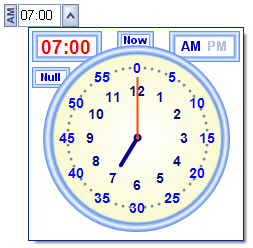
I couldn't put up with the standard time part of the DateTimePicker any longer. I wanted an easy to use date dropdown and a non-existent time dropdown. First, I made the gTimePickerCntrl to pick the time in a couple of clicks using a clock-like interface. Second, I needed a dropdown control to contain it. Third, the developer in me needed the extra design-time support.
After making the gTimePicker, I realized I needed a nullable DateTimePicker to go with it. Now, I have added the gDateTimePicker and added a nullable feature to the gTimePicker.
How to Use the gTimePickerCtrl
Very simple -
Click a number in the inner ring for the hour.
Click a number from the outer ring for minutes.
Control Properties
Here is a list of the primary properties:
Public Property Time() As String
Get or set the time value
Public Property TimeAMPM() As eTimeAMPM
Get or set the AM PM value
Public Property Hr24() As Boolean
Get or set the time as 12 or 24 hour
Public Property TrueHour() As Boolean
Get or set if the hour hand shows true clock position or stays pointing at the chosen hour regardless of the minute
Public Property TimeColors() As TimeColors
Get or set the color scheme for the control
Paint
At first, I had a background image of the clock face and drew the hands on top of it, but then I got stuck with that image's color. To make it more dynamic, I drew the frames using a simple PathGradientBrush to create the illusion of a 3D frame.
Sub DrawClockFace(ByRef g As Graphics, ByVal rect As Rectangle)
g.SmoothingMode = SmoothingMode.AntiAlias
Dim blend As ColorBlend = New ColorBlend()
Dim bColors As Color() = New Color() { _
TimeColors.FrameOuter, _
TimeColors.FrameInner, _
TimeColors.FrameOuter, _
TimeColors.FaceOuter, _
TimeColors.FaceInner}
blend.Colors = bColors
Dim bPts As Single() = New Single() { _
0, _
0.0408, _
0.082, _
0.109, _
1}
blend.Positions = bPts
Dim gp As New GraphicsPath
gp.AddEllipse(rect)
Using br As New PathGradientBrush(gp)
br.InterpolationColors = blend
g.FillEllipse(br, rect)
End Using
gp.Dispose()
End Sub
To draw the hands on the clock, you need to calculate the point around the clock.
...
Dim HourAngle As Single = 90 - (CSng(30 * (Val(_Time.Substring(0, 2))) + _
    CSng(IIf(TrueHour, Val(_Time.Substring(3, 2)) / 2, 0))))
Dim MinAngle As Single = 90 - CSng(6 * Val(_Time.Substring(3, 2)))

e.Graphics.DrawLine(HrPen, Center, GetPoint(Center, 35, HourAngle))
e.Graphics.DrawLine(MinPen, Center, GetPoint(Center, 60, MinAngle))

...

Public Function GetPoint(ByVal ptCenter As Point, ByVal nRadius As Integer, _
       ByVal fAngle As Single) As Point

    Dim x As Single = CSng(Math.Cos(2 * Math.PI * fAngle / 360)) * nRadius + ptCenter.X
      Dim y As Single = -CSng(Math.Sin(2 * Math.PI * fAngle / 360)) * nRadius + ptCenter.Y

    Return New Point(CInt(Fix(x)), CInt(Fix(y)))

End Function
In the Time property, the validation of the value occurs, including some Regex matching.
Values like 07:00, 800, 4, 0900p, 4:00 A... are acceptable.
Public Property Time() As String
Get
Return _Time
End Get
Set(ByVal value As String)
Dim tTime As String = _Time
If Not IsNothing(value) And value <> String.Empty Then
If Regex.IsMatch(value, _
"^[0-9]{1}$|^[0-1]{1}[0-9]{1}$|^[2]{1}[0-3]{1}$") Then
value = value & ":00"
End If
Dim ap As eTimeAMPM
If Hr24 Then
If Val(value.Replace(":", String.Empty)) >= 1200 Then
ap = eTimeAMPM.PM
Else
ap = eTimeAMPM.AM
End If
value = Format(Val(value.Replace(":", String.Empty)), "0000")
Else
ap = _TimeAMPM
If value.ToUpper.EndsWith("P") Or value.ToUpper.EndsWith("PM") Then
value = value.ToUpper.Trim(CChar("M")).Trim(CChar("P")).Trim
ap = eTimeAMPM.PM
ElseIf value.ToUpper.EndsWith("A") _
Or value.ToUpper.EndsWith("AM") Then
value = value.ToUpper.Trim(CChar("M")).Trim(CChar("A")).Trim
ap = eTimeAMPM.AM
End If
End If
If Regex.IsMatch_
(value, "^(([0-9])|([0-1][0-9])|([2][0-3])):?([0-5][0-9])$") Then
If Regex.IsMatch_
(value, "^(([0-9])):?([0-5][0-9])$") Then value = "0" & value
If Regex.IsMatch_
(value, "^(([0-1][0-9])|([2][0-3]))([0-5][0-9])$") Then
_Time = String.Format("{0}:{1}", value.Substring(0, 2), _
value.Substring(2, 2))
Else
_Time = value
End If
If Not IsNothing(ap) Then TimeAMPM = ap
If Hr24 Then
If Hour() >= 12 Then
TimeAMPM = eTimeAMPM.PM
Else
TimeAMPM = eTimeAMPM.AM
End If
Else
If Hour() > 12 Then
_Time = String.Format("{0:0#}:{1:0#}", _
Hour() - 12, Minute)
TimeAMPM = eTimeAMPM.PM
ElseIf Hour() = 0 Then
_Time = String.Format("12:{0:0#}", Minute)
End If
End If
End If
Else
_Time = String.Empty
End If
If tTime <> _Time Then RaiseEvent TimePicked(Me)
Invalidate()
End Set
End Property
Get Time from Mouse Position
The MouseDown event determines if the mouse is in the Hour or the Minute ring by calculating the distance the mouse is from the center.
Private Sub gTimePickerCntrl_MouseDown(ByVal sender As Object, _
ByVal e As MouseEventArgs) Handles Me.MouseDown
Dim radius As Integer = CInt( _
Math.Round( _
Math.Sqrt( _
Math.Pow(CDbl(Center.X - e.Location.X), 2) + _
Math.Pow(CDbl(Center.Y - e.Location.Y), 2)) _
, 2))
If radius <= 55 Then
IsHourRadius = True
Else
IsHourRadius = False
End If
UpdateTime(e)
End Sub
Then the GetAngle function is used in the Sub UpdateTime to Calculate which number it is over.
Private Shared Function GetAngle(ByVal Origin As PointF, _
ByVal XYPoint As PointF) As Integer
Dim angleRadians As Double = Math.Atan2( _
(-(XYPoint.Y - Origin.Y)), _
((XYPoint.X - Origin.X)))
Dim translatedAngle As Integer
Dim angle As Integer = CInt(Math.Round(angleRadians * (180 / Math.PI)))
If angle <= 90 Then
translatedAngle = 90 - angle
Else
translatedAngle = 450 - angle
End If
Return translatedAngle
End Function
gTimePicker DropDown Control

The gTimePicker is a simple dropdown User Control to contain the gTimePickerCntrl. I use an extended TextBox and manually draw the buttons. The gTimePickerCntrl is hosted in a ToolstripDropDown.
Events
Initialize
To setup a ToolStripDropDown, first put the gTimePickerCntrl into a ToolStripControlHost.
host = New ToolStripControlHost(gTime)
Then, add the ToolStripControlHost to the ToolStripDropDown.
popup.Items.Add(host)
Here is the complete Sub, including the added event handlers:
Private gTime As New gTimePickerCntrl

Private Sub gTimePicker_Load(ByVal sender As Object, _
            ByVal e As System.EventArgs) Handles Me.Load

    host = New ToolStripControlHost(gTime)

    host.Margin = Padding.Empty
    host.Padding = Padding.Empty
    host.AutoSize = False
    host.Size = gTime.Size

    popup.Size = gTime.Size
    popup.Items.Add(host)

    AddHandler popup.Closed, AddressOf popup_Closed
    AddHandler popup.Closing, AddressOf popup_Closing
    txbTime.Text = _Time
    Clear.Items.Add("Clear Time")
    Me.ContextMenuStrip = Clear

End Sub
Control Properties
The matching gTimePickerCntrl properties get or set the corresponding TimePickerCntrl values. Here is a list of the additional properties:
Public Property TimeAMPM() As eTimeAMPM
Get or set the AM PM value
Public Property Hr24() As Boolean
Get or set the time as 12 or 24 hour
Public Property TrueHour() As Boolean
Get or set if the hour hand shows true clock position or stays pointing at the chosen hour regardless of the minute
Public Property TimeColors() As TimeColors
Get or set the color scheme for the control
Public Property TextBackColor() As Color
Get or set the backcolor for the text
Public Property TextForeColor() As Color
Get or set the forecolor for the text
Public Property TextAlign() As HorizontalAlignment
Get or set the horizontal alignment for the text
Public Property TextFont() As Font
Get or set the textbox font
Public Property ButtonForeColor() As Color
Get or set the color of the arrow on the dropdown button
Public Property ButtonBackColor() As Color
Get or set the base color of the dropdown button
Public Property ButtonHighlight() As Color
Get or set the highlight color of the dropdown button
Public Property ButtonBorder() As Color
Get or set the border color of the dropdown button
Public Property NullText() As String
Text to display when NULL
Public Property NullTextInFront() As Boolean
Should the NULL text appear in front of the hatch fill
Public Property NullTextColor() As Color
Color for the NULL text
Public Property NullHatchStyle() As HatchStyle
Chooses the HatchStyle
Public Property NullColorA() As Color
Color A for the HatchStyle
Public Property NullColorB() As Color
Color B for the HatchStyle
Public Property NullAlpha() As Integer
Alpha value for HatchStyle so you can see the NULL text through it
Methods
Public Function ToStringAMPM() As String
Returns _Time & " " & _TimeAMPM.ToString
Public Function ToDate() As DateTime
Returns CDate(_Time & " " & _TimeAMPM.ToString)
Public Function Hour() As Integer
Returns the hour
Public Function Minutes() As Integer
Returns the minutes
Public Sub TimeInMinutes(minutes as Integer)
Sets the time using minutes (example: 1100 minutes equals 06:20 PM)
Mouse Events
In the MouseDown event, check if the popup is open or closed, and Show or Hide it accordingly. One problem is when clicking the button to close the ToolStripDropDown, it loses focus, causing it to close automatically, so when the click gets through, it reopens. To get around this, check if the pointer is over the button and set IsPopupOpen = False in the popup_Closing event.
Private Sub popup_Closing(ByVal sender As Object, _
ByVal e As ToolStripDropDownClosingEventArgs)
Try
If (Not rectDropDownButton.Contains(PointToClient(Control.MousePosition)) _
Or (e.CloseReason = ToolStripDropDownCloseReason.Keyboard)) Then
IsPopupOpen = False
End If
Catch ex As Exception
End Try
End Sub
KeyPress Event
For a quick adjustment, press the Up or Down arrow keys to adjust the minutes and Shift-Up or Shift-Down to adjust the hours.
Nullable TextBox
I wanted the gTimePicker to match the gDataTimePicker visually when nulled, so I extended the standard TextBox, added the null properties, and overrode the WndProc Sub to paint the null properties when Text.Length = 0.
Protected Overrides Sub WndProc(ByRef m As System.Windows.Forms.Message)
    MyBase.WndProc(m)
    Const WM_PAINT As Integer = &HF
    If m.Msg = WM_PAINT Then

        If Me.Text.Length <> 0 Then
            Return
        End If
        Using g As Graphics = Me.CreateGraphics
            g.Clear(Me.BackColor)
            If Not _NullTextInFront Then _
                g.DrawString(_NullText, New Font(Me.Font.Name, Me.Font.Size, _
                FontStyle.Bold), New SolidBrush(_NullTextColor), 0, 0)
            g.FillRectangle(New HatchBrush(_NullHatchStyle, _
                Color.FromArgb(_NullAlpha, _NullColorA), _
                Color.FromArgb(_NullAlpha, _NullColorB)), ClientRectangle)
            If _NullTextInFront Then _
                g.DrawString(_NullText, New Font(Me.Font.Name, Me.Font.Size, _
                FontStyle.Bold), New SolidBrush(_NullTextColor), 0, 0)
        End Using
    End If
End Sub

Private Sub gTextBox_TextChanged(ByVal sender As Object, _
            ByVal e As System.EventArgs) Handles Me.TextChanged
    If Me.Text = "" Or Me.Text.Length = 1 Then Me.Invalidate()
End Sub
Design Time Extras
Since I already have an article on UITypeEditors, go here for a more detailed explanation of any design time features: UITypeEditorsDemo[^].
I created a separate class for the color scheme so I could manipulate it easier in the editors. Class TimeColorConverter: Inherits ExpandableObjectConverter allows editing of individual colors directly in the property grid. Class TimeUIEditor : Inherits UITypeEditor gives a dropdown for the Time property in the property grid.
Class TimeColorsUIEditor : Inherits UITypeEditor opens a dialog to edit all the colors with a preview by pressing the button in the property grid.
gDateTimePicker
It looks like a DateTimePicker because it Inherits System.Windows.Forms.DateTimePicker. There are quite a few nullable DateTimePickers out there, but I wanted something a little different (as usual), so here it is. Everything functions normally, except you can set the value to Nothing. Setting DateTimePicker.Value = Nothing will cause an error normally. I started by shadowing the Value property of the DateTimePicker control and using the DateTime.MinValue switcheroo method I had seen in some other controls, but that just led to a lot of synchronization problems, especially when I tried to bind the control.
Time to start over. The DateTimePicker has three properties I need to manipulate: Value, Format, and CustomFormat. The trick to simulating the Null is to set the Format to Custom and CustomFormat = " " so it displays a space no matter what the value is. This visually looks like a NULL, but the value isn't truly a NULL, especially if you want to bind it. First, I made these properties hidden:
<Browsable(False)> _
<DesignerSerializationVisibility(DesignerSerializationVisibility.Hidden)> _
<EditorBrowsable(EditorBrowsableState.Never)> _
Public Shadows Property Value() As DateTime
    Get
        Return MyBase.Value
    End Get
    Set(ByVal value As DateTime)
        MyBase.Value = value
    End Set
End Property

<Browsable(False)> _
<DesignerSerializationVisibility(DesignerSerializationVisibility.Hidden)> _
<EditorBrowsable(EditorBrowsableState.Never)> _
Public Shadows Property Format() As DateTimePickerFormat
    Get
        Return MyBase.Format
    End Get
    Set(ByVal value As DateTimePickerFormat)
        MyBase.Format = value
    End Set
End Property

<Browsable(False)> _
<DesignerSerializationVisibility(DesignerSerializationVisibility.Hidden)> _
<EditorBrowsable(EditorBrowsableState.Never)> _
Public Shadows Property CustomFormat() As String
    Get
        Return MyBase.CustomFormat
    End Get
    Set(ByVal value As String)
        MyBase.CustomFormat = value
    End Set
End Property
These are replaced by gValue, gFormat, and gCustomFormat. The gValue is defined as Type Nullable(Of DateTime) so the gValue can actually be a Date or NULL without any manipulation.
Private _gValue As Nullable(Of DateTime) = Today
<Editor(GetType(NullableDateTimeTypeEditor), GetType(UITypeEditor))> _
<Bindable(True)> _
<Category("Appearance")> _
Public Property gValue() As Nullable(Of DateTime)
    Get
        Return _gValue
    End Get

    Set(ByVal value As Nullable(Of DateTime))
        CheckFormat(value)
        Dim changed As Boolean = Not _gValue.Equals(value)
        _gValue = value
        If _gValue.HasValue Then
            MyBase.Value = CDate(_gValue)
        End If
        If changed Then RaiseEvent ValueOrNullChanged(Me)
    End Set
End Property
The only additional extra I wanted was to still be able to have the date dropdown in the propertygrid and still be able to NULL it. The Type Nullable(Of DateTime) doesn't have its own editor, so I made the NullableDateTimeTypeEditor and NullableDateTimeDropDown for it.
Altering the null properties allows you to change the appearance of the control when it is Null. Change the Fill and/or add a text message to appear.
Protected Overrides Sub WndProc(ByRef m As System.Windows.Forms.Message)
MyBase.WndProc(m)
Const WM_ERASEBKGND As Integer = &H14
If m.Msg = WM_ERASEBKGND Then
Using g As Graphics = Me.CreateGraphics
If Not _gValue.HasValue Then
Dim meRect As Rectangle = New Rectangle(ClientRectangle.X, _
ClientRectangle.Y, ClientRectangle.Width - 18,
ClientRectangle.Height)
g.FillRectangle(New SolidBrush(_BackFillColor), meRect)
If Not _NullTextInFront Then g.DrawString(_NullText, _
New Font(Me.Font.Name, Me.Font.Size, FontStyle.Bold), _
New SolidBrush(_NullTextColor), 0, 0)
g.FillRectangle(New HatchBrush(_NullHatchStyle, _
Color.FromArgb(_NullAlpha, _NullColorA), _
Color.FromArgb(_NullAlpha, _NullColorB)), meRect)
If _NullTextInFront Then g.DrawString(_NullText, _
New Font(Me.Font.Name, Me.Font.Size, FontStyle.Bold), _
New SolidBrush(_NullTextColor), 0, 0)
End If
End Using
Return
End If
End Sub
To clear the gTimePicker or the gDateTimePicker, use the Delete key, or right-click the control to get a ContextMenu.
History
- Version 1.0: August 2009
- Version 1.1: August 2009: Fixed the 24 hour format problem
- Version 1.2: August 2009: Added the AM PM button
- Version 1.3: August 2009: Threw the
Time, TimeAMPM, and HR24 properties out and started over. It was becoming too patch-worky. - Version 1.4: September 2009
- Added the nullable feature binding
- Added the nullable
DateTimePicker
- Version 1.5: July 2010
- Added
Dropdown and ContextMenu open events - Renamed
gTextBox, gTimeBox because of a naming conflict - Fixed some bugs in the
DateTimePicker Nullable feature.
- Version 1.6: February 2012
- Removed Redundant property code
- Right click hour to 00 minutes
- Added Null button and fixed nullable behavior
- Replaced Link Numbers with numbers drawn directly on Graphics surface
- Removed bottom mid-minutes box and added direct minute selection with the mouse
- Version 1.7: February 2012
I first got hooked on programing with the TI994A. After it finally lost all support I reluctantly moved to the Apple IIe. Thank You BeagleBros for getting me through. I wrote programs for my Scuba buisness during this time. Currently I am a Database manager and software developer. I started with VBA and VB6 and now having fun with VB.NET/WPF/C#...



 General
  News
News  Suggestion
  Question
  Bug
Bug  Answer
  Joke
Joke  Praise
  Rant
Rant  Admin
Admin 


 Submit an article or tip


![Rose | [Rose]](https://codeproject.global.ssl.fastly.net/script/Forums/Images/rose.gif)