Introduction
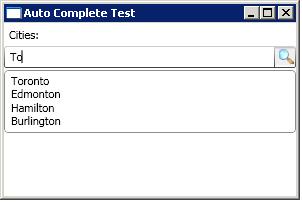
There seems to be a lack of support for an auto-complete control in WPF. The closest one to it is the ComboBox which is the base of our implementation for this article.
Background
An auto-complete control is one that allows the user to enter text while querying for a possible selection based on what the user has already entered. The most popular auto-complete implementation deals with querying of a "Starts With" of the current text in the control.
How it Works
Here are some of the properties we care about in the ComboBox:
IsEditable- This allows the user to input text into the control.StaysOpenOnEdit - This will force the combobox to stay open when typing.IsTextSearchEnabled - This uses the default "auto-complete" behavior of the ComboBox.
The Magic
By using a combination of the above properties (pretty self-explanatory) and a timer to control the delay of the query, an event which allows the user to attach a new data source, and some styles, we could implement an auto-complete control.
Using the Control
XAML
<Window x:Class="Gui.TestWindow"
xmlns="http://schemas.microsoft.com/winfx/2006/xaml/presentation"
xmlns:x="http://schemas.microsoft.com/winfx/2006/xaml"
xmlns:ctr="clr-namespace:Gui.Controls"
Title="Auto Complete Test"
Height="200" Width="300"
Loaded="Window_Loaded">
<StackPanel>
<StackPanel.Resources>
<ResourceDictionary
Source="/Gui.Controls;component/Styles/AutoComplete.Styles.xaml" />
</StackPanel.Resources>
<Label>Cities:</Label>
<ctr:AutoComplete x:Name="autoCities"
SelectedValuePath="CityID" DisplayMemberPath="Name"
PatternChanged="autoCities_PatternChanged"
Style="{StaticResource AutoCompleteComboBox}"
Delay="500"/>
</StackPanel>
</Window>
Similar to a combo box, an auto-complete control utilizes the DisplayMemberPath and SelectValuePath properties to bind to a specific data source.
Code-Behind
protected void autoCities_PatternChanged(object sender,
Gui.Controls.AutoComplete.AutoCompleteArgs args)
{
if (string.IsNullOrEmpty(args.Pattern))
args.CancelBinding = true;
else
args.DataSource = TestWindow.GetCities(args.Pattern);
}
We can utilize the PatternChanged event to subscribe to changes to the the data source. This data source is also equal to a pattern the user has currently entered into the control.
Points of Interest
We utilize the MVVM pattern to create a ViewModel of any entity bound to the data source which contains the HighLight property. Through the use of styles, this highlighted section will be reflected in the dropdown.
History
- Dec. 14, 2009 - Initial creation.



 General
  News
News  Suggestion
  Question
  Bug
Bug  Answer
  Joke
Joke  Praise
  Rant
Rant  Admin
Admin 


 Submit an article or tip


 appreciate the comment.