Introduction
Longhorn is code name of next Microsoft Windows major release. This version of OS is more technology driven. In each version, Microsoft comes with new GUI idea. E.g., XP with new look and feel with clear type font technology. Longhorn will include GUI based on SVG instead of Bitmapped (GDI+). SVG is more faster to generate cool graphics effects without effecting CPU performance.
Microsoft released LongHorn PDC version in 2003. This is alpha version, so it includes much much less then targeted in final release. This OS final version is expected in 2006 but there are so many information available to begin and gain knowledge before the OS hits the software industry.
Keep watch on the following sites to get knowledge:
Microsoft is not working only on OS but also working on the next generation IDE code name Whidbey and new SDK.
Transform Decorator
In Avalon API, Microsoft included TransformDecorator. Avalon is code name for next generation GUI API and Aero is next generation OS GUI. TransformDecorator is a component container that allows to add special effects to child components with out affecting or changing component's basic functionality.
So, before adding any component directly in WinForm or canvas, first you can add component to TransformDecorator and then add that TransformDecorator to WinForm or canvas, and attach transformer to that TransformDecorator.
Rotate Transform
RotateTransform adds rotation effect to child component. It accepts angle as input and rotates component by that angle. See below:
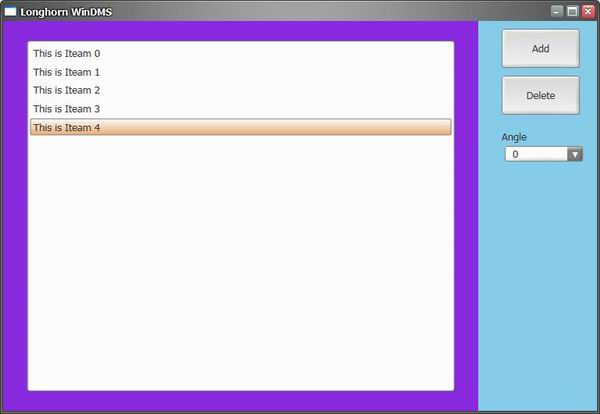

Adding Component in Transform Decorator
canvasLeft = new Canvas ();
canvasLeft.Background = MSAvalon.Windows.Media.Brushes.BlueViolet;
mainWindow.Children.Add(canvasLeft);
canvasLeft.Width = new Length(80f, UnitType.Percent);
canvasLeft.Height = new Length(100f, UnitType.Percent);
lstBox = new ListBox();
transformer = new TransformDecorator();
transformer.Width = new Length(90f, UnitType.Percent);
transformer.Height = new Length(90f, UnitType.Percent);
Canvas.SetLeft(transformer, new Length(5f, UnitType.Percent));
Canvas.SetTop(transformer, new Length(5f, UnitType.Percent));
RotateTransform myRotateTransform = new RotateTransform(160);
transformer.Transform = myRotateTransform;
transformer.Child = lstBox;
canvasLeft.Children.Add(transformer);
Changing Angle
public void comboBox_SelectionChanged(object sender,
          SelectionChangedEventArgs args)
{
  RotateTransform myRotateTransform =
    new RotateTransform(System.Convert.ToDouble(args.SelectedItems[0]));
  transformer.Transform = myRotateTransform;
}
Note
This demo will only work on PDC version of Longhorn OS.
Finally...
This is only one example of cool effect in LongHorn, there are many other cool effects. See demo of same effect here.
Enjoy!!!
Senior Software Er.
Aspect Communication
San Jose USA CA



 Submit an article or tip
