Table of Contents
Many well known companies use the Microsoft Office System to operate their business. Microsoft Office system is both strong and powerful to operate your business information, but sometimes you may need some extra features into your Office system so that you can do some more complex tasks efficiently. That is the reason to build custom solutions and add-ins for Microsoft Office. Using Microsoft Visual Studio 2005 / 2008 Tools for the Microsoft Office System (VSTO), you can develop custom solutions to help solve the problems that your business needs to solve.
This article demonstrates how to develop an add-in for Microsoft Office Outlook 2007 to help a fictitious company. You will learn how add custom menus, toolbar command button, custom tabs (Outlook 2007), work with ribbon and custom forms as well.
Well… I hope that you are enjoying; let’s start. I try to categorize it into two parts as listed below:
Part - A
- We will discuss basic concepts how to build your first custom add-in for Office Outlook 2007.
- We will discuss how to add a custom menus, toolbar command button, custom tabs (Outlook 2007).
Part - B
This part is not included yet…. I hope that this will be available in the next part.
- We will discuss how to work with different types of Outlook objects such as email, appointments, task, etc.
Develop an Outlook 2007 add-in using Microsoft Visual Studio .NET Framework 3.5, Microsoft Office System provides a basic Template for doing this. The templates are available in both Visual Basic and Visual C# languages. Each template includes the OutlookItem class, which enables developers to work with generic Outlook items through late-binding, without determining the item type first.
More information can be found at this link.
To develop add-ins for Microsoft Office Outlook, you can interact with the objects provided by the Outlook object model. The Outlook object model provides classes that represent items in the user interface. For example, the Microsoft.Office.Interop.Outlook.Application <code>class represents the entire application, the Microsoft.Office.Interop.Outlook.MAPIFolder class represents a folder that contains e-mail messages or other items, and the Microsoft.Office.Interop.Outlook.MailItem class represents an e-mail message.
More information can be found at this link.
In this section, we will discuss about creating your first add-in for Outlook 2007. Microsoft Visual Studio provides the template for creating an add-in for Microsoft Office system.
To create a new Outlook 2007 Add-In project, we need to follow the step(s) listed below:
- Open Microsoft Visual Studio .NET and create a new project by selecting “Project” menu under the File > New menu.
Figure - (i)
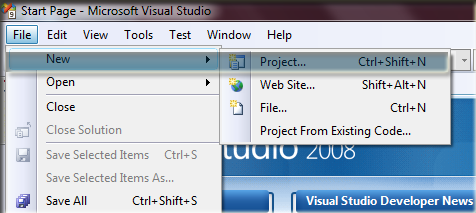
Figure (i) shows how to create a project using Microsoft Visual Studio 08.
- A project type window will popup with the available language and available templates.
- Select C# > Office > 2007 from the project type tree.
- You will find the available templates, select Outlook 2007 add-in & finally enter your project name and click the Ok button for creating the project.
Figure - (ii)

Figure (ii) shows the available Template to create an add-in project for Office system.
In this section, we will discuss how to add custom menus, toolbar command buttons, etc. For this purpose, we use the following:
Office.CommandBar Office.CommandBarPopup Office.CommandBarButton
Create a Custom Menu
This example below creates a Menu called “My Menu” in Microsoft Office Outlook 2007. Figure (iii) show the menu in your Outlook 07.
Figure - (iii)
Code Snippets
#region "Outlook07 Menu"
private void MyMenuBar()
{ this.ErsMyMenuBar();
try
{
_objMenuBar = this.Application.ActiveExplorer().CommandBars.ActiveMenuBar;
_objNewMenuBar = (Office.CommandBarPopup)
_objMenuBar.Controls.Add
(Office.MsoControlType.msoControlPopup
, missing
, missing
, missing , false);
if (_objNewMenuBar != null)
{
_objNewMenuBar.Caption = "My Menu";
_objNewMenuBar.Tag = menuTag;
_objButton = (Office.CommandBarButton)_objNewMenuBar.Controls.
Add(Office.MsoControlType.msoControlButton, missing,
missing, 1, true);
_objButton.Style = Office.MsoButtonStyle.
msoButtonIconAndCaption;
_objButton.Caption = "My menu item.";
_objButton.FaceId = 500;
_objButton.Tag = "ItemTag";
_objButton.Click +=
new Office._CommandBarButtonEvents_ClickEventHandler(_objButton_Click);
_objNewMenuBar.Visible = true;
}
}
catch (System.Exception ex)
{
System.Windows.Forms.MessageBox.Show("Error: " + ex.Message.ToString()
, "Error Message");
} }
#endregion
Create a Custom Toolbar
This example creates a toolbar command button called “My ToolBar Button” in Microsoft Office Outlook 2007.
Figure (iv,v) shows the toolbar in your Outlook 07.
Figure - (iv)
Figure - (v)
Code Snippets
private void MyToolBar()
{ try
{
Office.CommandBar _objTmpToolBar =
(Office.CommandBar)this.Application.ActiveExplorer()
.CommandBars.FindControl(missing, missing,
menuToolBarTag, true);
if (_objTmpToolBar != null)
_objTmpToolBar.Delete();
_objToolBar = this.Application.ActiveExplorer()
.CommandBars.Add(menuToolBarTag,
Office.MsoBarPosition.msoBarTop, false, true);
if (_objToolBar != null)
{
_objNewToolBarButton = (Office.CommandBarButton)_objToolBar
.Controls.Add(Office.MsoControlType.msoControlButton,
missing, missing, 1, true);
_objNewToolBarButton.Style = Office.MsoButtonStyle
.msoButtonIconAndCaption;
_objNewToolBarButton.Caption = "My ToolBar Button";
_objNewToolBarButton.FaceId = 65;
_objNewToolBarButton.Tag = menuToolBarTag;
_objNewToolBarButton.Click +=
new Office._CommandBarButtonEvents_ClickEventHandler
(_objToolBarButton_Click);
_objNewToolBarButton.Visible = true;
}
}
catch (System.Exception ex)
{
System.Windows.Forms.MessageBox.Show("Error: " + ex.Message.ToString()
, "Error Message");
}
}
I hope that this may be helpful to you. Enjoy!
- 23rd February, 2010: Initial post



 General
  News
News  Suggestion
  Question
  Bug
Bug  Answer
  Joke
Joke  Praise
  Rant
Rant  Admin
Admin 


 Submit an article or tip


