Introduction
This article will give you a quick start on how to use the new reporting service of Microsoft inside your ASP.NET Application. It is relatively very easy to use reporting services, however it is a bit different from what we are used to in Crystal reports.
Background
Reporting service is basically a reporting server that uses SQL server as its backend database, all reports are deployed on the reporting server and from there, you can access any reports you have access rights to. The basic idea is to have a single location where all reports are deployed, and provides a single point of access, this created a very flexible environment to deploy your reports over the enterprise. The idea is a very similar to Crystal Reports Enterprise Reporting.
Requirements
You will need the following tools before installing the reporting service, those tools are needed for development of reports. For deployment, you will need exactly the same environment without Visual Studio .NET.
- SQL Server 2000 with SP3
- IIS 5.0 or 6.0
- Visual Studio .NET
Accessing Report Server Management Interface
You can start by accessing your reporting service by going to http://localhost/reports - this is where you can manage your reporting service. You can view reports and other information directly from this web interface, manage subscriptions, security, data sources and other. Mostly, we won't be using it in this article except for viewing reports.
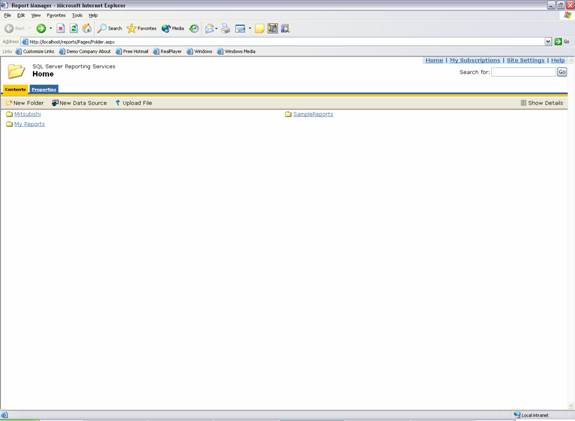
The Reporting Service Web Management provides browsing folders that contain reports, data source names that you have deployed. This tool provides viewing of reports, however for developing reports, you must have Visual Studio .NET.

The above figure shows the report server windows service, as you can see, it must be running to be able to access, view and deploy reports from your development tool
As I write this article, I heard from Microsoft that they bought a tool that can provide creating reports directly from the reporting service web interface. I do not have any information when it will be released, but hopefully soon.
Developing Your Own Reports
1. Creating Your First Report
First, you create a new project, and select Report Project. This will create a reporting service project. From here, you will find two folders shared data sources, and reports. Shared data sources is one very interesting feature, this is where your data source for your reports. You can have more than 1 shared data source or even a single data source for every report, however it wouldn't be a good idea to repeat the same data source twice if you are using the same database.
2. Creating a Shared Data Source
Here, just create a shared data source selecting your SQL server, Northwind database, we will be using basically the Northwind database to build a very simple report to list all our customers.
3. Selecting Data
Before selecting the data for your report, just click on new report and choose the wizard, it will take you step by step. First select the data source that you have just created, then select the table, choose any table you like, in this example, I chose the customer table. Then select tabular, and then select all data fields into the detail list box. After you are done, go to the Data Tab of your report you will find table customer, with all fields select here you can alter the table or fields you want to select in your report, just as you are used to when creating a view in SQL Server.
4. Selecting Design
After you are done selecting the data, go to report designer, select the layout tab in your report, as you can see in the left toolbox, you can use any of the report control to enhance your report functionality and design. You can include charts, images, matrix, etc.. after you're done, let's preview the report.
5. Previewing Report
One of the features I love about the reporting service is the ability to preview your report before deployment, here you can view your report as if you are in the deployment environment.
6. Deploying Report on Report Service
The deployment part is tricky now, you do not just include a reporting customer control in your ASP.NET page and that's it, well you have to first deploy them on your reporting service Server. Ok now as we said, all your reports are developed on Visual Studio .NET, then they are deployed to a reporting server, either on your machine, intranet, or internet anywhere you want them as long you have access rights to that reporting server. To start deployment, right click your application and select properties, the following window will appear. You will find the property "OverwriteDataSources" to be false, make it to true, then select the target folder, this can be anything you like. Then enter the location of your reporting server. Here, it is localhost however it can be a domain, IP address or any location you want as long as reporting service is installed to it. After you are done, press F5 or right click the project and select deploy, the minute this is done, your reports are deployed on your reporting server.
7. Viewing Report from Report Service
As I said now, your report is deployed on the reporting server. You can access it directly by going to http://localhost/reports, select the folder you installed the report in, then select your report. The report should appear like the one shown below:
8. Including ReportViewer Custom Control in your ASP.NET Application
Now the tricky part on how to include this report in your ASP.NET application, here you will need to use a custom control however, Microsoft does not provide a custom control like crystal report viewer custom control, in fact you will find it deployed in the samples directory of Reporting service. The custom control is located at:
C:\Program Files\Microsoft SQL Server\MSSQL\Reporting Services\Samples\Applications\ReportViewer
You can just go and open that project and compile it and use the ReportViewer DLL in your ASP.NET application. This can be done by opening your toolbox, then click Add/remove and click browse and select the ReportViewer.DLL. I included the source and the DLL in the source in case you cannot find it or you didn't install the sample applications of reporting service. Anyway, after selecting the DLL, you have to select the custom control from the list as shown below:
You will find the name of the Custom Control ReportViewer "Microsoft Sample Report Viewer Application".
When you are done, just include the custom control in your ASP.NET page and change the following properties:
- First, you have to select the report path and this should be something like: My Reports/Report1 - exactly the sample folder you deployed your reports in.
- Second, you have to edit the ServerURL and here, you enter your reporting service location http://localhost/reportserver/ this is the reporting server location, while /reports is the report server web management so take care not to get mixed up.
Once both are done, you can start viewing your report by accessing your ASP.NET web page.
9. Viewing Your ASP.NET Application, Including Your Report
Now enter the location of your web application and choose the ASP.NET page that contains the custom control, and bingo, here you find your report as shown below. See how easy it is!
Conclusion
Now you can create as many reports as you want and use the custom control to view them by just changing their reportpath. This can be done at runtime. If you need any extra help, email me.
License
This article has no explicit license attached to it, but may contain usage terms in the article text or the download files themselves. If in doubt, please contact the author via the discussion board below.
A list of licenses authors might use can be found here.
Software Development Manager / Architect.



 General
  News
News  Suggestion
  Question
  Bug
Bug  Answer
  Joke
Joke  Praise
  Rant
Rant  Admin
Admin 


 Submit an article or tip


 BUT when they click View Report, the Department parameter gets reset to the default value and not what I had it set to. I also can not seem to figure out how to trigger the click of the View Report button to allow me to reset the parameter value either at render or load or which ever event it should be.

