Click here to Skip to main content

Word 2003 CodeProject Article Template

By , 24 May 2004
 

Introduction

With an XML-based file format, WordprocessingML, Word 2003 provides new opportunities for using XSL transformation to convert data and documents to and from Word. This article presents a utility template for writing CodeProject articles in Word 2003, with an XSL stylesheet for converting the native document to a concise HTML syntax representative of the CodeProject submission template. This article is not intended to serve as an introduction to XSL transformation, nor necessarily as a primer on WordprocessingML. Rather, this article offers XSL examples for transforming a Word document with single- and multi-line paragraph styles, character formatting, images, hyperlinks, and tables.

Background

I like using Word for writing articles. There are numerous features – outlining, revision tracking, and proofing tools to name a few – to assist the writer. Historically though, as a rich-text HTML editor Word has had its problems. Its functions over the years to save a document as HTML have produced notoriously complex and verbose syntax. For its part, Word 2003 offers both a full-fidelity HTML save format, and a "filtered HTML" format. The former produces as garrulous a syntax as previous versions; the latter, though cleaner, still handles too many formats (such as a simple list item) using a <span> tag rather than the suitable HTML (<li>). Though I prefer an editor that generates a more standard HTML, I still wish to benefit from all of Word's features. Writing CodeProject articles, based on the CodeProject submission template[^], is an excellent case where I want Word's power but simple HTML output, using standard heading <h2>, paragraph <p>, and list item <li> tags among others.

Word 2003 opens the door to this possibility by offering WordprocessingML as an XML-based save format. Originally called WordML, WordprocessingML provides a complete grammar for representing a Word document as XML. With it and an appropriate XSL stylesheet, document transformation to a simpler HTML format is attainable. The template and companion XSL stylesheet described in this article serve as a utility to convert a Word 2003 document into a simpler HTML syntax for CodeProject articles.

For the reader not familiar with XML or XSL transformation, try the W3Schools tutorials on XML [^] and XSL [^]. For an introduction to and reference for WordprocessingML, try the following from Microsoft:

Using the Template

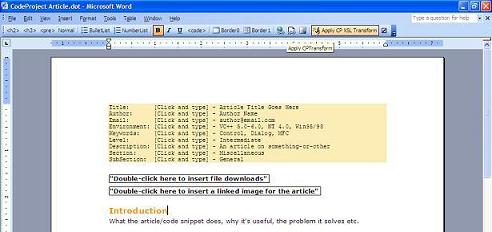
The template includes a custom toolbar, styles in the Bob-loves-orange CodeProject colors, and some VBA code. Because of the code, security issues must be considered when using the template.

Setting Up

Copy the template CodeProject Article.dot to your local templates directory. This location can be found by clicking Word's Tools menu to Options on the File Locations tab under "User Templates".

A typical location for the templates folder is "driveLetter:\Documents and Settings\user\Application Data\Microsoft\Templates".

Security Issues

Depending on your security settings, you may receive a warning (or the code may be disabled entirely) when attempting to use the template. To view your security settings in Word, click the Tools menu to Macro, Security.

The template is not signed, so disabled code is possible if the security level is set higher than Medium. To use the template, ensure one of the following options:

  • On the Trusted Publishers tab of the Security window, check the box labeled Trust all installed add-ins and templates. This allows use of the template provided it has been copied to the User Templates file location.
  • Set the Security Level to Medium and when opening the template, choose to enable macros.
  • Sign the template with your own security certificate, potentially including that certificate among the Trusted Publishers list. Refer to Word 2003 documentation for more information on code signing.

The First Time – Setting Options

To create a new document using the template, click the File menu to New… In the New Document task pane, under Templates click On my computer…, then select the CodeProject Article icon. Upon first use, the Options dialog displays:

In the XSL Transform Stylesheet box, enter the full path of the companion XSL stylesheet, or click Browse to locate the file. This path must be set for the XSL transformation to function correctly. Check the box Open the .html file after XSL transform at your discretion.

These options are stored as custom properties in the template itself, so there are no additional registry settings or external files used.

Toolbar Functions

The XSL transformation employed here is largely based on the use of paragraph, character, and table styles. Specific style names are easy to match in the XSL stylesheet, and the template encourages the use of these styles through the functions on its custom toolbar.

Function

Toolbar Button

Description

Heading 2

Apply the Heading2 style to the selected paragraph. Heading2 renders as an <h2> tag upon transformation.

Heading 3

Apply the Heading3 style to the selected paragraph. Heading3 renders as an <h3> tag upon transformation.

Code Block

Apply the pre style to the selected paragraph(s). When transformed, blocks using the pre style are rendered within <pre>…</pre> tags.

Normal

Apply the Normal style to the selected paragraph(s). Normal paragraphs render as <p> tags.

BulletList

Apply the BulletList style to the selected paragraph(s). This style name is interpreted upon transformation as a <ul> block of <li> items.

NumberList

Apply the NumberList style to the selected paragraph(s). This style name is interpreted upon transformation as an <ol> block of <li> items.

Bold, Italic, Underline

Standard bold, italic, and underline character formatting, transformed to <b>, <i>, and <u> tags.

Code formatting

Character formatting for variables or class names; this style name transforms to a <code> tag.

Table style – Border0

Apply the TableBorder0 table style to the selected table. Upon transformation, this renders a border="0" attribute in the <table> tag.

Table style – Border1

Apply the TableBorder1 table style to the selected table. Upon transformation, this renders a border="1" attribute in the <table> tag.

Insert Hyperlink

Standard Word 2003 command for inserting hyperlinks, with the utility of including a new window [^] link. Destinations may be external to the document, or internal bookmarks. (Note: proofing errors within hyperlinks may interfere with the rendering of hyperlinks to XML; see Additional Considerations for more information)

Insert Download

Custom command for inserting a download file hyperlink, such as those that appear above an article. In addition to constructing the link, the DownloadList paragraph style is applied, which when transformed renders a <ul class='download'> tag.

Insert Linked Picture

Conducts the standard Insert Picture Word dialog, and then ensures that the inserted picture is linked and not embedded. Upon transformation, a linked picture is rendered as an <img> tag with a src attribute set to the path of the picture relative to the document. If the picture is in the same folder as the document, src is set to the file name only; if in a sibling folder of the document, src is set to folder\picFileName.xxx.

Apply XSL Transformation

Saves the current document in its original format (typically .doc), then saves again using XSL transformation, generating a file with the same name as the original but with an .html extension. Once transformed, the document is reset so additional saves retain the original format.

Options

Conducts the Options dialog, allowing the path to the XSL stylesheet to be set. These options are stored directly in the template as custom properties.

The XSL Stylesheet

The file CPArticleTransform.xsl provides the XSL stylesheet used for this transformation. This file can be saved anywhere on the drive with the template; as mentioned, the template's Options dialog provides a box to enter the full stylesheet path.

Namespaces and Outer Templates

WordprocessingML incorporates a number of namespaces, which we will include as attributes in the root <xsl:stylesheet> tag.

<xsl:stylesheet version="1.0"
         xmlns:xsl="http://www.w3.org/1999/XSL/Transform"
         xmlns:w="http://schemas.microsoft.com/office/word/2003/wordml" 
         xmlns:v="urn:schemas-microsoft-com:vml" 
         xmlns:w10="urn:schemas-microsoft-com:office:word" 
         xmlns:sl="http://schemas.microsoft.com/schemaLibrary/2003/core" 
         xmlns:aml="http://schemas.microsoft.com/aml/2001/core" 
         xmlns:wx="http://schemas.microsoft.com/office/word/2003/auxHint" 
         xmlns:o="urn:schemas-microsoft-com:office:office" 
         xmlns:dt="uuid:C2F41010-65B3-11d1-A29F-00AA00C14882" 
         >

Among this listing, the following prefixes are particularly important in our transformation:

  • xsl – serves as an alias for the namespace defining XSL transformation; stylesheet commands will be prefixed with xsl.
  • w – alias for the WordprocessingML namespace; when matching most nodes specific to the Word document, we'll prefix using w. For example, to match a Word paragraph tag, we'll look for <w:p>.
  • v – alias for the VML namespace, used by Word to represent images.
  • wx – alias for the Word 2003 auxiliary namespace; section and sub-section tags will be prefixed with wx.
  • aml – alias for the Annotation Markup Language namespace; bookmarks are represented as <aml:annotation> tags.

The root node of a Word document, represented through WordprocessingML, is the <w:wordDocument> element. Our template for matching this root node of the document is as follows:

<!-- =============================================================
     Match the root node
     ============================================================= -->
    
    <xsl:template match="/w:wordDocument">
        <html>
            <head>
                <title>The Code Project</title>
                <style>
                    BODY, P, TD { font-family: Verdana, Arial, Helvetica, 
                                               sans-serif; 
                                  font-size: 10pt }
                    H2,H3,H4,H5 { color: #ff9900; font-weight: bold; }
                    H2 { font-size: 13pt; }
                    H3 { font-size: 12pt; }
                    H4 { font-size: 10pt; color: black; }
                    PRE { BACKGROUND-COLOR: #FBEDBB; 
                          FONT-FAMILY: "Courier New", Courier, mono; 
                          WHITE-SPACE: pre; }
                    CODE { COLOR: #990000; 
                           FONT-FAMILY: "Courier New", Courier, mono; }
                </style>
                <link rel="stylesheet" type="text/css" 
                  href="http://www.codeproject.com/styles/global.css" />
            </head>
            <body>
                <!-- skip to the w:body tag -->
                <xsl:apply-templates select="w:body" />
            </body>
        </html>
    </xsl:template>    

With this template, we set up the article HTML and issue the <xsl:apply-templates> instruction to render the document body.

In WordprocessingML, a <w:body> tag serves as a container for section and sub-section nodes, represented as <wx:sect> and <wx:sub-section>. These in turn serve as containers for paragraphs, represented by the <w:p> tag. It is at the paragraph level that the heart of our processing begins, so for <w:body>, <wx:sect>, and <wx:sub-section> matches, we simply issue the <xsl:apply-templates> instruction to dive further down into the element hierarchy.

<!-- =============================================================
     Match nodes that would encapsulate a paragraph <w:p> node
     ============================================================= -->

    <!-- match the w:body node -->
    <xsl:template match="w:body">
        <xsl:apply-templates select="*" />    
    </xsl:template>    

                
    <!-- match the wx:sect node -->
    <xsl:template match="wx:sect">
        <xsl:apply-templates select="*" />    
    </xsl:template>    


    <!-- match the w:sub-section node -->
    <xsl:template match="wx:sub-section">
        <xsl:apply-templates select="*" />    
    </xsl:template>    

Single-line Paragraph Formatting

Once inside the body of the document, we use a template matching the tag <w:p>. This represents an individual paragraph. As the template is based on the use of styles in Word, locating heading paragraphs is a straightforward matter. Among other children, paragraphs are containers for <w:pPr> tags, which stands for "paragraph properties". The <w:pPr> tag may contain a <w:pStyle> tag if a paragraph style is in use. The name of the style will be found in the w:val attribute. Therefore, to match a paragraph with the Heading2 style, we can use the following XPath syntax:

w:pPr/w:pStyle[@w:val='Heading2']

The <w:p> template looks for several different heading paragraph styles from within an <xsl:choose> tag. The <xsl:otherwise> condition applies a simple <p> tag in the output.

    <xsl:template match="w:p">
        <!-- seek paragraph formatting and apply tags accordingly -->
        <xsl:choose>
        
       <!-- ==========================================================
            single-paragraph items
            paragraph formatting that is fairly simple to handle; 
            these are typically heading formats that would fit in a 
            single line
            ========================================================== -->

            <xsl:when test="w:pPr/w:pStyle[@w:val='Heading2']">
                <h2><xsl:apply-templates select="*" /></h2>                
            </xsl:when>
            
            <xsl:when test="w:pPr/w:pStyle[@w:val='Heading3']">
                <h3><xsl:apply-templates select="*" /></h3>                
            </xsl:when>
            
            <xsl:when test="w:pPr/w:pStyle[@w:val='Heading4']">
                <h4><xsl:apply-templates select="*" /></h4>                
            </xsl:when>
            
            <xsl:when test="w:pPr/w:pStyle[@w:val='Heading5']">
                <h5><xsl:apply-templates select="*" /></h5>                
            </xsl:when>
            
            . . . 

       <!-- ==========================================================
            treat everything else as a regular paragraph
            (e.g. the Normal style)
            ========================================================== -->

            <xsl:otherwise>
                <p>
                    <!-- apply horizontal align? -->
                    <xsl:choose>
                        <xsl:when test="w:pPr/w:jc/@w:val">
                            <xsl:attribute name="align">
                                <xsl:value-of select="w:pPr/w:jc/@w:val" />
                            </xsl:attribute>
                        </xsl:when>
                    </xsl:choose>
                    
                    <!-- apply templates for content -->
                    <xsl:apply-templates select="*" />
                </p>                
            </xsl:otherwise>


        </xsl:choose>

    </xsl:template>

Multi-line Paragraph Formatting

A more complex situation arises when using lists or <pre> sections. In these cases, each line (ended with a carriage return) is considered a new paragraph to Word, and would have its own paragraph style information. Though we can still identify each by its style name (e.g. "BulletList", or "pre") we need to treat the multiple lines as a single group – surrounded with say a <ul> or <pre> container.

For these cases, we will still test for the style name as we did before. Once found, we'll test the preceding paragraph to see if it matches the same style. If it doesn't, we can assume we are beginning the multi-paragraph block. In the case of a BulletList for example, we will then apply a transform like the following:

    <ul>
      <xsl:apply-templates select="." mode="insideBulletList"/>
    </ul>

The mode attribute here is the key to making this work. We will continue applying templates, thus continuing to match <w:p> tags. However, by specifying a mode we can change the operational <w:p> template to one specifically designed for, say, a bullet list. Recall that our original <w:p> template was defined without a mode:

    <xsl:template match="w:p">
        . . . 
    </xsl:template>

We'll define another template to match <w:p> tags, but include the mode attribute to handle paragraph processing differently inside a BulletList.

    <!-- match paragraph nodes that are part of a Bullet list -->
    <xsl:template match="w:p" mode="insideBulletList">
        <!-- output this bullet item paragraph -->
        <li><xsl:apply-templates /></li>

        <!--go to next one-->
        <xsl:apply-templates 
select="following-sibling::*[1][self::w:p/w:pPr/w:pStyle[@w:val='BulletList']]"
             mode="insideBulletList" />

    </xsl:template>

A paragraph match here outputs the list item <li> tag, then applies the same template for any siblings that follow, provided they share the paragraph style name "BulletList". So back in the original <w:p> template, as an <xsl:when> condition in the original <xsl:choose> instruction, the following handles BulletList formatting:

. . .

<!-- ==========================================================
     multi-paragraph items 
     paragraph formatting that is more complicated to handle;
     these are typically paragraph formats that will span multiple
     lines, such as a list of items or the <pre> format 
     ========================================================== -->
            
     <!-- match the BulletList style -->         
     <xsl:when test="w:pPr/w:pStyle[@w:val='BulletList']">
         <xsl:choose>
             <!-- if the preceding paragraph was also a BulletList style,
                  then it has already been handled through the
                  'insideBulletList' mode; ignore it here -->
             <xsl:when 
test="preceding-sibling::*[1][self::w:p/w:pPr/w:pStyle[@w:val='BulletList']]"/>
             
           <!-- otherwise, start a UL tag and apply templates with the 
                         'insideBulletList' mode -->
             <xsl:otherwise>
                <ul>
                  <xsl:apply-templates select="." mode="insideBulletList"/>
                </ul>
             </xsl:otherwise>
         </xsl:choose>
     </xsl:when>
  
   . . .

This block reflects the pattern also used for NumberList, DownloadList, and pre paragraph styles.

Runs and Character Formatting

In WordprocessingML, the tag <w:r> identifies a run of content. These tags are children of <w:p> tags and represent containers of content with consistent character formatting. Text, linked images, and line breaks are all examples of content nested inside a <w:r> tag. The <w:r> tag may also contain a <w:rPr> tag to enclose the properties (including character formatting) of the run. As multiple character formats may be applied to a run, we must adhere to proper hierarchical nesting of formatting tags in the output. To accomplish this, we will call a recursive template when matching a <w:r> tag, and pass as a parameter the first of the child formatting tags within the <w:rPr> run property parent.

<!-- =============================================================
     match run nodes <w:r> within a paragraph;
     this is the common container for content such as text or 
     pictures and where we'll deduce character formatting
     ============================================================= -->
    <!-- match run nodes within a paragraph-->
    <xsl:template match="w:r">

    <!-- =======================================================
         Character formatting at this level is identified with 
         run property nodes <w:rPr>; for example, a run with bold
         formatting will have a <w:rPr> tag with a <w:b> tag for
         a child.  As multiple formatting tags are possible, we
         need a way to account for them all while maintaining the
         necessary XML heirarchical structure.  We'll accomplish
         this with a recursive template that loops through
         each property <w:rPr> node, surrounding the content nodes
         with proper formatting tags.  
         
         The recursive template is "recurseRunProps"; we initiate
         the first call to it here.
         ======================================================= -->             
        <!-- iterate through all w:rPr child tags to apply formatting;
             at the end of the recursion, the run text is applied -->
        <xsl:call-template name="recurseRunProps">
            <xsl:with-param name="nodeCount" select="1" />
            <xsl:with-param name="propNodes" select="w:rPr/*" />
            
            <!-- run content will be any child node that isn't a <w:rPr> 
                 node; this will include text <w:t>, picture <w:pict>,
                 and line breaks <w:br> -->
            <xsl:with-param name="runContent" select="*[not(w:rPr)]" />   
                         
        </xsl:call-template>           
             
    </xsl:template>

The recursive template recurseRunProps checks to see if it has been passed a valid node, and if so tries to match supported character formatting. If a supported formatting tag is caught, an <xsl:call-template> instruction is issued to execute recurseRunProps again with the next formatting child, nested within the appropriate output formatting tags. If the passed node is not a supported formatting tag, recurseRunProps is still called with the next formatting child, if any. When the recursion has ended, an <xsl:apply-templates> instruction is performed to process the inner run content.

The following shows the pattern in recurseRunProps for matching <w:b> bold formatting tags. Italic, underline, and <code> character formats follow the same pattern.

<!-- =============================================================
     This is a recursive template that is called when a run tag
     <w:r> is matched
     
        parameters:
             nodeCount  - the index value of the <w:rPr> node within 
                          propNodes that should be processed
             propNodes  - the complete list of <w:rPr> nodes to
                          recursively process
             runContent - the content (i.e. all nodes other than
                          <w:rPr>) around which formatting tags
                          are to be applied            
     ============================================================= -->
    <xsl:template name="recurseRunProps">
        <xsl:param name="nodeCount" />
        <xsl:param name="propNodes" />
        <xsl:param name="runContent" />
        
        <!-- select the <w:rPr> node to process, based on the index 
             nodeCount -->
        <xsl:variable name="curNode" select="$propNodes[$nodeCount]" />
        
        <!-- is this a valid node to process? -->
        <xsl:choose>
          <xsl:when test="$curNode">
            
            <!-- this is a valid node; process it, and
                 recursively call processing for the next node;-->
            <xsl:choose>
            
                <!-- process Bold tags -->
                <xsl:when test="name($curNode)='w:b' ">
                  <b>
                  <xsl:call-template name="recurseRunProps">
                    <xsl:with-param name="propNodes" select="$propNodes" />
                    <xsl:with-param name="nodeCount" select="$nodeCount+1" />
                    <xsl:with-param name="runContent" select="$runContent" />
                  </xsl:call-template>
                  </b>    
                </xsl:when>

                . . .                

                <!-- we don't recognize this run formatting tag;
                     ignore it and go to the next -->
                <xsl:otherwise>
                  <xsl:call-template name="recurseRunProps">
                    <xsl:with-param name="propNodes" select="$propNodes" />
                    <xsl:with-param name="nodeCount" select="$nodeCount+1" />
                    <xsl:with-param name="runContent" select="$runContent" />
                  </xsl:call-template>    
                </xsl:otherwise>
            </xsl:choose>
            
          </xsl:when>
          
          <!-- If this isn't a valid node, then we're out of nodes
               to process; output the run content at this point 
               and end the recursion.  The run content is handled
               by applying templates that match run content nodes
               (such as <w:t> or <w:pict>) -->

          <xsl:otherwise>
            <xsl:apply-templates select="$runContent" />
          </xsl:otherwise>            
        
        </xsl:choose>        
        
    </xsl:template>

Run Content: Text, Line Breaks, and Images

Following the recursive application of character formatting, we process the content of a run. Each type of content is supported through its own template matching a WordprocessingML tag. Regular text, represented by a <w:t> tag, is rendered with an <xsl:value-of> instruction.

    <!-- match text nodes within a run-->
    <xsl:template match="w:t">
        <!-- simple - just output the text content -->
        <xsl:value-of select="." />
    </xsl:template>

Line breaks (created in Word by pressing [Shift]+[Enter]) are also simple to address with a template matching the <w:br> tag:

    <!-- match br tags in a run -->
    <xsl:template match="w:br">
        <!-- simple line break within a paragraph; this is entered in word with
             [Shift]+[Enter] -->
        <br />
    </xsl:template>

Images are a little more complicated. Our output should be an <img> tag with a src attribute pointing to a file relative to the html document itself. To support this, we must insert linked pictures in the Word document rather than embedded pictures. Linked pictures are identified with <w:pict> tags in WordprocessingML. We can pull the linked file source name from the src attribute of the w:pict/v:shape/v:imagedata child tag. Pictures in WordprocessingML are described with VML syntax, hence the v: prefix. In VML, image dimensions are represented through a CSS style attribute. We use that to add a style attribute to the output <img> tag.

    <!-- match linked picture nodes within a run -->
    <xsl:template match="w:pict">
        <!-- linked pictures can be handled this way; embedded pics cannot -->
        <!-- output as an <img> tag -->
        <img>
            <!-- output the src attribute; this seems to be a file name 
                 relative to the word document -->

            <xsl:attribute name="src">
                <xsl:value-of select="v:shape/v:imagedata/@src" />
            </xsl:attribute>
            
            <!-- word is using VML to store image information; 
                 for width and height this is in css units; 
                 capture the css style property and apply to
                 the html <img> tag -->

            <xsl:if test="v:shape/@style">
                <xsl:attribute name="style">
                    <xsl:value-of select="v:shape/@style" />
                </xsl:attribute>
            </xsl:if>

        </img>

    </xsl:template>

Hyperlinks

In WordprocessingML, a hyperlink is represented with a <w:hlink> tag. If present, a w:dest attribute indicates an external destination. Without it, a destination internal to the document is assumed. The w:bookmark attribute then contains the name of a destination bookmark.

Document bookmarks are represented by Word as a pair of <aml:annotation> tags, one with a w:type attribute of "Word.Bookmark.Start", the other with a w:type value of "Word.Bookmark.End". The .Start bookmark tag also has a w:name attribute representing the bookmark name. It is this value that will match the w:bookmark value in the <w:hlink> tag.

Whether the destination is external or internal, the <w:hlink> tag will nest its display text as inner content.

    <!-- match hlink nodes within a paragraph -->
    <xsl:template match="w:hlink">
        <!-- get the destination, if any -->
        <xsl:variable name="dest">
            <xsl:value-of select="@w:dest" />
        </xsl:variable>
        
        <!-- set up the anchor tag -->
        <a>
          <!-- add the href attribute -->
          <xsl:attribute name="href">
            <xsl:choose>
              <!-- if the w:bookmark attribute is present, use it -->            
              <xsl:when test="@w:bookmark">
                <xsl:value-of select="concat($dest, '#', @w:bookmark)" />
              </xsl:when>
              <!-- if not, just use the destination value -->
              <xsl:otherwise>
                <xsl:value-of select="$dest" />
              </xsl:otherwise>                    
            </xsl:choose>
          </xsl:attribute>
            
          <!-- if there is a w:target attribute, use it too -->
          <xsl:if test="@w:target">
            <xsl:attribute name="target">
                <xsl:value-of select="@w:target" />
            </xsl:attribute>
          </xsl:if>

          <!-- add inner content, probably a <w:t> tag -->
          <xsl:apply-templates />
        </a>
    </xsl:template>    
    
    <!-- match the tag that indicates the starting position
         for a bookmark -->
    <xsl:template match="aml:annotation">
        <xsl:if test="@w:type='Word.Bookmark.Start'">
            <!-- use the w:name attribute to identify the bookmark name -->
            <!-- place an anchor link here with that name -->
            <a>
                <xsl:attribute name="name">
                    <xsl:value-of select="@w:name" />
                </xsl:attribute>
            </a>
        </xsl:if>
    </xsl:template>

Tables

Table formatting has been kept simple in this stylesheet. The template contains two table styles, TableBorder0 and TableBorder1, which are interpreted in the XSL instructions to apply either "0" or "1" for the output table border attribute.

<!-- match the outer table <w:tbl> tag -->
<xsl:template match="w:tbl">        

  <table>

    <xsl:attribute name="border">
      <!-- if it's a TableBorder0 style, set the border to 0 -->
      <!-- otherwise, set the border to 1 -->
      <xsl:choose>
          <xsl:when test="w:tblPr/w:tblStyle/@w:val = 'TableBorder0'">
            0
          </xsl:when>

          <xsl:otherwise>1</xsl:otherwise>

      </xsl:choose>                 
    </xsl:attribute>
 
    <!-- apply templates for inner table content (i.e. <tr> tags)
    <xsl:apply-templates />

  </table>        

</xsl:template>

We supply the following template to match the <w:tr> table row tags:

    <!-- match the table row <w:tr> tag -->
    <xsl:template match="w:tr">
        <tr valign="top">
            <xsl:apply-templates />
        </tr>        
    </xsl:template>

Finally, we process individual cells within a row by matching the <w:tc> tag with a template. The formatting supported here includes background color and alignment.

<!-- match the table cell <w:tc> tag -->
<xsl:template match="w:tc">
    <td>
        <!-- does this table cell have a background color? -->
        <xsl:choose>
            <xsl:when test="w:tcPr/w:shd/@w:fill">
                <!-- if so, apply it to the <td> tag as an attribute -->
                <xsl:attribute name="bgColor">
                  <xsl:value-of select="concat('#', w:tcPr/w:shd/@w:fill)" />
                </xsl:attribute>
            </xsl:when>
        </xsl:choose>
             
        <!-- adjust the vertical align? -->
        <xsl:choose>
            <xsl:when test="w:tcPr/w:vAlign/@w:val">
                <xsl:attribute name="valign">
                    <xsl:value-of select="w:tcPr/w:vAlign/@w:val" />
                </xsl:attribute>
            </xsl:when>
        </xsl:choose>
             
        <!-- apply templates for inner content -->
        <xsl:apply-templates />

    </td>        

</xsl:template>

Additional Considerations

Word 2003 does a good job of representing a document with full fidelity in WordprocessingML – too good a job, in fact. Proofing errors for example may render as tags whether or not the options to display such errors are enabled. This can impact the XSL transformation.

Proofing Errors in Lists

When spelling or grammar errors exist at the beginning of a list item, a <w:proofErr> tag may result as a sibling tag to the list item. In our transformation, we are assuming contiguous list items as siblings, employing following-sibling and preceding-sibling XSL functions to render them. The appearance of the <w:proofErr> tag effectively interrupts the list, causing a new list to begin with the next list item. To avoid this problem, right-click those spelling and grammar errors in list items and choose to either fix or ignore them prior to transformation.

Hyperlinks as Field Codes

The existence of proofing errors may cause hyperlinks to render differently as well. I have seen hyperlinks represented in WordprocessingML as combinations of <w:fldChar> and <w:instrText>HYPERLINK …</w:insertText> tags, rather than as <w:hlink> tags if there are spelling or grammar errors in the text of the link. As with list items, to avoid this problem right-click on those spelling/grammar errors and fix or ignore them prior to transformation.

Summary

This article presents an XSL stylesheet for transforming a Word 2003 document into a simple HTML syntax, at the same time offering a Word 2003 template for CodeProject article authors. By making heavy use of Word styles, and by matching specific WordprocessingML tags, common HTML may be rendered without the verbosity typical of Word's Save as HTML command. Certain transformation issues are resolved through resourceful XSL application. For example, the problem of dealing with multiple-paragraph blocks is resolved by using the mode attribute of the <xsl:apply-templates> instruction, and a recursive template is applied for proper hierarchical nesting of character formatting. With room for further development, I hope this template serves as a useful tool and XSL example for the CodeProject community.

License

This article has no explicit license attached to it but may contain usage terms in the article text or the download files themselves. If in doubt please contact the author via the discussion board below.

A list of licenses authors might use can be found here

About the Author

Mike Ellison
United States United States
Member
I work for the University of Nevada, Las Vegas in the Office of Institutional Analysis and Planning. Among other things, our office is charged with the mission of deriving useful information in support of administrative decision-making from institutional data. Within the context of that mission, my office mates and I apply technology in the form of custom data processing applications, data extraction and analysis tools, reporting tools, relational databases, OLAP solutions, data warehousing, and data mining.
 
Visit my blog at MishaInTheCloud.com


Sign Up to vote   Poor Excellent
Add a reason or comment to your vote: x
Votes of 3 or less require a comment

Comments and Discussions

 
You must Sign In to use this message board.
Search this forum  
    Spacing  Noise  Layout  Per page   
GeneralWord 2007membergiorgio ugozzoli9 Jun '11 - 3:05 
It works like it is in word 2007?
GeneralThank Youmemberedding300026 Nov '10 - 6:20 
You save me lot of time and trouble!
GeneralRe: Thank YoumemberMike Ellison29 Nov '10 - 6:47 
Thanks for the kind words Smile | :)

GeneralExisting Word 2003 doc to XMLmembermdcind11 Nov '08 - 16:45 
Hi, I found this article very useful to understand Word to XML concept. I have a quick question - We have a requirement where we had well formatted word 2003 document and would like to convert it to XML. I tried using save as option provided by WORD, but it contain lots of other information and hence unable to store this XML in database. As per req. we need to insert some client related data in the XML and it should generate proper word doc. Could you please provide some pointers?
 
Thanks
MDC
GeneralRe: Existing Word 2003 doc to XMLmemberMike Ellison28 Nov '08 - 5:17 
Well, the point to this article was to show how one might go about converting a formatted Word document to a simple-syntax HTML file. You could use the same technique to convert to a different flavor of XML by using a different XSL transformation stylesheet.
Generalword 2003 xml customized to htmlmemberMember 394902912 Jan '08 - 1:33 
Hi,
 
- I want to insert a statement... ?xml-stylesheet type="text/xsl" href="modified.xsl"?... into an xml file just below the ?xml version="1.0" encoding="UTF-8" standalone="yes"?.... statement.Anybdy can help me this programmatically...its in vb.net?
 
- the xml file is the word 2003 xml extension so i need also to delete the statement... ?mso-application progid="Word.Document"? ...found just after...?xml version="1.0" encoding="UTF-8" standalone="yes"?... and replace it with the link statement
 
help will be greatly appreciated, thanking u in advance
asish
 
A.J

GeneralRe: word 2003 xml customized to htmlmemberMike Ellison6 Mar '08 - 6:27 
Use the System.Xml namespace for programmatically altering an xml document.
Questionhow did you deal with xml:space ?memberMember #464261423 Dec '07 - 18:05 
<xsl:stylesheet version="1.0" xmlns:xsl="http://www.w3.org/1999/XSL/Transform" xmlns:fo="http://www.w3.org/1999/XSL/Format" xmlns:w="http://schemas.microsoft.com/office/word/2003/wordml" xmlns:v="urn:schemas-microsoft-com:vml" exclude-result-prefixes="w w10 sl aml wx o dt st1 v fo" xmlns:w10="urn:schemas-microsoft-com:office:word" xmlns:sl="http://schemas.microsoft.com/schemaLibrary/2003/core" xmlns:aml="http://schemas.microsoft.com/aml/2001/core" xmlns:wx="http://schemas.microsoft.com/office/word/2003/auxHint" xmlns:o="urn:schemas-microsoft-com:office:office" xmlns:dt="uuid:C2F41010-65B3-11d1-A29F-00AA00C14882" xmlns:st1="urn:schemas-microsoft-com:office:smarttags" xml:space="default" xmlns:ConverImg="urn:ConverImg">
when i setting xml:space="preserve" ,that have error in the program,why?
Generalnested bulleted listmemberpwm3 Nov '06 - 8:49 
First, let me say thanks for this great CodeProject Article. I like it so much I want to use it often, but there is a problem with nested lists. In Word, I can have a two level list:
o first level
- second level
o first leve
 
But the transformed html collapses it all to one level. Unfortunately, I am not skilled enough at xsl to fix it and am hoping someone can help me.
 
Thanks,
Phil
GeneralRe: nested bulleted listmemberMike Ellison3 Nov '06 - 8:54 
Hi Phil. Yes, you're right - the XSL stylesheet I have developed for the template does not support nested lists as it is. I haven't studied the xml generated by Word under these circumstances; you should be able to get a handle on it by setting up a test document in Word with a nested list and saving it as XML.
GeneralThank's a lotmemberHugo.Pereira5 Sep '06 - 3:19 
A very big thank, this word template it's very usefulBig Grin | :-D .
GeneralRe: Thank's a lotmemberMike Ellison11 Sep '06 - 6:26 
Thanks for the kind words, Hugo.
GeneralSave AsmemberBillis30 May '06 - 12:32 
Thank You fo answering the Toolbar question. I figured it out. I have one more problem I am having with the template. I am trying to change the "Save as" My Article prompt. I would like to remove that. Where is that located in your .dot file? Is it in the Macro? Thanks again for your help.
 
007
GeneralRe: Save AsmemberMike Ellison2 Jun '06 - 5:40 
If you mean the Save As prompt that occurs when you first open the template, you may want to keep it. The part of the vba code that creates the HTML file from the word document is actually performing a Save As to do this. After saving, I wanted to return the document back to a regular word format (another Save As). I found it useful to ensure the document was originally saved in a Word format to support this.
 
But yes, if you want to change it, you'll want to choose the menu Tools -> Macro -> Visual Basic Editor and modify the code there.
GeneralToolbarsmemberBillis26 May '06 - 9:02 
How does one modify your custom toolbar?
 
007
GeneralRe: ToolbarsmemberMike Ellison30 May '06 - 6:04 
Hi there. The custom toolbar may be modified like any other toolbar in Word - you can right-click on the toolbar and choose Customize. You can then drag'n'drop any of the individual commands onto the toolbar, or drag'n'drop an item off the toolbar that you no longer wish to have.
 
I hope this helps--
--mike
GeneralExcellent stuffmemberEmma Burrows13 Apr '06 - 0:50 
Not only will it make authoring CodeProject articles easier, but it is also an excellent introduction to Word(processing)ML!
 
I needed to create an XSL stylesheet to convert WordML into a stripped XML file with the style names as elements, and your article gave me just the right place to start. I was thinking about sharing the stylesheet here now it's working, but I think I would be reinventing the wheel if I tried to describe how it works any better than you have here!
 
Regarding proofing errors, the only solution I can think of in the XSLT is to test whether the next sibling in a list is a w:proofErr element and skip it. Alternatively, add some custom VBA code to remove proofing errors when the document is saved. Or just leave it as it is. Smile | :)
GeneralRe: Excellent stuffmemberMike Ellison13 Apr '06 - 2:56 
Hi Emma. Thanks for the kind words. Cool | :cool:
 
Emma Burrows wrote:
Regarding proofing errors, the only solution I can think of in the XSLT is to test whether the next sibling in a list is a w:proofErr element and skip it. Alternatively, add some custom VBA code to remove proofing errors when the document is saved.

 
Both very good suggestions. I didn't have much luck with the VBA side, but it was a while ago and maybe worth another shot.
GeneralGrouping multiple paragraph styles and multiple character styles using xslmembergandhiaryah7 Jan '06 - 20:46 
Hi,
 
I have used your method for grouping different
paragraph styles. It is working well. I tried the same
method for grouping different character styles. but it
is not working. Can you give the solution?
My wordml has the following styles:
w:p[w:pPr/w:pStyle[@w:val='authors']]
            w:r[w:rPr/w:rStyle[@w:val='csfname']
            w:r[w:rPr/w:rStyle[@w:val='csmidname']
            w:r[w:rPr/w:rStyle[@w:val='cssurname']
w:p[w:pPr/w:pStyle[@w:val='affiliation']]
            w:r[w:rPr/w:rStyle[@w:val='orgname']
            w:r[w:rPr/w:rStyle[@w:val='city']
            w:r[w:rPr/w:rStyle[@w:val='country']
 
I want to group the 3 different character styles under
"author" and another 3 different character styles
under "affiliation" and also group 2 paragraph styles
-- authors and affilition under authorgrp. I want the
output like:
 
<authorgrp>
      <author>
               <fname>aaaaaaaaa</fname>
               <midname>cccccccc</midname>
               <surname>bbbbbbbb</surname>
      </author>
      <affiliation>
               <orgname>mmmmmmmm</orgname>
               <city>nnnnnnnnn</city>
               <country>ooooooooo</country>
         </affiliation>
</authorgrp>


GeneralRe: Grouping multiple paragraph styles and multiple character styles using xslmemberMike Ellison25 Jan '06 - 6:40 
Well, I think you'll need to handle the character styles a little differently than the paragraph styles. Take a look in the article at how bold/italic/code formatting is handled in the context of a Word "run". See if that gives you some ideas on how you can handle your own character formatting styles.
GeneralRe: Grouping multiple paragraph styles and multiple character styles using xslmembercatcch24 Aug '07 - 2:02 
Can u please help me how to group author name
 
Nothing

GeneralGrouping multiple paragraph styles under one parent using xslmembergandhiaryah4 Jan '06 - 1:46 
Hai,
 
I have grouped the paragraph styles of same type using your method as in
 
   <!-- match paragraph nodes that are part of a Bullet list -->
      <xsl:template match="w:p" mode="insideBulletList">
            <!-- output this bullet item paragraph -->
            <li><xsl:apply-templates /></li>
 
            <!--go to next one-->
            <xsl:apply-templates
select="following-sibling::*[1][self::w:p/w:pPr/w:pStyle[@w:val='BulletList']]"
                  mode="insideBulletList" />
 
      </xsl:template>
 

My Wordml contains the following paragraph styles
 
w:p[w:pPr/w:pStyle[@w:val="para1"]
w:p[w:pPr/w:pStyle[@w:val="para2"]
w:p[w:pPr/w:pStyle[@w:val="para3"]
 

I want to group the above 3 different styles under one parent node like
 
<newnode>
     <para1>38293</para1>
     <para2>sdjfkj</para2>
     <para3>eiruwio</para3>
</newnode>
I brought the above output using <xsl:for-each select="*" group-starting-with=""> method. But I want the above output using <xsl:template match> method so that it will maintain the position.

Can you help me!!!!!!!!!


GeneralRe: Grouping multiple paragraph styles under one parent using xslmemberMike Ellison4 Jan '06 - 7:19 
Can you use the vertical bar as a logical OR operator in your <apply-templates select="..." mode="insideBulletList" />? Something like this maybe:
<xsl:apply-templates
     select="following-sibling::*[1][self::w:p/w:pPr/w:pStyle[@w:val='para1']]
        | following-sibling::*[1][self::w:p/w:pPr/w:pStyle[@w:val='para2']]
        | following-sibling::*[1][self::w:p/w:pPr/w:pStyle[@w:val='para3']]"                    
     mode="insideBulletList" />
There may be a better syntax for what I'm getting at, but I hope you see what I mean.
GeneralRe: Grouping multiple paragraph styles under one parent using xslmembergandhiaryah4 Jan '06 - 22:22 

Thanks for your help Mike.
I got the output using your method.
 

<xsl:template match="w:p">
<xsl:choose>
      <xsl:when test="w:pPr/w:pStyle[@w:val='para1'] | w:pPr/w:pStyle[@w:val='para2'] | w:pPr/w:pStyle[@w:val='para3']">
            <xsl:choose>
                  <!-- if the preceding paragraph was also a BulletList style,
                           then it has already been handled through the
                           'insideBulletList' mode; ignore it here -->
                  <xsl:when
test="preceding-sibling::*[1][self::w:p/w:pPr/w:pStyle[@w:val='para1']] | preceding-sibling::*[1][self::w:p/w:pPr/w:pStyle[@w:val='para2']] | preceding-sibling::*[1][self::w:p/w:pPr/w:pStyle[@w:val='para3']]"/>
                 
               <!-- otherwise, start a UL tag and apply templates with the
                                    'insideBulletList' mode -->
                  <xsl:otherwise>
                        <root>
                           <xsl:apply-templates select="." mode="insideBulletList"/>
                        </root>
                  </xsl:otherwise>
            </xsl:choose>
      </xsl:when>
</xsl:choose>
</xsl:template>
 
   <xsl:template match="w:p" mode="insideBulletList">
            <!-- output this bullet item paragraph -->
     <xsl:if test="w:pPr/w:pStyle[@w:val='para1']">
            <para1><xsl:apply-templates /></para1>
     </xsl:if>
     <xsl:if test="w:pPr/w:pStyle[@w:val='para2']">
            <trans><xsl:apply-templates /></trans>
     </xsl:if>
     <xsl:if test="w:pPr/w:pStyle[@w:val='para3']">
            <para3><xsl:apply-templates /></para3>
     </xsl:if>
 
     <!--go to next one-->
            <xsl:apply-templates
select="following-sibling::*[1][self::w:p/w:pPr/w:pStyle[@w:val='para1']] | following-sibling::*[1][self::w:p/w:pPr/w:pStyle[@w:val='para2']] | following-sibling::*[1][self::w:p/w:pPr/w:pStyle[@w:val='para3']]"   mode="insideBulletList" />
 
      </xsl:template>
 
I want more generic method. In your method, I should specify all the paragraph styles under one group.
 
Without specifying that, I want all the following-sibling paragraphs of the group under one root node.
 

GeneralGreat work!memberErik Westermann28 Sep '04 - 18:29 
Wow - a fantastic implementation and very thorough article! This really stands out because WordML has very little supporting documentation.
 
Erik Westermann - {dispatches}
GeneralRe: Great work!memberMike Ellison28 Sep '04 - 19:09 
Hi Erik. Thanks for the kind words.
GeneralProofing errorsmembersolariq29 Jul '04 - 3:59 
In your article you refer to spelling errors causing proofErr elements to be inserted. Does anyone know how to get rid of these spelling errors programmatically as opposed to opening every Word document and choose "Ignore All" on every proofing error?
 
Thanks.
GeneralRe: Proofing errorsmemberMike Ellison29 Jul '04 - 8:07 
Hi there. This is a great question - if anyone has some tips on this, please post them.
 
I looked at every resource I knew of and tried all kinds of settings to avoid proofErr elements to no avail, before publishing this article. I imagine there's a way to eliminate them programmatically, but I was hoping there was a setting that could be made to avoid having that rendered with the XML format - it amounts to completely unnecessary XML tags.
GeneralRe: Proofing errorsmembersolariq29 Jul '04 - 20:46 
Hi,
 
I forgot to mention how great your article is. I use my version of your XSLT for a conversion of Word documents to a custom XML format used in a Content Management System and it's working great.   It's just that the proofing errors were giving me a hard time as the text became "fragmented" due to the <w:proofErr /> elements inserted everywhere.
 
This morning, I've experimented a bit and found the following work around so far:
 
What you have to automate is the following:
 
Ctrl-A
Tools -> Set Language -> check the "Do not check spelling and grammar" check box
 
If you make a macro for this, the resulting VBA code is:
 
      Selection.WholeStory
      Selection.NoProofing = True
 
I use a C# equivalent of this in a batch process, converting a few hundred Word documents (in .doc format). All I do is the following, using the Word 2003 automation interface:
 
      Word.Application wordApp = new Word.Application();
 
      // ...open the document...
 
      wordApp.Selection.WholeStory();
      wordApp.Selection.DisableProofing = 1; //this is an int property
 
      // ...save the document as wordML...
 
After that, I can apply the XSL and do further processing.
 
The result of this action is that Word inserts a <w:noProof /> tag inside every <w:rPr> element, but the <w:proofErr /> elements are gone and the text becomes much less fragmented.

GeneralRe: Proofing errorsmemberMike Ellison2 Aug '04 - 6:06 
Hi there. Great suggestion - thanks for posting it.
Questionhow about the opposite direction - HTML-&gt;WordMLmemberSue Work29 Jun '04 - 6:15 
Great article Mike - thanks for this!!
 
I have sort of the opposite situation...I have raw material in XML form where that XML contains HTML-style presentation tags (<b>, </b>, <br/> etc).   I am producing WordML output from this raw material.
 
It is a requirement to:
         (a)      allow the authoring to happen in XML format
         (b)      to tag italic, underline, bold, line breaks and lists in that raw material
 
I would assume that I could create a transform that does the opposite of what your article describes ? i.e. take something like
 
<summary>
The most <b>important</b> thing to remember is that the author wants control over format with<br/> <ul>
      <li>easy intuitive tags</li>
      <li>something else</li>
</ul>
</summary>
 
and produce WordML output of the text.
 
<summary>
<w:p><w:r><w:t>The most</w:t><w:r>
<w:r>
      <w:rPr><w:b/></w:rPr>
      <w:t>important</w:t>
</w:r>
...
</summary>
 
Does anyone have any good examples of that kind of transform???   I figure if not, I can take your sample and just do the reverse of everything, but I don't want to reinvent the wheel...
 
Sue Work
AnswerRe: how about the opposite direction - HTML-&gt;WordMLmemberMike Ellison29 Jun '04 - 6:33 
Hi Sue. Thanks for the kind words.
 
Actually, in your position, I would do exactly as you describe - think of the article examples in reverse. You will need to familiarize yourself with the WordML document structure - include <w:wordDocument>, <w:body>, and <wx:sect> tags as a minimum for structure. WordML also supports a number of tags that you would find before the <w:body> tag (which I didn't cover in the article) for incorporating things like document properties and style & list definitions.
 
A great way to learn about WordML is to create a Word document with some simple formatting, then save it as XML. Look at the resulting file in a plain text editor - it's verbose, but you'll start picking out the important tags and seeing where Word puts them in the overall structure. The Office Reference Schemas[^] download includes some very useful resources too (this is the same link as in the Background section of the article).
 
Or maybe another way to look at it... Word can open a straight HTML document. You could keep your formatting tags as they are and just transform things like your <summary> tags (to make them <div> tags or the like). Just an idea. If you do need a bonafide Word 2003 document, then I would go with the <w:wordDocument> WordML structure.
 
I hope this helps.
AnswerRe: how about the opposite direction - HTML-&gt;WordMLmemberMike Ellison29 Jun '04 - 6:38 
Let me add one more thing to my previous post. Included in the Office XML Schemas download is a document titled "Overview of WordprocessingML". This is written practically as a tutorial for generating Word XML documents from scratch - it should be very useful for what you are doing.

GeneralRe: how about the opposite direction - HTML-&gt;WordMLmemberSue Work29 Jun '04 - 6:44 
Smile | :) Thanks Mike. I do have (and am using) all the references that you suggest. I would add that Chapter 2 of the O'Reilly book Office 2003 XML is a great getting started reference also.
 
I was just casting about for someone that might have done this already... Call me lazy! Smile | :)


Sue
GeneralRe: how about the opposite direction - HTML to WordMLmembermanchu7321 Aug '07 - 6:56 
D'Oh! | :doh: Does any one have solution for coverting html to wordml for word 2003..
I am stuck with this task and because of this i cant move app to production.
 
I have a rich textbox which stores data in html..and requirement is to merge html in wordml.
 
I tried using office automation but have lot of issues.
AnswerRe: how about the opposite direction - HTML-&amp;gt;WordML [modified]memberDmitry Dzygin15 May '07 - 2:54 
I'm working at the same problem at the moment. Could you send me your solution, of course if you have it.
 
Thank you in advance
 

-- modified at 9:08 Tuesday 15th May, 2007
 
Dmitry Dzygin
Software developer

GeneralThanks a millionsussRoy C11 Jun '04 - 2:21 
This XSL gives me a great jump start for processing Word documents and transforming them to a simple structure. Much more understandable than Microsoft's Word2HTML.xsl. Great article and great work!
GeneralRe: Thanks a millionmemberMike Ellison11 Jun '04 - 6:27 
Hi there, Roy. Thanks for the kind words.
GeneralYou rulememberWillemM3 Jun '04 - 7:14 
Great work, This is exactly the kind of thing I am looking for.
 
"Every rule in a world of bits and bytes can be bend or eventually be broken"
GeneralRe: You rulememberMike Ellison3 Jun '04 - 7:15 
Hi there. Thanks for the kind words.
GeneralWay to handle embedded imagessusswjvii3 Jun '04 - 2:39 
Excellent article. This is exactly the type of thing that I have been working on and this gave me some great ideas, especially about handling lists.
 
There was an excellent article and stylesheet that I found that has support for embedded images using an XSLT extension function. Find it here: http://www.tkachenko.com/blog/archives/000195.html
 

GeneralClicketymemberColin Angus Mackay3 Jun '04 - 2:48 
http://www.tkachenko.com/blog/archives/000195.html[^]


"You can have everything in life you want if you will just help enough other people get what they want." --Zig Ziglar
 
The Second EuroCPian Event will be in Brussels on the 4th of September
 
Can't manage to P/Invoke that Win32 API in .NET? Why not do interop the wiki way!


GeneralRe: Way to handle embedded imagesmemberMike Ellison3 Jun '04 - 7:14 
Hi there. Thanks for the link about embedded images (and to Colin for adding the clickety Wink | ;) That's an interesting implementation. Very cool.
GeneralExcellent!memberDaniel Cazzulino [MVP XML]1 Jun '04 - 9:37 
Amazing job buddy! I've been wanting to write a CP article since quite a long, but didn't want to do it in an HTML editor... I guess I've run out of excuses thanks to you!
 
Daniel Cazzulino
My Weblog
 
Books:
Beg. C# Web Apps
ASP.NET Components Toolkit
Beg. Web Programming w/VB.NET & VS.NET
Pro ASP.NET Server Controls
GeneralRe: Excellent!memberMike Ellison1 Jun '04 - 12:12 
Hi Daniel. Thanks for the kind words.

General General    News News    Suggestion Suggestion    Question Question    Bug Bug    Answer Answer    Joke Joke    Rant Rant    Admin Admin   

Permalink | Advertise | Privacy | Mobile
Web02 | 2.6.130516.1 | Last Updated 25 May 2004
Article Copyright 2004 by Mike Ellison
Everything else Copyright © CodeProject, 1999-2013
Terms of Use
Layout: fixed | fluid
