Introduction
Silverlight 4 now supports printing functionality using the Printing APIs. Using the APIs, you can now print your whole application screen or a portion of the application. Also, you can customize the look while you printing your part/full application. In this post, I will step you guys to the depth of the printing API.
Begin with XAML Design
Let us start with a new blank Silverlight application project. Open Visual Studio 2010 and click on File –> New –> Project or just press CTRL + SHIFT + N to open up the new project dialog. Now expand the “Visual C#” section and select “Silverlight”. From the right pane, select “Silverlight Application”, choose the location to create the project and give a proper name (here I am using “Silverlight4.PrintingAPI.Demo” as the project name). Click “OK” which will bring up another dialog. Select “Silverlight 4” & hit OK to create the blank Silverlight application.
Visual Studio will automatically create a “MainPage.xaml” for you and display inside your Visual Studio IDE. You can now design your application as per your need. Let us add some contents inside the page:
<Canvas x:Name="cnvContainer">
<Border BorderBrush="#FFC7851A" BorderThickness="1" Height="118"
    HorizontalAlignment="Left" Margin="12,26,0,0" Name="border1"
    VerticalAlignment="Top" Width="376" Background="#42F5E0A7" />
<TextBlock Text="Silverlight 4 Printing API Demo" FontWeight="Bold"
    HorizontalAlignment="Left" FontSize="20" Margin="26,41,0,225" Width="353" />
<ProgressBar Height="18" HorizontalAlignment="Left" Margin="26,108,0,0"
    Name="progressBar1" Value="75" VerticalAlignment="Top" Width="353" />
</Canvas>
<Button Content="Print" Height="23" HorizontalAlignment="Left" Margin="166,244,0,0"
    Name="btnPrint" VerticalAlignment="Top" Width="75" Click="btnPrint_Click" />
Here I am adding a “Border”, a “TextBlock” a “ProgressBar” and a “Button” inside the main Grid panel “LayoutRoot” inside the “MainPage.xaml”. We will start our printing job once we click on the button. Hence, added the Click event with the button.
Here is the full XAML inside the UserControl/Page:
<Grid x:Name="LayoutRoot" Background="White" HorizontalAlignment="Center"
    VerticalAlignment="Top">
<Canvas x:Name="cnvContainer">
<Border BorderBrush="#FFC7851A" BorderThickness="1" Height="118"
    HorizontalAlignment="Left" Margin="12,26,0,0" Name="border1"
    VerticalAlignment="Top" Width="376" Background="#42F5E0A7" />
<TextBlock Text="Silverlight 4 Printing API Demo" FontWeight="Bold"
    HorizontalAlignment="Left" FontSize="20" Margin="26,41,0,225" Width="353" />
<ProgressBar Height="18" HorizontalAlignment="Left" Margin="26,108,0,0"
    Name="progressBar1" Value="75" VerticalAlignment="Top" Width="353" />
</Canvas>
<Button Content="Print" Height="23" HorizontalAlignment="Left" Margin="166,244,0,0"
    Name="btnPrint" VerticalAlignment="Top" Width="75" Click="btnPrint_Click" />
</Grid>
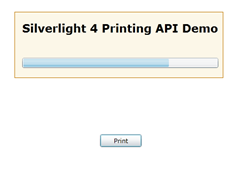
If you run your application now, it will look similar to this:
Begin with Code
This is all about the design part of our sample application. If you run your application now & click the button, it will not do anything for you. You may ask “Why?” and answer is we didn’t write any code for the printing. So, let’s jump to that section. Let us write the code for printing this page from the Silverlight application when we press the button. As we already registered the Click_Event to the button, you will find the event implementation inside the code behind file “MainPage.xaml.cs”. Write the following code inside that to create the PrintDocument and ask the browser to print your application:
PrintDocument document = new PrintDocument();
document.PrintPage += (s, args) =>
{
args.PageVisual = this.LayoutRoot;
};
document.Print("Silverlight Print Application Demo");
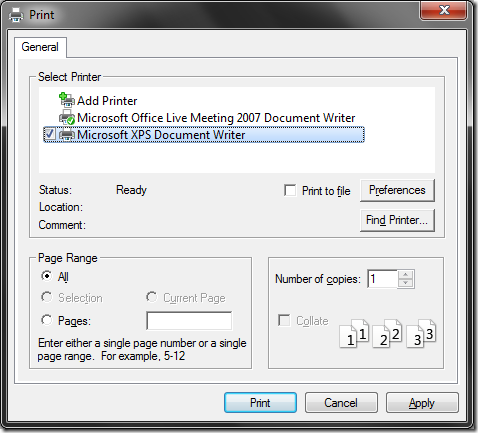
Now, run your application & once it opens inside the browser, click on the “Print” button. If you have already installed a printer to your PC, you will notice that the Printer option page opens up in your desktop. Select the desired printer of your choice & click “Print”. This will print your entire application.
What Next?
So what next? Can we print a small portion of the application? The answer is “Yes, why not?” Let's do a small trick to print a small portion. Ready to go? Hmmm… Open your XAML file “MainPage.xaml”. You will see that there is a Canvas inside the Grid which contains the border, textblock and the progressbar. The button is set outside the Canvas named “cnvContainer”. Let us print only the canvas part of the application. Go to your “MainPage.xaml.cs” file and modify the click event implementation. The latest code will look like this:
PrintDocument document = new PrintDocument();
document.PrintPage += (s, args) =>
{
args.PageVisual = this.cnvContainer;
};
document.Print("Silverlight Print Application Demo");
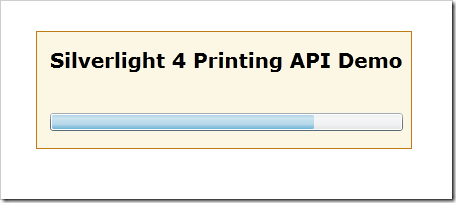
If you look into the implementation, you will see that I have modified the PrintPage implementation only. Earlier the PageVisual was set to grid “LayoutRoot” and now it has been changed to canvas “cnvContainer”. Run your application & click on the Print button. The same print option will popup. Select your printer and click print again. This will print only the portion we had selected in the PageVisual. If you recall the previous printed page, there was a button inside the page but now it is not there. Why? Because our cnvContainer which we selected for the printing doesn’t contain the “Print” button.
End Note
I think, this will give you an idea of the printing functionality of Silverlight 4 and now you can proceed to include the same inside your application. You can customize the print view as per your need. This will be beneficial to print out the “Admit Card”, “User entered text”, etc. from your Silverlight application.
History
- 24th April, 2010: Initial post



 General
  News
News  Suggestion
  Question
  Bug
Bug  Answer
  Joke
Joke  Praise
  Rant
Rant  Admin
Admin 


 Submit an article or tip


